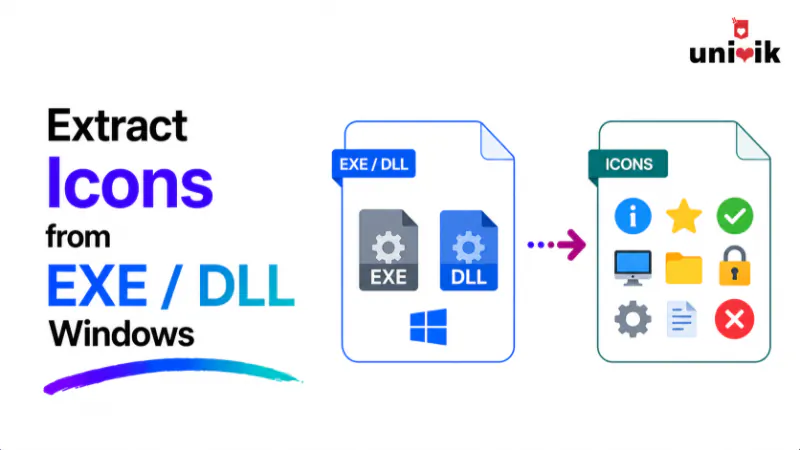
Windows has no built-in icon extractor, so you need a free tool. The fastest method is to open the EXE or DLL in 7-Zip and extract the .rsrc\ICON folder. For more control over sizes, use Resource Hacker. For pulling icons from many files at once, use NirSoft IconsExtract. If you are extracting a Windows 11 or 10 system icon and the tool shows nothing, the icons were moved to a matching .mun file in C:\Windows\SystemResources\, so open shell32.dll.mun there instead of shell32.dll in System32. Extracted icons come out as ICO; convert them to PNG or other formats afterward if you need them for design work.
Want all of that in one tool? Univik Icon Extractor and ICO Converter opens the EXE or DLL, shows every icon size and saves PNG or ICO in one run. The free demo shows everything and exports a limited number of icons.
Where Icons Are Stored in EXE and DLL Files
Icons are not separate files sitting inside an application folder. They are embedded as resources inside the EXE or DLL itself, in a dedicated resource section the Windows loader reads. A single file can hold dozens of icons at multiple sizes, from 16×16 up to 256×256, grouped together so Windows can pick the right size for each context.
That is why searching your drive for .ico files finds almost nothing. The icon you see on a program shortcut is pulled live from inside the program’s EXE. To get a usable icon file out, you have to read the resource section and save the icon to disk, which is what every method below does.
This matters for a practical reason: because a file holds several icon sizes in one group, the tool you choose determines whether you get a single size or the full icon group with every resolution intact. For anything you plan to reuse, you want the complete group.
32 x 32
48 x 48
256 x 256
Why Windows 11 System Icons Look Missing (.mun Files)
This is the issue that sends most people to a search engine, and most guides skip it.
If you open C:\Windows\System32\shell32.dll in Resource Hacker on Windows 11 or a recent Windows 10 build and find no icons, the file is not broken and your tool is not failing. Starting with Windows 10 version 1903, Microsoft moved the icon resources out of the System32 DLLs and into separate compressed files with a .mun extension, stored in C:\Windows\SystemResources\.
So the icons that used to live in shell32.dll now live in C:\Windows\SystemResources\shell32.dll.mun. The DLL in System32 still exists, but its icon section is effectively a pointer. The actual image data is in the .mun file.
Where people lookand find nothing
shell32.dll
Where iconsactually live
shell32.dll.mun
The fix for missing system icons
When a Windows system DLL shows no icons, open the matching .mun file instead. The common ones are C:\Windows\SystemResources\shell32.dll.mun, imageres.dll.mun and ddores.dll.mun. Despite the unusual extension, these files open in the same tools (7-Zip, Resource Hacker, NirSoft) exactly like a normal DLL. This only affects Windows system files. Third-party application EXEs and DLLs still hold their icons internally, so you open those directly.
This change is also why an older tutorial or an outdated tool can leave you stuck. A guide written before 2019 tells you to open shell32.dll and stops there. On a modern system that returns nothing, and without knowing about the .mun move, it looks like the method simply does not work.

“The number one support question we get on icon extraction is not which tool to use, it is why shell32.dll shows up empty. People follow a tutorial, open the DLL in System32 and see nothing. The icons moved to the .mun files in SystemResources back in Windows 10 1903 and never moved back. Once you know to open shell32.dll.mun instead, every tool works fine. It is the single most common reason a working method looks broken.”
Nick Rogers
|Founder, Univik, building Windows file tools since 2013
Method 1: Extract Icons With 7-Zip (Fastest, Free)
If you just want the icons out quickly and you already have 7-Zip, this is the fastest route. 7-Zip can open an EXE or DLL as an archive and expose its resource section directly.
Right-click the EXE or DLL. In the context menu, choose 7-Zip then Open archive. On Windows 11, you may need to click Show more options first to see the 7-Zip submenu.
Open the .rsrc folder, then the ICON folder. This is the resource section. The ICON folder holds the individual icon images. There is also a GROUP_ICON folder that holds the groupings (note the name order). Some extracted files come out without a file extension, in which case add .ico to the name. The largest file is usually the highest-resolution icon.
Select the icons and extract. Drag them out or use Extract. Each file comes out as an ICO. For a Windows system file, remember to open the .mun version (for example shell32.dll.mun) rather than the System32 DLL.
The trade-off: 7-Zip gives you the raw icon resources but no preview and no size selection. You get everything in the file and sort it out afterward. For a quick grab from a known file, that is fine. For browsing and picking a specific icon, Resource Hacker is more comfortable.
Method 2: Resource Hacker (Most Control)
Resource Hacker is the long-standing free tool for viewing and saving Windows resources. It shows a preview of every icon, lets you save a single size or the full icon group and is still actively maintained. Download it only from the official site at angusj.com to avoid bundled junk from mirror sites.
Open the file. Launch Resource Hacker, go to File then Open and select the EXE or DLL. For a system icon, open the .mun file from C:\Windows\SystemResources\.
Expand the Icon Group node. In the left pane, open Icon Group to browse the icons. The right pane previews each one so you can find the icon you want by sight.
Save the icon. Right-click the icon and choose Save. Saving from the Icon Group node gives you an ICO file containing every size in the group. Saving from an individual Icon node under it gives you just that one size.
Resource Hacker is 32-bit and may block on some 64-bit system files
If Resource Hacker fails to open a protected system DLL directly, copy the file to another folder first (for example copy shell32.dll.mun to your Desktop) and open the copy. This sidesteps the file protection and works reliably. Never edit or save over the original system files, since a damaged shell32 can stop Windows from loading.
Method 3: NirSoft IconsExtract (Bulk Extraction)
If you need to pull icons from many files at once, or scan a whole folder, NirSoft’s IconsExtract is built for it. It is a small portable tool with no installation required, and it scans EXE, DLL, OCX and CPL files for icons and cursors. NirSoft also offers ResourcesExtract, which does the same job from the command line for scripting.
Download IconsExtract from nirsoft.net and run the executable. There is nothing to install. Download only from the official NirSoft site, since the tool is frequently rehosted with unwanted extras elsewhere.
Point it at a file or folder. Set the scan to a specific file, or to a folder to pull icons from everything in it at once. Run the scan to list every icon found.
Select and save as ICO. Pick the icons you want, or select all, and save them to a folder. This is the method to use when you are harvesting icons in bulk rather than grabbing one.
Method 4: PowerShell (No Install)
If you cannot install software, PowerShell can extract an icon using the built-in .NET System.Drawing library. Be aware of the limitation up front: the simple ExtractAssociatedIcon method returns only a single 32×32 icon, not the full-resolution icon and not every icon embedded in the file. It wraps an older shell API that only knows the 32×32 size. For one quick icon it is convenient. For pulling all icons from a DLL, use one of the tools above.
$path = “C:\Windows\System32\notepad.exe”
$icon = [System.Drawing.Icon]::ExtractAssociatedIcon($path)
$icon.ToBitmap().Save(“C:\Temp\notepad.png”)
This loads the drawing library, pulls the file’s 32×32 icon, converts it to a bitmap and saves it as a PNG. Change the source path and the output path to suit. The ToBitmap step preserves the transparency, and saving as PNG keeps the alpha channel, which a flat BMP would lose.
Which Method Should You Use?
| Your goal | Best method | Why |
|---|---|---|
| Grab icons fast from one file | 7-Zip | No preview but instant, and most people already have it |
| Pick a specific icon and size | Resource Hacker | Previews every icon, saves full groups or single sizes |
| Extract from many files at once | NirSoft IconsExtract | Scans folders, portable, built for bulk |
| No software allowed | PowerShell | Built in, but only gets one 32×32 icon |
| A Windows 11 system icon | Any tool, on the .mun file | Open shell32.dll.mun, not shell32.dll |
Useful Windows System Files Full of Icons
If you are hunting for a specific Windows icon, these are the files worth opening. On Windows 11 and recent Windows 10, open the .mun version from C:\Windows\SystemResources\ for the ones in System32.
shell32.dll holds one of the largest icon sets: folders, drives, network, devices and common system actions. Open shell32.dll.mun on modern Windows.
imageres.dll holds most of the modern Windows interface icons, including many used in File Explorer. Open imageres.dll.mun on modern Windows.
ddores.dll holds hardware and device icons: speakers, screens, cameras, keyboards, printers and similar.
pifmgr.dll holds the old-style icons from the Windows 95 and 98 era, still present for nostalgia and legacy use.
explorer.exe holds a small set of icons used by File Explorer itself.
Converting Extracted Icons to PNG or ICO
Every method above gives you an ICO file, because that is the native format icons are stored in. ICO is the right format if you are setting a folder icon, a shortcut icon or an application icon, since those all expect an ICO with multiple sizes inside.
For design work, web use or editing, you usually want PNG instead, because PNG is supported everywhere and keeps the transparency. Going the other direction, if you have a PNG or other image and need a proper ICO with all the standard sizes (16, 32, 48 and 256 pixels) packed into one file, you need a real converter rather than a rename, because an ICO is a multi-image container, not just a renamed PNG.
The Univik ICO Converter handles both directions. It converts extracted ICO files to PNG and other image formats, and it builds proper multi-size ICO files from PNG or other images with all the standard icon resolutions in one file. It runs on Windows and processes files in bulk, which is useful when you have extracted a batch of icons and need them all in a consistent format.
.ICO file
→
ICO Converter
→
design and web
16 / 32 / 48 / 256
Need your extracted icons as PNG, or a proper ICO from an image? Convert ICO to PNG, or build a multi-size ICO from any image, with the standard 16, 32, 48 and 256 pixel sizes packed into one file.
Frequently Asked Questions
Does Windows have a built-in icon extractor?
No. Windows has no built-in tool to extract an icon from an EXE or DLL to a file. You can browse icons when changing a shortcut or folder icon, but there is no option to save one out. You need a free third-party tool such as 7-Zip, Resource Hacker or NirSoft IconsExtract.
Why does shell32.dll show no icons in Resource Hacker on Windows 11?
Because the icons were moved. Since Windows 10 version 1903, system icon resources were relocated from the System32 DLLs into compressed .mun files in C:\Windows\SystemResources\. Open C:\Windows\SystemResources\shell32.dll.mun instead of C:\Windows\System32\shell32.dll and the icons appear normally.
How do I extract all icons from a DLL at once?
Use NirSoft IconsExtract or open the file in 7-Zip and extract the entire .rsrc\ICON folder. Both pull every embedded icon in one go. The PowerShell ExtractAssociatedIcon method only returns one 32×32 icon, so it is not suitable for extracting all of them or for high-resolution output.
What format are extracted icons saved in?
ICO, which is the native format icons are stored in inside EXE and DLL files. An ICO file can contain several sizes in one file. If you need PNG for design or web use, convert the ICO afterward. ICO is the right format for setting folder, shortcut and application icons.
Is it safe to open system DLL files to extract icons?
Yes, as long as you only open and read them. Opening shell32.dll.mun or imageres.dll.mun in a viewer to copy icons out does not change anything. The risk only comes from editing or saving over a system file, which can stop Windows from loading. Copy the file elsewhere first if a tool needs write access.
Can I extract an icon and convert it to PNG in one step?
Most extraction tools save as ICO only. To get PNG, extract the ICO first and then convert it. The PowerShell method can save directly as PNG, but only a single 32×32 icon. For full control over format and size, extract with a dedicated tool and convert the ICO with an image converter.
The Short Version
Extracting icons from an EXE or DLL on Windows 11 or 10 comes down to picking the right free tool. Use 7-Zip for speed, Resource Hacker for control and NirSoft IconsExtract for bulk. PowerShell works when you cannot install anything.
The one thing that trips up almost everyone is the .mun change. If a Windows system file shows no icons, you are looking in the wrong place. Open the matching .mun file in C:\Windows\SystemResources\ and every tool works as expected. Once you have your ICO files, convert them to PNG for design work or build proper multi-size ICO files from images when you need to go the other way.