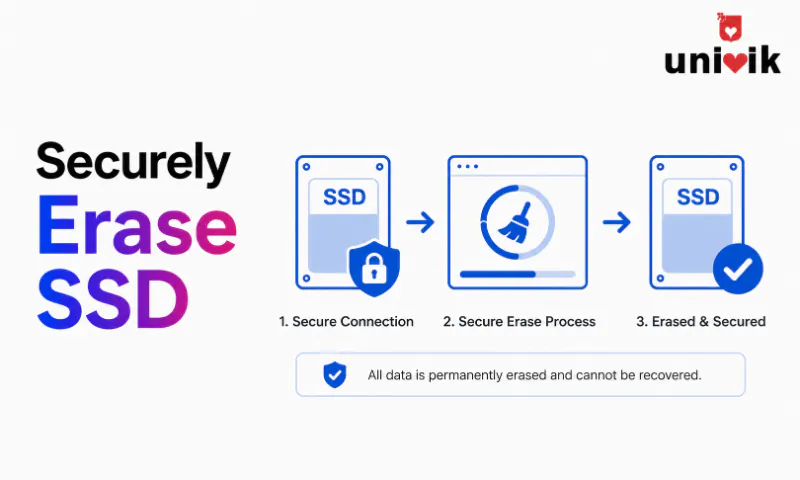
Deleting files or formatting an SSD does not erase the data it only removes the pointers to the data. The actual data remains recoverable until overwritten by new data. For an SSD being sold, donated or disposed of, use one of four methods: Windows Reset This PC with the “Remove everything fully clean the drive” option (adequate for most users), ATA Secure Erase (SATA SSDs) or NVMe Format (NVMe SSDs) via BIOS or manufacturer tools (most reliable), manufacturer-provided software (Samsung Magician, Crucial Storage Executive, WD Dashboard) or certified erasure software like Univik File Eraser which provides a deletion certificate for compliance requirements.
Why Deleting Files Does Not Erase SSD Data
When you delete a file and empty the Recycle Bin, Windows removes the file from the directory index the table that tells the operating system where files are stored. The actual data on the SSD is untouched. Any file recovery tool can find and restore it in minutes. This is why deleted files can still be recovered after an ordinary delete.
Formatting the drive does the same thing at a larger scale. A quick format erases the file system index, not the data. A full format on a traditional hard drive takes much longer because it overwrites every sector but on an SSD, even a full format does not guarantee data erasure because of how SSDs manage storage internally.
SSDs use NAND flash memory and a firmware layer called the Flash Translation Layer (FTL) to manage writes. The FTL distributes writes across cells to extend drive life (wear levelling) and never overwrites a cell directly it marks the old cell as available and writes to a different cell. The result: deleted data often remains in cells that the FTL has marked as available but not yet overwritten. Recovery tools can read these cells.
This is why SSD erasure requires different methods than HDD erasure. The standard multi-pass overwrite approach used for hard drives is not reliably effective on SSDs because the FTL may redirect writes rather than targeting the cells containing the old data.

“Every wipe method we ship is verified by a recovery attempt afterwards, on drives from several makers with capacities between 250 GB and 24 TB. On an SSD that verification step is the one that matters, because the drive controller, not the software, decides where data physically lives.”
Nick Rogers
|Founder, Univik, building file conversion tools since 2013
Method 1: Windows Reset This PC (Easiest)
Windows 10 and 11 include a “Reset this PC” feature that, when configured correctly, sends the ATA Secure Erase command to the SSD alongside reinstalling Windows. It is the fastest method for most users.
Open Windows Settings. Go to Settings then System then Recovery. Click Reset PC (Windows 11) or Get Started under Reset this PC (Windows 10).
Select “Remove everything.” Not “Keep my files.” Remove everything deletes all personal data, installed applications and settings.
Choose “Fully clean the drive” when asked how to remove files. This is the critical step. “Just remove my files” is a fast but recoverable deletion. “Fully clean the drive” instructs Windows to use a more thorough erasure method. On SSDs, this sends the ATA Secure Erase command. On HDDs, it performs a full overwrite.
Proceed through the reset. Windows reinstalls itself and applies the erasure. The process takes 30 minutes to a few hours depending on drive size and speed. When complete, the device is ready to pass to a new owner with a clean Windows installation.
When Windows Reset is sufficient and when it is not
Windows Reset with “Fully clean the drive” is adequate for personal devices being resold or donated. It is not adequate for regulated industries (healthcare, finance, legal, government) where NIST 800-88 or DoD 5220.22-M compliance is required. For those use cases, use Method 2 (ATA Secure Erase or NVMe Format) or Method 4 (certified erasure software with a compliance certificate).
Method 2: ATA Secure Erase or NVMe Format (Most Reliable)
ATA Secure Erase (for SATA SSDs) and NVMe Format (for NVMe SSDs) are commands built into the drive’s firmware. When executed, the drive controller itself performs the erasure every NAND cell is reset to factory state. This bypasses the operating system and the FTL, making it the most reliable software erasure method for SSDs.
ATA Secure Erase (SATA SSDs)
- For SATA SSDs (2.5″ form factor, most older laptops)
- Sends the SECURITY ERASE UNIT ATA command
- Run via BIOS/UEFI Secure Erase tool or manufacturer software
- Takes 1 to 30 minutes depending on drive capacity
- Drive reports completion via ATA status
NVMe Format (NVMe SSDs)
- For NVMe SSDs (M.2 form factor, most modern laptops and desktops)
- Uses NVMe Format command with Secure Erase or Crypto Erase option
- Run via manufacturer software or Linux nvme-cli command
- Crypto Erase destroys the encryption key near-instant
- Requires NVMe drive to support encryption (most modern NVMe drives do)
To check which type of SSD you have: open Device Manager in Windows, expand Disk drives and note the drive model name. SATA SSDs typically appear as “[Brand] SSD” without “NVMe.” NVMe SSDs show “NVMe” in the name.
Method 3: Manufacturer Software
Every major SSD manufacturer provides free Windows software that includes a secure erase function. These tools communicate directly with the drive firmware and execute the appropriate erase command for that specific drive model.
| Manufacturer | Tool | Notes |
|---|---|---|
| Samsung | Samsung Magician | Secure Erase under Drive Management. Supports SATA and NVMe Samsung SSDs. For the boot drive, creates a bootable USB. |
| Crucial (Micron) | Crucial Storage Executive | Sanitize Drive option under Security. Works on Crucial SATA and NVMe drives. |
| Western Digital / SanDisk | WD Dashboard | Secure Erase under Tools tab. Covers WD and SanDisk branded SSDs. |
| Seagate | SeaTools | Erase option for Seagate and Barracuda SSDs. Also covers HDDs. |
| Kingston | Kingston SSD Manager | Secure Erase under Utilities. Covers Kingston SSDs. |
| Intel (now Solidigm) | Solidigm Storage Tool | Covers Intel and Solidigm branded SSDs. |
Manufacturer tools only work with their own drives
Samsung Magician erases Samsung SSDs. Crucial Storage Executive erases Crucial SSDs. These tools will not recognise drives from other manufacturers. If the SSD is a third-party brand or OEM drive (common in pre-built desktops and branded laptops), use Method 2 (BIOS Secure Erase) or Method 4 (third-party erasure software) instead.
Method 4: Third-Party Erasure Software
Certified data erasure software works across all SSD brands and produces a deletion certificate a documented record of the erasure including the drive serial number, erasure method used, date and time. For a comparison of the leading options, see our guide to the best data erasure software. This documentation is the compliance evidence required by GDPR, HIPAA, PCI-DSS and other data protection frameworks.
Univik File Eraser supports SSD-aware secure deletion using the correct erasure commands for the drive type and produces a verifiable certificate for each erasure operation. This is the appropriate method for business devices handling regulated data when the asset disposal process needs to be auditable.
For full disk erasure before reselling a device: Run the erasure tool against the entire drive. The tool detects the drive type (SATA or NVMe) and applies the appropriate secure erase command followed by verification.
For selective file erasure on a drive you are keeping: Erasure software can securely delete specific files or folders without wiping the entire drive. This is the right approach when you need to permanently destroy specific sensitive files rather than the whole disk.
For compliance documentation: The erasure certificate generated by certified software records the drive serial number, the erasure standard applied (NIST 800-88, DoD 5220.22-M etc.) and a timestamp. This certificate is the audit evidence that the data was properly destroyed.
Which Method to Use
| Situation | Recommended Method |
|---|---|
| Personal device being sold or donated | Windows Reset This PC Remove everything Fully clean the drive |
| Personal device with the SSD remaining in the machine | Windows Reset or manufacturer software |
| Standalone SSD being removed and resold separately | Manufacturer software or BIOS Secure Erase |
| Business device under IT asset disposal policy | Certified erasure software with certificate (Univik File Eraser) |
| Healthcare, financial or legal sector device | Certified erasure software with NIST 800-88 compliance certificate |
| Device where software erasure is not possible (locked/broken) | Physical destruction by an accredited ITAD (IT Asset Disposition) provider |
Compliance and Certification
For businesses handling personal data under GDPR, HIPAA, PCI-DSS or other regulations, “I deleted the files” is not sufficient evidence of data destruction when disposing of storage media.
NIST Special Publication 800-88 (Guidelines for Media Sanitization) is the authoritative technical standard for storage media disposal. It defines three levels:
Clear: Logical overwriting that protects against keyboard attackers. Windows Reset with “Fully clean the drive” meets this level for most SSDs.
Purge: Protects against laboratory attacks. ATA Secure Erase and NVMe Format with Crypto Erase meet this level when the drive’s encryption is hardware-based.
Destroy: Physical destruction shredding, disintegration or degaussing (though degaussing does not work on SSDs). Required for the highest-sensitivity classified data.
For most business data protection compliance, NIST 800-88 Purge level achieved through ATA Secure Erase or Crypto Erase and documented with a certificate satisfies the requirement. Physical destruction is reserved for classified or extremely sensitive data. For related compliance guidance see our HIPAA data destruction guide and GDPR data erasure compliance guide.
Frequently Asked Questions
Does formatting an SSD permanently erase data?
A quick format does not it only erases the file system index, leaving the actual data recoverable with standard recovery tools. A full format on older Windows versions overwrites data but on SSDs may not target cells that the FTL has marked as available. For reliable data erasure, use ATA Secure Erase, NVMe Format or manufacturer-specific secure erase tools rather than the Windows format function.
How long does it take to securely erase an SSD?
ATA Secure Erase on a SATA SSD typically completes in 1 to 30 minutes for drives up to 2 TB. NVMe Format with Crypto Erase is near-instant because it destroys the encryption key rather than overwriting the data. Windows Reset with “Fully clean the drive” takes 30 minutes to a few hours depending on drive capacity.
Can I securely erase an SSD without losing the operating system?
No secure erasure wipes everything on the drive including the operating system. For a device you are keeping, selective secure file deletion using Univik File Eraser destroys specific files or folders without affecting the rest of the drive. For a device being sold, Windows Reset reinstalls Windows after erasing so the buyer receives a working machine.
Is there a difference between Secure Erase and Sanitize for SSDs?
Yes. Secure Erase (SECURITY ERASE UNIT) is the older ATA command that resets NAND cells. Sanitize is a newer, stricter family of commands in both ATA and NVMe standards that provides more comprehensive erasure across all blocks including reserved areas. If your drive and manufacturer tool support Sanitize, use it over Secure Erase for the highest assurance. NIST 800-88 recommends Sanitize where available.
Do I need a deletion certificate when selling an old laptop?
For personal devices sold privately, a certificate is not legally required. For business devices containing customer data, employee records or any regulated information, a documented deletion certificate is the evidence that GDPR Article 5, HIPAA or other applicable regulations were met. Certified erasure software generates this certificate automatically as part of the erasure process.
The Short Version
Deleting files before selling a device is not data erasure. The data is still there. Windows Reset with the right settings is sufficient for personal devices. ATA Secure Erase or NVMe Format is the most reliable approach for standalone drives. Manufacturer software is the quickest option when the drive brand matches the tool. Certified erasure software with a certificate is what compliance requires.
The NAND flash architecture of SSDs is the key thing to understand. The FTL redirects writes rather than overwriting old data in place which is why standard deletion and overwrite methods that work on HDDs are not reliably effective on SSDs. Use commands designed for SSDs: Secure Erase or NVMe Format.
Is the device being sold privately, returned to an employer or disposed of under a regulated IT asset disposal policy? The answer determines whether a personal reset or a certified erasure with documentation is the right approach.