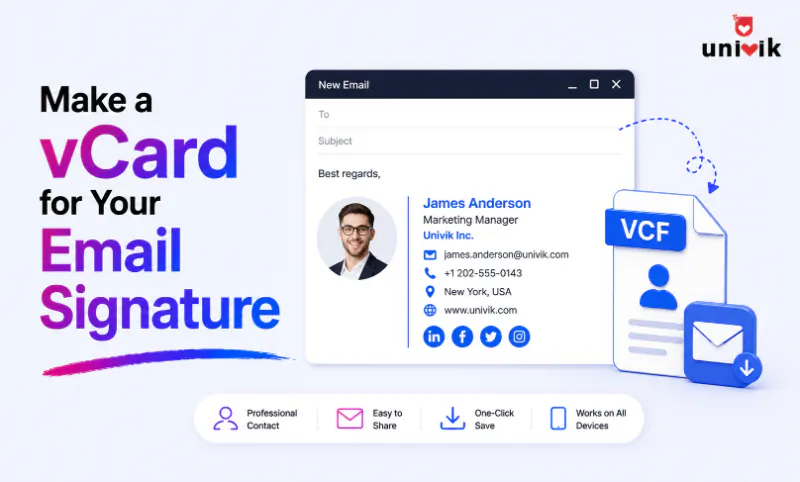
To add a vCard to your email signature, first save your contact details as a .vcf file, then attach or link it in your signature settings. In Outlook you can insert it as a business card directly. In Gmail and Apple Mail you host the .vcf online and add a download link, since they have no built-in vCard option. The quickest way to build a clean .vcf is a tool like the Univik VCF Generator, which writes the file from a form and can add a QR code for one-tap saving on phones.
Why Put a vCard in Your Email Signature
A signature tells people who you are. A vCard lets them keep it. When you add a vCard to your email signature, anyone who gets your message can save your full contact details in one tap, no copying numbers off the screen and no typos. A vCard for email signature use is the small file that makes that possible. The card lands in their phone or address book exactly as you wrote it.
The reason it works everywhere is the format. A vCard is a small .vcf text file, and that format is read by Outlook, Gmail, Apple Mail, Android, iPhone and almost every contacts app. So a single file covers every recipient, whatever they use. A vCard email signature is still one of the most reliable ways to share contact details in 2026, precisely because it is not tied to one app or platform.
There is one thing to get straight first. The vCard and the visible signature text are two separate things. Your signature is the formatted block at the bottom of the email. The vCard is the file that rides along with it, either attached, linked or shown as a QR code. You build the file once, then choose how it travels.
Step 1: Build the vCard File
Every method below needs the same starting point, a clean .vcf file with your details in it. This is the part people get wrong, because a vCard with a broken field or the wrong version can fail to import on the very phone you were trying to reach.
You have a few ways to make it. You can export a contact from Outlook or your phone, type the vCard by hand in a text editor or build it from a form in a desktop tool. For a signature card, the form route is the cleanest, because you control exactly which fields go in and the file comes out valid. The Univik VCF Generator does this on Windows. You fill in your name, title, company, phone, email and website, pick vCard 3.0, and it writes the file for you, with a QR code on screen if you want one.
Whichever way you build it, pick vCard 3.0. It imports cleanly across iPhone, Android, Outlook and Gmail, which is exactly what a signature card needs since you cannot know what your recipient uses. If you want the background on the versions, see our guide to vCard 2.1, 3.0 and 4.0.
Build your signature vCard from a form, no coding. The Univik VCF Generator writes a clean .vcf in vCard 2.1, 3.0 or 4.0, embeds your photo and shows a QR code you can drop into a signature. The free demo creates up to 5 contacts, enough to make your own card and try it.
Three Ways to Add the vCard to Your Signature
Once the file exists, how you attach it depends on your email app. There are three routes, and the one you pick comes down to what your client supports and how you want recipients to save the card.
Outlook: Insert It as a Business Card
Classic Outlook for Windows is the one client that handles this natively. Open Signatures from the Message tab, edit your signature and use Insert Business Card to add the contact. Outlook drops a small card image into the signature and attaches the matching .vcf to the message, so recipients can right-click and save it straight to their contacts.
One caveat. The new Outlook and Outlook on the web do not have the business card button. If you are on those, skip to the hosted link method below, which works there and everywhere else.
Gmail, Apple Mail and Others: Host and Link
Gmail and most web clients have no built-in vCard option, so you link to the file instead of inserting it. Apple Mail is the friendlier exception, you can drag the .vcf straight into its signature editor. For everything else, upload the file to a reliable place such as your website or a cloud drive, then get a direct link that downloads it rather than previewing it. In your signature, add a short line like Save my contact and hyperlink it to that URL.
This route has a quiet advantage. Because the card lives at a fixed link, you can update the file later without touching every past email, and the same link works on desktop and mobile. Keep the file on a stable host though, since a dead link means a dead card.
A QR Code People Can Scan
A QR code turns the vCard into an image anyone can scan. The recipient points a phone camera at it and the contact form pops up ready to save, with nothing to download. It is the friendliest option on mobile and the one that needs no file hosting at all if the card data is encoded straight into the code.
You can drop the QR image into the signature alongside or instead of a link. The Univik VCF Generator shows a QR code for the card as you build it, and our full walkthrough on how to create a QR code from a vCard covers the encoding choices in detail.
What to Put on a Signature vCard
A signature card is not the place for every field. Keep it to what someone needs to reach you, and the file stays small and the import stays clean. These six fields cover almost every case.
A photo is fine and looks good in the saved contact, just let the tool resize it so the file stays small. What you should skip is the long tail of fields, second addresses, a dozen phone numbers, notes. They bloat the file and clutter the recipient’s contact card. Lean is more professional and imports faster.
Rolling Signature vCards Out Across a Team
One card is easy. A whole company is where this becomes real work. If you want every employee to carry a signature vCard, you need one clean .vcf per person, all built to the same standard, so they look consistent and import without errors.
Typing them by hand does not scale. A desktop tool that takes a list and saves one file per contact handles a team in a single pass. Build each person once, export the batch as one file per contact, then each employee links their own card in their signature. Our guide on how to create a VCF file for multiple contacts covers that bulk workflow step by step.
This is also where hosting pays off. Put the team’s cards on your own server, give each person their link, and you can refresh a job title or number later by swapping the file, with no need to reissue anything.
Frequently Asked Questions
How do I add a vCard to my email signature?
First save your details as a .vcf file. Then, in classic Outlook, open Signatures and use Insert Business Card to add it. In Gmail, Apple Mail or Outlook on the web, host the .vcf online and add a hyperlinked line like Save my contact to your signature, since those clients have no built-in vCard button. You can also include a QR code that holds the card.
Can I attach a vCard to my email signature in Gmail?
Not as a native attachment. Gmail has no built-in vCard option in signatures, so you host the .vcf file on a website or cloud drive and add a download link in the signature instead. A QR code works too. Both let recipients save your contact in one tap without Gmail needing to support vCards directly.
Which vCard version is best for an email signature?
vCard 3.0. It imports cleanly across iPhone, Android, Outlook, Gmail and Apple Mail, which matters for a signature because you cannot know what app the recipient uses. Version 2.1 is only for very old devices, and 4.0 is newer but a few clients still skip it. When in doubt, 3.0 is the safe choice.
Should I attach the vCard or link to it in my signature?
Attaching adds the file to every message, which is simplest in Outlook but increases each email’s size. Linking keeps emails light and lets you update the card later without resending, but needs the file hosted at a stable URL. For most people a hosted link or a QR code is the cleaner long-term choice, with Outlook’s native attach being fine for internal mail.
Will recipients be able to save my contact in one click?
Yes. A .vcf attachment opens a ready-made contact form when double-clicked, so the recipient just saves it. A QR code does the same on a phone, the camera reads it and offers to add the contact. This one-tap saving is the whole point of putting a vCard in a signature rather than plain text.
How do I set up vCard signatures for my whole team?
Build one .vcf per employee in a desktop tool that supports bulk export, save them as one file per contact and host them so each person can link their own card. This keeps every card consistent and lets you update details later by swapping the file. It is the same bulk creation used for any large contact set, just aimed at signatures.
Why can’t I attach a vCard in the new Outlook?
The new Outlook for Windows and Outlook on the web dropped the business card feature that classic Outlook has, so there is no Insert Business Card button and no way to attach a contact as a .vcf. To attach one, switch to classic Outlook, or use the portable route that works everywhere, host the .vcf online and add a download link or a QR code to your signature.
The Short Version
A vCard in your email signature is a small touch that saves everyone the friction of saving your details by hand. The work splits cleanly in two. Build one good .vcf file, in vCard 3.0 with just the fields that matter, then add it to your signature the way your email app allows, a native business card in Outlook, a hosted download link in Gmail and Apple Mail, or a QR code that works anywhere.
Get the file right and the rest is quick. A tool that writes a clean vCard from a form, with a photo and a QR code ready to go, turns the fiddly part into a couple of minutes, whether you are making one card for yourself or one for everyone on the team.