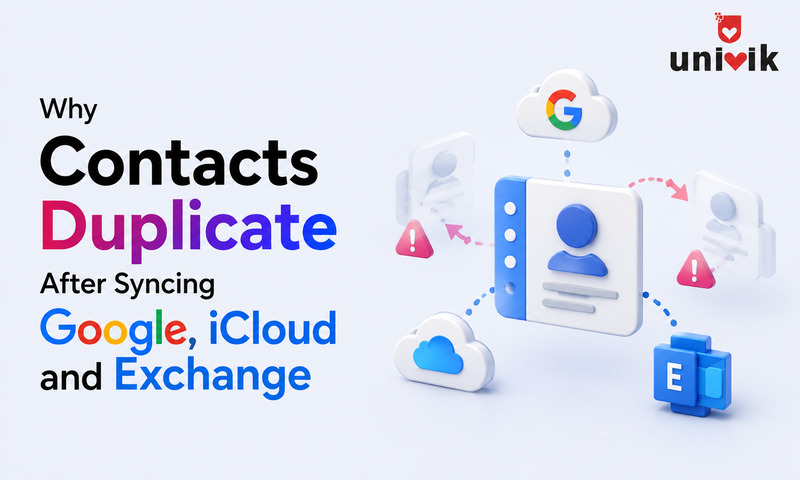
Contacts duplicate during sync because each platform assigns its own internal identifier to every contact. When two systems sync the same person, neither recognises the other’s copy as identical so both survive as separate entries. The most common triggers are multiple accounts on one device, phone migrations and manual VCF imports on top of already-synced data. Univik vCard Duplicate Remover scans your contacts, identifies duplicates across all sources and merges them cleanly before or after import.
The Problem With Sync and Contacts
You open your Contacts app and John Smith is listed three times. You have not added him three times. You have synced him three times from your Google account, your iCloud backup and an Exchange directory at work. Each system thinks its version is the authoritative one. None of them knows the other two exist.
This is the most common contacts problem people encounter and it almost never gets fixed at the root. Most people find the “Merge duplicates” button in their contacts app, merge what they can see and then watch the duplicates reappear the next time sync runs. That cycle repeats until the address book becomes truly unusable.
This guide explains exactly why this happens at a technical level, which specific platform behaviours trigger it and how to break the cycle permanently.
Why Sync Creates Duplicates By Design
Sync does not duplicate contacts because of a bug. It does it because of how contact identity works across different systems.
Every contacts platform Google, iCloud, Exchange, Android, iPhone maintains its own internal list of contacts. Each entry in that list has a unique identifier assigned by that platform. When Google syncs a contact to your iPhone, the iPhone creates a new entry with its own identifier. The contact data is the same. The identifiers are different.
When iCloud then also syncs that person (from a separate iCloud account on the same device), it creates another entry with yet another identifier. The underlying data might be nearly identical. The identifiers are completely different. No platform automatically recognises that three entries with different identifiers are the same human being.
The core issue in one sentence
Sync copies data between systems. It does not copy the identity of that data. So the same person ends up with multiple identities one per system that touched them.
5 Root Causes of Synced Duplicates
Multiple Accounts on One Device
iPhone or Android with both Google and iCloud enabled. The same contact exists in both systems and both appear in your Contacts app simultaneously.
Bidirectional Sync Loop
Platform A syncs to Platform B. Platform B syncs back to A. Each sync cycle can produce new entries if the platforms disagree on which copy is the original.
Phone Migration Stacking
Migration tools copy contacts from old device to new. But iCloud or Google already restored contacts to the new device. Both sets now coexist.
Manual Import on Top of Sync
You import a VCF backup “just to be safe” but the same contacts were already synced from the cloud. Every contact in the VCF now has a second copy.
App-Specific Entries
LinkedIn, WhatsApp and other apps can create their own contact entries alongside your regular contacts. The same person appears once from your address book and once from the app.
Multiple Accounts on One Device
This is the single most common cause. When your iPhone has both an iCloud account and a Gmail account with Contacts sync enabled, your phone displays all contacts from both accounts together in one list. Any person who exists in both accounts appears twice sometimes with slightly different data depending on which account was more recently updated.
The same applies on Android. A device with both a Google account and a corporate Exchange account will show your personal contacts and your work directory contacts side by side. If anyone from work is also in your personal contacts, they appear twice.
On iPhone, you can see which account each contact belongs to by opening the contact and scrolling to the bottom. On Android, the contact card usually shows the account in the top right corner.
Bidirectional Sync Without Merge Detection
When two platforms sync with each other in both directions, a subtle feedback loop can form. Suppose you have 500 contacts in Google. You enable iCloud Contacts on your phone. iCloud detects the contacts on your device and uploads them. Google then syncs those contacts back to your phone. Your phone now has 500 contacts from Google plus 500 contacts from iCloud 1,000 total, all duplicates of each other.
This is especially common when someone enables a new account on a device that already has contacts on it. The new account sees a populated device and assumes all those contacts need to be backed up. It uploads them. The original source then syncs them back. The result is a doubling of every entry.
Phone Migration Stacking on Existing Contacts
Phone migration is one of the most reliable ways to create a large batch of duplicates at once. Migration tools like Google’s Move to iOS and Samsung Smart Switch copy contact data from an old device to a new one. But the new device often already has contacts restored from iCloud or Google before the migration even starts. The migration then deposits a second copy of every contact on top of what was already there.
The same problem occurs during factory reset and restore. When you restore an iPhone from an iCloud backup, iCloud restores all contacts. Then iCloud sync downloads all contacts again. Depending on timing, both operations can complete and leave duplicates behind.
Manual Import on Top of Synced Data
Importing a VCF backup when sync is active is one of the most common ways to double an entire contact list instantly. The logic seems sound: export your contacts as a VCF from your old phone, import that VCF to Google Contacts as a safety backup. But if your phone was already syncing those contacts to Google, the import creates a second copy of every contact in that file.
Google does detect some duplicates if the contact has the same internal identifier (UID). But contacts from a phone backup or from another platform usually have different UIDs from what Google already has for the same person. Google creates new entries rather than merging.
App-Specific Contact Entries
Some apps create their own contact records that live alongside your regular contacts. LinkedIn can save a contact’s professional information as a separate entry. WhatsApp creates internal contact records in some configurations. Corporate directory apps sometimes write entries directly to your device contacts. These app-created entries are separate from your manually-added contacts, so the same person appears twice once from the app and once from your address book.
How Each Platform Behaves Differently
| Platform | Duplicate Behaviour | Built-in Merge Tool |
|---|---|---|
| Google Contacts | Creates new entries when UIDs differ. Detects matches by name and email in “Merge suggestions” but misses partial matches. | Fix and Manage > Merge duplicates. Good for obvious matches. Misses contacts with slightly different names or missing email. |
| iCloud / iPhone | Aggressively uploads all device contacts on first sync. Does not deduplicate against existing iCloud contacts on upload. | iOS 16+ shows a “Duplicates Found” banner. Merges by name similarity. Inconsistent with nickname variants. |
| Exchange / Outlook | Maintains a separate Global Address List (GAL) from personal contacts. Anyone in both the GAL and personal contacts appears twice. | No automatic merge. Manual review required. Outlook desktop has limited duplicate flagging. |
| Android (Google Contacts app) | Shows all contacts from all linked accounts in one view. Each account’s copy is a separate entry even if data is identical. | Fix and Manage > Merge duplicates. Same as Google Contacts web. |
| Samsung Contacts | Adds a separate “Samsung account” contacts layer on top of Google. Contacts synced to Samsung Cloud duplicate those in Google. | Settings > Manage contacts > Merge contacts. Merges within Samsung account only. |
The Situations That Trigger It Most
Switching from Android to iPhone. Google contacts already restored on the new iPhone before you enabled iCloud. The migration tool then deposits a second copy of each contact on top.
Adding a work email account to your personal phone. Exchange brings the company directory. Anyone in both your personal contacts and the company directory now appears twice.
Restoring from a backup after a factory reset. iCloud restores contacts from the backup. iCloud sync then downloads the same contacts again. Depending on timing both complete and you end up with duplicates.
Importing a VCF export while Google or iCloud sync is active. The import adds new entries. Sync does not merge them with existing copies it already has.
Enabling Google Contacts sync on a device that already has iCloud contacts. Both accounts now show their contacts in the same list. Anyone in both accounts is listed twice.
Using multiple devices with different accounts signed in. Contacts added on Device A sync to one account. Contacts added on Device B sync to another. Both accounts end up on all devices and every contact appears twice.
How to Remove Synced Duplicates
Built-in duplicate detection on Google, iPhone and Outlook only catches obvious matches same name, same email address. It misses contacts where one entry has a phone number and the other has an email, contacts where the name is slightly different (John vs. Johnny) and contacts from different accounts that have no overlapping fields to match on.
For a thorough cleanup across all sources, a dedicated tool is the reliable path.
Univik vCard Duplicate Remover
Export your contacts as a VCF file, load it into the tool and it identifies duplicates using four matching strategies: name similarity, phone number (last 10 digits), email address and internal UID. You review flagged pairs before anything is deleted, choose which copy to keep and export a clean deduplicated VCF. Works on contacts from any source Google, iCloud, Exchange, Samsung. 100% offline.
✓ Review before deleting
✓ Works across all platforms
✓ 100% offline for Windows
To export your contacts as a VCF before running the tool: on Android open Google Contacts and go to Export. On iPhone go to iCloud.com, open Contacts and click the gear icon then Export vCard. This gives you a single file with all contacts that you load into the duplicate remover.
Clean before the next sync, not after
Removing duplicates from your contacts app after a sync is reactive the duplicates come back the next time sync runs. The more reliable approach is to export to VCF, deduplicate the file, then re-import the clean file as the single source of truth and disable automatic sync on older accounts you no longer need active.
Preventing Duplicates From Forming Again
Choose one primary contacts account and disable contact sync on all others. On iPhone: Settings then your name then iCloud turn off Contacts for any non-primary account. On Android: Settings then Accounts disable Contacts sync for non-primary accounts. One source of truth means one copy of each person.
Before importing a VCF, check whether sync is active. If Google or iCloud is already syncing the contacts you are about to import, the import will create duplicates. Either disable sync temporarily during the import or skip the import entirely if the contacts are already in the cloud.
After a phone migration, verify the contact count before enabling sync. Open Contacts on the new device and count the entries. If the count matches your expected number, enable sync. If it is double, you already have duplicates from the migration and should deduplicate before enabling sync otherwise sync will propagate the duplicates to the cloud.
When adding a work account, check the display groups setting. On iPhone: Contacts app then Groups (top left) hide the Exchange or work account group from the All Contacts view. The contacts are still there but do not merge into your personal list visually or create duplicates during future syncs.
Run a deduplication check quarterly. Even with clean sync settings, duplicates accumulate gradually over time. Export your contacts to VCF, run them through Univik vCard Duplicate Remover and re-import the clean file. A quarterly clean takes under five minutes and prevents the problem from reaching hundreds of duplicates again.
Frequently Asked Questions
Why do my contacts keep duplicating every time I sync?
Because the platforms involved do not share a common contact identity system. Each time a contact moves between platforms Google to iCloud, phone to Exchange the receiving system creates a new entry rather than recognising it as a copy of something it already has. The fix is to consolidate to a single account as your primary source and disable contact sync on all secondary accounts.
Will merging duplicates in Google Contacts fix the problem permanently?
Only if you also address the root cause. Google’s built-in merge tool removes duplicates visible at that moment but does not prevent new ones forming on the next sync cycle. If your phone still has two accounts with contact sync enabled, duplicates will reappear. Merge the contacts and then disable sync on the non-primary account.
My duplicates are not exactly identical same name but different phone numbers. Can they still be merged?
Yes. This is actually the most useful merge scenario one copy has the mobile number, the other has the work email. Merging combines the data from both copies into one complete contact. Google Contacts does this automatically when you confirm a merge suggestion. The Univik vCard Duplicate Remover also handles partial matches by showing you exactly which fields each copy has before you confirm the merge.
How do I stop iCloud from creating duplicates when I turn it on for the first time?
Before enabling iCloud Contacts on a device that already has contacts, export a VCF backup of your current contacts first. Then enable iCloud. Wait for the initial sync to complete. Check the contact count if it doubled, iCloud uploaded your device contacts on top of what was already in your iCloud account. Re-export to VCF, deduplicate and reimport the clean file.
Does using Google as the only account on iPhone prevent duplicates?
Yes, with one exception. If you add any other account with Contacts sync enabled (Exchange, another Google account, iCloud) duplicates will reappear. Using a single account is the most reliable prevention. Disable Contacts sync on every account except your chosen primary one.
Can I remove duplicates from a VCF file before importing it?
Yes. Export your contacts as VCF, run the file through Univik vCard Duplicate Remover to get a clean deduplicated file, then import that clean file. This approach prevents the duplicates from ever reaching your address book rather than cleaning them up afterwards.
The Short Version
Last verified: April 2026. Sync behaviour tested across Google Contacts, iCloud (iOS 17), Exchange Online (Microsoft 365) and Samsung One UI 6. Duplicate formation patterns confirmed across Android 14 and iPhone iOS 17.
Contacts duplicate during sync because different platforms use different internal identifiers. They cannot recognise each other’s copies as the same person. The fix is not merging duplicates repeatedly it is choosing one primary account, disabling contact sync on all others and keeping that one account as the single source of truth.
Root causes in priority order: 1) multiple accounts with contact sync enabled on one device (most common). 2) Manual VCF import on top of already-synced contacts. 3) Phone migration landing on top of a cloud restore. 4) Bidirectional sync between two platforms with no shared identity. Fix: export contacts to VCF, deduplicate with Univik vCard Duplicate Remover, reimport the clean file and consolidate to one primary sync account. If your duplicates appeared right after a device switch, our walkthrough on fixing duplicate contacts when moving from Android to iPhone covers that exact scenario step by step.