 Univik Mark of the Web Remover for Windows
 Quick Facts
 Key Features

Mark of the Web Remover for Whole Folders
Choose a Folder reads the folder and every nested folder inside it. In the test run the list held files from a parent folder and its Cold_Storage subfolder. Choose Files takes single files.
Univik Mark of the Web Remover for Windows
Univik Mark of the Web Remover is Mark of the Web remover software for Windows. Mark of the Web, or MOTW, is the label Windows adds to files that came from the internet, an email or another computer. The software scans a folder with its subfolders or the files you choose and lists which ones carry that label. One click on Unblock takes the label off in place and View Log opens a record of the run.
Free to TryFolders With SubfoldersCheck Before You UnblockLog of Every Run
*Demo Edition unblocks 1 file for each click. That lets you check the result on a real file. A licence processes every selected file at once.

Quick Facts
3
Steps
Pick files, Check and Unblock sit in a progress bar at the top of the window.
126
Files in 5 Seconds
A Univik test with 126 blocked files across nested folders took 5 seconds.
1
File per Click in Demo
The Demo Edition unblocks one file each time you click Unblock.
2
Windows Versions
Windows 11 and Windows 10, plus a current .NET Framework 4.8.
$39
Starting Price
Paid licences start at $39. The Demo Edition is free.
Key Features
Univik Mark of the Web Remover covers six tasks. Each one names the screen or button behind it.
Choose a Folder reads the folder and every nested folder inside it. In the test run the list held files from a parent folder and its Cold_Storage subfolder. Choose Files takes single files.
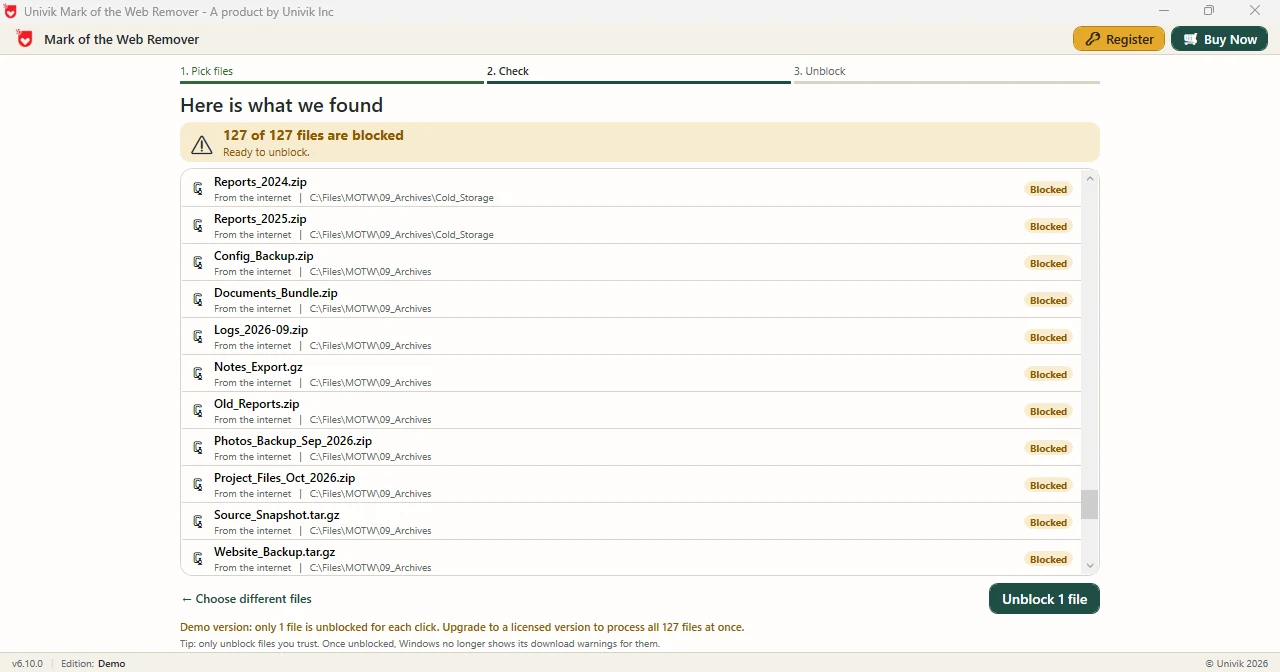
The Check screen only lists. A count line states how many chosen files are blocked. Choose different files returns to step one, so a wrong folder costs nothing.
Every row carries the file name, an origin label, the folder path and a status badge. The folder path shows where blocked files cluster.
The Unblock button removes the label from the listed files where they are. The wizard has no destination step and makes no copies.
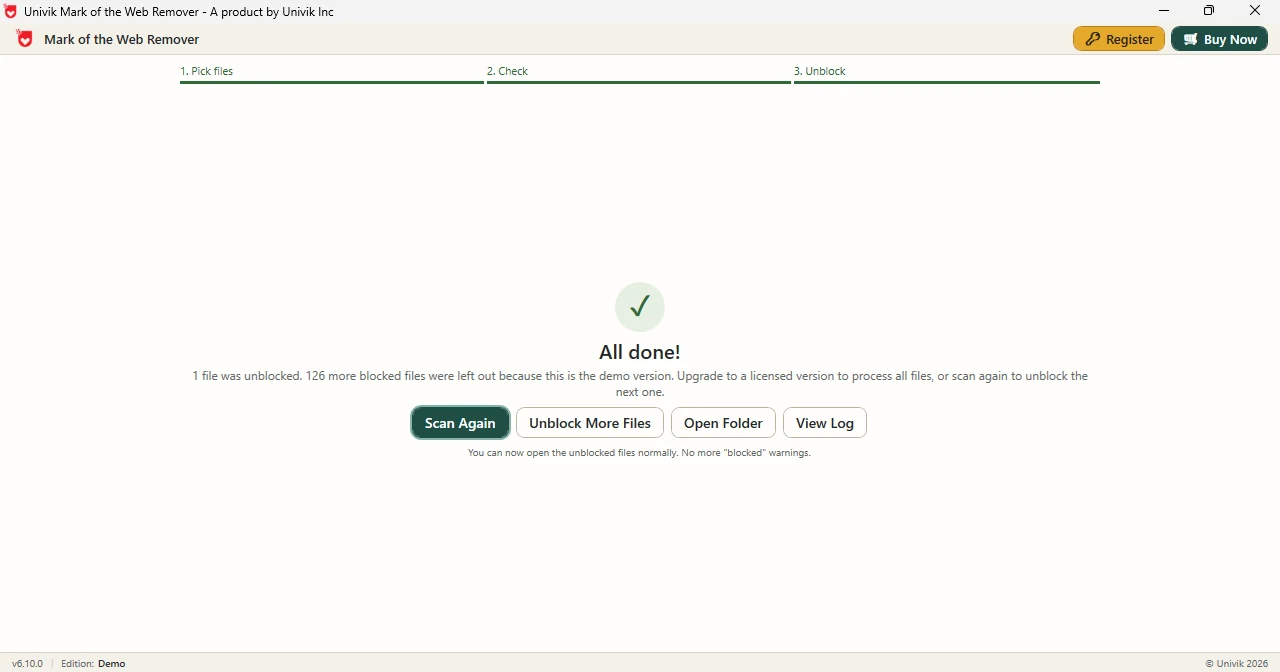
The All done screen holds Scan Again, Unblock More Files, Open Folder and View Log. The log holds the details of the run.
A What does blocked mean? note on the first screen explains the label. The Check screen adds a tip to unblock only files you trust.
Problem
Two things make Mark of the Web a chore on a whole folder.
The Label Blocks Files Before You Open Them
Windows adds the label to files from untrusted places. Microsoft Learn says Office blocks macros in marked files and shows a SECURITY RISK banner that has no Enable content button.
The Documented Fix Works File by File
Microsoft names two ways to clear the label: the Unblock box in a file's Properties and the Unblock-File cmdlet. A Properties dialog covers one file. The cmdlet acts on typed paths, so you must know which files are blocked.
Clear a Whole Folder With Univik Mark of the Web Remover
Univik Mark of the Web Remover lists the blocked files first. Click Unblock and the label comes off in place. Windows then stops showing its download warnings for those files.
What It Reads and Changes
| Screen | What it offers |
|---|---|
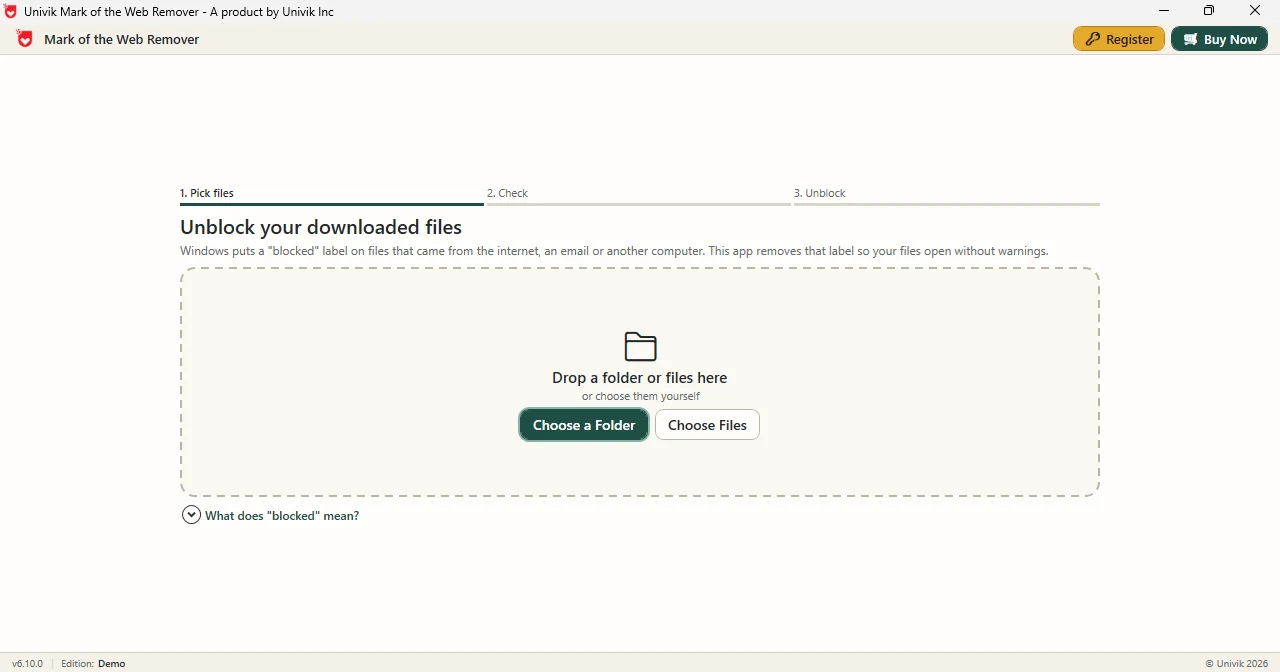
| 1. Pick files | The Pick files screen has a drop area, Choose a Folder and Choose Files buttons and a What does blocked mean note. |
| 2. Check | The Check screen shows a count line and a scrolling list. Choose different files sits at the bottom left and Unblock at the bottom right. |
| 3. Unblock | The All done screen confirms the run and holds four buttons for the next move. |
| Demo Edition | The Check screen notes that only 1 file is unblocked for each click. The All done screen reports the files left out, 126 of 127 in the test run. |
Three Steps
Univik Mark of the Web Remover needs no settings. Three steps cover the whole job.
Select the Files or the Folder
On the Pick files screen click Choose a Folder or Choose Files. You can also drop a folder or files onto the window. A folder is read together with its subfolders.
Check the List
Read the count line on the Check screen, for example 127 of 127 files are blocked. Scroll the list to see each name, origin and folder path.
Click Unblock
Click Unblock at the bottom right. On the All done screen, Open Folder shows the files and View Log opens the record of the run.
Windows 11 or 10 · Demo Edition unblocks 1 file for each click
Who Uses It
Three situations suit Univik Mark of the Web Remover, from one downloaded archive to a folder that came from another PC.
Archives From the Internet
ZIP and GZ archives from a download page arrive marked. In the test folder every archive showed From the internet, in a folder and in a subfolder.
A Folder From Another PC
Files that arrive by email or from another computer get the label too. Choose the folder once and read the list before you unblock.
Many Files in Nested Folders
Clearing nested folders file by file is slow. The test run cleared 126 blocked files across nested folders in 5 seconds.
Before You Unblock
Univik Mark of the Web Remover removes a label. It does not scan a file or judge it. The Check screen says so in its own words: unblock only files you trust.
Microsoft Learn gives the same advice for the Unblock-File cmdlet. Review the file and its source and confirm that it is safe before the label is removed.
Side by Side
The Properties box and PowerShell cost nothing and fit a few files. A folder with many files suits Mark of the Web remover software.
| What you need | Properties Unblock Box | PowerShell Unblock-File | Univik Mark of the Web RemoverDEMO |
|---|---|---|---|
| Price | Included with Windows | Included with Windows | From $39 |
| Many files in one run | One file per dialog | Yes, with a path or a wildcard | Yes, a licence runs every selected file |
| Whole folder with subfolders | No | Yes, when you pipe in a recursive listing | Yes, choose the folder |
| See blocked files first | Only for the open file | A separate command lists them | Yes, the Check screen |
| Record of the run | None | None by default | Yes, View Log |
For one folder you trust and are happy to script, PowerShell is enough.
What You Need
Windows and .NET
Univik Mark of the Web Remover runs on Windows 11 or Windows 10 and needs .NET Framework 4.8 or higher.
NTFS Drive
Microsoft Learn says the label applies only on NTFS volumes. Files on a FAT32 drive carry no label to remove.
Folder Permission
Files change in place, so Windows must allow changes to the folder you choose. No output folder or second copy is needed.
| Software Information | Univik Mark of the Web Remover |
| Version | 6.10 (Latest) |
| Licence | Free Demo Edition, paid licences from $39 |
| Platform | Windows 11 and Windows 10 |
| Framework | .NET Framework 4.8 or higher |
| Reads | Files you select, or a folder and its subfolders |
| Shows | File name, origin, folder path and Blocked status, with a count line |
| Changes | The selected files in place, with no copies |
| Writes | A log of the run, opened with View Log |
| Does Not Need | PowerShell commands |
| Not Covered | Judging whether a file is safe |
Questions
More Tools
Fact Checked
Reviewed by Nick Rogers Founder of Univik
For one folder you trust, PowerShell is enough. The tool earns its place when a download leaves many files in nested folders and you want to read the list first. In our test, 126 blocked files took 5 seconds.
Every button and screen named on this page comes from version 6.10. Windows facts were checked on 29 October 2026 against Microsoft Learn. Screenshots show the Demo Edition on a Univik test folder.
Paid licences follow the Refund and Cancellation policy.
Updated 29 October 2026
Univik Since 2013Version 6.10 CheckedFree Demo
Windows, Microsoft Office and PowerShell are products of Microsoft. Univik works independently of Microsoft.


 Problem
 What It Reads and Changes
 Three Steps
 Who Uses It


 Before You Unblock
 Questions

