
To add or replace a contact photo in a VCF file, open the file in a vCard editor, click the photo area on the contact and load a JPEG or PNG. The picture is embedded into the file as Base64 so it travels with the contact and shows up after import. The Univik VCF Editor does this for any contact, resizes the image and writes the correct encoding for vCard 2.1, 3.0 or 4.0 on its own. You cannot paste a photo into the raw file by hand, because the image has to be Base64 encoded and folded into the right format first.
Why Contact Photos go Missing or Look Low-Res in vCards
You export your contacts, open the file on a new phone or in a CRM, and the pictures are gone. Or they are there but blurry, pixelated and stretched. Both problems trace back to how the photo was stored in the file, and both are fixable.
Photos disappear for a few reasons. Some exports drop the picture entirely and carry only the text fields. Others store the photo as a link to an image on the web rather than the image itself, and many contacts apps ignore that link. Apple’s Contacts on iPhone is a known example, importing the contact but showing no picture when the photo is a web address. Converting contacts to CSV loses photos too, because a spreadsheet has no column for an image.
Low quality is a different story. Old phones and older Google contacts often embedded a small thumbnail rather than the full photo, so the file carries an image around 96 by 96 pixels that looked fine on the lower-resolution screens of the time and looks rough and pixelated on a modern one. Once that small image is baked into the file, no contacts app can make it sharper. The only fix is to replace it with a better one. If you want to see at a glance which contacts are missing a photo before you start, the free Univik vCard Viewer opens the file and shows each contact’s picture or the gap where one should be.

“Photos are the field we test hardest because they change the file size more than anything else. Large files are where iCloud fails in our testing. Add the photos, then check the size before you upload anywhere.”
Nick Rogers
|Founder, Univik, building file conversion tools since 2013
How a vCard Stores a Photo (Embedded vs Linked)
A vCard holds a photo in the PHOTO property, and there are two ways to do it. The reliable way embeds the image directly in the file as Base64, a long block of letters and numbers that is the picture itself encoded as text, written as PHOTO;ENCODING=b;TYPE=JPEG: followed by the data. Because the image lives inside the file, the contact is self-contained and the photo shows up wherever the file goes. For how this sits alongside the other fields, see our guide to vCard file structure.
The other way stores a link, written as PHOTO;VALUE=URI: followed by a web address that points to an image hosted online. It keeps the file small, but it rarely works in practice. Many apps refuse to fetch a remote image, iPhone ignores photo links outright, and a company firewall will often block the request. The contact imports and the picture never appears. For a file you actually want to use, the embedded Base64 photo is the one that holds up. The one exception is a QR code, where a vCard cannot carry an embedded photo because the Base64 block is far too big to fit, so a QR contact has to point to a linked image instead, as our guide to creating a QR code from a vCard explains.
How to Add or Replace a Contact Photo in a VCF file
The dependable way to add or change a photo is to load the image into the contact and let the editor embed and encode it for you. The Univik VCF Editor handles the whole job. Open the .vcf, click Edit on the contact, click the photo area and choose a JPEG, PNG, GIF or BMP file. The editor resizes the image to a standard 400 by 400 contact size, encodes it as Base64 for the version you are saving and writes it into the PHOTO property correctly. To swap a bad photo, load the new one over it. To clear a photo, remove it with one click.
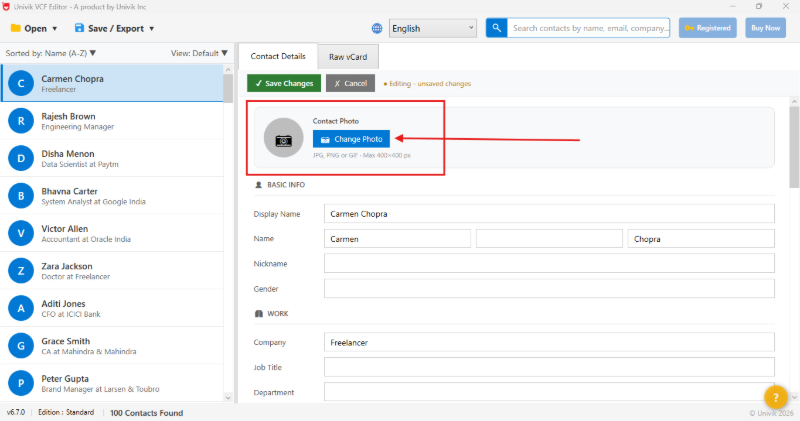
Because the encoding is handled for you, the photo displays correctly in every contacts app the file lands in, from iPhone and Android to Outlook and Google Contacts. You are not pasting Base64 or counting line lengths. You are picking an image file and saving. For a contact file where many people are missing pictures, you work through the list adding each one, then export a single file with the photos built in.
Add real photos to your contacts the easy way. The Univik VCF Editor opens any .vcf, lets you drop a JPEG or PNG onto any contact and embeds it with the correct encoding for vCard 2.1, 3.0 or 4.0. It resizes the image for you and leaves every other field untouched. Built for Windows, fully offline. The free trial edits a limited number of contacts.
Why You Cannot Add a Photo to a vCard in Notepad
It is tempting to think you could open the .vcf in Notepad and drop a photo in. You cannot. A photo in a vCard is not an image you can see in a text editor. It is the picture converted into thousands of Base64 characters, and that block of text has rules. A small headshot becomes ten to thirty thousand characters of what looks like random text, that text has to be folded into lines of a set length, and the encoding has to be declared correctly in the property. Get one character wrong or one line break out of place and the whole contact fails to import. There is no way to paste a JPEG into Notepad and have it work, which is the job a proper editor exists to do.
Why Photo Encoding differs by vCard Version (2.1, 3.0, 4.0)
The three vCard versions store a photo differently, which is the other reason hand editing goes wrong. vCard 2.1 uses PHOTO;ENCODING=BASE64;TYPE=JPEG:. vCard 3.0 changed it to PHOTO;ENCODING=b;TYPE=JPEG: with strict line folding. vCard 4.0 dropped the encoding parameter and uses a data URI instead, written as PHOTO:data:image/jpeg;base64,.... Write the photo in the 3.0 form inside a file you saved as 4.0 and the picture may not load.
This is where saving through an editor earns its keep. You choose the output version and the matching photo encoding is written for you. Load a contact file from an old phone saved as 2.1, add modern photos and save as 3.0 for broad compatibility, and the encoding is converted along the way. For which version suits which app, our guide to vCard 2.1, 3.0 and 4.0 has the detail.
How to Keep Embedded Photos from increasing the VCF file size
Embedded photos come with a trade-off worth knowing. A single contact with no picture is a few hundred bytes. Add a photo and it can jump to several hundred kilobytes. Across a few thousand contacts that turns a small text file into one tens of megabytes in size, which some phones and import tools struggle to handle.
Keeping each image modest is the answer. A contact photo does not need to be a full camera image. A 400 by 400 picture is plenty for the small circle a phone shows, and the editor’s automatic resize keeps embedded photos at that size rather than baking in a multi-megabyte original. If your file has already grown large from oversized images, our guide to vCard file size covers trimming it down. And if you would rather strip pictures out altogether, removing images from a VCF is the reverse of this job.
Frequently Asked Questions
How do I add a photo to a contact in a VCF file?
Open the .vcf in an editor, select the contact and click the photo area, then load a JPEG or PNG. The editor embeds the image into the contact as Base64 and writes it into the PHOTO property. In the Univik VCF Editor the image is resized and encoded for your chosen vCard version on its own, so the picture shows correctly after import.
Why did my contact photos disappear after importing the VCF?
Usually one of two reasons. The export dropped the picture and saved only the text fields, or the photo was stored as a web link rather than embedded, and the importing app ignored the link. iPhone in particular skips photo links and shows no picture. Re-adding the photo as an embedded image in the file fixes it for every app.
Can I add a photo to a vCard in Notepad?
No. A vCard photo is not a visible image, it is the picture converted into thousands of Base64 characters that must be folded into set-length lines with the encoding declared correctly. One wrong character breaks the contact. You need an editor that embeds and encodes the image for you rather than a plain text editor.
What image format should a vCard photo be?
A JPEG or PNG embedded in the file is the safe choice and works across iPhone, Android, Outlook and Google Contacts. The Univik VCF Editor accepts JPEG, PNG, GIF and BMP and resizes each to a standard contact size. Avoid storing the photo as a web link, since many apps will not fetch it and the contact ends up with no picture.
Why are my vCard contact photos blurry or low-res?
Because the file carries a small thumbnail that an old phone embedded, often around 96 by 96 pixels. That looked fine on the original device but is too small for a modern screen, and no app can sharpen an image that is already that low in resolution. The fix is to replace the picture with a higher-quality one and save the file again.
Does adding photos make the VCF file much larger?
Yes. A contact without a photo is a few hundred bytes, and a contact with one can be several hundred kilobytes. Over thousands of contacts that adds up to a file tens of megabytes in size. Keeping each image around 400 by 400 pixels, which the Univik VCF Editor does automatically, keeps the growth in check.
How do I add photos to contacts before moving to a new phone?
Export your contacts to a .vcf, add or replace the photos in the file on a computer, then import the finished file into the new phone. Adding the pictures once in the file is far quicker than editing each contact on the device, and the photos arrive embedded so every contact shows correctly from the start.
The Short Version
A contact photo lives in the vCard’s PHOTO property, and the version that survives the trip between apps is the one embedded directly in the file as Base64. Web links look tidy but iPhone and many other apps ignore them, which is why so many imported contacts arrive with no picture. Add or replace the image inside the file and it shows up wherever the contacts go next.
Doing that by hand is not realistic, since the photo is a long block of encoded text that has to be folded and declared correctly for each vCard version. An editor that embeds, resizes and encodes the image removes all of that and keeps the file from ballooning by sizing each photo sensibly. Replace the missing or low-res pictures once and save the file, and your contacts carry proper photos into every app and phone.