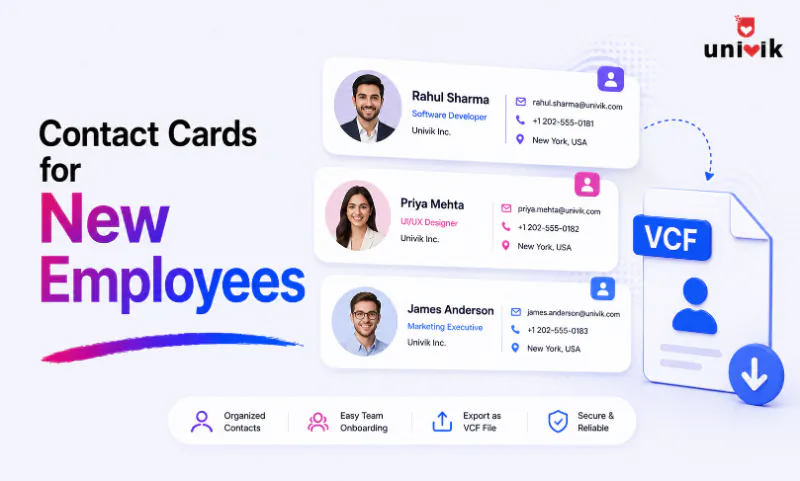
To build contact cards for new employees, collect each person’s details from HR, then create a vCard (.vcf file) for each one. The fastest way for a batch is a tool like the Univik VCF Generator, which builds cards from a form and exports them as one file per employee or one combined team file. Staff can then load the cards into Outlook or Google Contacts and onto their phones in a few clicks. Contact cards complement your company directory rather than replacing the admin-managed Global Address List.
Why New Employees need their Own Contact Cards
When someone joins, two things have to happen with their contact details. They go into your systems, and they get out to the people who need them. Account provisioning handles the first. Contact cards handle the second, and that is the part that quietly gets skipped.
A contact card is a vCard, a small .vcf file holding one person’s name, role, phone and email. It is the unit that moves cleanly between systems. Hand a new hire a single file with the whole team in it and they have everyone saved on their phone before lunch. Send their card to the people they will work with and nobody is hunting for a number a week later. The same file works in Outlook, Google Contacts, an iPhone or an Android, so one card covers the whole company whatever each person uses.
Building staff contact cards by hand is slow and error prone, which is why it slips. Do it in bulk and onboarding gains a step that takes minutes instead of an afternoon.

“A card that opens correctly on one phone and shows question marks on another has an encoding problem, and we see that pattern often enough that files in several encodings are a fixed part of our testing. Save as vCard 3.0 with UTF-8 and the card reads the same on the phones we test.”
Nick Rogers
|Founder, Univik, building file conversion tools since 2013
Contact Cards are not the Company Directory
This is the point most guides skip, and it matters. Your company directory, the Global Address List in Microsoft 365 or the directory in Google Workspace, is built and managed by your admin from user accounts. You do not populate it with vCards, and a contact card is not a substitute for it.
What contact cards do is cover the cases the directory does not. The directory lives inside your email system and does not sync cleanly to personal or company phones. It usually leaves out contractors, field staff and outside partners. And it is awkward to hand someone a copy to keep offline. A vCard does all of that. So the two work together, the directory inside your systems and contact cards for everywhere else.
Lives inside email, on the desktop
Staff only, no external people
Not yours to hand out offline
Load onto any phone in one tap
Include contractors and partners
One file you can send or keep offline
Step 1: Gather the Staff Details
Start with what goes on the card. HR already holds most of it from the new hire paperwork. For a work contact card you want the full name, job title, department, work phone, mobile, work email and the company name. A photo and the office address are optional extras that look good in the saved contact.
Keep it to the fields people actually use to reach someone. A card stuffed with every detail on file is slower to read and clutters the recipient’s address book. For most teams the seven fields above are plenty.
Step 2: Build the Cards in Bulk
For a fresh batch of new hires, build the cards from a form. The Univik VCF Generator takes each person’s details and writes a clean vCard, one at a time or as a list. When the list is ready you export the whole group in one step, as one file per employee for handing out or one combined file for a team directory everyone can load. Pick vCard 3.0 so the cards open on any phone, in Outlook and in Google Contacts without trouble.
If your staff details already sit in a spreadsheet, you do not need to retype them. A CSV or Excel to vCard converter turns the sheet straight into cards, which is faster for an existing roster. Our VCF Converter handles that route, while the Generator is the better fit when you are entering new hires fresh. For the full bulk workflow either way, see how to create a VCF file for multiple contacts.
Turn an onboarding list into contact cards, no coding. The Univik VCF Generator builds vCards from a form, single or in bulk, exports them as one file per employee or one combined team file and embeds a photo and QR code. Built for Windows, fully offline so staff data never leaves your machine. The free demo creates up to 5 contacts.
Step 3: Distribute and Load the Cards
With the cards built, the last step is getting them where people need them. The route depends on the system, and in every case the card lands in personal or shared contacts, not in the admin-managed directory.
Into Outlook and Microsoft 365
Email the .vcf to the people who need it and they save it to their contacts with a double-click. In classic Outlook you can also insert a card as a business card in a message or signature. For a whole team, share the combined file and each person imports it into their Contacts folder. None of this touches the Global Address List, which your admin maintains separately.
Into Google Contacts and Workspace
In Google Contacts, open Import and select the .vcf file. A combined team file loads everyone at once, and a single card adds just that person. One limit to know, Google Contacts imports up to about 1,000 contacts per vCard file, so a directory larger than that has to go in as a few files. As with Microsoft 365, this fills personal contacts. The Workspace directory itself is built from accounts in the Admin console, not from imported cards. For the full import steps, see our guide to importing a VCF to Google Contacts.
Onto Staff Phones
This is where contact cards earn their place, because the directory does not land in the phone’s address book. A work account syncs only a person’s own Google or Outlook contacts to the device, so directory colleagues stay searchable in the app but never reach the native contacts that caller ID and messaging apps read. A vCard closes that gap. Email or share the combined .vcf, and when a person opens it their phone offers to save every contact at once. vCard 3.0 is the version to use here, since it loads reliably on both iPhone and Android. On Android, pick the Google account as the import destination, otherwise the contacts save only to the device. A new hire goes from no numbers to the full team in a single tap.
One file Per Employee or One Team file
You will export the batch one of two ways, and the right choice depends on what you are doing with the cards.
One file per employee suits distribution. You can email each person their own card, attach the right one to an introduction or let people pick who they need. One combined file suits seeding contacts. You hand a new hire a single file and they get the whole team at once, which is the faster path for phones. Many teams do both, a per-employee set for sending and one team file for onboarding. The trade-offs are the same as any multi-contact export, covered in our guide to creating a VCF file for multiple contacts.
Keeping Cards Current as People Join and Leave
Contact cards are a snapshot, so they need a refresh when the team changes. The lightest way to manage this is to keep the source list current and re-export the team file on a schedule, monthly or each quarter, then share the new version. Everyone replaces the old file and the directory of cards stays accurate.
Offboarding matters too. When someone leaves, an updated team file drops them, and anyone who saved their individual card can delete it. Building the cards from a maintained list rather than ad hoc means these updates take minutes, not a rebuild from scratch each time.
Frequently Asked Questions
How do I create contact cards for multiple employees at once?
Build them in bulk. Enter each new hire’s details in a vCard tool and export the group as one file per employee or one combined file, or if the staff details are already in a spreadsheet, convert the CSV or Excel sheet straight to vCards. Both avoid typing each card by hand and produce clean files that import without errors.
Can I add new hires to the company directory with a vCard?
No. The Global Address List in Microsoft 365 and the directory in Google Workspace are built from user accounts and managed by your admin, not populated by importing vCards. Contact cards load into personal or shared contacts instead, which is exactly where they are useful, on phones, for external people and for handing out a team file.
What format should employee contact cards be?
vCard 3.0. It opens cleanly on iPhone, Android, Outlook and Google Contacts, so one set of cards works across whatever staff and recipients use. Version 2.1 is only for very old devices, and 4.0 is newer but a few clients still skip it, which makes 3.0 the safe default for a workforce on mixed devices.
How do I get the whole team’s contacts onto a new hire’s phone?
Give them one combined .vcf file with every employee in it. When they open the file, their phone offers to save all the contacts at once, so a new hire has the full team saved in a single tap. This is far faster than adding people one by one and is the main reason to export a combined team file alongside individual cards.
Should I make one file per employee or one combined file?
Both have a use. One file per employee is for distribution, emailing someone their own card or attaching it to an introduction. One combined file is for seeding contacts, handing a new hire the whole team at once. Many teams export both from the same list, a per-employee set to send out and a single team file for onboarding.
How do I keep contact cards updated when staff change?
Keep one source list current and re-export the team file on a schedule, then share the new version so everyone replaces the old one. When someone leaves, the updated file drops them and anyone holding their individual card deletes it. Building from a maintained list means each refresh takes minutes rather than a rebuild.
How many contact cards can I import to Google Contacts at once?
Google Contacts imports up to about 1,000 contacts from a single vCard file, and an account holds 25,000 in total. For most teams a combined file fits in one import. A larger company directory has to be split into a few files of under 1,000 each, which any vCard tool that exports per contact or in groups can produce.
The Short Version
Contact cards are the small piece of onboarding that turns a new hire’s details into something the whole team can actually use. Gather the fields from HR, build a vCard for each person in bulk, then load them into Outlook, Google Contacts and onto phones. Keep in mind that the cards sit alongside your company directory rather than replacing it, covering the phones, partners and offline files the directory cannot. As the team changes, our guide on updating a shared team contact file keeps that combined VCF current without a full rebuild.
The work is in the building, and that is the part a tool removes. A generator that writes clean vCards from a form, single or in bulk, with a photo and a QR code ready, turns a fresh list of new hires into a set of contact cards in a few minutes, every time someone joins.