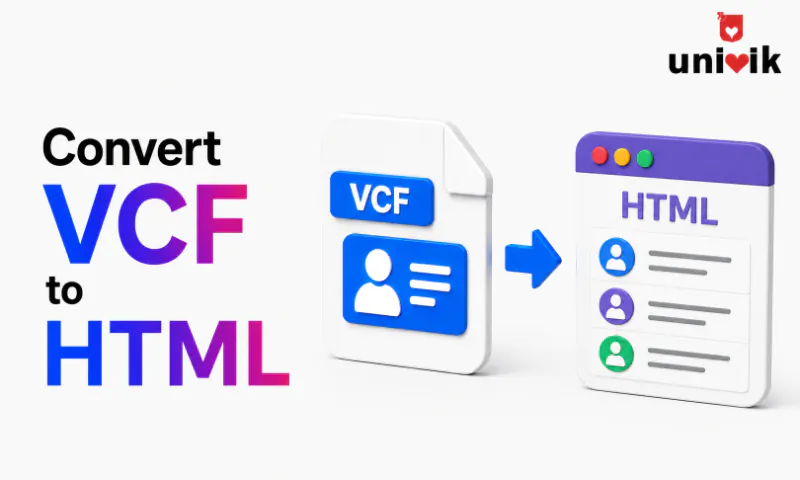
To convert a VCF file to HTML, use Univik VCF Converter on Windows load the VCF file, select HTML as the output format and export. The converter generates a styled HTML contact directory with one card per contact, clickable email and phone links and photos included where present. For a quick one-off conversion of a small file, browser-based online converters work but most produce plain unstyled output. For a fully customised styled directory, a Python script using the vobject library gives you complete control over the HTML layout and CSS.
When HTML Is the Right Output Format
Most VCF conversions go to CSV (for CRM import) or PDF (for printing). HTML is the right choice when you need something different from both.
Web-Publishable Contact Directory
An HTML file can be uploaded directly to a web server or company intranet. A team contact directory, a client list or an employee phone book becomes instantly accessible in any browser without installing anything. PDF requires a viewer. CSV requires a spreadsheet. HTML just works.
Printable With Full Formatting
HTML preserves contact photos, email formatting and layout in a way that printing from a CSV cannot. Use the browser’s print function to produce a formatted contact list with photos and clickable links PDF output from the browser print dialog gives you a cleaner result than printing directly from a VCF viewer.
Email Distribution
An HTML contact directory can be sent as an email attachment that recipients open directly in a browser. No special software required. Useful for sharing a vendor list, a conference attendee directory or a team roster with people who may not have contact management software.
Clickable Contact Links
Unlike PDF or CSV, HTML supports clickable mailto links for email addresses and tel links for phone numbers. On mobile devices, tapping a phone number in an HTML contact directory opens the dialler directly. Email links open the compose window. No copy-pasting required.
If your goal is CRM import, use CSV. If your goal is a printed reference, use PDF conversion. HTML is the right format when you want a browsable, shareable, web-deployable contact directory.

“For HTML output we test with the same files we use everywhere else, from 100 contacts to 65,000. Contact photos are the part that breaks first in a web page, so a directory with photos is always in the test set.”
Nick Rogers
|Founder, Univik, building file conversion tools since 2013
Method 1: Windows Converter Tool (Fastest, No Code)
This is the right method for most users no coding required, works on any size VCF file and produces a properly formatted HTML output rather than a plain text dump.
Download and open Univik VCF Converter. Install Univik VCF Converter on Windows. The software works offline no internet connection needed and your contacts never leave your computer.
Load the VCF file. Click Add Files to select individual VCF files or Add Folder to load an entire folder of VCF files at once. The converter handles multi-contact VCF files and separate single-contact VCF files equally. Large files with thousands of contacts load in seconds.
Select HTML as the output format. In the output format dropdown, choose HTML. Options for the HTML output include: contact card layout (grid of cards) or table layout (sortable table), whether to include contact photos and whether to embed CSS inline or as a separate stylesheet.
Choose the output folder and convert. Select where the HTML file should be saved. Click Convert. The converter generates one HTML file containing all contacts. For a 500-contact VCF, conversion takes under 10 seconds. The output file opens directly in any browser.
Univik VCF Converter
Convert VCF contacts to HTML, CSV, Excel, PDF and more. Batch converts thousands of contacts in one pass. Works without internet contacts never leave your computer. Supports vCard 2.1, 3.0 and 4.0. Card layout or table layout output for HTML.
✓ Batch converts thousands
✓ 100% offline
✓ Photos included
Method 2: Online VCF to HTML Converters (Quick, Small Files)
Online converters work for quick one-off conversions of small VCF files under 5 MB with no sensitive contact data. The main trade-off is privacy: your contacts are uploaded to a third-party server for processing.
Search for “VCF to HTML converter online” and several options appear. Most are free for files under a contact threshold (typically 500 to 2,000 contacts). Upload the VCF, select HTML as the output format and download the result.
Most online tools produce plain text dumps, not styled directories
The majority of online VCF to HTML converters output unstyled HTML each contact’s data in a series of paragraphs or a basic table with no CSS, no photos and no clickable links. The result looks like a plain text file viewed in a browser rather than a usable contact directory. For styled output, use Method 1 (Windows converter) or Method 3 (Python script). Before uploading, check whether the tool shows a preview of its HTML output if the sample looks unstyled, look for another tool.
Method 3: Python Script (Styled Directory, Full Control)
For developers or anyone comfortable running a Python script, this method produces the most customisable HTML output. You control the layout, the CSS, which fields appear and how contacts are sorted.
The script uses the vobject Python library to parse the VCF file and generate HTML. Install it with:
A basic script reads each contact from the VCF, extracts the FN, EMAIL, TEL, ORG and TITLE fields and writes them to an HTML template with a CSS grid layout. Contact photos embedded in the VCF (the PHOTO property) can be inserted as base64 data URIs directly in the img src attribute no separate image files needed.
The output is a self-contained HTML file that opens in any browser. You can customise the CSS to match your organisation’s branding, add JavaScript search or filter functionality and deploy the file to any web server or intranet.
Method 4: Manual Conversion (Single Contacts Only)
For converting a single contact’s VCF to a simple HTML page, manual conversion in a text editor is practical. Open the VCF in Notepad, copy the field values and paste them into a basic HTML template.
This is not practical for more than a handful of contacts. For any file with more than five or six contacts, use Method 1 or Method 2. The manual method is useful when you receive a single VCF business card via email and want to create a small HTML contact page for an internal wiki or documentation page.
Styled Directory vs Plain Text Dump
The difference between a useful HTML contact directory and a useless one comes down to styling. Here is what separates them:
| Feature | Styled Directory | Plain Text Dump |
|---|---|---|
| Visual layout | CSS grid of contact cards or sortable table | Raw text paragraphs in default browser font |
| Contact photos | Displayed alongside contact details | Often omitted or shown as raw base64 text |
| Email addresses | Clickable mailto links | Plain text |
| Phone numbers | Clickable tel links (opens dialler on mobile) | Plain text |
| Search or filter | Optional JavaScript search box | None browser Ctrl+F only |
| Printable output | Clean print layout with CSS @media print rules | Dumps raw text when printed |
| Web deployment | Upload to web server and share the URL | Functional but unprofessional appearance |
Before choosing an online tool, check whether it produces styled output. The best test: ask for a sample or preview before uploading your contacts. If the sample looks like a text file, choose a different tool.
What to Do With the HTML File
Open in a browser to verify. Double-click the HTML file to open it in Chrome, Firefox or Edge. Check that all contacts appear, photos load and email and phone links are clickable. A quick scroll through confirms the conversion is complete before sharing.
Upload to a web server or intranet. Copy the HTML file to your web hosting or company intranet. It requires no server-side processing it is a static file that any server can host. Share the URL with your team.
Send as an email attachment. Attach the HTML file to an email. Recipients open it in a browser no contact management software required. Useful for sharing a conference attendee list or vendor directory with people outside your organisation.
Save to a shared network drive. Store the HTML file on a shared drive that your team has access to. Update it periodically by re-exporting from the VCF source. The URL or file path stays the same anyone who bookmarked it will always reach the latest version.
Frequently Asked Questions
What is the best way to convert VCF to HTML on Windows?
Univik VCF Converter produces styled HTML output with contact card layout, embedded photos and clickable links. It handles VCF files of any size, works offline and converts thousands of contacts in one pass. For a quick one-off conversion of a small file with no sensitive data, an online converter works but most produce plain unstyled output.
Will the HTML output include contact photos?
Yes, when using Univik VCF Converter or the Python script method. Contact photos embedded in the VCF file as base64 PHOTO data are included in the HTML output as inline images. Online converters vary some include photos and some strip them. Check the tool’s documentation or test with a single contact that has a photo before converting the full file.
Can I publish the HTML contact directory on a website?
Yes. The HTML file generated by any of these methods can be uploaded to any web server. It is a static file no database, no server-side code. Upload it and share the URL. If you want to embed the contacts within an existing website, copy the CSS and the contact div elements from the generated file into your site template.
How is HTML different from PDF for contact export?
HTML is interactive email and phone links are clickable and the page is searchable. PDF is a fixed-layout format suited for printing and offline reference. HTML is better for a web-deployed or shared directory that people will browse and click through. PDF is better for a printable contact list that will be saved and distributed as a document. See our VCF to PDF guide for the PDF conversion methods.
Can I convert VCF to HTML without coding?
Yes. Univik VCF Converter provides a graphical interface with no coding required load the VCF, select HTML output and click Convert. Online converters also require no coding. The Python script method is for developers who want full control over the HTML layout and CSS styling.
Does the HTML file work on mobile devices?
Yes. A properly styled HTML contact directory is responsive by default when generated with Univik VCF Converter or a well-written Python script. The contact cards reflow to a single column on narrow screens and phone number links trigger the dialler directly when tapped on a mobile device.
The Short Version
VCF to HTML conversion makes sense when you want a contact directory that is browsable in a web browser, deployable to a server and has clickable email and phone links. Those three things are what separate HTML from the PDF and CSV alternatives.
The quality gap between a styled HTML output and a plain text dump is significant. Check what a converter produces before uploading your full contact list a preview or a single-contact test shows you immediately whether the output is useful or just a text file with an .html extension.
Are you converting for internal team use, external web publishing or email distribution? That determines whether you need a full styled directory with search functionality or a simple single-page contact card layout.