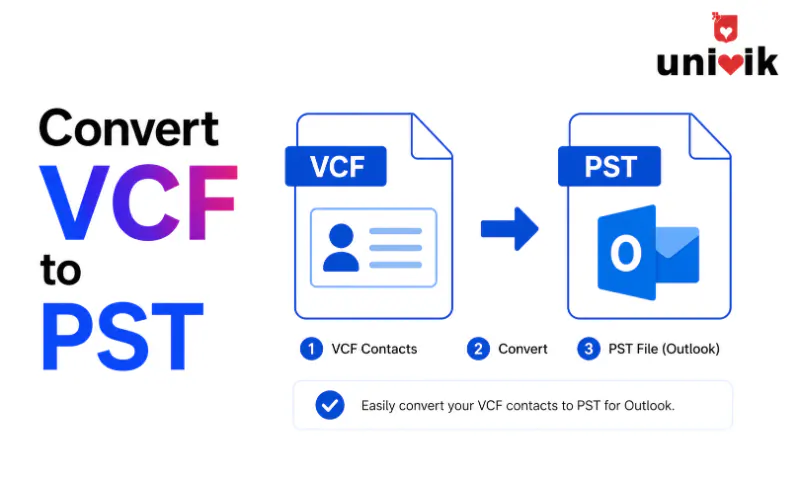
To convert VCF to PST, choose a method by how many contacts you have. For a small list, open the VCF in classic Outlook and export the Contacts folder as a PST, which costs nothing. For a few hundred contacts, import the VCF through the Windows Contacts folder, save it as a CSV, then import that into Outlook. For a large file or a lossless result that keeps photos and every field, a dedicated vCard to PST converter reads the VCF and writes a Unicode PST in one pass, with no Outlook required.
You exported your contacts as a VCF file, and now Outlook wants a PST. The two formats share almost nothing. A VCF is plain vCard text that holds contacts. A PST is a binary database Outlook uses to keep mail, calendar and contacts in one store. Converting one into the other rewrites the data. It is not a change of file extension.
Three routes get you there, and the right one depends on how many contacts you have. Two are free and already sit inside Windows and Outlook. The third is a dedicated vCard to PST converter. The Univik VCF Converter reads a whole VCF, or thousands of them, in one pass. We have built Windows contact tools at Univik since 2013, and the question we field most on this topic is why Outlook makes such a common job so awkward. The honest answer is that Outlook was never built to swallow a VCF full of contacts in a single step. Microsoft confirms it. Its own guidance sends you through Windows Contacts and a CSV file first.
This guide walks all three routes, shows how each vCard field lands in an Outlook contact and settles the Unicode versus ANSI PST choice that catches people at the finish line.
How VCF and PST Files Differ
If you also work with Outlook cache files, our guide on the difference between OST and PST files explains how a portable PST compares to an OST.
A VCF file, also called a vCard, is a text file. Open one in Notepad and you can read it. Each contact sits between a BEGIN:VCARD and END:VCARD marker, with the name in an N property, phones in TEL lines and so on. The format is an open vCard standard from the IETF, with RFC 6350 the current version. That open standard is why a VCF opens in almost any contacts app on any device.
A PST is the opposite. It is a binary Personal Storage Table that only Outlook reads, and it holds far more than contacts. Mail, calendar, tasks and notes all live inside it. That difference is the whole reason a conversion is needed. You are not translating one contact format into another. You are packing plain vCard text into Outlook’s private database so Outlook treats your contacts as its own.
Want to see what your file actually holds before you start? Our guide to vCard file structure breaks down every property line.

“A 1,000 contact VCF takes the converter about two minutes to turn into a PST, and the last part of every test is opening that PST in Outlook. We check names, numbers and photos on real contacts, not the file size. If a contact looks wrong in Outlook, the conversion is not done.”
Nick Rogers
|Founder, Univik, building file conversion tools since 2013
Why Convert VCF to PST
You convert because Outlook will not treat a pile of VCF files as its own. Outlook keeps contacts inside a PST, right next to your mail and calendar, so a contact only becomes searchable and usable in Outlook once it lives in that store.
Consolidation is the other driver. Export an iPhone or Google address book and you get one VCF per contact, or a single VCF holding hundreds. A PST folds all of them into one file Outlook opens in a click, and that file doubles as a backup you can archive or move to a new machine. In our work at Univik, this question spikes whenever someone leaves an iPhone or a Google account and standardises on Outlook.
Convert VCF to PST by Batch Size
Count your contacts first. The best way to convert VCF to PST depends on that number, and it saves you from starting down a free path that falls apart at contact 300.
Each route has a job it does best. Match the method to the size and richness of your file rather than reaching for the free option by reflex.
| Method | Best for | Cost | Keeps photos | Bulk |
|---|---|---|---|---|
| Outlook Import and Export | 1 to 20 contacts | Free | Yes, one by one | No |
| Windows Contacts and CSV | 20 to 200 contacts | Free | No | Partial |
| vCard to PST Converter | 200 or more, or lossless | Paid, free trial | Yes | Yes |
Outlook Import and Export (Method 1, Free)
This route uses nothing but Outlook, and it works best for a short list. One catch matters before you start. Classic Outlook for Windows opens a VCF. New Outlook and Outlook on the web do not, so you need the classic desktop app for this method. Microsoft says the same in its import vCards guide.
A single VCF is easy. Double click it and it opens as a contact in classic Outlook, where you click Save and Close. You can also load it through File, then Open and Export, then Import and Export, then Import a vCard file (.vcf). The wall you hit is bulk. Outlook adds one contact per VCF, so a file holding 400 people means opening and saving 400 times. There is no bulk vCard import in Outlook, a limitation Microsoft has acknowledged for years.
Once your contacts sit in the Outlook Contacts folder, turn them into a PST.
- In classic Outlook, go to File, then Open and Export, then Import and Export.
- Choose Export to a file, then Next.
- Pick Outlook Data File (.pst), then Next.
- Select the Contacts folder, then Next.
- Choose where to save the PST, then Finish.
Free, native and fine for a handful of contacts. Past a few dozen it turns into a long afternoon. If your real goal is getting a VCF into Outlook rather than into a standalone PST, our walkthrough on importing a VCF to Outlook covers that side in more depth.
Windows Contacts and CSV (Method 2, Free)
Windows keeps a Contacts folder in your user profile that imports VCF and exports CSV, which gives you a free bridge into Outlook for a larger batch. It is the route Microsoft itself documents for getting a vCard into Outlook. Read Microsoft’s own steps for importing a vCard through Windows and CSV.
- Open File Explorer and go to C:\Users\YourName\Contacts.
- Click Import at the top, choose vCard (VCF file), then Import.
- Pick your VCF and confirm each contact.
- Click Export, choose CSV and save the file.
- In classic Outlook, open the Import and Export wizard, choose Import from another program or file, then Comma Separated Values and map the columns to Outlook fields.
- Export the Contacts folder to a PST using the steps from Method 1.
Here is the honest catch, and it comes straight from Microsoft. When you import the VCF into Windows Contacts, you press OK for every single contact. Microsoft’s own words are that with more than 50 or so contacts this becomes tedious, because there is no way to approve them all at once. The CSV step adds a second problem. A CSV is a flat table with no room for a contact photo, so pictures drop out, and any field Outlook has no column for gets left behind. For a plain list of names, numbers and emails this is fine. For rich contacts with photos and custom fields it loses data. If you plan to open the CSV in Excel first, save it as UTF-8 so accented names survive. Our guide on converting VCF to CSV goes deeper on that step.
A Dedicated VCF to PST Converter (Method 3)
Once you cross a couple of hundred contacts, or you need photos and every field intact, the manual routes stop being worth the hours. The clean way to convert a VCF file to PST in bulk is a converter that reads the file directly and writes a finished PST, with no Windows Contacts detour and no CSV in the middle.
The Univik VCF Converter loads a single VCF or a folder of them, reads every vCard property and builds a Unicode PST you can open in any modern Outlook. Photos, multiple phone numbers, job titles and addresses come across in one run. It works without Outlook installed, since it writes the PST itself rather than driving Outlook, and it runs on your own PC so contact data never leaves the machine. That last point answers a question the manual methods cannot. There is a free trial that converts a limited batch, so you can check the output against your own file before paying.
How vCard Fields Map to Outlook Contacts
A conversion is really a field mapping. Every vCard property has to find its home in an Outlook contact, and knowing the mapping tells you what to check afterward. In the CSV route you set this mapping by hand when you match columns to Outlook fields. A converter does it for you.
The field that breaks most is the name. If your VCF came from a CRM export, first and last names sometimes land in the wrong Outlook boxes, so every contact reads back to front. That is worth a spot check after any conversion.
Unicode and ANSI PST Across Outlook Versions
Outlook writes two kinds of PST, and picking the wrong one is the last easy mistake in this job. Unicode is the modern format. ANSI is the legacy one from Outlook 97 through 2002. Choose Unicode unless a specific old machine forces your hand.
The practical read is simple. Any Outlook from 2003 forward wants Unicode, which handles international names and scales to 50 GB. ANSI caps at 2 GB and mangles non Latin characters. A good converter defaults to Unicode, and most people never need to touch the setting. Version questions like this are the same reason vCard itself comes in flavours, which our comparison of vCard 2.1, 3.0 and 4.0 lays out.
After Converting, What to Check and Fix
If Outlook is not handy, an online PST viewer lets you open the finished PST and spot-check that your contacts came through correctly.
A finished PST is not a finished job until you open it and look. In classic Outlook, go to File, then Open, then Open Outlook Data File and point it at your new PST. Then run three quick checks.
Open a handful of contacts and confirm the name, primary email, phone numbers and photo all landed in the right place. Sort by name and scan for anything reading surname first, the CRM export symptom from earlier. And count. If the number of contacts in Outlook matches your VCF, the run was clean.
Two problems are worth naming. The first is the 2000 contact wall. If you went the CSV route, Outlook refuses a CSV with more than roughly 2000 contacts in one import and throws an error. Microsoft’s fix is to split the CSV into smaller files and import each, which is exactly the kind of busywork a direct converter avoids. The second is a PST that will not open because it was truncated or the source file was damaged. If Outlook reports the data file is corrupt, our guide on repairing a corrupt PST covers the recovery path.
Frequently Asked Questions
Can Outlook import a VCF file with multiple contacts directly?
No. Outlook adds one contact per VCF, so a file with many contacts has to be opened and saved one at a time. Microsoft documents this limit and points you to Windows Contacts and a CSV file instead. Only a dedicated vCard to PST converter loads a multi contact VCF in one step.
Is there a free VCF to PST converter, or an online one?
The free routes are the two Outlook methods above. They cost nothing but take manual steps and slow down fast past 50 contacts. A dedicated vCard to PST converter is paid, though most offer a free trial that converts a limited batch so you can check the output first. Be careful with online converters that ask you to upload your VCF. Contacts are personal data, and a desktop tool keeps every name, number and email on your own machine rather than a stranger’s server.
How do I convert vCard to PST without Outlook installed?
Use a converter that writes the PST itself. The Univik VCF Converter reads the vCard and builds a Unicode PST directly, so Outlook does not need to be installed on the machine doing the conversion. The manual methods cannot do this, since they rely on Outlook to create and export the PST.
Why did my contact photos disappear after converting VCF to PST?
The CSV route dropped them. A CSV is a flat table with no column for an image, so the vCard PHOTO property is lost the moment you export to CSV. To keep photos, use a converter that reads the PHOTO field and writes it straight into the Outlook Contact Picture, or add the images back by hand after import.
What is the difference between Unicode and ANSI PST?
Unicode PST is the modern format used by Outlook 2003 and later. It holds up to 50 GB and supports international characters. ANSI PST is the older format from Outlook 97 to 2002, capped at 2 GB with limited character support. Choose Unicode unless you have to open the file in Outlook 2002 or older.
How many contacts can I import into Outlook at once?
Through a CSV file, Outlook caps a single import at about 2000 contacts and shows an error above that. Microsoft’s own workaround is to split the CSV into smaller files and import each one. A direct VCF to PST converter has no such limit and handles tens of thousands in one run.
The Bottom Line
Match the method to your file. For a dozen contacts, Outlook’s own import and export costs nothing and takes minutes. For a few hundred without photos, the Windows Contacts and CSV bridge does the job for free if you accept the clicking. Once you pass a couple of hundred contacts, or you need photos and custom fields kept intact, a vCard to PST converter pays for itself in the afternoon it saves. The Univik VCF Converter does it in one run. Whichever route you pick, open the finished PST and spot check a few contacts before you delete the original VCF.