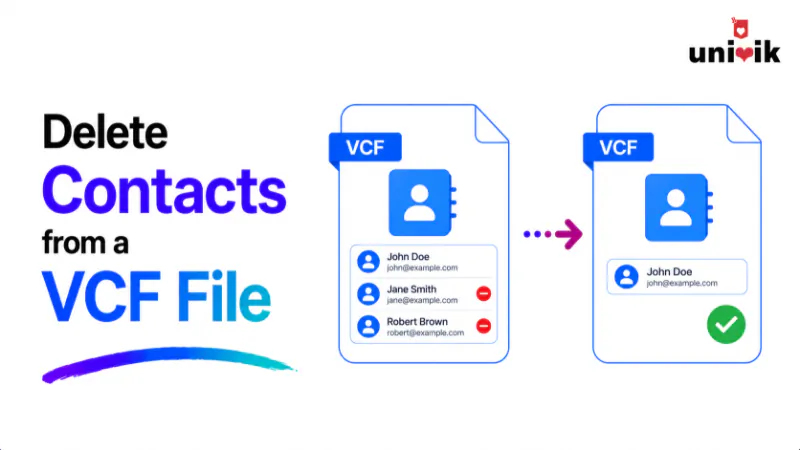
To delete specific contacts from a VCF file, open the file in a vCard editor, mark the contacts you want to remove, then save. The other contacts stay untouched. In the Univik VCF Editor you hover over a contact, click the trash icon to mark it for deletion, repeat for every contact you want gone, and save. The saved file excludes the marked contacts and keeps the rest exactly as they were. If you mark one by accident, you can unmark it before saving. This is cleaner than editing the raw text by hand, where deleting the wrong line can corrupt the whole file.
Why Deleting One Contact Is Harder Than It Looks
When you need to delete specific contacts from vCard files, a VCF looks simple until you try to remove just one person from it. The problem is that a single .vcf can hold hundreds of contacts stacked one after another, and most tools treat the file as all or nothing. Your phone wants to import every contact. Your text editor shows a wall of code. Neither gives you an easy way to say “remove these five and leave the rest alone.”
Under the hood, each contact is a block of text wrapped between a BEGIN:VCARD line and an END:VCARD line, with the next contact starting immediately after. To delete one contact cleanly, you have to remove its entire block, every line from its BEGIN to its END, without touching the contacts above or below it. Miss a line, or cut one too many, and the file can break.
That is why this specific task trips people up. It is not that the data is complex. It is that almost nothing is built to let you pick individual contacts out of a shared file and drop them.

“After any edit we open the file in the target application and check real contacts, because that is where extra characters and dropped fields show up. It is the same check we run on every build.”
Nick Rogers
|Founder, Univik, building file conversion tools since 2013
Three Ways to Remove or Delete Contacts From a VCF File
There are three real ways to delete contacts from VCF file lists, and they are not equal. If you are wondering how to delete a contact from a VCF file, here is how the options compare before we walk through each.
| Method | Best for | Risk |
|---|---|---|
| VCF editor (mark and delete) | Picking specific contacts visually | Low, you see what you remove |
| Notepad (manual text edit) | A single contact, if you are careful | High, easy to corrupt the file |
| Import to phone or Outlook, delete, re-export | People already syncing contacts | Medium, can create duplicates |
The manual and import methods both work, with caveats covered below. But if your goal is to look at your contacts, choose the ones to remove, and save a clean file, a dedicated editor is the direct route. Let me show that first.
The Direct Way: Mark and Delete in a VCF Editor
To remove contact from VCF lists without the raw code, a VCF editor opens the file as a readable list of contacts, so you work with names and details instead of BEGIN:VCARD blocks. The approach is simple: go through the list, mark the contacts you want gone, then save. The editor rebuilds the file without the marked contacts and leaves everything else exactly as it was.
The Univik VCF Editor works this way, on Windows, with no need to import anything into your phone or email. Whether you want to remove a contact from VCF file lists one at a time or clear out several at once, the process is the same three steps.
Step 1: Mark the Contacts You Want Gone
Open your .vcf file in the editor and you see your contacts as a list. To remove one, hover over it. A trash icon appears on that contact. Click it to mark the contact for deletion.
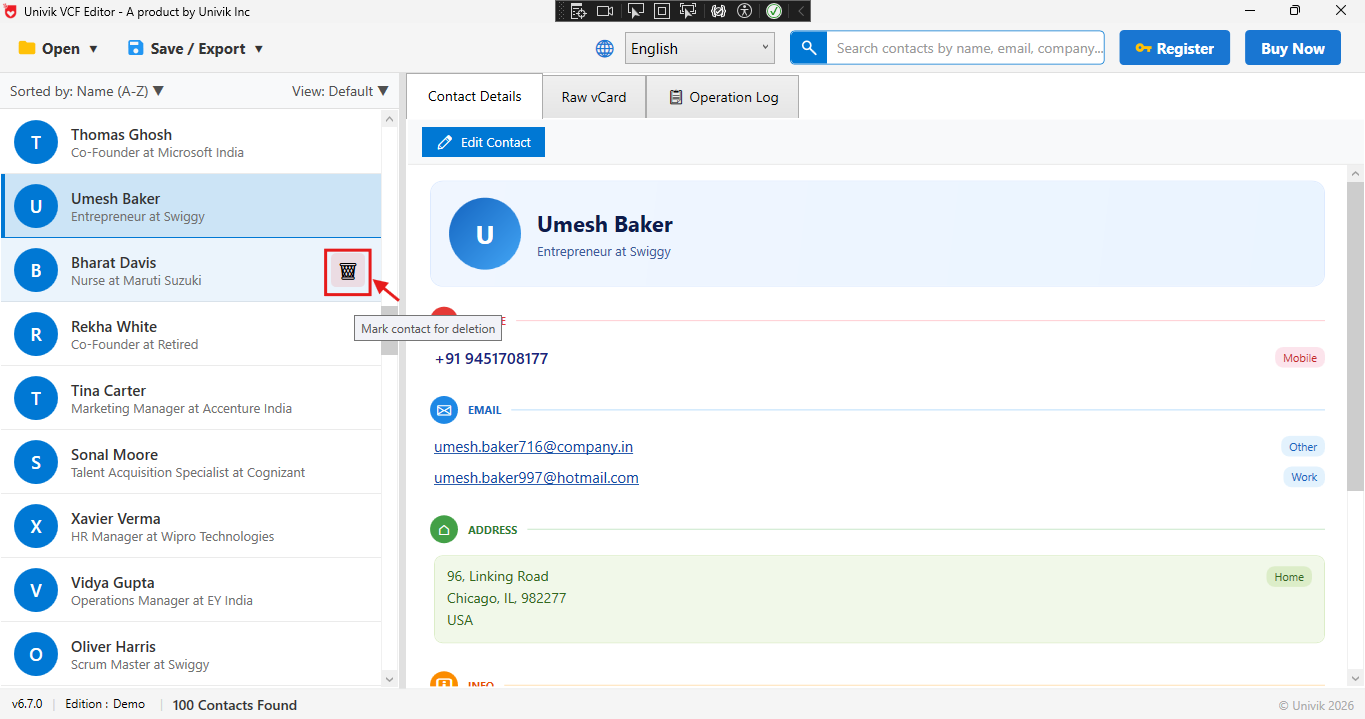
The contact stays visible, now flagged for removal, so you always see what you are about to delete. Repeat this for every contact you want to remove. You can mark as many as you like in one pass, which is the part that makes this faster than handling them one at a time. Nothing is deleted yet, the marks are just a list of what will be excluded when you save.
Step 2: Unmark Anything You Tagged by Mistake
Marking contacts quickly means you will sometimes flag the wrong one. That is fine, because nothing is removed until you save, and a marked contact can be unmarked.
If you marked someone by accident, just remove the deletion mark from that contact to keep it in the file. The flag clears and the contact goes back to normal, staying in the saved file.
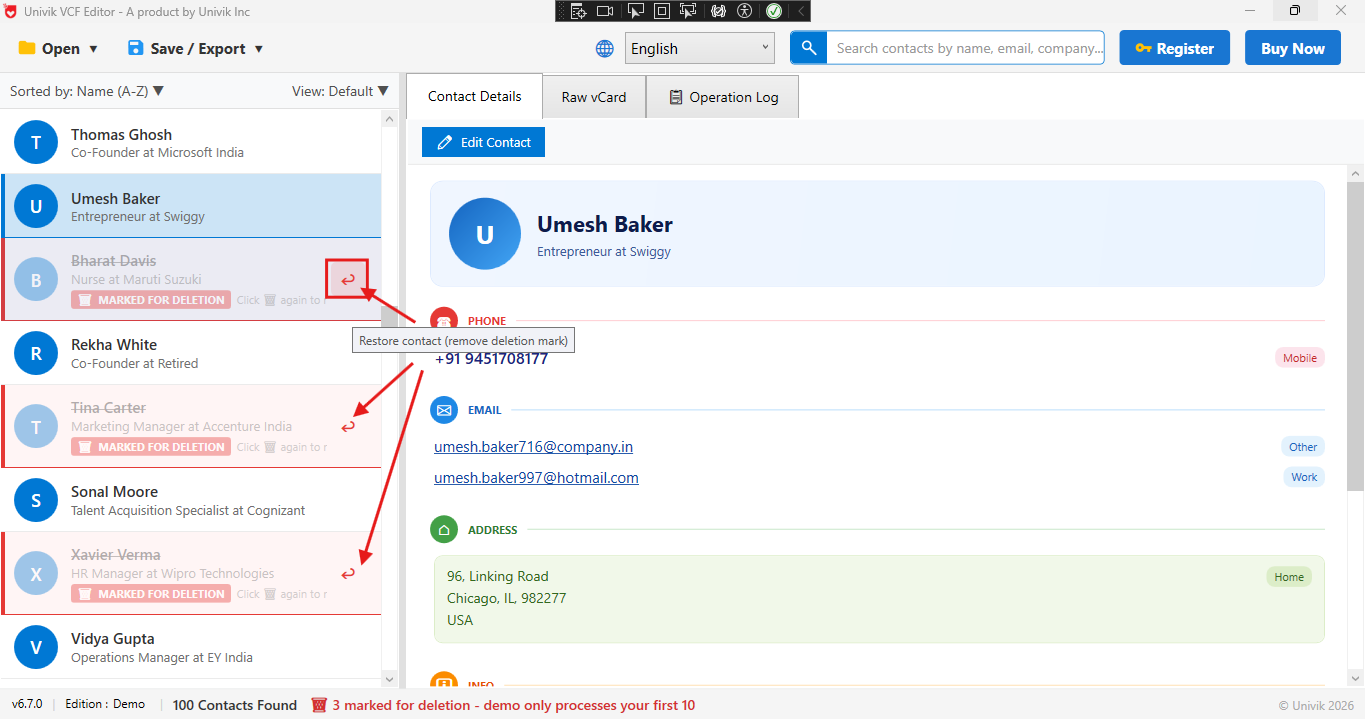
This is the safety net the manual method does not have. In Notepad, a wrong deletion is gone the moment you save. Here you review your marks, fix any mistakes, and only then commit.
Step 3: Save a Clean VCF Without Them
Once the right contacts are marked, save the file. The editor writes a new .vcf that includes every contact you did not mark and excludes every one you did. The contacts you kept are unchanged, same fields, same formatting, same order.
For a step you cannot undo on the original, the safe habit is to save to a new file name, or back up the original first, so you always have the full file to fall back on.
Want to pick contacts visually and delete them in a few clicks? The Univik VCF Editor lets you mark contacts for deletion, unmark any mistakes, and save a clean vCard file, with every contact you keep left exactly as it was.
The Manual Way: Editing in Notepad (and Its Risks)
This is the edit VCF file delete contacts route people try first. You can do it by hand, because a VCF is plain text you can open in Notepad or any text editor. This works, and it is free, but it is the method most likely to go wrong, so it is worth understanding before you try it.
Back up the file first. Copy the .vcf somewhere safe. A manual edit has no undo once saved.
Find the contact’s block. Each contact runs from a BEGIN:VCARD line to the matching END:VCARD line. Use Find to search for the name.
Delete the whole block. Remove every line from that contact’s BEGIN:VCARD through its END:VCARD, and nothing outside it.
Save with the .vcf extension. Keep UTF-8 encoding so accented names and special characters are not garbled.
Where the manual method bites
A contact with a photo can run for hundreds of lines of encoded text, so its block is far longer than it looks. Some lines also use folding, where a single value wraps onto the next line starting with a space. If you delete a stray line, cut into the wrong block, or leave half a contact behind, the file can fail to import. For one or two simple contacts the manual edit is fine. For anything more, or any file with photos, a visual editor removes the guesswork.
The Roundabout Way: Import, Delete, Re-export
If your contacts already live on your phone or in Outlook, you can take the long way around: import the VCF, delete the contacts there, then export a fresh VCF.
To remove a contact from VCF file lists this way, you import the .vcf into Google Contacts, your phone or Outlook, find and delete the people you want gone, then export the address book back out to a new .vcf. It works, but it has two real downsides. Importing into an address book that already has contacts can create duplicates, and you end up editing your live contacts rather than just the file. If all you wanted was to clean up one VCF file, routing it through your whole address book is a lot of extra steps and a chance to make a mess. If you do go this route and end up with duplicates, our vCard Duplicate Remover can clear those automatically.
For more background on the format and how contacts are stored, see our explainer on the VCF file and the deeper VCF file structure guide. If you also need to break a large file into pieces or combine several, the VCF Splitter and VCF Joiner cover those jobs.
Frequently Asked Questions
How do I delete a specific contact from a VCF file?
Open the VCF file in a vCard editor, mark the contact you want to remove, and save. The saved file excludes that contact and keeps the rest unchanged. In the Univik VCF Editor you hover over the contact, click the trash icon to mark it for deletion, then save. You can mark several contacts at once and unmark any you flagged by mistake before saving.
Can I delete a contact from a VCF without deleting the others?
Yes. That is exactly what a VCF editor is for. You mark only the contacts you want gone, and every other contact stays in the file exactly as it was. The contacts you keep retain their fields, formatting and order. Only the marked ones are excluded when you save the new file.
Can I remove a contact from a VCF file using Notepad?
Yes, because a VCF is plain text. Open it in Notepad, find the contact, and delete the entire block from its BEGIN:VCARD line to its END:VCARD line, then save with the .vcf extension. The risk is high though. Contacts with photos span many encoded lines, and deleting the wrong line can corrupt the file. Back up first, and for anything beyond a simple contact, a visual editor is safer.
What happens if I delete the wrong line in a VCF file?
If you remove a line from inside a contact block, or leave part of a block behind, the file can become invalid and fail to import. Apps may skip the broken contact or reject the whole file. This is the main risk of manual editing. A VCF editor avoids it because you mark whole contacts visually and the tool rebuilds the file correctly.
Can I undo a deletion in a VCF file?
In a text editor, no, once you save, the deletion is permanent. In a VCF editor, marking a contact for deletion is reversible until you save, so you can unmark anything you flagged by accident. Either way, the safe habit is to back up the original file or save your changes to a new file name so you always have the full version.
How do I delete multiple contacts from a VCF at once?
In a VCF editor you mark each contact you want to remove, as many as you need, then save once. All the marked contacts are excluded from the new file in a single step. This is much faster than editing them out by hand, and unlike the manual method you can review and adjust your selection before committing.
The Short Version
Deleting specific contacts from a VCF file is one of those tasks that sounds trivial and turns out fiddly, because the format stacks every contact into one file and most tools treat it as a single unit. The cleanest answer is to open the file in an editor, mark the contacts you want removed, fix any mistakes by unmarking them, and save a fresh file that keeps everyone else untouched.
You can do it by hand in Notepad for a contact or two, as long as you back up first and delete whole BEGIN:VCARD to END:VCARD blocks. But the moment you are dealing with several contacts, or a file with photos, marking them visually is faster and far less likely to break the file.