
First and last names look swapped in a vCard when the name field stores them in the wrong order. A vCard keeps the structured name as N:Family;Given, so if an export puts the first name where the family name belongs, every contact shows reversed. Changing your phone’s display order only hides it. The stored data is still wrong and travels to the next app. The reliable fix is to correct the First and Last name fields directly in a tool like the Univik VCF Editor, which writes the name back in valid order without breaking the file.
Why First and Last Names Get Reversed in vCard Contacts
A swapped name is one of the most common things to go wrong when contacts move between apps. You import a backup and find every contact’s first and last name swapped, reading Smith John instead of John Smith, or the first name sitting in the last name field on every single record. The name order is wrong in the file itself, not just on screen. It is not random. It comes from how a vCard stores a name and where the two halves land.
The usual causes are easy to recognise once you know them. An export from a CRM or an old phone maps the given name into the family name slot. A spreadsheet that was converted to vCard had its name columns in the wrong order. A device from a region that lists the family name first wrote the cards in that order. Or someone typed names into the wrong fields to force a sort order, then exported the file. In every case the contacts now carry the names in reverse, and every app that reads the file shows them reversed. If some records are also missing fields rather than only reversed, that is a related export problem, covered in our guide to missing fields after a VCF import.
How a vCard Stores First and Last Names
To fix the problem you need to know what a vCard actually holds. A name lives in two places. The N field is the structured name, written as five parts separated by semicolons in a fixed order, Family, Given, Additional, Prefix and Suffix. So in a correct card, John Smith is stored as N:Smith;John;;;. The family name comes first by design, which catches people out and is the root of most swaps. The FN field is the display name, a single line of free text, usually the full name as you want it shown. For the full picture of how a vCard lays out every field, not just the name, see our guide to vCard file structure.
When those two disagree, or when the parts of N are filled in the wrong order, the contact shows reversed. An app that builds its display from N reads the first part as the surname. If an export put the given name in the first slot, the app treats it as the surname and shows the name back to front, which is how you end up with the first and last name reversed across the file.
Why Changing the Display Order Does Not Fix Swapped Names
The first thing most people try is the phone’s display order. On iPhone it is under Settings, Contacts, Display Order. On Android it sits in the Contacts app settings. Flip it and the names look right again, which feels like a fix.
It is not. The setting changes how that one device shows the names, not what is stored in the field. The moment you export the contacts, send them to a colleague or import them into a CRM, they come out reversed again, because the underlying N field was never corrected. The display toggle hides the symptom on your screen and leaves the cause in the data. To solve it everywhere the file goes, you have to change the data itself. If you want to confirm the stored values before changing anything, the free Univik vCard Viewer shows every field exactly as it is saved, separate from how any device chooses to display it.
How to Fix Swapped First and Last Names in a vCard File
The dependable fix is to correct the First name and Last name fields in the file itself, so the N field is written in the right order and the display name matches. A form-based editor does this without you ever touching the raw text. The Univik VCF Editor opens the .vcf, shows a clean form with separate First Name and Last Name fields for every contact and lets you put each value where it belongs. Save, and it writes a valid N and FN in the correct order, in whichever vCard version you choose. If you are not sure which version to pick, our guide to vCard 2.1, 3.0 and 4.0 explains which apps each one suits.
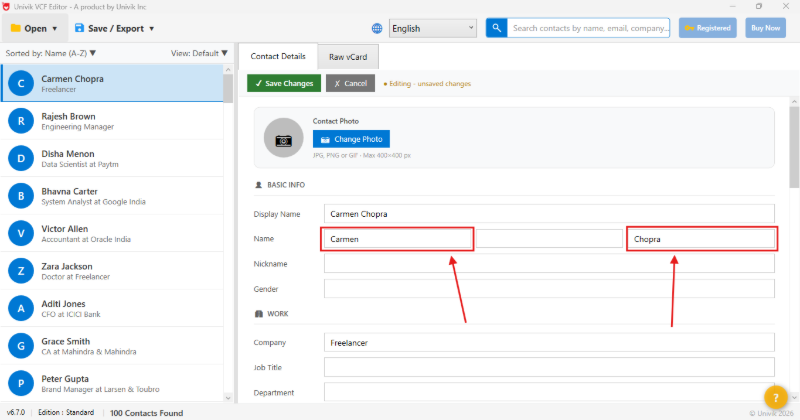
Because the form labels each field plainly, the swap is obvious to fix. You see the first name sitting in the Last Name box, move it across, and the card is right. For a file where every contact is reversed the same way, you work down the list correcting each one, then export a single clean file that imports the right way round into any phone, CRM or contacts app.
Fix swapped names without breaking the file. The Univik VCF Editor opens any .vcf and gives you a clean form with separate First and Last name fields for every contact. Correct the order, save as vCard 2.1, 3.0 or 4.0, and every other field stays untouched. Built for Windows, fully offline. The free trial edits a limited number of contacts.
Why Notepad, Excel and Scripts Fall Short
There are other ways to swap the names back, and each carries a catch worth knowing before you start. Editing the raw .vcf in Notepad means finding and rewriting every N line by hand, where one stray semicolon or a missed line break stops the whole file importing, with no safety net to catch it. A find and replace or a regular-expression swap can flip the two halves in bulk, but it is easy to catch the wrong text, and it does nothing for the FN line, so the display name and the structured name end up disagreeing.
The spreadsheet route is the one people reach for most. You export to CSV, swap the columns in Excel and convert back, a route our VCF to Excel guide walks through. It works but adds a long round trip, and moving in and out of CSV can drop the fields a vCard held that a spreadsheet has no column for, such as photos or custom tags. A Python script does the job cleanly if you can write one, which most people cannot and which is a lot of effort for a fix you need once. None of these is wrong, but for a file of contacts you care about, correcting the labelled fields in an editor is faster and safer, and it leaves every other field intact.
How to Stop Names From Swapping Again
Once the file is corrected, a little care stops the reversal returning. When you export from the source again, check the field mapping if the tool offers one, so the given name goes to the first-name or given-name column and the family name to the surname column. If you build the file from a spreadsheet, label the columns clearly and confirm which one feeds the family name before you convert.
It also helps to keep the corrected file as your master copy. The next time you move contacts, start from the right version rather than re-fixing the same reversal from scratch. A contact file is only ever as good as the last export, so getting the order right at the source is what makes the fix actually stick.
Frequently Asked Questions
Why are my contacts’ first and last names reversed?
Because the structured name field in the vCard, called N, stores the family name first and the given name second. If an export or conversion put the first name in the family-name slot, every contact reads back to front. It is a data problem in the file, not a display glitch, which is why it follows the contacts into every app you open them in.
Does changing the display order on my phone fix swapped names?
No. The display setting on iPhone or Android only changes how that one device shows the names. The stored N field stays wrong, so the moment you export the file or import it elsewhere the names appear reversed again. To fix it for good you have to correct the actual First and Last name fields in the file.
How do I swap first and last names back in a vCard file?
Open the .vcf in a form-based editor, find each contact and move the first name and last name into the correct boxes, then save. An editor like the Univik VCF Editor writes the N and FN fields back in valid order without you editing raw text. For a file where every record is reversed the same way, you correct each one down the list and export a single clean file.
Why does a vCard store the last name first?
It is part of the vCard standard. The N field lists the name in a fixed order of Family, Given, Additional, Prefix and Suffix, so the surname really comes first in the file even though apps usually display the given name first. This order is correct by design, and the swap happens only when the wrong values are placed in those slots.
Can I fix reversed names without editing every contact by hand?
A bulk find and replace can flip the halves, but it risks catching the wrong text and it leaves the FN display line out of step with the structured name. For a file you rely on, correcting the labelled First and Last fields in an editor is the safer route, and a good editor makes moving through the list quick even across thousands of contacts.
What causes names to swap when importing contacts?
Common causes are a CRM or old-phone export that maps the given name into the family-name field, a spreadsheet converted to vCard with its name columns in the wrong order, a device from a family-name-first region, or a mismatch between the FN display name and the N structured name. All of them leave the file with the values in the wrong slots.
How do I fix swapped first and last names after switching to a new phone?
When contacts come across reversed on a new phone, the swap is in the exported vCard, not the phone. Flipping the display order on the new device only hides it. Export the contacts to a .vcf, correct the First and Last name fields in an editor, then import the fixed file. Fixing it once on the file is faster than editing every contact on the device by hand, and it imports the right way round on any phone you move to next.
The Short Version
Swapped names are a data problem, not a display one. A vCard stores the structured name as N:Family;Given, so when an export drops the first name into the family slot, every contact reads back to front, and no display setting will truly fix that. The cure is to correct the First and Last name fields in the file so the order is right wherever the contacts go next.
Doing that in a form-based editor is the quickest safe way, since it writes valid output and leaves every other field alone, unlike a raw text edit or a CSV round trip that can break or drop data. Fix the file once, keep the corrected version as your master and check the field mapping on the next export so the reversal does not come back.