Thunderbird cannot open OST files directly. The fastest and safest way to import OST to Thunderbird is a converter that imports the OST folders straight into Thunderbird in one pass, with no intermediate MBOX file and no Outlook needed. The Univik OST Converter does this, loading the whole folder tree into your Thunderbird profile while preserving the structure, attachments and message metadata. The free alternative is a multi-step manual chain (export to PST, convert to MBOX, then import with the ImportExportTools NG add-on), which works but needs Outlook installed and adds conversion steps where data can be lost. Contacts and calendar move separately as CSV and ICS.
Why You Cannot Open OST in Thunderbird Directly
The most direct route is an OST to MBOX converter that reads the OST without Outlook and writes MBOX files Thunderbird imports directly.
An OST file is not a portable mailbox. It behaves quite differently from a PST, as our breakdown of the difference between OST and PST files explains. Outlook creates it as a synced offline copy of an Exchange, Microsoft 365 or IMAP account. It is bound to the specific Outlook profile that made it. Thunderbird has no feature to open an OST. There is no setting to add. The format is tied to Outlook by design.
To import OST to Thunderbird, then, you do not open the file, you move its data into Thunderbird. There are two ways to do that. A dedicated converter can read the OST and import the folders directly into Thunderbird in a single step. Or you can take the longer manual route, which extracts the mail to a PST, converts that to an MBOX file, then imports the MBOX. Moving from Outlook to Thunderbird comes down to choosing between those two, and the difference between them is how many conversion steps your data has to survive.
That difference matters for data integrity. Every conversion hop in the manual route is a place where folder structure, attachments, read status or non-Latin characters can be lost or garbled. A direct import reads the OST once and writes into Thunderbird once, so there is far less to go wrong. The manual route also needs a working Outlook profile at the start, which rules it out entirely for orphaned or inaccessible OST files.
Direct import · 1 step
→
Thunderbird
MBOX route · 4 steps
→
PST
→
MBOX
→
Thunderbird

“Thunderbird needs MBOX, and OST to MBOX is a conversion we test on files from every Outlook version, up to 58 GB. Check the folder structure and a few messages after import, not only the count.”
Nick Rogers
|Founder, Univik, building file conversion tools since 2013
Which Method Fits Your Situation
| Your situation | Best method | Steps | Needs Outlook? |
|---|---|---|---|
| Any OST, and you want it done fast with data intact | Method 1: Direct import (recommended) | One | No |
| Outlook installed and you want a free route | Method 2: Import through Outlook | Several | Yes |
| You need fine control over the MBOX route, free | Method 3: PST to MBOX, then ImportExportTools NG | Many | Yes |
| You already have a clean MBOX file | Method 4: Drop into the profile folder | One | No |
| Outlook uninstalled, or OST orphaned or corrupt | Method 1: Direct import (only option) | One | No |
Method 1: Import OST Directly into Thunderbird (Recommended)
This is the method to use unless you have a specific reason not to. Instead of the long manual chain that other guides describe (export to PST, convert that to an MBOX file, install an add-on, import folder by folder), a dedicated converter reads the OST and imports the folders straight into Thunderbird in one pass. No intermediate MBOX file, no add-on and no Outlook required at any point.
Skipping the MBOX step is the whole point. Every guide that stops at “save your OST as an MBOX file” is sending your data through extra conversions, and each one can drop a folder, strip an attachment or garble a non-Latin name. Importing the OST folders directly means the data is read once and written into Thunderbird once, which preserves integrity that the multi-hop MBOX route cannot guarantee. It is also the fastest way to convert an OST file to Thunderbird, and the only way that works when Outlook is uninstalled or the OST is orphaned, corrupt or encrypted.
The Univik OST Converter imports OST folders straight into Thunderbird. You point it at the OST file and choose Thunderbird as the target, and it loads the entire folder tree directly into your Thunderbird profile. The same approach works on macOS if you would rather open your OST in Apple Mail on a Mac instead. Folders, subfolders, attachments, read and unread status and message metadata all carry over, because the data is moved in one operation rather than rebuilt through an MBOX file. There is no PST export, no add-on to install and no need to have Outlook on the machine.
Folder tree
Subfolders
Attachments
Read / unread status
Message metadata
Non-Latin characters
That is where it saves the most time and protects your data. The free PST-to-MBOX-to-add-on route can take an hour of careful steps for a single mailbox, has to be repeated for every account and loses fidelity at each conversion. The converter does the whole job, including bulk OST files, in a single run with the folder hierarchy intact. It also reads orphaned and inaccessible OST files that the free methods cannot open at all, so it works in the exact situations where the manual routes dead-end.
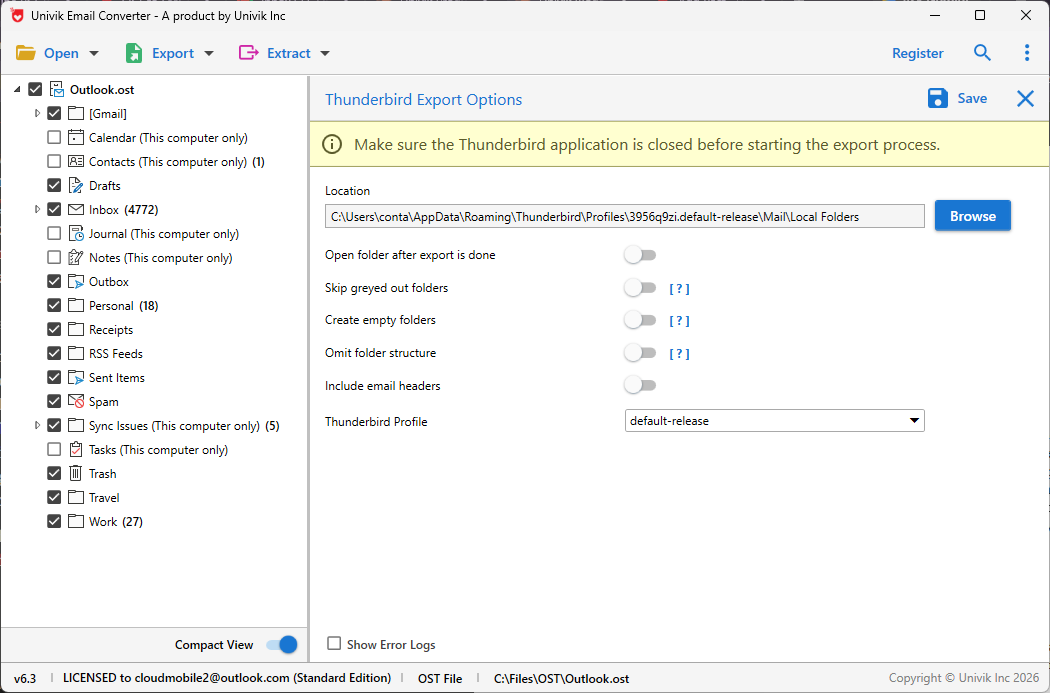
For the full feature set and download, see the OST Converter page.
Skip the PST and add-on steps. Import OST folders directly into Thunderbird in one pass, no Outlook required, with orphaned and inaccessible files supported and the folder structure and attachments kept intact.
Method 2: Import Through Outlook (Free)
If Outlook is installed and the OST belongs to a profile that still opens, this is the most direct free route available. The catch most guides bury: Thunderbird’s Outlook import only runs when Outlook is set as the Windows default email client. If it is not, the option fails silently or does not appear.
Set Outlook as the default mail client. In Windows, go to Settings then Apps then Default apps and set Outlook for email. Thunderbird’s importer reads from Outlook through this link, so it has to be set first.
Open Thunderbird and start the import. Go to the menu, then Tools then Import. Choose Import from Outlook and click Continue.
Select what to bring in and import. Pick mail, address book or both, click Continue, then Start Import. Thunderbird pulls the data from the live Outlook profile, which is reading the OST. The imported mail lands under Local Folders.
Where this method fails
This route needs the OST to be attached to a working Outlook profile. It cannot read an orphaned OST, a corrupt OST or an encrypted one, because it relies on Outlook to do the actual reading. It also requires Thunderbird and Outlook to share the same architecture: a 32-bit Thunderbird cannot talk to a 64-bit Outlook, and a mismatch produces a “no profile found” error. Large mailboxes can stall or drop items during the import. If you hit any of these, use Method 1 (the direct converter) or Method 3.
Method 3: Convert to MBOX and Import With ImportExportTools NG (Free)
This is the free OST to MBOX route that most other guides describe. It is a two-stage job: get the OST data into an MBOX file, then import the MBOX with a free Thunderbird add-on. It still needs Outlook for the first stage, and the extra conversion is where the integrity risks discussed above come in.
Stage 1: Get the mail into MBOX
In Outlook, export the OST mailbox to a PST file (File then Open & Export then Import/Export then Export to a file then Outlook Data File). Then convert that PST to MBOX. A free Outlook-to-MBOX conversion is possible but fiddly, which is why the direct converter in Method 1 exists. Once you have an MBOX file, continue below.
Stage 2: Import the MBOX with ImportExportTools NG
ImportExportTools NG is a free, long-running Thunderbird add-on for importing and exporting mail. The current version works with Thunderbird 140 and later ESR releases.
Install the add-on. In Thunderbird, open the menu, then Add-ons and Themes. Search for ImportExportTools NG and add it. Restart Thunderbird. Install it only from the official Thunderbird add-ons site.
Make sure you have a Local Folders area. The add-on imports MBOX into Local Folders or a POP account, not into an IMAP account. If the add-on menu is greyed out, it usually means no account is configured yet. Add any account or enable Local Folders first.
Right-click an individual folder, not the account. In current Thunderbird (140 and later), the MBOX import option appears when you right-click a folder under Local Folders, not when you right-click the account itself. Choose ImportExportTools NG, then Import mbox file.
Pick the import option and select the file. Choose to import a single MBOX file or all MBOX files from a directory, including the subfolder structure. Select your file and confirm. The mail appears in Local Folders.
This add-on imports mail only. It does not handle PST directly. It also cannot export to PST. It is purely the MBOX import step, which is why Stage 1 has to produce an MBOX first.
Right-click the account
Right-click a folder
Method 4: Drop the MBOX Into the Profile Folder (Free)
If you already have a clean MBOX file, you can place it straight into the Thunderbird profile and skip the add-on. This is the fallback when ImportExportTools NG misbehaves.
Close Thunderbird completely. The profile files must not be in use while you copy into them.
Open the Local Folders directory. On Windows it is C:\Users\[you]\AppData\Roaming\Thunderbird\Profiles\[profile]\Mail\Local Folders. On Mac it is ~/Library/Thunderbird/Profiles/[profile]/Mail/Local Folders.
Copy the MBOX file in and restart. Place the MBOX file (with no file extension, matching how Thunderbird names its mailboxes) into that folder. Start Thunderbird. The mailbox appears under Local Folders.
The trade-off: this is manual and unforgiving. The file has to be a valid MBOX with the right line endings, and nested folders need a matching .sbd structure. For a single mailbox it is quick. For a full folder tree, Method 1 or Method 3 is more reliable.
The Orphaned OST Problem
If you just want to check what is inside before importing, you can view OST files online in your browser first, with no Outlook or Thunderbird needed.
An orphaned OST is the case that catches people out. If yours will not open at all, our walkthrough on how to fix an orphaned OST file covers the recovery options. It happens when the Outlook profile that created the file is gone: the account was deleted, Outlook was uninstalled, the Exchange mailbox was deactivated or you moved to a new machine with only the OST file copied over.
Once the profile is gone, Outlook will not reattach to that OST. It treats the file as belonging to an account it no longer has. This is why “just open it in Outlook and import” advice fails for so many people: the whole reason they are searching is that Outlook can no longer read the file either.
For an orphaned OST, the only working path is a tool that parses the OST format directly. That is the specific job the direct converter in Method 1 does, and it is the reason direct import is the recommended route rather than a fallback after the free methods.
What About Contacts and Calendar?
The methods above move mail. Contacts and calendar are separate and need their own export, because MBOX carries messages only.
Contacts. In Outlook, export contacts to CSV (File then Open & Export then Import/Export then Export to a file then Comma Separated Values). In Thunderbird, open the Address Book and import the CSV.
Calendar. Export the Outlook calendar to ICS, then import the ICS into the Thunderbird calendar. Each calendar is exported separately.
Orphaned OST. If Outlook cannot open the file, a converter that exports contacts to vCard or CSV and calendar to ICS is the way to recover those items, since the manual Outlook export is not available to you.
Frequently Asked Questions
Can Thunderbird open an OST file directly?
No. Thunderbird has no native support for OST. The file is bound to the Outlook profile that created it and stores data in a format Thunderbird cannot read. You convert the OST data to MBOX first, then import the MBOX into Thunderbird.
How do I convert OST to Thunderbird for free?
If Outlook is installed and the OST is attached to a working profile, set Outlook as the default mail client and use Thunderbird’s Import from Outlook option. The other free route is to export the data to PST, convert it to MBOX and import the MBOX with the ImportExportTools NG add-on. All free routes need a live Outlook profile to read the OST.
How do I open an OST in Thunderbird without Outlook?
The free methods cannot do this, because they all rely on Outlook to read the OST. To convert OST file to Thunderbird without Outlook, use a converter that parses the OST format directly and imports it into Thunderbird. This is also the only route for orphaned or corrupt OST files.
Why is the MBOX import option missing in ImportExportTools NG?
In current Thunderbird (140 and later), the MBOX import option appears only when you right-click an individual folder under Local Folders, not when you right-click the account. If the whole add-on menu is greyed out, you usually have no account configured yet. Add an account or enable Local Folders, then right-click a folder.
Does importing OST to Thunderbird keep my folder structure and attachments?
It can, if done carefully. The ImportExportTools NG route and a direct converter both preserve folder structure and attachments. The quick manual profile-drop method preserves a single mailbox cleanly but needs a matching .sbd structure for nested folders. Attachments stay with their messages in every MBOX-based method.
What is the difference between an OST and a PST file?
A PST is a portable Outlook data file you can move between profiles and machines. An OST is a synced offline copy tied to one specific account and profile, and it is not designed to be opened elsewhere. That binding is why OST needs converting rather than simply copying.
The Short Version
Importing OST into Thunderbird does not have to mean saving an MBOX file first. That is the route most guides describe, but it adds conversion steps where folders, attachments and metadata can be lost. The direct import route skips the MBOX file entirely: a converter reads the OST and loads the folders straight into Thunderbird in one pass, which is faster and keeps the data intact.
The free manual routes still work if you have Outlook installed and a small mailbox, and they are covered above for that case. But for speed and for large or multiple OST files, importing directly into Thunderbird is the route that does the job without the extra effort or the integrity risk. Above all, it is the only route that works for orphaned or inaccessible OST files that Outlook can no longer open. Whichever route you take, move contacts and calendar separately as CSV and ICS.