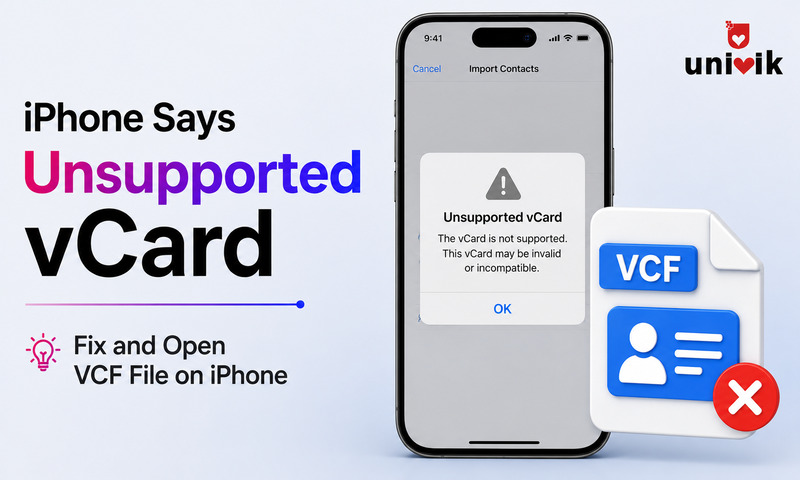
When iPhone shows “unsupported vCard” or “cannot import contacts, there was an error with the vCard,” the cause is almost always one of five things: the file uses vCard 2.1 (iPhone requires 3.0), a required field like FN or N is missing, the file has encoding issues, embedded photos are corrupt or the file structure is malformed. The fastest fix for most cases is converting the VCF to vCard 3.0 using Univik VCF Converter, which resolves the version and encoding issues in one step.
What the Error Message Actually Means
Your iPhone says the vCard is unsupported. That message is not helpful. It does not tell you which part of the file is unsupported, why or what to fix.
There are two versions of this error:
Both errors trace back to a small set of causes. The fastest path to fixing them is identifying which cause applies to your file. Work through the list below in order Cause 1 covers the majority of cases.

“We test iPhone imports with iCloud exports and with files from other phones and services, because the message you get on the phone tells you almost nothing. Extra characters in a name and a version the phone does not expect are the two things we check first.”
Nick Rogers
|Founder, Univik, building file conversion tools since 2013
Cause 1: Wrong vCard Version (Most Common)
The number one cause of “unsupported vCard” on iPhone is a vCard 2.1 file.
iPhone and iCloud require vCard 3.0 or later. vCard 2.1 is the older format that Android phones, Samsung devices and legacy email clients like Outlook 2007 export by default. It looks like a normal VCF file. It opens in text editors. But iPhone cannot reliably import it and iCloud.com rejects it entirely.
To check which version your file uses, open the VCF file in a text editor on your computer. Look at the second line of each contact block. It should say one of these:
VERSION:2.1 This is the problem. iPhone will not import this reliably. Convert to 3.0 before importing.
VERSION:3.0 The right version for iPhone. If your file says 3.0 and still fails, the cause is one of the four below.
VERSION:4.0 Supported in principle but some iPhone parsers handle 4.0 fields inconsistently. If you have a 4.0 file that fails, converting to 3.0 often resolves it.
The fix: Convert the file to vCard 3.0. Univik VCF Converter does this directly load the 2.1 file, select 3.0 as the output version and export. The converter handles the encoding changes that come with version conversion, which is the part that breaks when you try to edit the version number manually. For context on what changes between versions, see our vCard version guide.
Cause 2: Missing FN or N Field
vCard 3.0 requires two name fields in every contact entry: FN (Formatted Name) and N (Structured Name). Both are mandatory. If either is missing or empty, iPhone may refuse to import that contact or show the unsupported error.
FN is the display name what appears in your contacts list. N is the structured name with separate components for last name, first name, middle name, prefix and suffix.
A valid entry looks like this:
VERSION:3.0
FN:John Smith
N:Smith;John;;;
END:VCARD
A common export error is an FN field with no value:
N:Smith;John;;;
Or a completely missing FN line. iPhone sees this as an invalid contact and either skips it or rejects the whole file depending on how many entries have the problem.
The fix: Open the VCF in a text editor and search for FN: followed immediately by a line break with no value. Each one needs a name filled in. For files with hundreds of contacts, use Univik VCF Viewer to preview the contacts and identify which entries have empty name fields before deciding how to fix them.
Cause 3: File Encoding Problem
iCloud and iPhone expect VCF files to use UTF-8 encoding. Some encoding-related issues are subtle and do not show up when you open the file in a text editor.
The most common encoding problem is a UTF-8 BOM (Byte Order Mark) at the start of the file. A BOM is three invisible bytes that some Windows text editors and exporters prepend to UTF-8 files. iPhone and iCloud cannot parse a VCF that starts with a BOM and will reject it entirely even though the file looks completely normal.
Another encoding issue occurs with vCard 2.1 files that use quoted-printable encoding for characters outside the basic ASCII range. When names contain accented characters (é, ñ, ü) or non-Latin scripts, the quoted-printable encoding in 2.1 uses a format that 3.0 parsers misread. The contact imports but the name appears as garbled symbols.
The fix: Converting to vCard 3.0 resolves both issues the converter re-encodes the file in standard UTF-8 without BOM and converts any quoted-printable encoding to UTF-8 inline. If you need to remove the BOM from an existing 3.0 file without full conversion, open it in Notepad++ (Windows) or VS Code, check the encoding in the status bar and save as UTF-8 (without BOM).
Cause 4: Oversized or Corrupt Embedded Photos
Contact photos are stored as base64-encoded image data inside the PHOTO property of each vCard entry. Large or corrupted photo data can cause iPhone to reject individual contacts or the entire file.
A single contact with a high-resolution profile photo can add 200 KB to 1 MB to the file just for that one entry. Files exported from CRMs like Salesforce or HubSpot often embed large photos with every contact. A 500-contact export with photos can be 50 to 100 MB large enough to cause timeout failures during import.
If your file imports some contacts but skips others and the skipped contacts are ones with photos, the photo size or encoding is likely the issue.
The fix: Strip the PHOTO properties from the VCF before importing. Search the file in a text editor for lines starting with PHOTO and delete them along with the long base64 lines that follow. Or use a converter that offers a “remove photos” option before export. The contacts will import without profile images you can add photos manually to individual contacts afterward.
Cause 5: Malformed File Structure
Every vCard entry must begin with BEGIN:VCARD and end with END:VCARD. If either tag is missing, mismatched or spelled incorrectly, iPhone cannot parse the file correctly.
Common structural problems include:
Missing END:VCARD tag. A contact block that does not close properly causes the parser to run into the next contact and treat both as one malformed entry. This often happens when VCF files are manually edited or merged incorrectly.
Truncated file. If the export process was interrupted, the file ends mid-contact without a closing END:VCARD. All contacts before the truncation point are intact but the last entry is incomplete and can trigger the unsupported error for the entire file.
Extra blank lines inside a contact block. Some parsers interpret a blank line as the end of a contact. A blank line inside a contact entry can split it into two incomplete entries, neither of which has both FN and END:VCARD.
For a full guide to diagnosing and fixing corrupt VCF structure see our VCF file error repair guide.
How to Diagnose Your Specific Cause
Work through this in order. Each check takes under two minutes.
Check the vCard version first. Open the VCF in a text editor. Look at the VERSION line immediately after BEGIN:VCARD. If it says VERSION:2.1, that is almost certainly your problem. Convert to 3.0 and try again before investigating further.
Try importing a single contact. Open the VCF in a text editor and copy just one BEGIN:VCARD through END:VCARD block into a new file. Save it as test.vcf and try to import that single contact on iPhone. If it works, the problem is specific entries rather than the whole file. If it fails, the issue is structural or version-level.
Preview the file in VCF Viewer. Load the file into Univik VCF Viewer to see which contacts display correctly and which have problems. Entries that show blank names or missing fields in the viewer will fail on iPhone for the same reason.
Try the Google Contacts workaround. If converting to 3.0 and cleaning the file does not immediately resolve the issue, use the Google workaround described in the next section. It often works even when the direct iPhone import fails.
The Google Contacts Workaround
Google Contacts is the most lenient VCF importer of all major platforms. It silently strips unsupported properties, accepts vCard 2.1 files and handles encoding issues that iCloud and iPhone reject. When a VCF fails on iPhone, importing it into Google Contacts first often works and Google then re-exports the contacts as clean vCard 3.0 that iPhone accepts without complaint.
Go to contacts.google.com. Click Import in the left sidebar. Select your VCF file and import it. Google handles the version and encoding conversion automatically.
Once imported, export from Google Contacts. Go to contacts.google.com, select all the contacts you just imported, click More actions (the three dots) then Export and choose vCard format. Google exports a clean vCard 3.0 file.
Import the Google-exported VCF into iPhone. This file will work. Transfer it to your iPhone via email, AirDrop or iCloud Drive and tap to import. For the full steps see our import VCF to iPhone guide.
For iCloud-specific rejections
If the VCF imports correctly on iPhone directly but fails when you try to import via iCloud.com, the issue is specific to iCloud’s stricter parser. See our iCloud vCard rejection guide which covers the iCloud-specific causes and fixes separately.
Frequently Asked Questions
Why does the same VCF file work on Android but not on iPhone?
Android’s contact importer is more lenient than iPhone and iCloud. Android accepts vCard 2.1 files and handles missing FN fields without rejecting the contact. Apple’s parser enforces stricter rules required fields must be present and the version must be 3.0 or later. A file that works perfectly on Android can fail on iPhone for any of the five reasons listed in this guide.
Can I fix a vCard 2.1 file by just changing VERSION:2.1 to VERSION:3.0 in a text editor?
Not reliably. vCard 2.1 uses quoted-printable encoding for special characters. vCard 3.0 uses UTF-8. If you change the version number without re-encoding the character data, contacts with accented names or non-Latin characters will import with garbled text. Use a proper converter that handles the encoding conversion as part of the version upgrade.
My VCF imports but some contacts have blank names. What is wrong?
The FN field is empty or missing for those specific entries. The contact imports but without a displayable name. Open the VCF in a text editor, search for FN: followed by nothing and add the correct name. Alternatively, after import, find the blank-named contacts on your iPhone and edit them manually to add the missing name.
iPhone imported most contacts but skipped a few. How do I find out which ones?
Compare the total contact count in your iPhone Contacts app against the number of BEGIN:VCARD entries in the source file. Use Find (Ctrl+F in Notepad) to count BEGIN:VCARD occurrences. If the numbers differ, some contacts were skipped. To identify which ones, use Univik VCF Viewer to see all contacts in the file and compare against what appeared on iPhone.
The file works on my computer in Outlook but not on iPhone. Why?
Outlook’s import is more permissive than iPhone’s for certain encoding and field issues. Outlook also imports contacts as individual entries rather than reading the VCF structure as strictly. Convert the file to vCard 3.0 with UTF-8 encoding and the iPhone import should work.
The Short Version
The “unsupported vCard” error on iPhone has a short list of causes. Work through them in order: version first, then missing fields, then encoding, then photos, then structure. In most cases the problem is vCard 2.1 and converting to 3.0 resolves it immediately.
When the direct fix does not work, the Google Contacts workaround is reliable. Google imports the broken file, normalises it and exports a clean version that iPhone accepts. It takes about five minutes and works for the majority of problematic VCF files.
Which error message are you seeing “unsupported vCard” or “cannot import contacts, there was an error”? And did the contacts come from Android, a CRM export or somewhere else? That usually points straight to the right cause.