Migrating from CommuniGate Pro to Synology MailPlus Server has two paths using Univik Email Converter. The simpler route connects via IMAP while CommuniGate is running and saves email directly into MailPlus via IMAP Save. For large archives or when the server is being taken offline, the converter opens CommuniGate data files directly via its dedicated Communigate Files support. CommuniGate Pro stores email in either .mbox or .mdir format on disk, both of which the converter reads. Contacts and calendars migrate separately.
Why CommuniGate Pro Admins are Switching
The simplest route is a universal email converter that reads the source server mail and exports it to EML or MBOX for import into MailPlus.
CommuniGate Pro has been a reliable mail server for ISPs, universities and large enterprises for over two decades. It handles millions of accounts across multi-domain deployments and supports SMTP, IMAP, POP3, CalDAV and CardDAV from a single platform.
The case for switching to Synology MailPlus Server tends to come from smaller organisations that were once part of a larger CommuniGate deployment an ISP customer setting up their own infrastructure, or a university department moving to dedicated hardware. CommuniGate Pro licensing is designed for high-volume deployments. For a 10 to 50 user business running their own NAS, MailPlus Server is more appropriately sized and priced.
When migrating from CommuniGate Pro to Synology MailPlus, the practical problem is the same as with any platform: there is no built-in export tool that maps directly to MailPlus.

“CommuniGate Pro has a solid IMAP implementation, so the IMAP migration path works cleanly. The one thing worth knowing upfront is that CommuniGate supports both .mbox and .mdir mailbox formats, and a single installation can have accounts in different formats depending on how they were set up. The converter handles both, but if you are using the file path, it helps to know which format each account uses before you start.”
Nick Rogers
|Founder, Univik, building email archive tools since 2013
How CommuniGate Pro Stores Email
CommuniGate Pro runs on Linux, Windows and macOS. It is developed by CommuniGate Systems. On Linux the base directory is typically /var/CommuniGate/. Inside it, each domain has its own directory and each account has a sub-directory with its mailboxes.
CommuniGate Pro supports two mailbox formats, as documented in the CommuniGate Pro storage guide. A single server can have accounts using either:
.mbox Format
Legacy BSD mailbox format. Each mailbox is a single file containing all messages concatenated together. Older accounts or servers configured before .mdir was widely adopted often use this format.
.mdir Format
Directory-based format. Each message is a separate file inside a Maildir-style directory structure. Newer accounts and installations that optimise for reliability default to this format.
You can check which format each account uses in the CommuniGate Pro web admin. Go to Accounts, select a user and look at the Mailbox Format setting. Both formats are readable by Univik Email Converter either via IMAP or via the Communigate Files source option.
Why Synology MailPlus Server is the Right Destination
For organisations moving off a large shared CommuniGate deployment onto their own hardware, Synology MailPlus Server gives them a self-hosted mail server with a one-time licence cost. No per-seat subscription, no per-domain fees.
MailPlus Server supports IMAP, POP3, SMTP, ActiveSync and a full webmail client. The first 5 user accounts are free on qualifying Synology models. See our MailPlus Server overview and licensing guide for details.
Pre-Migration Checklist
List all CommuniGate Pro accounts. In the CommuniGate web admin, go to Domains then Accounts. Note every active account. Each needs a matching MailPlus account before migration starts.
Check the mailbox format for each account. Go to the account settings in CommuniGate admin and note whether each account uses .mbox or .mdir. This matters if you use the file-based path. IMAP migration handles either format automatically.
Set up MailPlus Server before starting. Install MailPlus Server on the Synology NAS, configure your domain, create matching user accounts and enable IMAP (Service then MailPlus Client then Protocol).
Confirm IMAP is enabled on CommuniGate Pro. In CommuniGate admin, go to Settings then Services and confirm the IMAP service is running. The default IMAP port is 143 or 993 with SSL.
Path A: Migrate via IMAP
This is the recommended path for most CommuniGate Pro migrations. It works while the server is running and handles both .mbox and .mdir accounts without any manual format selection.
Open Univik Email Converter on a Windows machine that can reach the CommuniGate server. In the Open menu, go to Email Accounts then Add account. Enter the CommuniGate IMAP server details.
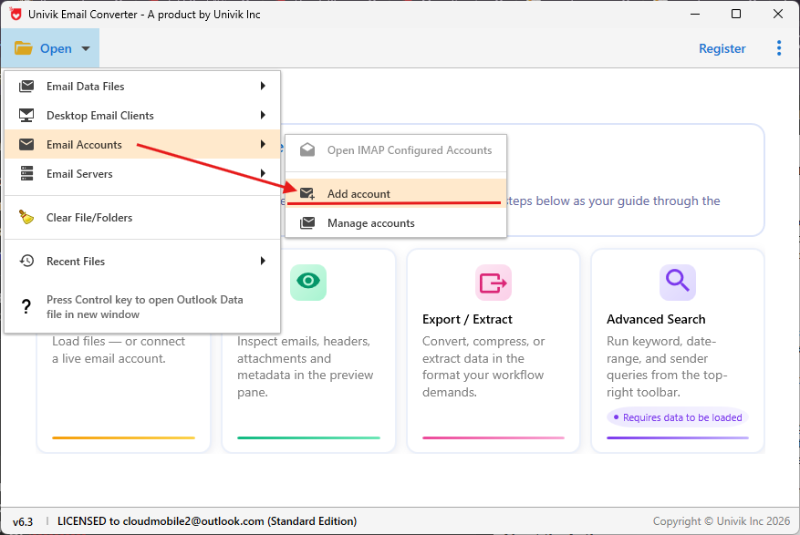
Step 1: Open then Email Accounts then Add account enter the CommuniGate IMAP server address and login details
Enter the CommuniGate server hostname or IP, port 993 for SSL or 143 for standard and the account login details. The converter connects and loads the full folder tree.
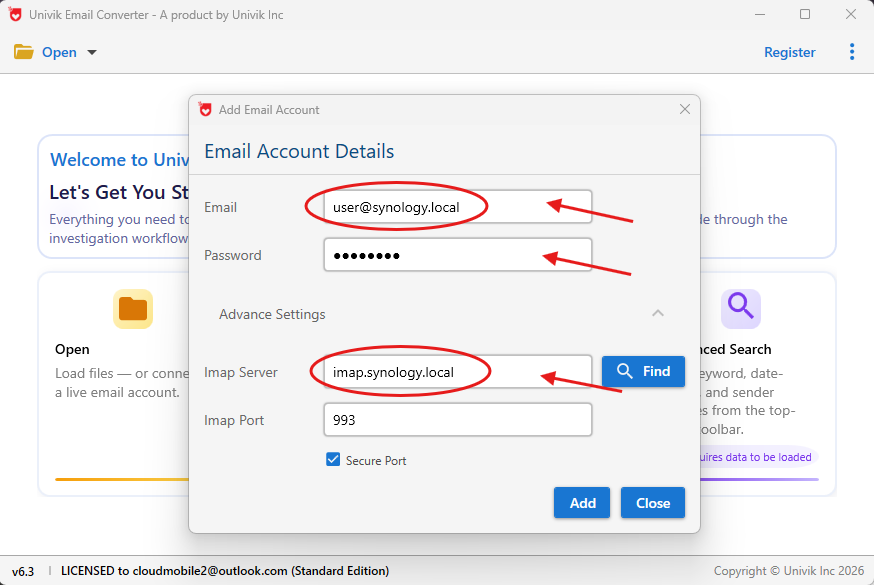
Step 2: Enter the CommuniGate server details and account login
In the Export menu, select IMAP. Enter the Synology MailPlus Server hostname, port 993 and the destination account login details. The converter migrates email directly from CommuniGate into the MailPlus account.
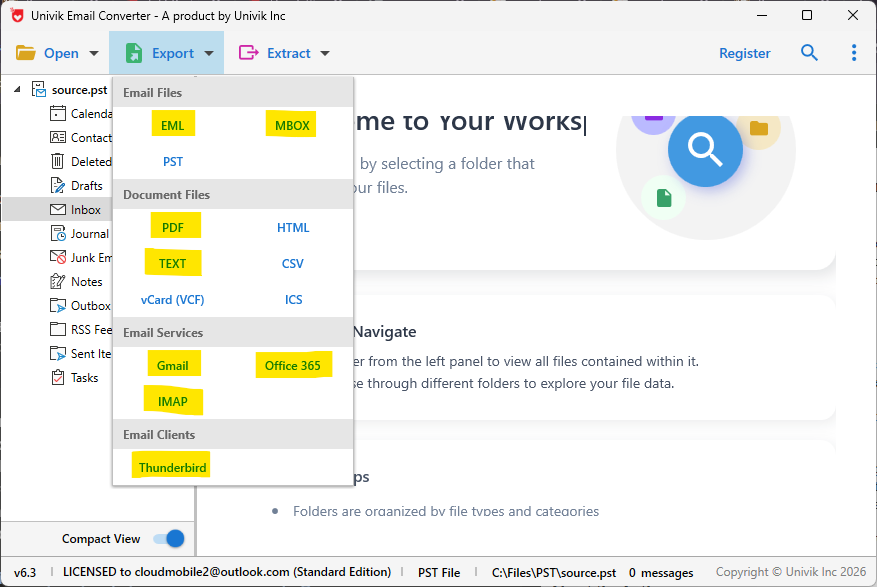
Step 3: Export then IMAP enter MailPlus Server details and email migrates directly from CommuniGate to MailPlus
Path B: Open CommuniGate files Directly
Use this path for very large archives where a live IMAP session is too slow, or when the CommuniGate server is being taken offline.
On the CommuniGate server, locate the base directory (default /var/CommuniGate/ on Linux). Inside it, find the domain folder then the specific account folder. Copy the account’s mailbox files to a Windows machine.
In the converter, go to Open then Email Servers then Communigate Files. Navigate to the copied account directory. The converter detects whether the account uses .mbox or .mdir format and loads the messages. The export step is the same as Path A: Export then IMAP, enter the MailPlus Server details.
Both paths produce the same result: CommuniGate Pro email migrated into Synology MailPlus Server with full folder structure and all attachments intact. For a 10-user CommuniGate deployment, the IMAP migration typically completes in two to four hours.
⬇ Free DownloadSee All Features →
Free trial converts the first 25 emails per folder. No registration required. Windows only.
Post-Migration Verification
Compare message counts. Log into MailPlus webmail for each migrated account and compare folder counts against CommuniGate. Gaps over one percent indicate an incomplete migration for that account.
Check custom folders. CommuniGate Pro supports user-created folders. Confirm they transferred with their correct names and message counts.
Update MX records. Once verified, update your domain MX records to point to the Synology NAS. Keep CommuniGate running for 30 days after DNS switches over to catch any email that arrived during the cutover window.
CommuniGate to MailPlus: Common Questions
Do I need to know which mailbox format each account uses before migrating?
Not for IMAP migration. The IMAP path reads the server’s folder structure directly regardless of the underlying format. For the file-based path via Communigate Files, knowing the format helps you locate the right files. Check each account in CommuniGate admin under Account Settings then Mailbox Format.
Can I migrate a multi-domain CommuniGate installation?
Yes, but one domain at a time. Each domain in CommuniGate has its own directory. Migrate all accounts from domain one, update that domain’s MX records, then move to domain two. This staged approach lets you verify each domain before cutting the next one over.
CommuniGate Pro also stores contacts and calendar data. Does migration cover those?
CommuniGate Pro stores contacts and calendar items as email messages inside dedicated mailboxes (Contact, Calendar, Task folders). When you migrate via IMAP, those mailboxes transfer as standard folders. The content in MailPlus will appear as email messages rather than native contacts or calendar entries. For proper calendar entries in Synology Calendar, export from CommuniGate webmail as ICS and import separately.
Can I migrate accounts one at a time?
Yes. The converter handles one account per session. Open the account, run the export to MailPlus and repeat for each account. For multi-domain installations, plan one account per session and work through domains one at a time.
CommuniGate Pro to MailPlus: Summary
Migrating from CommuniGate Pro to Synology MailPlus Server is a clean IMAP-to-IMAP move for most organisations. Connect the converter to CommuniGate, select the account, export via IMAP Save to MailPlus. The file-based path via Communigate Files handles larger archives and offline migrations. If you are instead retiring a Microsoft mail server, see our guide on migrating from Exchange Server to Synology MailPlus.
The one CommuniGate-specific detail to check first: whether accounts use .mbox or .mdir format. For IMAP migration it makes no difference. For file-based migration, it tells you what you are looking at when you browse the server directory.