Google Workspace raised prices by 17 to 22 percent in January 2025. Migrating to Synology MailPlus Server puts email on your own hardware with a one-time licence cost and no recurring subscription. If you are moving off a self-hosted NAS platform instead, see our guide on migrating a TerraMaster Mail Server to Synology MailPlus.
The migration has one non-obvious problem: Gmail uses labels, not folders. Every label becomes a separate folder in MailPlus. The [Gmail]/All Mail label duplicates every email in the account.
The correct approach is to skip All Mail and handle label-to-folder mapping deliberately. For accounts where Google’s IMAP rate limits cause the migration to stall, Univik Synology MailPlus Converter connects directly via IMAP and saves emails into MailPlus without hitting session limits. Contacts and calendars migrate manually via VCF and ICS export.
Why Organisations Are Leaving Google Workspace
Because the source is a cloud/IMAP account, email migration software can pull every mailbox over IMAP, ready to bring into MailPlus.
Google Workspace was free for small businesses for over a decade. That ended in 2022. Since then, the price has increased three times: 2019, 2023 and January 2025.
The 2025 increase was 17 to 22 percent across all plans. Google cited Gemini AI as the justification.
Business Starter now costs $7 per user per month on an annual plan. Business Standard is $14. Organisations that never asked for AI-bundled tools are now paying for them regardless.
The pricing issue compounds for teams that have grown. A 20-person company on Business Starter pays $1,680 per year every year, with no end point and no asset to show for it. The same team on MailPlus Server pays for licences once and never again.
Data sovereignty is the second driver. Google processes your email on its infrastructure under its terms. For organisations in jurisdictions with strict data residency requirements or for any business that simply wants email data off third-party servers, Google Workspace is increasingly incompatible with policy.

“Google Workspace migrations look simple until you hit the label problem. A typical Gmail account has 15 to 20 labels. Migrate via IMAP without planning and you end up with 15 to 20 folders in MailPlus, plus an All Mail folder that duplicates every single email. We have fixed that for a lot of customers who migrated themselves, got confused by the duplicates and came to us asking what went wrong.”
Nick Rogers
|
Founder, Univik. Building email archive tools since 2013
The Gmail Labels Problem Nobody Warns You About
This is the detail that trips up almost every self-managed Google Workspace migration. Understanding it before you start saves hours of cleanup afterward.
Gmail does not use folders. It uses labels. An email in Gmail can have multiple labels simultaneously. It appears to exist in multiple places but is actually one message with multiple tags. Traditional email clients and servers use folders, where each message lives in exactly one place.
When you access Gmail via IMAP, Google translates each label into an IMAP folder. Every message with that label appears in that folder. A message with three labels appears in three IMAP folders. And then there is the biggest problem: [Gmail]/All Mail.
All Mail duplicates everything. Skip it or your storage doubles
The [Gmail]/All Mail IMAP folder contains every email in the account regardless of which label it has. If you migrate All Mail, you import every message twice once in its label-specific folder and once in All Mail. A 10 GB mailbox becomes 15 to 18 GB after migration if All Mail is included. Always exclude [Gmail]/All Mail from any IMAP-based Google Workspace migration.
The correct label-to-folder mapping strategy for a MailPlus migration:
Exclude [Gmail]/All Mail entirely. It is a virtual folder containing every message. Migrating it doubles your storage and confuses any folder-based email client.
Map [Gmail]/Sent Mail to Sent. This is the equivalent of a standard Sent folder. Migrate it normally.
Migrate custom labels as folders. Each custom label (Projects, Clients, Finance etc.) becomes a corresponding folder in MailPlus. Messages that had multiple labels will appear in multiple MailPlus folders. This is expected and correct it mirrors how Gmail presented them.
Decide what to do with Gmail categories (Primary, Social, Promotions, Updates, Forums). If you used Gmail’s automatic category sorting, these appear as IMAP folders. Most organisations migrate only Primary and skip the rest or merge them all into Inbox. Decide before starting.
Why Synology MailPlus Server Is the Right Destination
Synology MailPlus Server runs on a Synology NAS you own. Email data stays on your hardware, in your location, under your full administrative control. No third party can access, process or suspend your email.
The interface is familiar. MailPlus includes a full webmail client, mobile apps and support for any IMAP or POP3 email client. Outlook, Thunderbird, Apple Mail and Android clients all connect without configuration changes. Users switch clients, not workflows.
For organisations already running a Synology NAS for file storage, adding MailPlus Server is a package install. The hardware cost is already covered. See our plain-English MailPlus Server overview and our licensing guide for the full cost breakdown.
Long-Term Cost: Google Workspace vs MailPlus Server
| Google Workspace Business Starter (20 users) | Synology MailPlus Server (20 users) | |
|---|---|---|
| Year 1 cost | $1,680 ($7/user/month × 12) | ~$450 one-time (5 free + 15 purchased) |
| Year 3 cumulative | $5,040 | ~$450 (same, no renewal) |
| Year 5 cumulative | $8,400 | ~$450 |
| Price history | Increased in 2019, 2023 and January 2025. Each increase 17 to 22 percent. | Perpetual licence. No renewals. No price increases on existing licences. |
| Bundled AI | Gemini included from 2025. You pay for it whether you use it or not. | No AI billing. Email server only. |
| Data location | Google data centres | Your hardware, your site |
Already running a Synology NAS?
If your organisation uses Synology for file storage, the hardware is already in place. MailPlus Server installs as a package. The only incremental cost is licence packs for seats beyond the free 5. At that point the break-even versus Google Workspace is well under 12 months.
Pre-Migration Checklist
List all Google Workspace accounts. Include active users, shared mailboxes (info@, support@ etc.) and any service accounts that send email. Shared mailboxes and aliases need different handling shared mailboxes count as licences in MailPlus, aliases do not.
Audit labels per account. In Gmail, check the label list for each user. This tells you how many IMAP folders the migration will create and lets you identify which labels to skip (All Mail, Spam, Trash, category tabs).
Check mailbox sizes. In Google Workspace Admin, review storage used per account. Accounts over 5 GB are most likely to hit Google’s IMAP rate limits during migration.
Generate App Passwords for accounts with 2-Step Verification. Google Workspace accounts with 2FA cannot use the regular account password for IMAP access. In Google Account → Security → App passwords, create a dedicated app password for the migration. Without this, the IMAP connection will fail.
Enable IMAP for all migrating accounts. In Google Workspace Admin, confirm IMAP is enabled (Apps → Google Workspace → Gmail → End User Access → IMAP Access). It is on by default but can be disabled by policy.
Document current DNS settings. Note your domain MX records, SPF, DKIM and DMARC values. You will replicate these in MailPlus Server before switching DNS. Update DKIM to a MailPlus-generated key Google’s DKIM key will no longer be valid after the switch.
Set up MailPlus Server before starting the migration. Install MailPlus Server, configure your domain, create user accounts and enable IMAP (Service then MailPlus Client then Protocol). New email should be ready to receive before you begin importing historical email.
Step 1: Set Up MailPlus Server Before Migrating
Do not begin migrating email before MailPlus Server is fully configured. A MailPlus Server that is not ready to receive email when DNS is switched means a delivery gap.
Install MailPlus Server from Package Center. Open DSM, go to Package Center and install MailPlus Server and MailPlus (the webmail client). Both are needed.
Configure your domain in MailPlus Server. In MailPlus Server admin, go to Service then Domain. Add your domain name. MailPlus generates DKIM keys for the domain note these, as you will add them to DNS before the cutover.
Create user accounts matching the Google Workspace accounts. In Account then User, create a MailPlus account for each user being migrated. Use the same email addresses. MailPlus requires user accounts to exist before email can be imported into them.
Enable IMAP in MailPlus Server. Go to Service then MailPlus Client then Protocol. Confirm IMAP (port 993) is enabled. This is required for the Univik Converter’s direct IMAP Save path.
Step 2: Export From Google Workspace
There are two starting points depending on your preference and whether you want a local backup before the migration.
Option A: Direct IMAP Migration
Connect the migration tool directly to Google Workspace via IMAP. Email transfers live, folder by folder. Best for organisations that want to migrate and cut over in a single operation without creating local files.
Requires App Password if 2FA is enabled.
Option B: Google Takeout + MBOX Files
Export email via Google Takeout (takeout.google.com) as MBOX files. Gives you a local backup before migration. MBOX files can be opened in the converter and imported into MailPlus at your own pace. Best for organisations that want a backup-first approach or are migrating on a delayed schedule.
Either option feeds into the same import step below. The difference is only in how you access the source email live IMAP connection or local MBOX files.
Step 3: Import Into MailPlus Server
For most accounts, MailPlus Server’s built-in IMAP import handles the migration. For accounts where Google’s rate limiting stalls the transfer, Univik Synology MailPlus Converter provides the alternative path.
Path A: Built-In MailPlus Server IMAP Import
In MailPlus Server admin, go to Account then User, select the destination account, click Import/Export then Import. Enter the Gmail IMAP server (imap.gmail.com, port 993) and the account’s App Password. Select the folders to migrate exclude [Gmail]/All Mail. Start the import.
Monitor the import. Google applies rate limits to IMAP sessions typically 2,500 MB per day per account via IMAP. Large mailboxes over 5 GB may hit this limit and stall. If an import stops mid-way, wait 24 hours and restart it.
Path B: Univik Converter Direct IMAP Save (For Rate-Limited Accounts)
When Google’s rate limiting kills a native import, Univik Synology MailPlus Converter handles the same transfer differently. It processes folder by folder with its own pacing logic, staying within Google’s per-session limits rather than hitting them in bulk.
Open Univik Synology MailPlus Converter on any Windows machine. Click Add Account and choose the IMAP option. Enter the Google Workspace IMAP credentials.
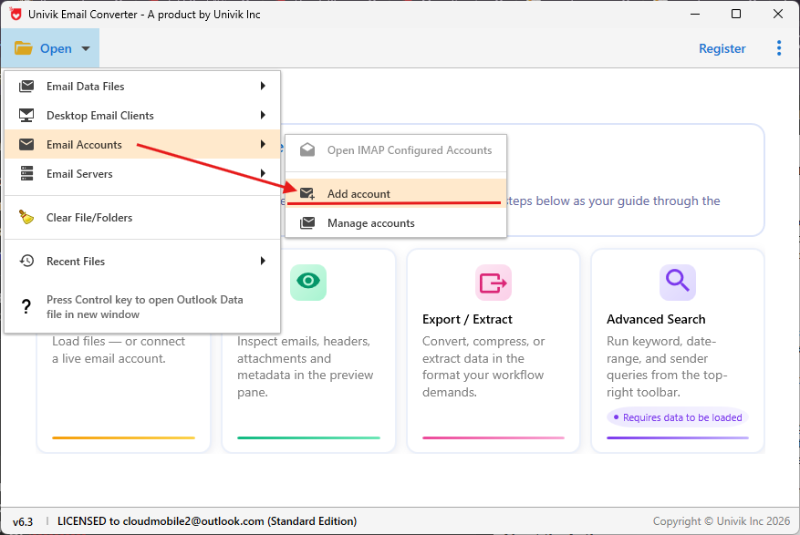
Step 1: Add the Google Workspace account using the IMAP option use the App Password if 2FA is enabled
Enter imap.gmail.com as the hostname, port 993 and the App Password. The converter connects and reads the full folder list. Deselect [Gmail]/All Mail before proceeding.
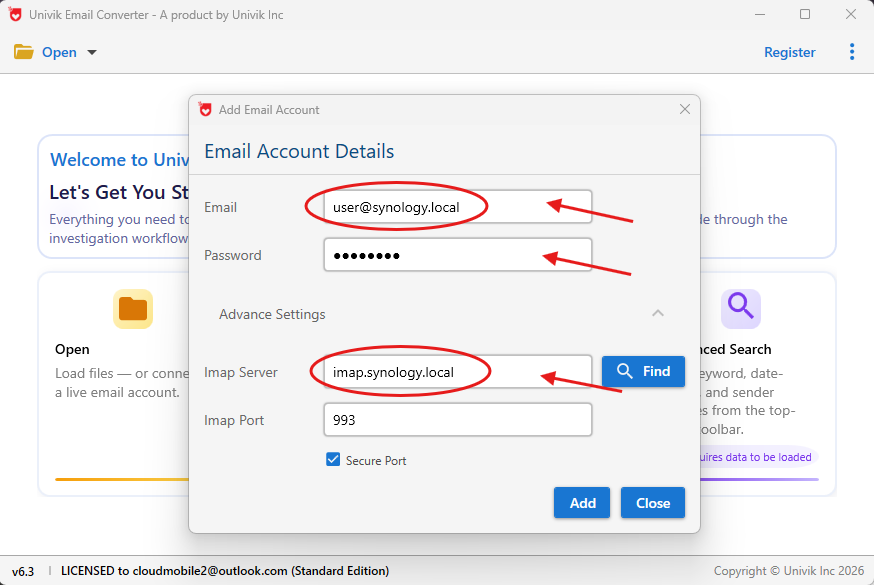
Step 2: Enter Gmail IMAP details hostname imap.gmail.com, port 993, App Password as credentials
In the Export menu, select IMAP as the output. Enter your Synology MailPlus Server hostname, port 993 and the destination account credentials. The converter migrates email directly from the Google Workspace account into the MailPlus account. No intermediate files.
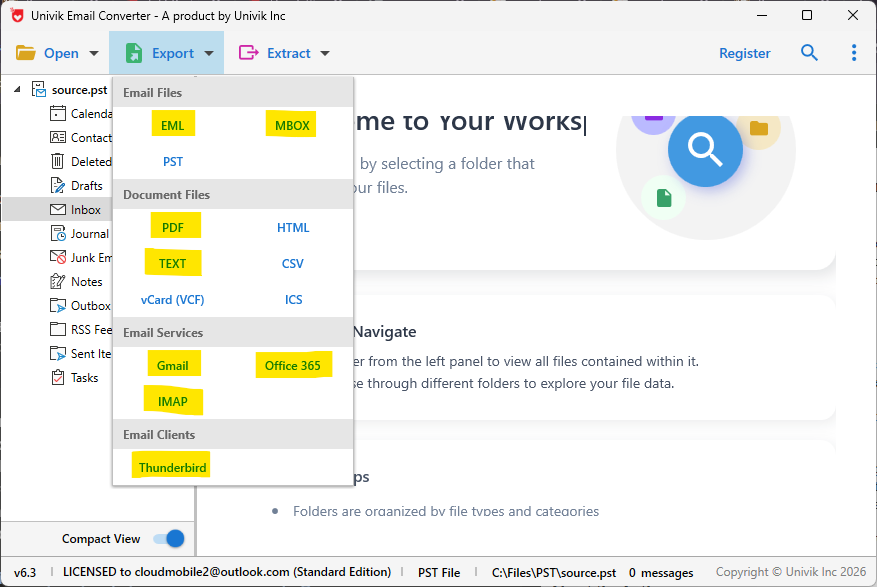
Step 3: Select IMAP in the Export menu and enter your MailPlus Server details email migrates directly from Google to MailPlus
The result: every Google Workspace mailbox migrated into MailPlus Server, with folder structure preserved and All Mail duplicates avoided. Works even when Google’s rate limiting blocks the native import.
⬇ Free DownloadSee All Features →
Free trial converts the first 25 emails per folder. No registration required. Windows only.
Contacts Migration
Google Contacts does not migrate via IMAP. It requires a manual export and import.
Export from Google Contacts. Open contacts.google.com. Click Export. Choose “All contacts” or specific groups. Export as vCard (.vcf) format. This produces a single VCF file.
Import into Synology Contacts. Open the Synology Contacts package on the NAS. Click Import and select the VCF file. Synology Contacts is accessible via the NAS web interface and is available inside the MailPlus webmail client.
Google Workspace Directory contacts (organisation-wide contacts visible to all users) need to be exported by the admin and imported as a shared address book in Synology Contacts. Per-user contacts are exported individually unless an admin bulk export is performed.
Calendar Migration
Google Calendar exports as ICS files. Each calendar (primary, additional and shared) is exported separately.
Export personal calendars. In Google Calendar, click the gear icon then Settings. Under Import and Export, click Export. Google downloads all personal calendars as a ZIP of ICS files.
Export shared team calendars. Each shared calendar must be exported separately. Open each calendar’s settings and export as ICS. This must be done by the calendar owner or a Google Workspace admin.
Import into Synology Calendar. Open the Synology Calendar package. Click the three-dot menu next to “My Calendars” and select Import. Choose each ICS file in turn.
Recreate sharing permissions. ICS files carry event data but not sharing settings. Shared calendars need to be reshared with the relevant team members inside Synology Calendar after import.
Calendar migration is the most manual part of the Google Workspace to MailPlus move. Build extra time into the migration schedule if your organisation relies heavily on shared team calendars.
Post-Migration Verification
Confirm All Mail was not migrated. Open a migrated account in MailPlus. There should be no folder called “All Mail” or “[Gmail]/All Mail.” If it is present, delete the folder and its contents.
Spot-check email counts per account. In Google Workspace, check the approximate message count for two or three accounts. Compare against the MailPlus folder counts. Significant gaps (more than 5 percent) indicate a migration issue for that account.
Test inbound and outbound email. Before switching DNS, add a test MX record for a subdomain pointing to MailPlus Server. Send test emails in both directions. Verify DMARC, DKIM and SPF pass before touching live DNS.
Switch MX records and update DKIM. Update your domain MX records to point to the Synology NAS public IP. Replace Google’s DKIM key in DNS with the MailPlus Server-generated key. New email routes to MailPlus from propagation onward.
Keep Google Workspace active for 30 days. Email arriving at Google Workspace before full DNS propagation needs to be picked up. Keep the Google Workspace accounts active but non-primary for 30 days after the switch, then cancel the subscription.
For a complete guide on backing up MailPlus Server after migration, see our MailPlus Server backup guide Hyper Backup alone is not sufficient for mailbox-level recovery.
Frequently Asked Questions About This Migration
Why did my Google Workspace migration create thousands of duplicate emails?
The [Gmail]/All Mail folder was included in the migration. All Mail contains every email in the account regardless of other labels. When migrated, every message appears twice once in its label folder and once in All Mail. Delete the All Mail folder in MailPlus and run the migration again with All Mail excluded.
Do I need to enable anything in Google Workspace Admin before migrating?
Yes. Confirm IMAP is enabled for your domain (Google Workspace Admin → Apps → Google Workspace → Gmail → End User Access → IMAP Access). If your organisation enforces 2-Step Verification, each migrating user must generate an App Password under their Google Account → Security → App passwords. Without an App Password, IMAP connections fail silently.
Will my email history transfer completely?
Yes all email from all labels and folders transfers, including Sent Mail, Drafts and custom labels. The only exception is email in Spam and Trash. Decide before migration whether to include those or leave them behind. Most organisations exclude Spam entirely and migrate Trash selectively.
What happens to Google Drive, Docs and Meet after migration?
MailPlus Server is an email server only. Google Drive, Google Docs and Google Meet are separate decisions. Synology Drive on the same NAS can replace Google Drive, but that is a separate project from the email migration covered here.
How long does a 20-user Google Workspace to MailPlus migration take?
For 20 users with typical mailbox sizes (2 to 5 GB each), the IMAP migration phase takes six to twelve hours. Google’s rate limits typically allow 2,500 MB per account per day via IMAP. Large accounts over 10 GB may take two or three days to complete fully. Plan a migration window that allows at least 48 hours between starting the import and switching MX records.
Can I migrate shared Google Workspace drives or shared calendars?
Shared calendars migrate via ICS export and reimport into Synology Calendar, covered in the Calendar section above. Google Shared Drives (Google Drive files owned by the organisation rather than individual users) are outside the scope of an email migration. They require a separate file migration project using a tool like Google Takeout or a dedicated data migration service.
Google Workspace to MailPlus: Summary
The migration path from Google Workspace to Synology MailPlus Server is well-defined. The only non-obvious problem is the Gmail labels issue. Handle that one correctly exclude All Mail, decide on category folder handling, map custom labels deliberately and the rest follows standard IMAP migration logic.
The cost case is clear. At $7 per user per month on an annual plan, Google Workspace costs a 20-person team $1,680 per year with no end point and no asset. MailPlus Server licences cost approximately $450 once. The crossover is inside 12 months for any organisation already running Synology hardware.
The one question worth asking before starting: are your users relying heavily on Google Drive and Google Docs alongside Gmail? If email is the main use case, the move follows the steps in this guide without additional complexity. If the organisation is deeply embedded in Google’s productivity suite, plan the migration in phases email first, then file storage, then collaboration tools.