To migrate Lotus Notes to Outlook you copy each Notes mailbox, turn the .nsf file into an Outlook PST, then open that PST in Outlook or import it into Microsoft 365. The Univik NSF Converter handles the file step and carries folders, attachments and calendar over. This guide covers the plan around it, the routes and what each one keeps.
Leaving Lotus Notes is a project, not a single click. The mail is one thing. There are also the mailbox count, the calendar, shared contacts and the question of where it all lands, plain Outlook or Microsoft 365. This guide maps the whole move from HCL Notes to Outlook, the routes you can take and how to run it without losing data. For the file conversion itself, we point you to the guide that owns that step.
Why Teams Move from Lotus Notes to Outlook
Cost and direction drive most of these moves. A Notes and Domino setup carries licence and admin bills that many teams no longer want, while Microsoft mail keeps pulling companies toward it. Outlook is the client staff already know, so retraining stays light. And when a Domino server reaches end of life, every mailbox has to land somewhere else regardless. The product name walked from Lotus Notes to IBM Notes to HCL Notes over the years, yet the ask never changed. Staff need their mail in a client they can open without Notes running.
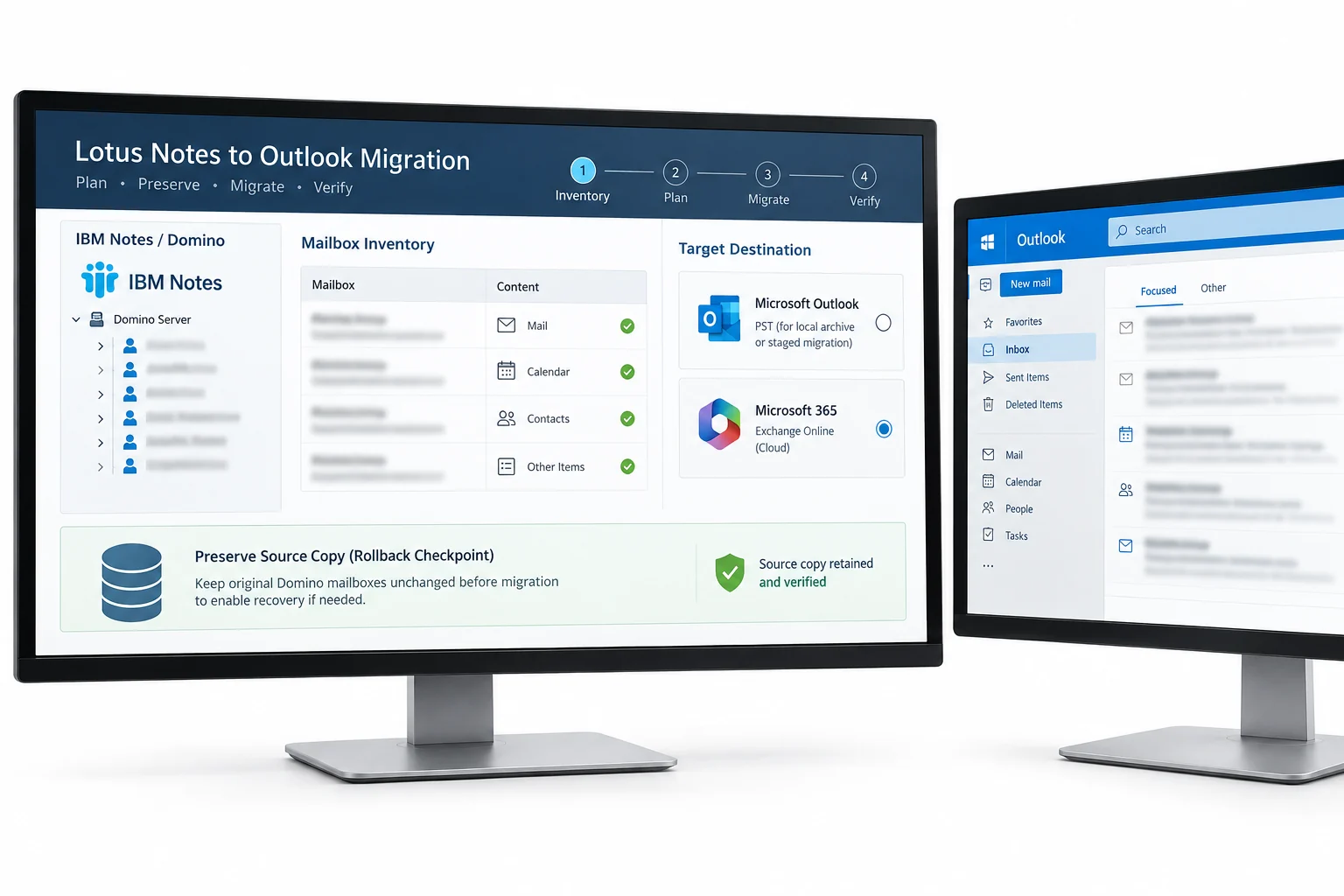
Plan the Migration Before You Start
Good moves are planned, not rushed. Count the mailboxes and check their size, because ten is an afternoon and three hundred is a staged project. To size it on real numbers, run Microsoft's free MONTI tool, the Microsoft Online Notes Inspector, against the Domino directory. It reports each mailbox size, the calendar and contacts volume and the user list, which turns a guess into a plan.
Decide the target first. Plain Outlook with local PST files suits a small team or an archive. Microsoft 365 or Exchange suits a company that wants cloud mail with search and retention. List what has to travel, mail and folders, calendar, contacts and any shared address books. Then set a downtime window and a rollback plan, because a copy of the original Notes data is your safety line. Budget for two lines, the converter licence and the hours of whoever runs it, since a big move can hold someone for days.
The Routes to Migrate Lotus Notes to Outlook
There are four routes worth knowing, and they suit different sizes of job. The free manual route exports Notes to CSV and imports that into Outlook. IMAP sync copies mail folders across when the Domino server has IMAP switched on. The converter route turns each mailbox into a PST that Outlook opens. A hosted migration service moves mail server to server for a large estate. Outlook cannot read a Notes mailbox on its own, so every route puts a middle step between the two.
Where the Free CSV Route Loses Data
The free route deserves a mention, even though it does the least. It runs a Notes view out to CSV and pulls that into Outlook, which brings basic mail text and leaves the rest behind. It also ties you to having both programs on one PC. That makes it a fit for a lone mailbox and a poor fit for a real move. We lay out the exact clicks and what gets left behind in the convert NSF to PST guide, so this page sticks to the bigger picture.
The Converter Route in Four Steps
For most moves the converter route is the one that holds up. It reads each Notes mailbox and writes an Outlook PST with the folders and attachments in place. At a project level the work is four steps.
- Copy each Notes mailboxClose Notes and copy the .nsf file, or ask the admin for a server copy or a local replica.
- Convert the NSF to a PSTRun the Univik NSF Converter on each mailbox. The step by step is in our NSF to PST guide.
- Load the PST into the targetOpen the PST in Outlook, or import it into a Microsoft 365 mailbox for cloud mail.
- Check the resultConfirm folders, calendar, contacts and attachments arrived, then hand the mailbox over.
The Notes Gotchas That Break a Migration
A few things are unique to Notes, and they trip teams that treat this like a plain mail move. Sort them in the prep and the batches run calm.
Addressing is the big one. Notes writes names in a canonical form such as CN=John Doe/O=Company, not as a normal email address. Skip the fix and replies bounce while the From line shows wrong in Outlook. A converter made for Notes maps those canonical names to SMTP as it runs, so turn that option on before the first batch. Contacts are the next trap. They do not sit in the mail file at all. The Notes address book lives in a separate database called names.nsf, so put that on the list or the new Outlook profile lands with an empty contacts folder. Two more need a call up front. A mailbox locked with a Notes ID will not open without that ID file, so pull the IDs for encrypted accounts during prep. And Notes mail can carry Doclinks that only open inside Notes, so pick one rule for the whole move and stick to it. Why these fight a conversion is laid out in our convert NSF to PST guide.
Getting Notes Mail into Microsoft 365 or Exchange
When the target is the cloud, the PST is your bridge. Once each Notes mailbox is a PST, you import it into the matching Microsoft 365 mailbox. Microsoft supports bulk PST import two ways, network upload with the AzCopy tool or drive shipping, both run from the Purview portal. Microsoft documents the PST import options and the network upload steps. Once the mail is in Exchange Online it gains cloud search, retention and eDiscovery, which is the point of moving in the first place. For the wider company plan, our notes on enterprise migration best practices and the email migration service go further.
Staged or Big Bang Migration
Two ways to run the switch. A big bang moves everyone in one window, which is quick but risky if something breaks. A staged move takes mailboxes in batches, checks each batch, then moves on. For anything past a handful of users, staged wins. It keeps a working fallback and it lets you fix a problem on ten mailboxes before it hits three hundred. Size drives the clock. Work out the run time from the total mailbox volume and how fast your tool writes, and push the heavy batches to evenings so a live Domino server is not fighting user traffic. During a staged move you can run both systems side by side for a short spell, so mail keeps flowing while people cross over.
What to Check After the Move
A move is not done when the mail lands. Open a few migrated mailboxes and walk the list. Are all the folders there in the right shape. Do attachments still open. Did calendar entries and contacts arrive alongside the inbox. Spot check dates and read marks so nothing looks scrambled. Confirm shared mailboxes and any group contacts came over. Only when a batch passes these checks do you retire that Notes mailbox and move to the next one. If a migrated PST will not open cleanly, our guide on how to repair corrupt PST files gets it back before you retire the Notes copy. Keep the original Notes data until the whole move has signed off.
Lotus Notes to Outlook Migration Questions

Written and maintained by Leena Taylor Paul and the Univik team, developers of Windows data conversion and recovery software since 2013. A Notes move lives or dies on the plan around it, so this guide stays on the routes and the batch checks and leaves the file conversion to the guide that owns it. Last verified September 2026. Planning a move off Notes? Contact our support team.