An NSF file holds your HCL Notes mail, and Outlook cannot open it. To move HCL Notes to Outlook you convert NSF to PST, the file Outlook reads. The Univik NSF Converter does this in a few clicks and keeps your folders, attachments and calendar. The free CSV route works too, but it drops a lot on the way.
You are moving off HCL Notes and your mail is stuck in an NSF file. Outlook will not touch it. The messages, the folders you built over years, the calendar, all of it sits inside one Notes database that only Notes can read. To open it in Outlook you need a PST file. This guide shows the quick way to move NSF to Outlook, the free way and what each one keeps.
What an NSF File Is
NSF stands for Notes Storage Facility. It is the database file that HCL Notes and HCL Domino use to store mail, calendar entries, contacts, tasks and notes. HCL bought Notes and Domino from IBM in 2018, and before that it was Lotus Notes, so you will see all three names for the same file. What makes an NSF different from a plain mailbox is that it packs the data and the program into one place. Forms, views, the access list and your mail all live together in the file. That design is the reason Outlook, which expects a simple mail file, cannot read it.
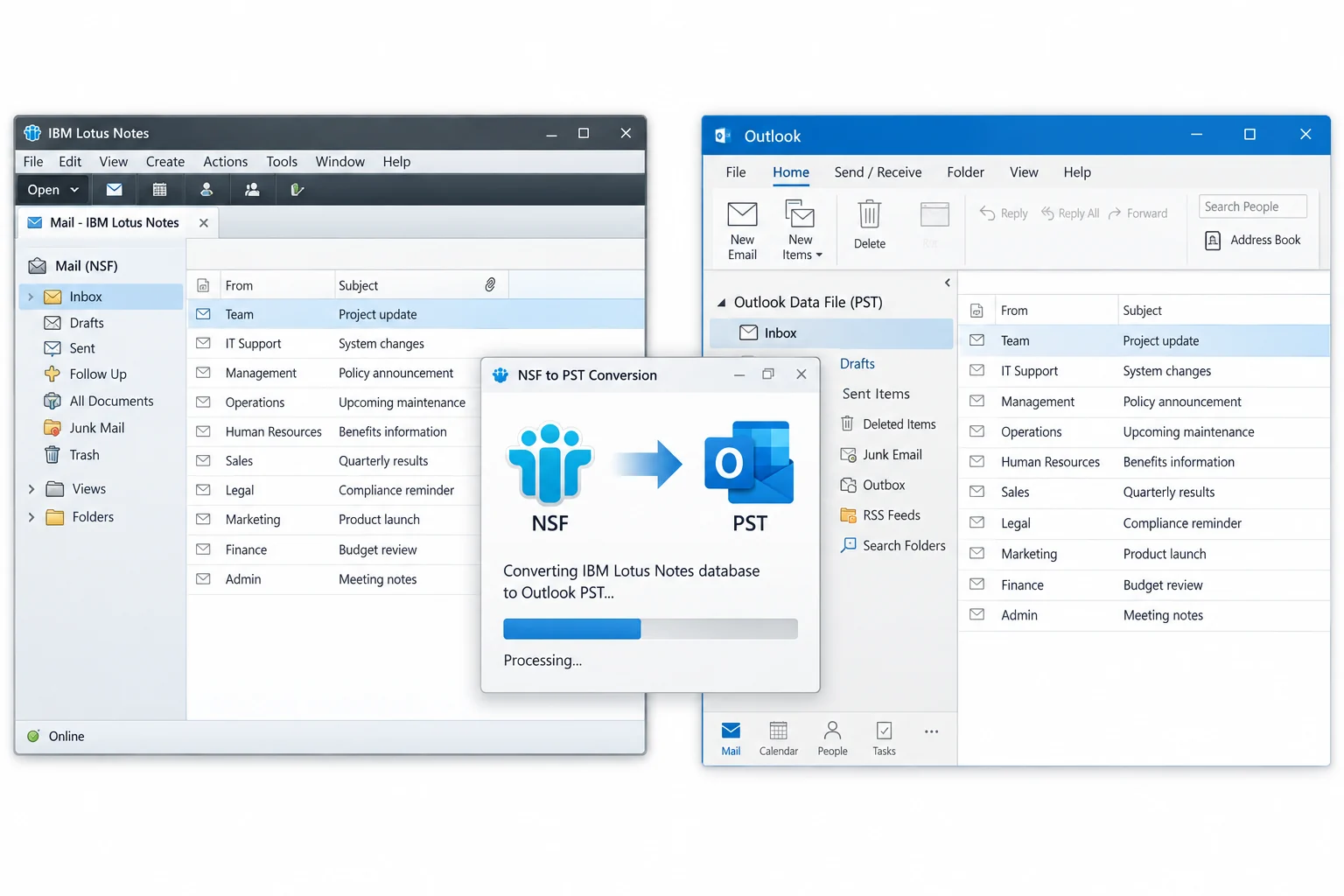
The Fastest Way to Convert NSF to PST
The direct route is a converter built for the job. It reads the NSF, rebuilds every folder and writes an Outlook PST, so you open Outlook and your Notes mail is right there. No Notes client left running, no CSV step in the middle, no dropped attachments. The Univik NSF Converter handles it in four steps. That is the whole NSF to Outlook move in one tool.
- Add your NSF filePoint the tool at the .nsf file you copied or exported from Notes.
- Pick PST as the outputChoose Outlook PST so the result opens straight in Outlook.
- Keep folders and attachmentsLeave the folder and attachment options on so nothing is left behind.
- Convert and openRun it, then open the PST in Outlook and your mail is there.
The Univik NSF Converter reads your NSF, rebuilds every folder and writes a clean Outlook PST with attachments and calendar kept. It runs without a live Notes server behind it.
Free Download See All FeaturesWhat the NSF to PST Conversion Keeps
A good converter moves far more than the message text. Your folder tree comes across the way you built it. Attachments stay on their messages. Calendar entries, contacts and tasks arrive as their Outlook versions. The sent date, the sender, the read and unread marks, all of it carries over, so the PST looks like the mailbox you knew.
What Makes NSF Files Hard to Convert
An NSF is not a simple mail file, and that is the whole problem. It is a NoSQL style database that ties the mail to Notes forms and views, so a message leans on the program around it to make sense. Notes rich text does not map one to one onto Outlook. Doclinks point to other Notes documents that Outlook knows nothing about. Many NSF files are encrypted with a Notes ID, which locks the data unless that ID is on hand. And Notes never shipped a direct save to PST, so there is no built in path from one format to the other. A tool made for the job is what bridges that gap.
The Manual CSV Route and Its Limits
There is a free way, and it helps to know what it can and cannot do. You export from Notes to a CSV file, then bring that CSV into Outlook. In Notes you open File, then Export, and pick Comma Separated Values. In Outlook you open the Import/Export wizard from the File menu and bring that CSV in as a comma separated file.
The problem is what CSV leaves behind. It carries the rows of one view and little else. Calendar entries do not come across. Attachments are dropped. Rich formatting is flattened to plain text. You need both Notes and Outlook installed on the same machine, and the whole thing crawls for a large mailbox. For one small folder of contacts it is fine. For a full mail account it is a lot of effort for a thin result, which is why most people switch to a converter once the mailbox matters.
ANSI and Unicode PST Explained
Outlook has two PST formats and the difference matters for a Notes mailbox, which is often big. The older ANSI PST caps out near 2 GB and cannot hold every character set. The newer Unicode PST has been the default since Outlook 2003, and Outlook 2010 and later set it to 50 GB, a limit you can raise in the Windows registry. For anything past a tiny mailbox, pick Unicode. Microsoft documents the size limits for PST files and how the larger Unicode limit works. If a PST later grows too big or starts throwing errors, our guide on repairing corrupt PST files walks through the fix, and the PST converter covers moving a PST on to other formats.
Why People Move from Notes to Outlook
Moving from Lotus Notes to Outlook is one of the most common email migrations in business. Most of these moves start with a plan to leave Notes. Running Notes and Domino costs more to keep than many teams want to pay, and Microsoft 365 is where a lot of them are heading. Once the Notes client is gone, the old mail still has to be readable, and a PST opens in any modern Outlook with no server behind it. Some people want their own archive they can carry between machines. For a company doing this across many mailboxes, our notes on enterprise data migration and the email migration service lay out the wider plan.
When NSF to PST Comes Up at Work
This job lands on a desk for a few common reasons. A staff member leaves and their Notes mailbox has to be kept and read. A company retires its Domino server and every mailbox needs a new home. A legal or audit request wants old Notes mail pulled out and searched in a tool people actually use. A backup of a Notes archive needs to sit somewhere it can still be opened years from now. In each case the NSF has to become something Outlook can open, and that means a PST. For the bigger picture, our guides on enterprise data migration and cloud email backup go deeper.
NSF to PST Questions

Written and maintained by Leena Taylor Paul and the Univik team, developers of Windows data conversion and recovery software since 2013. Notes mailboxes carry years of history in one dense file, so this guide stays on getting the mail, folders and calendar across without the gaps the CSV route leaves behind. Last verified September 2026. Stuck on a Notes mailbox you cannot open? Contact our support team.