Migrating from MDaemon to Synology MailPlus Server is one of the cleaner self-hosted mail server moves because Univik Email Converter can read MDaemon data files directly. MDaemon stores each email as an individual .msg file in C:\MDaemon\Users\. The converter auto-detects a local MDaemon installation and reads the files without needing the MDaemon service to be running. If MDaemon is on a separate machine, copy the Users folder to any Windows machine and point the converter at it. Once loaded, export directly into Synology MailPlus Server via IMAP Save. No command-line tools needed.
Why MDaemon Admins Are Switching Platforms
The simplest route is a universal email converter that reads the source server mail and exports it to EML or MBOX for import into MailPlus.
MDaemon has been a trusted Windows mail server since the mid-1990s. For a long time it was the go-to for small and mid-sized businesses that wanted a self-hosted mail server without the complexity of Exchange.
Two things have changed. First, MDaemon Technologies was acquired by Open-Xchange in 2022. Customers who have watched what happened to Kerio Connect after GFI acquired it are watching MDaemon’s pricing and roadmap more closely. Second, a Windows-only server tied to a specific machine is increasingly a liability. A NAS-based mail server that runs independently of any single Windows installation is a more resilient architecture for most SMBs.
When the decision to move is made, the practical question is always the same: how do you get years of email out of MDaemon and into MailPlus without losing anything?

“MDaemon is one of the easier migrations we support because the converter reads the files directly. You do not need the MDaemon service running, you do not need IMAP enabled, you just point the converter at the Users folder and it reads every account. The typical MDaemon-to-MailPlus migration for a 10-user server runs in about two hours, including verification. Most of that time is the actual data transfer.”
Nick Rogers
|
Founder, Univik, building email archive tools since 2013
How MDaemon Stores Email
Understanding the storage format is what makes this migration clean.
MDaemon stores every email as an individual .msg file. MDaemon’s documentation confirms emails live in the Users directory. These are not Outlook MSG files. They are MDaemon’s own plain-text format containing full headers, body and attachments. They live in the MDaemon Users directory:
Each user folder contains sub-folders that map to their IMAP folders: New, Sent, Trash and any custom folders they created. Each sub-folder holds the corresponding .msg files. The folder structure on disk matches the folder structure the user sees in their email client.
Each user folder also contains .mrk files alongside the .msg files. These are MDaemon metadata files (IMAP bookmarks, subscription records). The converter reads them as part of the MDaemon Files source automatically. You do not need to handle them separately.
The MDaemon service does not need to be running
Because MDaemon stores email as regular files rather than in a database, the converter can read them directly from disk. You do not need to start the MDaemon service or configure IMAP access. If the MDaemon server machine is being retired, copy the Users folder and the migration still works.
Why Synology MailPlus Server Is the Right Destination
For Windows-based MDaemon users, Synology MailPlus Server is a natural landing point. It runs on dedicated NAS hardware you already own or are buying. Email is stored on your drives with no external dependency.
MailPlus Server is actively developed. MDaemon v25.5 was released in October 2025 under Open-Xchange, which keeps it current. But for organisations that want to move off Windows-dependent infrastructure entirely, a NAS-based server removes one machine from the maintenance equation.
See our MailPlus Server overview and licensing guide for details on seats and cost.
Pre-Migration Checklist
List all MDaemon accounts. In MDaemon admin, go to Accounts and note every user account, alias and mailing list. Every active mailbox needs a matching MailPlus account before migration begins.
Note the MDaemon Users folder path. The default is C:\MDaemon\Users\. In some installations this has been moved. Confirm the exact path before copying anything. The default is C:\MDaemon\Users\. If the path has been changed, look in the MDaemon.ini file in the MDaemon App folder under the [Directories] section for the Mail property.
Set up MailPlus Server before starting. Install MailPlus Server on the Synology NAS, configure your domain, create user accounts and enable IMAP (Service then MailPlus Client then Protocol). The destination accounts must exist before the converter can save email into them.
Decide which path to use. Path A runs on the same Windows machine as MDaemon and auto-detects the installation. Path B is for when MDaemon is on a different machine or already shut down. Both produce the same result.
Path A: Auto-Detect MDaemon on the Same Machine
Use this path when MDaemon is installed on the same Windows machine where you are running Univik Email Converter.
Open the converter and go to Open then Email Servers then MDaemon Files. Select MDaemon Configured Accounts. The converter scans for an MDaemon installation on the local machine and loads the full account list automatically.
Select the account to migrate and browse the folder tree. All IMAP folders (Inbox, Sent, Drafts and custom folders) appear exactly as the user sees them. Review the message counts to confirm the account loaded correctly before proceeding.
Export to MailPlus Server via IMAP. In the Export menu, select IMAP. Enter the Synology MailPlus Server hostname or IP, port 993 and the destination account login details.
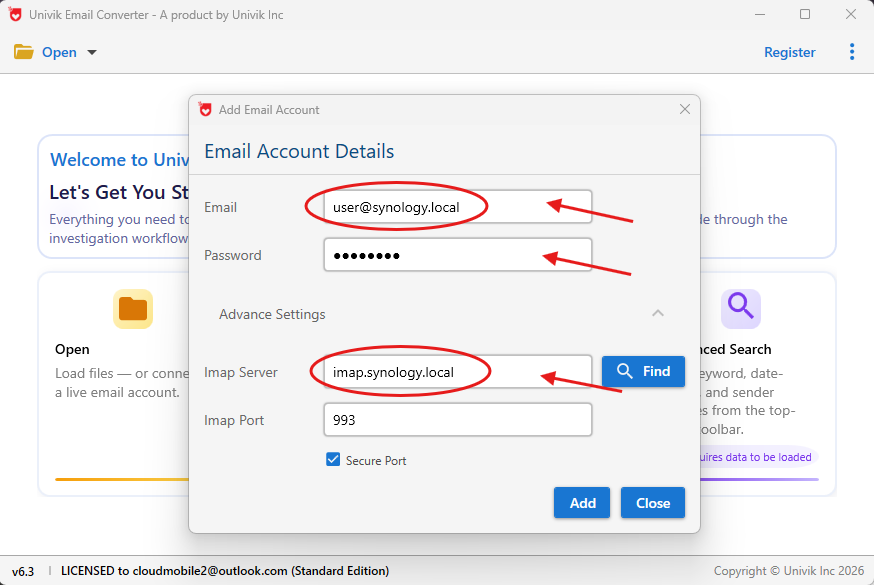
Enter the MailPlus Server hostname, port 993 and destination account login details
Click Export. The converter saves the MDaemon email directly into the MailPlus account, folder by folder.
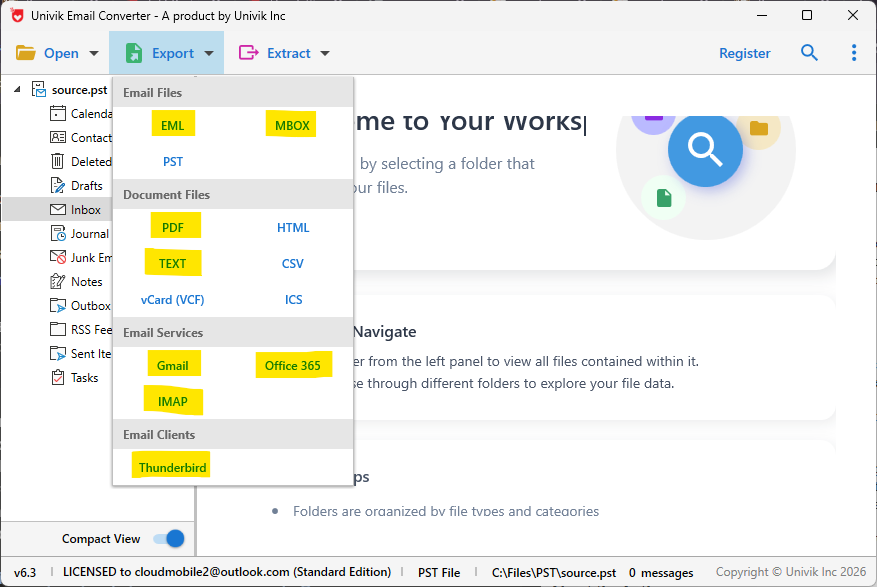
Export → IMAP → enter your MailPlus Server details. MDaemon email saves directly into the destination account
Path B: Copy MDaemon Files to Another Windows Machine
Use this path when MDaemon is on a different machine, when the MDaemon server is being retired or when you want to run the migration from a separate Windows workstation.
Copy the MDaemon Users folder to the Windows machine running the converter. Connect to the MDaemon server via a network share or USB drive. Copy the entire C:\MDaemon\Users\ folder to a local drive on the migration machine. Preserve the folder structure exactly.
Open the converter and go to Open then Email Servers then MDaemon Files. Select Choose Folders. Navigate to the copied MDaemon Users folder and select the user’s domain sub-folder. The converter reads the folder structure and loads the accounts.
Export to MailPlus Server via IMAP. Same as Path A: Export then IMAP, enter the MailPlus Server details and the converter saves the email into the destination account.
Both paths result in the same thing: complete MDaemon mailboxes in Synology MailPlus Server with all folder structure, headers and attachments intact. No MDaemon service required. No IMAP configuration on the source server needed.
⬇ Free DownloadSee All Features →
Free trial converts the first 25 emails per folder. No registration required. Windows only.
Post-Migration Verification
Check folder structure in MailPlus. Log into MailPlus webmail for each migrated account. Confirm Inbox, Sent, Drafts and custom folders are all present with the expected message counts. MDaemon’s folder structure maps directly so gaps are easy to spot.
Check a sample of emails with attachments. Open five to ten emails that you know have attachments and confirm the attachments arrived intact in MailPlus.
Update DNS MX records. Once all accounts are verified, update your domain MX records to point to the Synology NAS. New email routes to MailPlus from that point forward.
Keep MDaemon running for 30 days after DNS switches over. Email that arrived at MDaemon during the migration window or before DNS fully switches over can be migrated as a final pass using the same converter workflow.
For backup setup after migration, see our MailPlus Server backup guide.
MDaemon to MailPlus: Common Questions
Does the MDaemon service need to be running during migration?
No. The converter reads MDaemon’s .msg files directly from disk. The MDaemon service can be stopped. This is one of the key advantages of the file-based path over IMAP migration: the source server does not need to be active.
What happens to MDaemon public folders?
MDaemon stores public folders separately at C:\MDaemon\Public Folders\. Public folder email can be accessed via Open then Email Servers then MDaemon Files then Choose Folders, pointing to the Public Folders directory. Export them to a shared MailPlus account or a designated mailbox in MailPlus.
Can I migrate MDaemon accounts one at a time?
Yes. The converter loads one account at a time. Open the account, run the export to MailPlus and repeat for the next account. This lets you spread the migration over multiple sessions or days without any impact on live email delivery.
My MDaemon installation is on a different machine to where I am running the converter. What do I do?
Use Path B above. Copy the C:\MDaemon\Users\ folder from the MDaemon machine to the Windows machine running the converter. Point the converter at the copied folder via Open then Email Servers then MDaemon Files then Choose Folders.
Does migration preserve calendar and contacts data from MDaemon?
This guide covers email only. MDaemon also stores contacts and calendar data in its Users folder. Contacts can be exported as VCard from the MDaemon webmail (WorldClient) and imported into Synology Contacts. Calendars can be exported as ICS and imported into Synology Calendar.
MDaemon to MailPlus: Summary
Migrating from MDaemon to Synology MailPlus Server is one of the more direct mail server moves available. For a 10 to 15 user MDaemon deployment with typical mailbox sizes, the full migration including verification runs in two to three hours. MDaemon stores email as plain .msg files in a clean folder structure. The converter reads them without the MDaemon service running, maps the folder structure to MailPlus and saves via IMAP Save.
Run the migration from the MDaemon machine itself for the fastest path. Copy the Users folder to any Windows machine if the MDaemon server is being retired first. Either way, every account migrates with its folder structure, sent mail and attachments preserved. If you are moving off a different platform, our CommuniGate Pro migration guide covers the same move from CommuniGate.