Xeams stores email in its own Xeams format with no built-in tool for migrating to another mail server. The steps to migrate Xeams to Synology MailPlus use IMAP: enable IMAP access in Xeams, connect Univik Email Converter to Xeams as the source, then use the IMAP Save option to push email directly into each MailPlus Server account. No extra files in between. No command-line tools. Works on any Windows machine that can reach both the QNAP NAS and the Synology NAS on the same network.
What Is Xeams and Why Admins Are Moving On
To move this into MailPlus, first export the source with a QNAP Xeams converter to EML or MBOX, then import those files into MailPlus.
Xeams is a mail server application by Synametrics Technologies. QNAP NAS users install it via the QNAP App Center. It handles SMTP, IMAP and POP3 for custom domains and has spam filtering built in.
For SOHO and small business deployments, Xeams does the job. The problems tend to emerge at two points: when the QNAP hardware reaches end of life and needs replacing, and when the organisation grows past what QNAP hardware comfortably handles for email.
Both situations require migrating Xeams email to Synology MailPlus Server. That is where most admins hit a wall.
Only UserRepository needs migrating
Xeams has three global message folders on disk: GoodEmails, SpamEmails and PossibleSpam. These hold a server-wide copy of every processed message and are not per-user email. You do not need to migrate them. The only folder that holds each user’s actual mailbox is UserRepository. Everything else is reporting data or spam archive.
The Migration Problem: No Official Export Tool
Xeams has no built-in migration wizard for moving email to another mail server. The admin panel lets you configure accounts and manage email in-browser. It does not give you a clean export path to Synology MailPlus, Exchange or any other platform.
Xeams stores email as individual .eml files inside its UserRepository folder. This is documented on the Xeams file structure page by Synametrics Technologies. Each user has sub-folders there, organized into date-based sub-directories formatted as YYYYMMDD one folder per day’s messages. This is not standard Maildir or MBOX format.
The date-based structure is the key problem. On disk, Xeams does not organize messages by IMAP folder (Inbox, Sent, etc.) it organizes them by the date they arrived. Copying those files and opening them as EML files in a migration tool gives you the raw messages but loses the folder structure entirely. IMAP preserves it.
IMAP preserves folder structure. Copying EML files does not.
Xeams stores email as EML files in date-based folders, not by mailbox folder name. If you copy the UserRepository and open those EML files directly, every message arrives without its original folder context. You lose the distinction between Inbox, Sent and custom folders. IMAP reads the live server and preserves that structure completely. Use IMAP unless the server is offline and there is no alternative.

“Xeams migrations come up more often than you would expect. The admin has been running it on QNAP for years, hardware needs replacing, they check Xeams for an export option and find nothing useful. What most do not realise is that Xeams actually stores email as individual EML files but organized by date on disk, not by folder name. That means copying the files directly gives you the raw messages but loses the Inbox, Sent and custom folder mapping. IMAP is the path that preserves everything.”
Nick Rogers
|Founder, Univik building email archive tools since 2013
Why Synology MailPlus Server Is the Right Destination
Synology MailPlus Server is a full self-hosted mail server running natively on Synology NAS hardware. It handles SMTP, IMAP and POP3, includes spam filtering and anti-virus, and comes with five free user licences on qualifying models.
The migration from Xeams on QNAP to MailPlus on Synology is a hardware switch as much as a software switch. If the QNAP NAS is being retired or replaced, MailPlus on a Synology NAS gives you a modern, actively developed mail server on hardware built for NAS workloads.
For licensing and what counts as a MailPlus seat, see our MailPlus licensing guide. For a complete overview of the platform, see our MailPlus Server overview.
Pre-Migration Checklist
List all Xeams mailboxes. In the Xeams admin panel, go to Accounts and note every configured email account. Include shared accounts and any service addresses. Every account needs a corresponding MailPlus account before the migration starts.
Confirm IMAP is enabled in Xeams. In the Xeams admin interface, check that IMAP is active for each account. The converter connects to Xeams over IMAP if it is disabled, the connection will fail.
Note the Xeams IMAP server address and port. This is typically the QNAP NAS local IP address. The default IMAP port is 143 for unencrypted or 993 for SSL. Confirm which your installation uses.
Set up MailPlus Server on Synology before starting. Install MailPlus Server from Package Center, configure your domain, create matching user accounts and enable IMAP (Service then MailPlus Client then Protocol). The destination accounts must exist before import begins.
Ensure the Windows machine running the converter can reach both NAS units. The converter runs on Windows and needs network access to both the QNAP NAS (IMAP source) and the Synology NAS (IMAP destination). Both must be reachable at the same time during migration.
Step 1: Enable IMAP Access in Xeams
Before connecting the converter, confirm IMAP access is working for each account you want to migrate.
Log into the Xeams admin panel. Open a browser and navigate to your QNAP NAS IP address on the Xeams port (default is 32000 for HTTP or 32443 for HTTPS). Log in with the Xeams admin username and password.
Check that IMAP service is running. In the Xeams admin panel, go to Server Configuration then Services. Confirm the IMAP service shows as running. Note the port (143 or 993).
Test the IMAP connection. Before starting the migration, confirm you can connect to the Xeams IMAP server using any email client with the account credentials you plan to migrate. A successful test connection confirms the converter will be able to reach the account.
Step 2: Connect Univik Email Converter to Xeams
Open Univik Email Converter on a Windows machine that can reach the QNAP NAS. In the Open menu, go to Email Accounts then Add account.
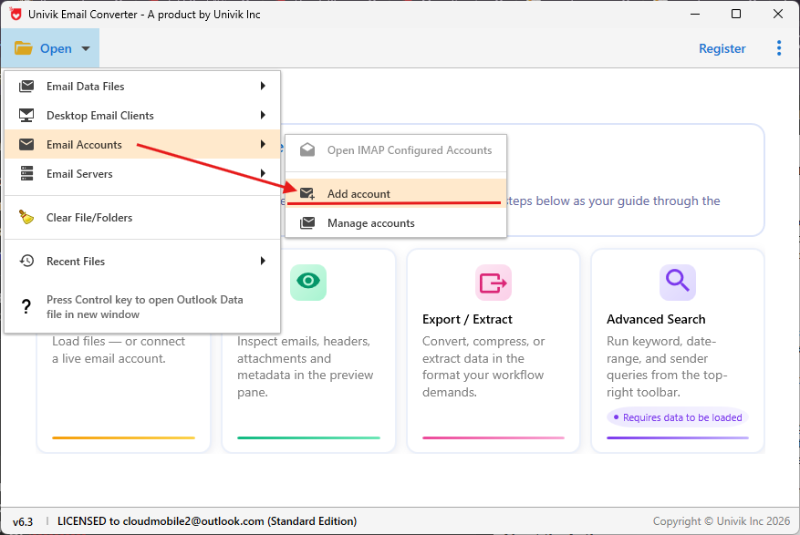
Step 1: Open → Email Accounts → Add account to connect to the Xeams IMAP server
Enter the IMAP connection details for the Xeams account. The server address is your QNAP NAS local IP. Use port 993 with SSL or port 143 without. Enter the account email address and password.
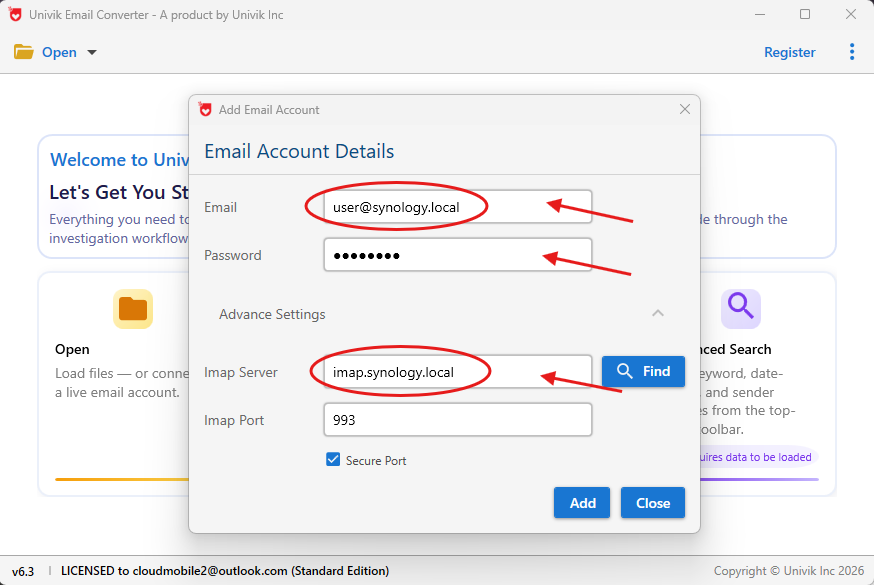
Step 2: Enter the Xeams IMAP server details QNAP NAS IP, port 993 or 143, account credentials
The converter connects to Xeams and loads the folder tree. Inbox, Sent, Drafts and any custom folders all appear. Confirm the email count per folder looks correct before proceeding.
Step 3: Save Directly Into MailPlus Server via IMAP
In the Export menu, select IMAP. Enter the Synology MailPlus Server IMAP details: the Synology NAS hostname or IP, port 993 and the destination login details. The converter connects to MailPlus and saves the email from Xeams directly into the MailPlus account.
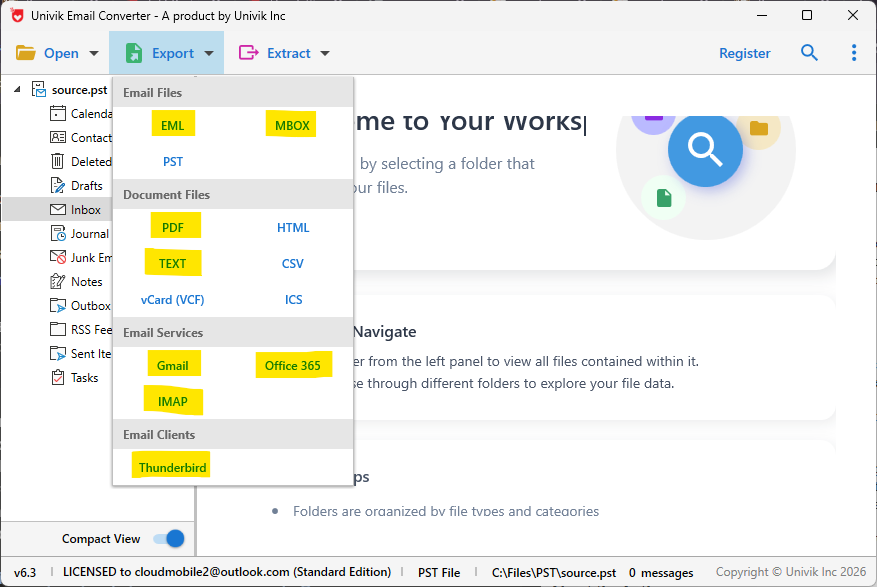
Step 3: Export → IMAP → enter Synology MailPlus Server details email migrates directly from Xeams to MailPlus
Repeat steps 2 and 3 for each Xeams account. The converter processes one account at a time, folder by folder. Each session can run independently, so you can migrate accounts over multiple days if needed.
The result: every Xeams mailbox migrated into Synology MailPlus Server with full folder structure intact. No command-line tools, no extra files saved, no third-party IMAP sync utilities.
⬇ Free DownloadSee All Features →
Free trial converts the first 25 emails per folder. No registration required. Windows only.
Path B: When the Server Is Offline Open EML Files Directly
Use this path if the QNAP NAS is being retired, the Xeams service is no longer working or you simply want a local archive before retiring the hardware. Xeams stores every user’s email as individual EML files in its UserRepository folder. Univik Email Converter opens EML files directly no running server required.
Folder structure (Inbox, Sent, etc.) is not preserved via this path
Xeams organises EML files by date on disk (YYYYMMDD folders), not by IMAP folder name. When you open them in the converter, messages load without their original folder assignment. All email arrives and is exportable, but you cannot automatically separate Inbox from Sent from custom folders. If preserving folder structure matters, use the IMAP path above while the server is still running.
Access the QNAP NAS and locate the UserRepository folder. Connect to the QNAP NAS via File Station or mapped network drive as admin. Navigate to the Xeams installation directory (typically /share/Xeams/ or the path shown in Xeams Server Configuration). Find the UserRepository folder this is where every user’s EML files are stored.
Copy the user’s sub-folder to a Windows machine. Inside UserRepository, each user has their own sub-folder. Copy the folder for the account you want to migrate to a local Windows drive. The sub-folders inside contain YYYYMMDD date directories, each holding that day’s EML files.
Open the EML files in Univik Email Converter. In the Open menu, go to Email Data Files then EML Files. Navigate to the copied UserRepository sub-folder for the account. The converter loads all EML files and displays them in a flat list ready for export.
Step 4: With EML files loaded, select Export then IMAP to save directly into the MailPlus Server account
Once the EML files are loaded, go to Export then IMAP. Enter the Synology MailPlus Server details and the destination login details. The converter saves all loaded email into the MailPlus account. Repeat for each user whose folder you copied.
Check folder counts in MailPlus. Log into the MailPlus webmail client for each migrated account. Compare the message count per folder against Xeams. Gaps of more than a few messages indicate an incomplete migration for that folder.
Spot-check a sample of older emails. Open a few emails from different time periods and confirm attachments, senders and dates are intact.
Update DNS MX records. Once migration is complete and verified, update your domain MX records to point to the Synology NAS. New email routes to MailPlus once DNS switches over.
Keep Xeams running for 30 days after DNS cutover. Any email that arrived at the QNAP NAS during the migration window or before DNS fully switches over can be migrated as a final pass using the same converter workflow.
Xeams to MailPlus: Frequently Asked Questions
Does Univik Email Converter connect to Xeams directly or do I need to export files first?
It connects directly via IMAP. In the Open menu, go to Email Accounts then Add account. Enter the Xeams IMAP server address and login details. No file export from Xeams is needed.
Can I migrate all Xeams accounts at once?
No. The converter migrates one account at a time. Open the source account, select the folders and point the IMAP export at the corresponding MailPlus destination account.
For organisations with many accounts, plan one or two accounts per session.
What happens to email that arrives during the migration?
Keep Xeams running and receiving email until DNS is switched to MailPlus. After the main migration is complete, run one final pass with the converter to pick up any email that arrived after the initial migration. Then switch the MX records.
My Xeams server is already shut down. Can I still migrate?
IMAP requires a running server. If Xeams is stopped but the NAS is still accessible, restart the Xeams service, run the migration and shut it down again.
If the NAS is completely offline, use Path B above copy the UserRepository EML files to Windows and open them via Open then Email Data Files then EML Files. Folder structure is not preserved but all email loads and exports to MailPlus.
Do contacts and calendars in Xeams migrate as well?
This guide covers email only. Xeams contacts stored in the mail server can be exported as VCard via the Xeams webmail interface. Import the VCard files into Synology Contacts after the email migration is complete.
Xeams to MailPlus: Summary
Xeams has no native migration path to Synology MailPlus. IMAP is the bridge.
Enable IMAP in Xeams, connect Univik Email Converter to the Xeams account, and use the IMAP Save export to push email directly into the corresponding MailPlus account on the Synology NAS. Folder structure is preserved. The process runs from any Windows machine on the same network as both devices.
Migrate accounts one at a time, verify counts match and keep Xeams running until DNS is switched. For a typical 5 to 10 user Xeams deployment, the full migration runs in two to four hours. After 30 days with no issues, the QNAP NAS can be retired. Coming from a different mail platform? See our guide on migrating Kerio Connect to Synology MailPlus.