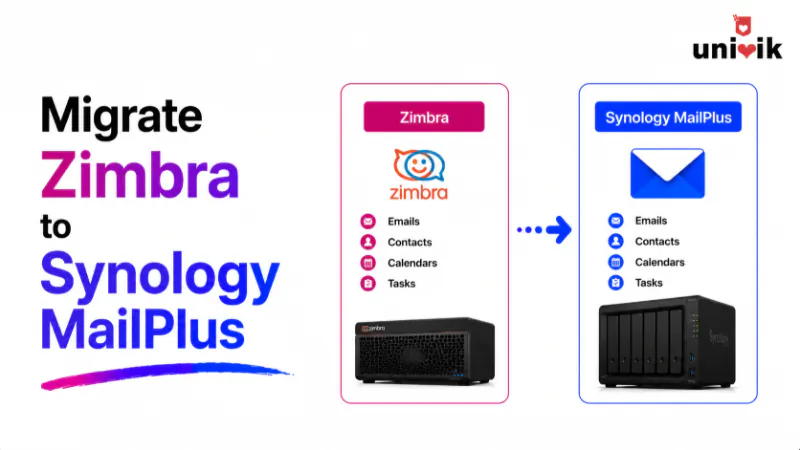
Migrating from Zimbra to Synology MailPlus Server using Univik Email Converter has two paths. The simpler route connects the converter to Zimbra via IMAP while the server is running and saves email directly into MailPlus via IMAP Save. If the Zimbra server is being taken offline, the converter can also open Zimbra data files directly. Zimbra stores email in MIME format at /opt/zimbra/store/ on Linux copying these files to a Windows machine and opening them via Zimbra Files in the converter gives you the same result without a live server. Contacts and calendars migrate separately via VCard and ICS export.
Why Organisations Are Moving Off Zimbra
The simplest route is a universal email converter that reads the source server mail and exports it to EML or MBOX for import into MailPlus.
Zimbra has changed hands more than once. Yahoo acquired it in 2007, VMware in 2010, then Synacor took ownership in 2019. Each transition brought uncertainty about the product roadmap and pricing. The current platform is available at zimbra.com.
The open-source edition (Zimbra OSE) was discontinued in 2023. Users who relied on the free, community-supported version now face a choice between the paid Zimbra Network Edition or finding a new platform.
For organisations already running a Synology NAS, MailPlus Server removes the Linux server maintenance overhead. Email stays self-hosted on hardware they already own, under a one-time licence.

“Zimbra migrations most commonly come from education and NGO customers who were on the open-source edition. When the OSE was discontinued, they needed a path out. The IMAP route works well for Zimbra because the server exposes a clean IMAP interface. You connect the converter, select the folders you want to migrate and it saves directly into MailPlus. For larger archives where IMAP is too slow, the file path via Zimbra Files handles it.”
Nick Rogers
|
Founder, Univik, building email archive tools since 2013
How Zimbra Stores Email
Zimbra runs on Linux. It stores email in MIME format (the standard email encoding) in its Message Store at /opt/zimbra/store/.
There is one important detail: Zimbra names each mailbox directory after an internal numeric ID, not the user’s email address or username. A typical path looks like /opt/zimbra/store/0/1/msg/0/ where the numbers are the internal mailbox and message IDs. This is normal Zimbra behaviour and does not cause problems for the converter. It reads the internal mapping and presents accounts by name.
Zimbra also uses a MySQL database (/opt/zimbra/db/) to store message metadata: folder names, tags, read status and pointers to the message files. When migrating via IMAP, the server handles this mapping automatically. When using Zimbra Files directly, the converter reads both the file store and the index to reconstruct the folder structure.
IMAP is the simpler path for most Zimbra admins
Since Zimbra runs on Linux and the converter runs on Windows, the file-based path requires copying data from the Linux server to Windows via SFTP or SCP. For most migrations, connecting via IMAP is faster to set up. Use the file path when IMAP is disabled, the server is being taken offline or the mailbox is too large for a live IMAP transfer.
Why Synology MailPlus Server Is the Right Destination
Zimbra is a Linux-based server that requires Linux administration, regular OS updates and hardware dedicated to running it. MailPlus Server runs as a package on a Synology NAS. If the NAS is already in use for file storage, adding MailPlus requires no new hardware.
The user experience transition is minimal. MailPlus includes a full webmail client, IMAP and POP3 support, spam filtering and mobile access. Users switch mail servers without changing their email client or workflow.
For licensing details, see our MailPlus Server licensing guide. For a platform overview, see our MailPlus Server overview.
Pre-Migration Checklist
List all Zimbra mailboxes. Run zmprov -l gaa on the Zimbra server to get a full list of all accounts. Every active account needs a matching MailPlus account before migration starts.
Confirm IMAP is enabled on Zimbra. In Zimbra admin console, go to Accounts and check that IMAP is enabled for the accounts you are migrating. By default IMAP is enabled, but it can be disabled at account or domain level.
Set up MailPlus Server before starting. Install MailPlus Server on the Synology NAS, configure your domain, create matching user accounts and enable IMAP (Service then MailPlus Client then Protocol). Accounts must exist before the converter can save email into them.
Check mailbox sizes. In Zimbra admin console, check storage used per account. Mailboxes over 5 GB benefit from the file-based path rather than IMAP, which can be slow over a network connection for large archives.
Path A: Migrate Zimbra to MailPlus via IMAP
Use this path when the Zimbra server is running and accessible on the network. It is the fastest to set up and works for most migrations under 5 GB per account.
Open Univik Email Converter on a Windows machine that can reach the Zimbra server. In the Open menu, go to Email Accounts then Add account. Enter the Zimbra IMAP server details.
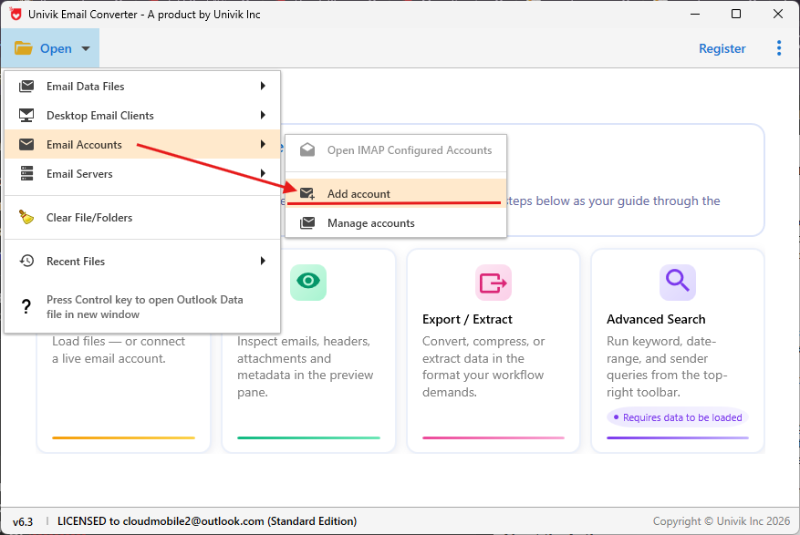
Step 1: Open → Email Accounts → Add account enter the Zimbra IMAP server address and account login details
Enter the Zimbra server hostname or IP, port 993 for encrypted or 143 for standard, and the account login details. The converter connects to Zimbra and shows the full folder tree Inbox, Sent, Drafts and any custom folders the user created.
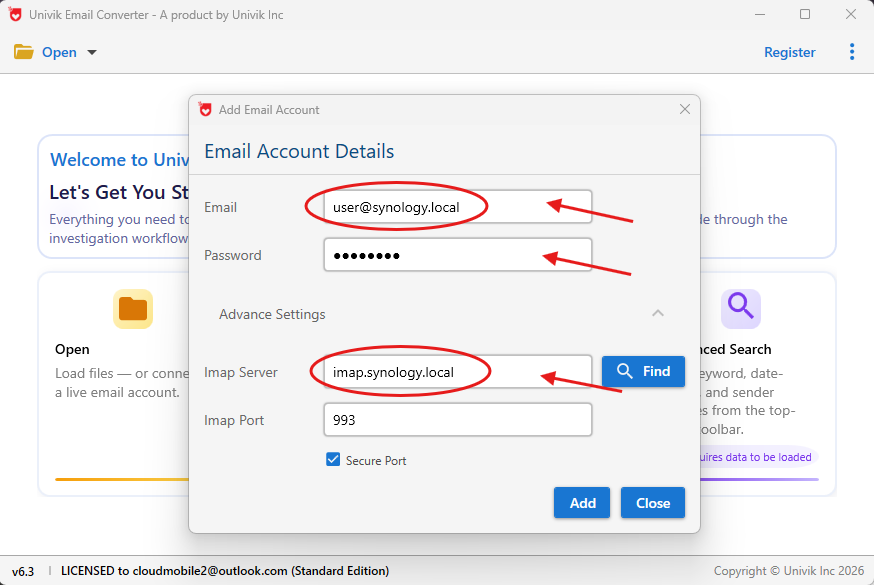
Step 2: Enter Zimbra IMAP details server hostname, port 993 and the account login details
In the Export menu, select IMAP. Enter your Synology MailPlus Server hostname or IP, port 993 and the destination account login details. The converter migrates email directly from the Zimbra account into the MailPlus account, preserving all folders.
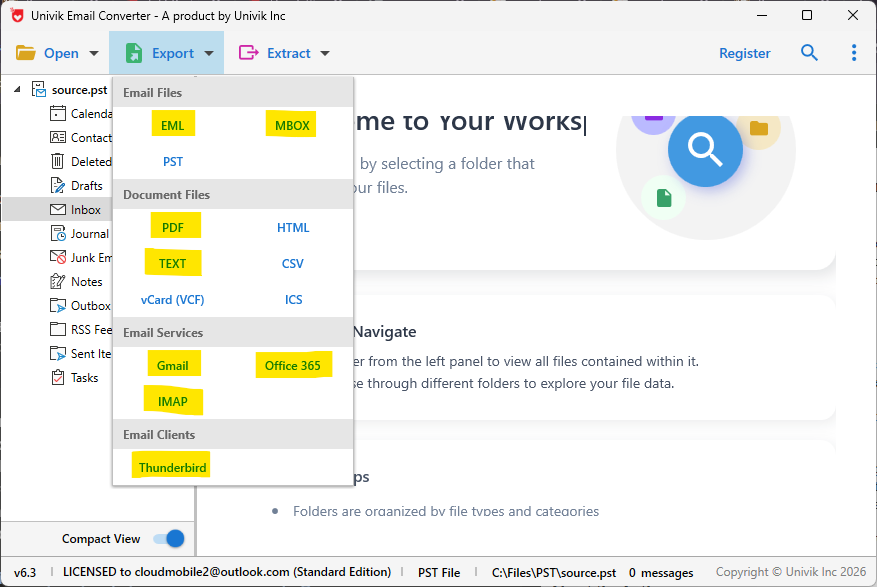
Step 3: Export → IMAP → enter your MailPlus Server details Zimbra email migrates directly into MailPlus
Path B: Open Zimbra Files Directly in the Converter
Use this path when the Zimbra server is being taken offline, IMAP access is restricted or the mailbox is large enough that a live IMAP transfer would take too long.
Copy the Zimbra store to a Windows machine. On the Zimbra Linux server, the Message Store is at /opt/zimbra/store/. Use SFTP, SCP or a network mount to copy the store directory to a Windows machine. Copy the index at /opt/zimbra/index/ as well if available. The converter uses the store as the primary source; the index supports more complete folder mapping.
Open the Zimbra data in the converter. In the Open menu, go to Email Servers then Zimbra Files. Navigate to the copied store directory. The converter reads the Zimbra data files and reconstructs the account list and folder structure.
Export to MailPlus via IMAP. Same as Path A: go to Export then IMAP, enter the MailPlus Server details and the converter saves the email into the MailPlus account. The result is identical to the IMAP migration path.
Both paths deliver the same result: Zimbra email migrated into Synology MailPlus Server with full folder structure, all message metadata and all attachments preserved.
⬇ Free DownloadSee All Features →
Free trial converts the first 25 emails per folder. No registration required. Windows only.
Contacts and Calendar Migration
Zimbra stores contacts and calendars alongside email. They do not migrate via the IMAP or file path they need separate export steps.
Export contacts from Zimbra. In Zimbra webmail, go to Contacts and select Export. Choose VCard format. Import the VCard file into Synology Contacts on the NAS.
Export calendars from Zimbra. In Zimbra webmail, go to Calendar then share the calendar and export as ICS. Import the ICS file into Synology Calendar. Shared calendars must be exported by the calendar owner and reshared after import.
Post-Migration Verification
Compare message counts. Check three to five accounts in MailPlus webmail against Zimbra. A gap of more than one percent of total messages indicates an incomplete migration for that account.
Check custom folder structure. Zimbra supports user-created folders in the same way MailPlus does. Confirm that custom folders migrated and contain the expected messages.
Update MX records. Once all accounts are verified, update your domain MX records to point to the Synology NAS IP. Keep Zimbra running for 30 days to catch any email that arrived before DNS switches over.
Zimbra to MailPlus: Common Questions
Does migrating Zimbra to Synology MailPlus Server require Linux knowledge?
For Path A (IMAP), no. You connect via IMAP from a Windows machine. For Path B (file-based), you need to copy the /opt/zimbra/store/ and /opt/zimbra/index/ directories from the Linux server to Windows, which requires basic SFTP or SCP access. If you are comfortable SSHing into a Linux server, the file copy takes a few minutes.
The Zimbra open-source edition is discontinued. Can I still migrate the data?
Yes. The data on disk does not disappear when the software edition is discontinued. As long as the Zimbra server is still running, Path A via IMAP works normally. If the server is offline, Path B reads the files directly. The important thing is to migrate before the server hardware is wiped or retired.
Can I migrate one account at a time?
Yes. The converter handles one account per session. Add the Zimbra IMAP account or point to the Zimbra files, run the export to MailPlus and repeat for the next account. Migration can run over multiple days without affecting live email delivery.
Does Zimbra’s folder structure transfer correctly to MailPlus?
Yes. Zimbra and MailPlus both use standard IMAP folder conventions. Inbox, Sent, Drafts, Trash and user-created folders all transfer with their original names and contents.
Zimbra to MailPlus: Summary
Migrating from Zimbra to Synology MailPlus Server is a clean move for organisations that want to get off Linux server maintenance without giving up self-hosted email. For a 5 to 10 user Zimbra deployment, the IMAP migration takes three to five hours depending on mailbox sizes. Contacts and calendars add another hour.
For most migrations, Path A via IMAP is the fastest. Connect the converter to Zimbra, choose the folders, export via IMAP Save to MailPlus. Path B via Zimbra Files covers larger archives and offline migrations. Coming from a different self-hosted server? See our guide on migrating from MDaemon to Synology MailPlus.
Contacts and calendars need separate VCard and ICS exports and take an hour on top of the email migration. Build that time into the project plan.