 Open & Read Guide
 By
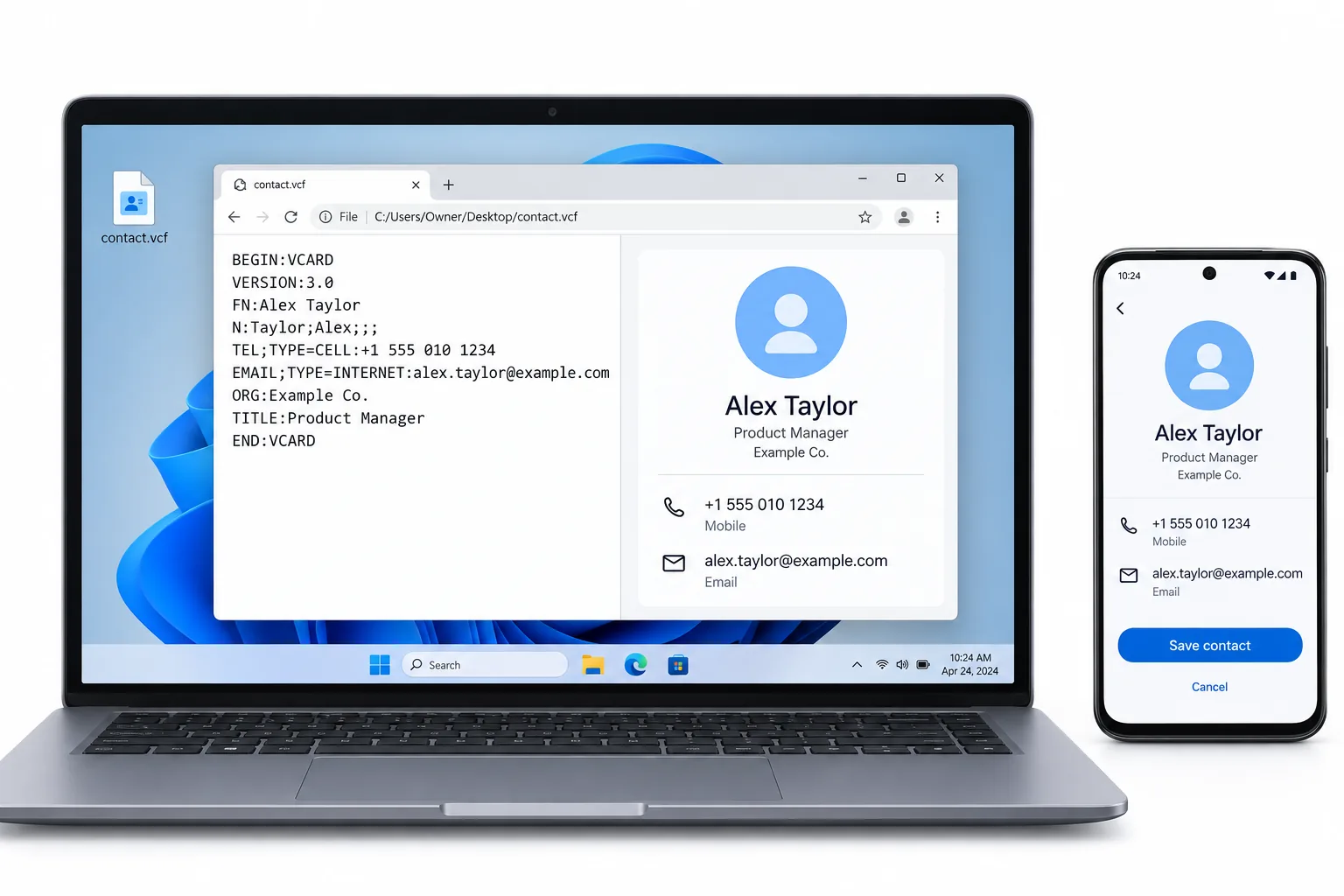
By A VCF file is a plain text vCard that holds one or many contacts, each running from BEGIN:VCARD to END:VCARD. You do not have to import it to read it. Open it in a browser with an online VCF viewer, or in Notepad to see the raw text, on any device. Importing it into Outlook, Google or your phone is a separate choice, for when you want the contacts saved in your address book.
Someone sends you a .vcf file or you find one in a backup. You want to see who is in it, but you do not want it landing in your phone contacts or your Outlook address book. You only want to read it.
Good news: opening a VCF and importing it are two different things. This guide covers the ways to open and read one without adding a single contact to your address book, on any device.
- What Is a VCF File?
- Why Open a VCF File Without Importing It?
- Which Way Should You Open a VCF File?
- How Do You Open a VCF File Online in a Browser?
- Step 1: Open the online VCF viewer
- Step 2: Choose or drop your .vcf file
- Step 3: Read, sort and filter the contacts
- Step 4: Open a single contact in full
- How Do You Open a VCF File in Notepad?
- How Do You Open a VCF File on a PC, Mac or Phone?
- How Do You Open a VCF File in Excel?
- What If a VCF File Will Not Open?
- VCF Opening Questions
What Is a VCF File?
A VCF file is a vCard, the standard format for an electronic contact card, saved as plain text. Each contact runs from a BEGIN:VCARD line to an END:VCARD line, with a VERSION line and one property per line: FN for the formatted name, TEL for a phone number, EMAIL for the address, ADR for the postal address, ORG for the company and PHOTO for a picture stored as base64 text. The format is defined in RFC 6350, with the media type text/vcard.
Because it is text, a vCard is readable on its own, which is why opening one is easier than opening a binary format. Three versions are in common use, vCard 2.1 from 1996, 3.0 and the current 4.0, and one .vcf file can hold a single contact or thousands, each in its own BEGIN and END block. A file from a phone or from Google Contacts is usually one file with the whole address book inside.
Why Open a VCF File Without Importing It?
The quickest way to see a vCard, double clicking it, is also the one that changes your address book. On a phone or on Windows, a double click opens the Contacts app and offers to add every card in the file. That is fine when you want the contacts saved, but wrong when you only want to check who is in the file, confirm a number or look at a backup before you decide what to keep.
Importing also creates duplicates. If the file holds contacts you already have, importing it doubles them. Cleaning up duplicates afterwards is more work than reading the file was in the first place. Opening the file in a viewer or a text editor reads it and adds nothing, so your address book stays as it is.
Which Way Should You Open a VCF File?
Five ways open the file. They differ in whether they touch your address book and how well they handle a file with many contacts.
| Method | What you get | Imports contacts? | Best for |
|---|---|---|---|
| Online VCF viewer | Every contact in a table you can sort and filter | No | Any device, a quick read, nothing installed |
| Text editor (Notepad) | The raw vCard text, one card after another | No | A quick peek or reading one field |
| Windows Contacts or People | One card at a time, previewed | Adds to Contacts | Windows, when you do want it saved |
| Convert to CSV, then Excel | A spreadsheet of every contact | No | Editing, sorting or bulk work |
| Import into Outlook, Google or a phone | The contacts in your address book | Yes | When you actually want them saved |
The top two open the file and change nothing. The rest either save the contacts or need a conversion step. If your goal is to read the file and leave your address book alone, an online viewer is the fastest. A text editor is the quickest peek.
How Do You Open a VCF File Online in a Browser?
The fastest way to read a VCF on any device, and the one that imports nothing, is a browser based viewer. Univik VCF File Viewer opens a .vcf in the browser tab, reads it on your own device and lists every contact with names, phones, emails and photos. Nothing is uploaded, so it is safe for a customer or staff address book. It works on Windows, Mac, Linux, a Chromebook or a phone.
Open the online VCF viewer
Go to the Univik VCF File Viewer in any browser. There is nothing to install, and the file is read on your own device, not on a server.
Choose or drop your .vcf file
Drop the .vcf onto the page or pick it from your device. A file with one contact or with thousands loads the same way. The viewer also opens a file with no extension if a backup saved it that way.
Read, sort and filter the contacts
The contacts show in a table with names, phone numbers, emails and photos. Sort by name, company or country. Filter by whether a contact has a photo or an email, so a large file is easy to scan.
You should see The full contact count and a row for every card in the file.
Open a single contact in full
Click any contact to see its full card, with the address, job title and any notes. Nothing is added to your address book at any point, because the viewer only reads the file.
People assume a VCF has to go into their phone before they can read it, and then they are stuck cleaning up duplicates. It does not. A viewer reads the file and leaves the address book exactly as it was.
Univik VCF File Viewer reads a .vcf in your browser or on Windows and shows every contact with photos, importing nothing. Free, and the file never leaves your device.
Runs in any browser · Windows 11 / 10 / 8 / 7 app · free, no registration
How Do You Open a VCF File in Notepad?
Because a VCF is plain text, you can open it in Notepad or any text editor to read it or grab one field. Right-click the .vcf, choose Open with and pick Notepad. You will see each contact between BEGIN:VCARD and END:VCARD, with the name on the FN line and the number on the TEL line.
This is fine for a single contact or a quick look. It falls down on a large file, because there is no sorting or search. A contact photo also shows as a long block of base64 text, the greyed part above, that pushes the readable lines apart. For anything more than a peek, a viewer is easier.
How Do You Open a VCF File on a PC, Mac or Phone?
Every device can open a vCard, but the built in route usually imports it. Here is what each one does, and how to read the file instead:
- Windows: a double click opens the .vcf in the Contacts or People app, which offers to save it. To only read it, open it in an online viewer or in Notepad.
- Mac: a double click opens Contacts and offers to add the cards. To read without saving, open the file in an online viewer in Safari or in TextEdit.
- iPhone or iPad: tapping a .vcf opens Contacts to add it. To see the contacts without saving them, open the file in an online viewer in the browser.
- Android: opening a .vcf hands it to the Contacts app to import. A browser based viewer reads the file without adding anything.
On every device the pattern is the same. The Contacts app is the import route, and a viewer or a text editor is the read-only route.
How Do You Open a VCF File in Excel?
Excel does not read the vCard format, so opening a .vcf in Excel gives you one messy column or nothing at all. To get the contacts into a spreadsheet you convert the VCF to CSV first, then open the CSV in Excel, where each field lands in its own column. The Univik vCard Converter writes CSV, Excel and other formats directly. Our guide on why a VCF will not open in Excel covers the free routes as well.
What If a VCF File Will Not Open?
If a VCF will not open or shows garbled names, the usual causes are a wrong text encoding, a broken line in the file or a version an old app does not understand. A viewer built for the format opens files that a phone rejects, including damaged ones, because it reads the text directly rather than trying to import it. For the import errors themselves, our guide on the Unable to import vCard error and the one on fixing VCF file errors walk through each case.
The short version
- A VCF is a plain text vCard. Each contact runs from BEGIN:VCARD to END:VCARD, and one file can hold thousands.
- Opening a VCF and importing it are different. A double click imports it, a viewer reads it.
- To read without importing, use an online VCF viewer in a browser or open the file in Notepad for a peek.
- On Windows, Mac and phones the Contacts app is the import route. Use a viewer to leave your address book alone.
- For a spreadsheet, convert the VCF to CSV then open it in Excel, because Excel cannot read vCard.
VCF Opening Questions
What opens a VCF file?
A VCF file is plain text, so any text editor such as Notepad opens it. An online VCF viewer shows every contact in a readable table without importing anything. On Windows, double clicking a .vcf opens it in the Contacts or People app. On a phone, the Contacts app opens it, though that route adds the contacts to your address book.
How do I open a VCF file online without uploading it?
Use a browser based VCF viewer that reads the file on your own device rather than sending it to a server. The Univik VCF viewer opens the .vcf in the browser tab and shows the contacts with names, phones, emails and photos. Nothing leaves your machine. It works on Windows, Mac, Linux, Chromebook and phones.
How do I open a VCF file without adding it to my contacts?
Open it in a viewer or a text editor instead of the Contacts app. An online VCF viewer or the Univik VCF File Viewer shows every contact and imports nothing. Double clicking a .vcf on Windows or a phone opens the Contacts app, which is what adds them, so avoid that route when you only want to read the file.
Can I open a VCF file in Notepad?
Yes. A vCard is human readable text, so Notepad shows each contact from BEGIN:VCARD to END:VCARD, with lines like FN for the name and TEL for the phone. It is fine for one contact, but a file with many contacts or one with photos stored as long base64 blocks is hard to read this way. A viewer lays them out properly.
How can I open a VCF file on a Mac or iPhone without saving the contacts?
On a Mac or iPhone, opening a .vcf normally offers to add it to Contacts. To read it without importing, open it in an online VCF viewer in Safari or in a text editor such as TextEdit on the Mac. On an iPhone, the online viewer in the browser is the way to see the contacts without saving them.
Why will my VCF file not open in Excel?
Excel does not read the vCard format, so a .vcf opens as a single messy column or not at all. To get contacts into a spreadsheet you convert the VCF to CSV first, then open the CSV in Excel. Our guide on why a VCF will not open in Excel and how to fix it covers the steps.
How many contacts can one VCF file hold?
One .vcf file can hold a single contact or thousands, each contact wrapped between a BEGIN:VCARD line and an END:VCARD line. A file exported from a phone or from Google Contacts is usually one file with every contact inside, which is why a viewer that lists and sorts them is easier than a text editor.
Is it safe to open a VCF file?
Yes. A vCard is a text file of contact details and does not run code, so opening it in a viewer or a text editor is safe. An online viewer that reads the file on your device, without uploading it, keeps the contacts private, which matters when the file is a customer or staff address book.
 About This Guide
Written and maintained by Leena Taylor Paul and the Univik team, developers of Windows data conversion and recovery software since 2013. The vCard format details were checked against RFC 6350 and the sources below, and the methods were run on real .vcf files exported from a phone and from Google Contacts. Last verified September 20, 2026. Need a hand? Contact our support team.
Sources checked: RFC 6350: vCard Format Specification · Wikipedia: vCard format and properties · Univik: VCF file structure explained line by line · Univik VCF File Viewer