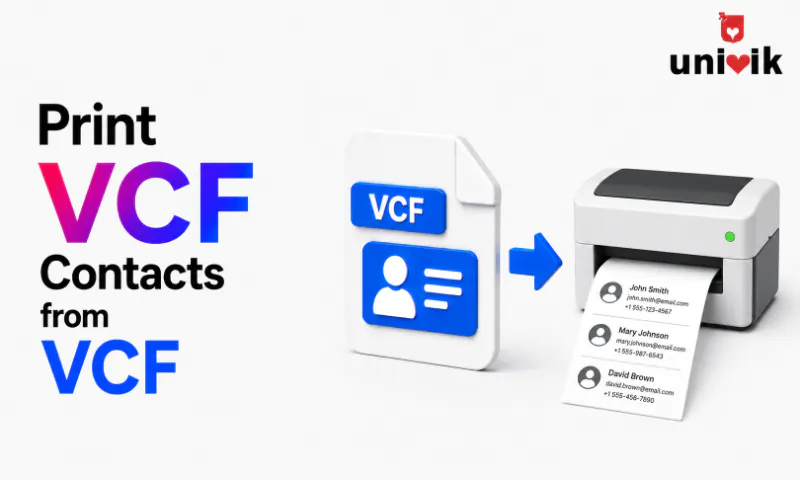
VCF files cannot be printed directly because they are plain text files opening one in a printer dialog outputs raw vCard code, not readable contact information. To print contacts from a VCF file, use one of three methods: open the VCF in Univik VCF Viewer and use its built-in print function (fastest), import the VCF into Outlook and print from the contacts view or convert the VCF to PDF first and print the PDF for the cleanest formatted output.
Why You Cannot Print a VCF File Directly
You cannot right-click a VCF file and print it the way you would a Word document or PDF. Windows has no built-in VCF print handler.
If you open a VCF file in Notepad and try to print, you get the raw vCard text BEGIN:VCARD, FN:, TEL:, END:VCARD repeated for every contact. That is the underlying data, not a formatted contact list. Useful for troubleshooting. Not useful for a printed phone book.
Printing contacts from a VCF requires one intermediate step: converting or displaying the VCF data in a format that a print function understands. The three methods below do this in different ways, with different levels of print quality and effort.

“Before a build ships we print from the PDF output and compare a few contacts against the source file. Long notes fields and photos are the two things that decide whether a printed directory is usable.”
Nick Rogers
|Founder, Univik, building file conversion tools since 2013
Method 1: VCF Viewer Print (Fastest)
The fastest path from VCF to printed contacts. Univik VCF Viewer opens VCF files directly and displays all contacts in a readable format with a built-in print function no import step, no conversion, no extra software required.
Open the VCF file in Univik VCF Viewer. Download and install VCF Viewer on Windows. Open the application, click Open File and select your VCF file. All contacts load immediately in a readable list with name, phone, email and other fields visible.
Select the contacts to print. Use Ctrl+A to select all contacts or hold Ctrl and click individual contacts to select a subset. You can also filter by name, company or other fields to show only the contacts you want to print before selecting.
Click Print. Select your printer and adjust page settings paper size, orientation, number of columns. Click Print. The viewer outputs the selected contacts in a clean readable layout, one contact per card or all contacts in a compact table depending on the print layout selected.
Print to PDF from VCF Viewer
In the print dialog, select Microsoft Print to PDF (or Save as PDF on Mac) instead of a physical printer. This produces a PDF of your contact list that you can save, share and print later. It is the fastest way to create a printable PDF from a VCF file faster than converting to PDF using a separate converter.
Method 2: Import to Outlook Then Print
This method works well if you already use Outlook and want to print contacts in Outlook’s built-in contact print styles card style, booklet style or phone directory style.
Import the VCF into Outlook contacts. In Outlook, go to File then Open and Export then Import/Export. Choose Import a vCard file for single contacts or drag the VCF directly into the Contacts folder for multi-contact files. All contacts from the VCF appear in your Outlook contacts folder.
Navigate to the Contacts folder. In Outlook, click People in the bottom navigation bar to open the Contacts view. You should see all the contacts you just imported.
Select contacts and print. Select the contacts you want to print (Ctrl+A for all). Go to File then Print. Outlook offers several print styles: Card Style (one card per contact), Small Booklet Style, Medium Booklet Style and Phone Directory Style (compact list with name and phone number only). Choose the style that fits your use case and click Print.
Remove imported contacts after printing if needed
If you imported contacts specifically for printing and do not want them permanently in your Outlook address book, select and delete them after printing. Outlook does not have an “undo import” function you need to manually delete the contacts or restore from a backup if you imported a large number accidentally.
Method 3: Convert to PDF Then Print (Best Quality)
Converting the VCF to PDF first and then printing the PDF produces the cleanest, most consistent printed output. PDF is a fixed-layout format what you see on screen is exactly what prints, regardless of printer, operating system or Word version.
Convert the VCF to PDF. Use Univik VCF Converter to convert the VCF to PDF on Windows. Load the VCF, select PDF as the output format and export. The converter produces one PDF with all contacts formatted with consistent layout, font and spacing throughout. For a full walkthrough see our VCF to PDF guide.
Open the PDF and print. Open the PDF in any PDF viewer Adobe Acrobat Reader, browser PDF viewer or Windows built-in PDF reader. Press Ctrl+P to open the print dialog. Adjust print settings: page range, copies and whether to print double-sided. Click Print.
The PDF method is the right choice when you need to send the contact list to someone else for printing, when printing on shared office printers where font or formatting consistency matters or when you want to archive the printable format for future reference alongside the VCF file.
Print Layout Options: Card vs Table
Card Layout
- One contact per section with all fields listed
- Easy to read one specific contact
- More pages required for large contact lists
- Includes notes and extended fields
- Best for: client profiles, detailed HR records, presentations
Table Layout
- All contacts as rows in a compact table
- Many contacts per page
- Easy to scan an entire list at once
- Limited to key fields: name, phone, email, company
- Best for: team phone directories, meeting attendee lists, vendor references
Outlook’s Phone Directory print style is the closest to table layout. VCF Viewer and the PDF conversion method offer both card and table layout options before printing.
What Information Prints From a VCF File
The fields that appear in the printed output depend on which method and which layout you use. Most methods include:
Full name always included in all methods and layouts.
Phone numbers all phone types (work, mobile, home) included in card layout. Table layout typically shows the primary number only.
Email addresses included in card layout. Outlook’s phone directory style excludes email to keep the list compact.
Company and job title included in card layout and most table layouts.
Physical address included in card layout. Excluded from compact table and phone directory layouts.
Contact photos included when using VCF Viewer print or PDF conversion with card layout. Not printed in Outlook’s phone directory style.
Notes included in card layout via VCF Viewer and PDF conversion. Excluded from all compact table layouts.
Frequently Asked Questions
Can I print a VCF file directly without opening it in another application?
No. Windows has no built-in print handler for VCF files. Right-clicking a VCF and selecting Print is not an option by default. Printing requires opening the VCF in an application that can display contacts in a readable format VCF Viewer, Outlook, Google Contacts or a converter and then using that application’s print function.
What is the fastest way to print contacts from a VCF file?
Open the VCF in Univik VCF Viewer and use the built-in print function. No import step and no conversion step. Load the VCF, select the contacts and click Print. Total time from opening the software to printing is under two minutes for a typical contact list.
Can I print only selected contacts from a VCF file, not all of them?
Yes with both VCF Viewer and Outlook. In VCF Viewer, hold Ctrl and click to select individual contacts before printing. In Outlook, select specific contacts in the Contacts view using Ctrl+click before opening the Print dialog. You can also use the filter or search function in either application to show only the contacts you want before selecting all and printing.
How do I print contacts in a phone book format from a VCF file?
Use Outlook’s Print function with the Phone Directory Style option this produces a compact list with names and phone numbers only, sorted alphabetically, similar to a phone book. Alternatively, convert the VCF to PDF using Univik VCF Converter with the table layout option, which produces a similar compact printable format.
Will contact photos print from a VCF file?
Only if the print method supports photos. VCF Viewer and Univik VCF Converter’s PDF output include contact photos in card layout. Outlook’s phone directory print style does not include photos it is a text-only compact format. If photos are important for the printout, use VCF Viewer or convert to PDF with card layout first.
The Short Version
Printing contacts from a VCF file requires one intermediate step displaying the data in a readable format before sending it to a printer. VCF Viewer is the fastest path for most users. Outlook gives you more print style options if you are already in that ecosystem. PDF conversion gives you the cleanest, most consistent printed output and lets you archive the printable version alongside the VCF.
For a large contact list, the table layout prints the most contacts per page and is the most practical for a reference document. For detailed client or staff records where every field matters, card layout is worth the extra pages.
What is the printed contact list for a meeting reference, a team phone directory or archiving a client database? That tells you which layout and which method will work best.