Three methods convert PUB files to Word. Since 1 October 2026 Microsoft 365 no longer includes Publisher, so Methods 1 and 2 work only if you still have a working copy of Publisher. Method 1: Publisher’s built-in File then Save As DOCX. It is free and fast, but it strips graphics, removes text boxes and loses columns. Text-heavy documents convert better than design-heavy ones. Method 2: export to PDF first, then open the PDF in Word. This gives better layout fidelity than Save As, but it still needs significant clean-up. Method 3: a dedicated batch converter like Univik PUB Converter. It gives the best fidelity for bulk conversion and does not require Publisher to be installed. Not ready to move the text into Word yet? The free Univik PUB File Viewer lets you read the original PUB layout offline first. No method produces a perfect Word replica of a complex Publisher layout.
Update, 1 October 2026: Publisher has left Microsoft 365
Microsoft 365 subscribers can no longer open .pub files in Publisher, so Methods 1 and 2 below now work only if you still have a working copy (a perpetual version or a Microsoft 365 copy that still opens today). Without Publisher, Method 3 is your route to Word: the Univik PUB File Converter turns PUB into DOCX on Windows without Publisher installed. Your .pub files are not deleted, so you can convert them at your own pace.
Before You Convert: PDF or Word?
Before choosing a method, confirm that Word is actually the right output format for your purpose.
Convert to PDF if you only need to view, print or share the document and do not intend to edit it. PDF preserves the Publisher layout exactly: fonts, images, columns and spacing all survive intact. It is the safer archiving format and takes less post-conversion clean-up.
Convert to Word if you need to edit the content after conversion (to update text, change details or rebuild the document as a Word template for future use). Word conversion always involves some layout compromise. The more design-heavy the original PUB file, the more rework the Word output requires.
For most PUB file archives, the practical approach is to convert everything to PDF for preservation and selectively convert to Word only the documents you actively need to edit.
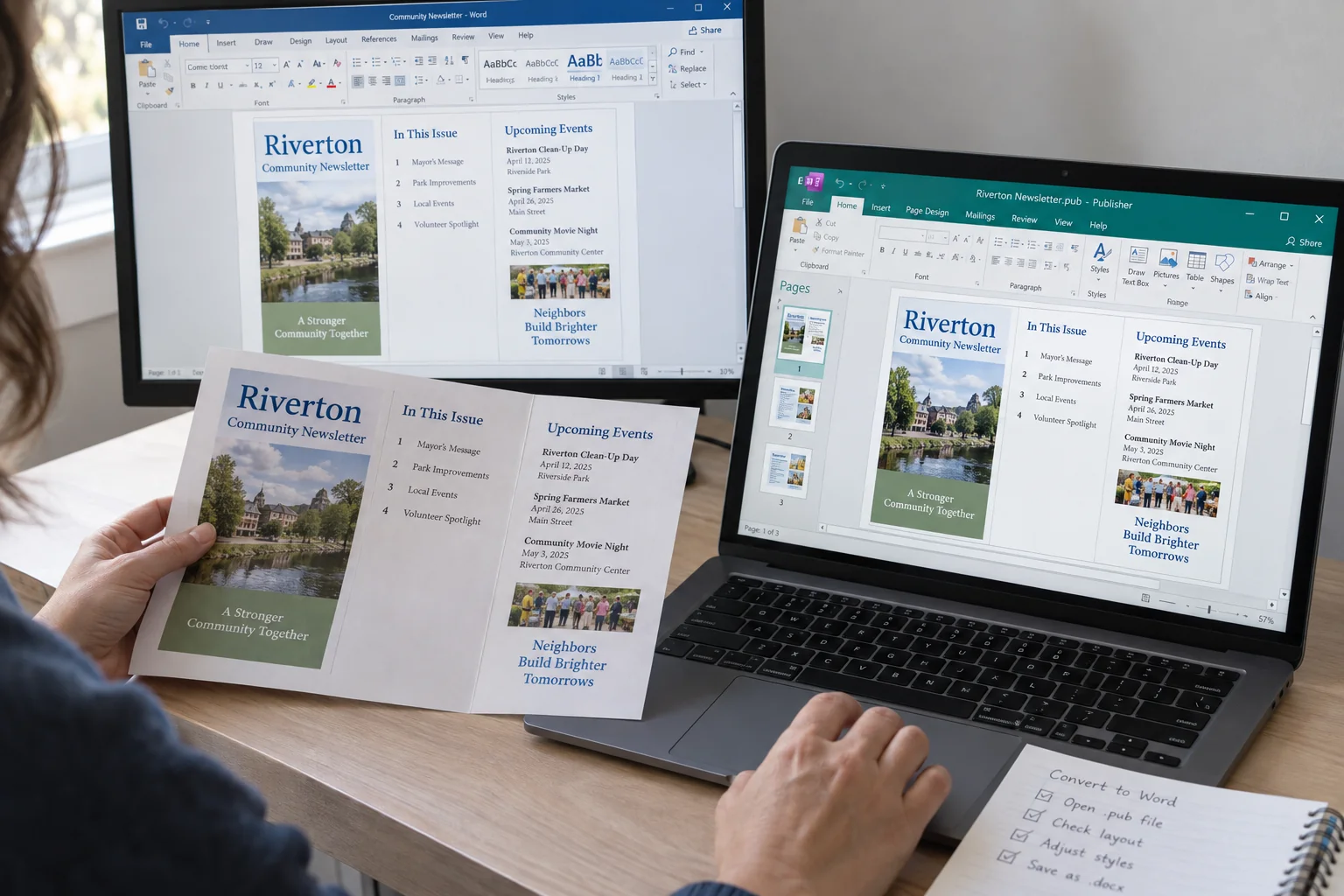
Word has no native PUB import
Microsoft Word cannot open a PUB file directly. There is no File then Open path that reads PUB. Every method below goes through an intermediate step: Publisher’s own export, a PDF pass-through or a converter tool. This is true for all Word versions including the latest Microsoft 365 release. If you would rather work in Google’s tools, you can also open the PUB in Google Docs.

“Word is where text formatting matters most. Our batch tests take PUB files from every Publisher version into Word and compare the text formatting and graphics against the original page, one file at a time.”
Nick Rogers
|Founder, Univik, building file conversion tools since 2013
Method 1: Publisher Save As DOCX (Free, Built-In)
Publisher’s Save As function exports a DOCX file directly. If you still have Publisher, it is free, built in and requires no additional software. It is also the method with the lowest layout fidelity, especially for files with text boxes, columns and graphics.
Open the PUB file in Publisher. This method requires a working copy of Publisher: a perpetual copy (Publisher 2021, 2019 or 2016) or a Microsoft 365 copy that still opens today. Microsoft 365 subscribers lost Publisher on 1 October 2026 as part of Publisher’s October 2026 end of life. If Publisher is not installed, an Online Publisher Viewer lets you check the file’s contents in your browser, and Method 3 converts to Word without Publisher.
Go to File then Save As. Click Browse to choose a save location. In the Save as type dropdown, select Word Document (*.docx). Enter a file name and click Save.
Open the output in Word and review. Publisher will warn you that some formatting may be lost before saving. Accept the warning. Open the resulting DOCX in Word and compare against the original PUB file. Text content should be present, but the layout will differ significantly for design-heavy files.
What Publisher’s own documentation says about this method
Microsoft’s official documentation confirms that this conversion preserves only text and font formatting (font, size, style, underline and colour). Columns are not preserved. Graphics are not preserved. Text boxes are removed and the text from them may appear in incorrect positions or out of reading order. Page breaks are ignored. Headers and footers are converted to body text rather than Word header/footer zones. For text-heavy documents with minimal layout complexity, results are acceptable. For brochures and newsletters with columns, images and text boxes, significant manual rework is required.
Method 2: PUB to PDF, Then PDF to Word
Microsoft’s official workaround for users who need better layout fidelity is a two-step process: export the PUB to PDF first (which preserves layout), then open the PDF in Word (which converts it to an editable DOCX).
Export the PUB file to PDF from Publisher. Open the file in Publisher. Go to File then Export then Create PDF/XPS Document. Click Create PDF/XPS, choose a save location and click Publish. This step produces a pixel-accurate PDF of the Publisher layout. It needs a working copy of Publisher. Without one, a PUB converter can create the PDF instead (see Method 3).
Open the PDF in Word. In Word, go to File then Open and select the PDF file. Word shows a message: “Word will now convert your PDF to an editable Word document. The resulting Word document will be optimized to allow you to edit the text, so it might not look exactly like the original PDF.” Click OK.
Review and clean up. Word’s PDF conversion produces better layout fidelity than the direct Save As method. Images are often preserved, multi-column layouts are partially maintained and text box positions are closer to the original. However, tab stops may shift, margins may change and some pages may be spaced incorrectly. Plan for manual adjustment after conversion.
This method is better than Method 1 for layout-heavy documents but still falls well short of a clean conversion for complex Publisher designs. Independent testing by Office Watch found the PDF-to-Word output “nearly unusable for typical editing tasks” for complex layouts. For simpler text-heavy documents, results are more acceptable.
Method 3: Batch Converter (Large Archives)
For organisations with dozens or hundreds of PUB files, neither Method 1 nor Method 2 is practical at scale. Manual conversion of 200 files one at a time would take days. A batch converter processes the entire archive in a single run.
Univik PUB Converter converts PUB files to DOCX, PDF and other formats in bulk on Windows. It does not require Publisher to be installed, which matters now that Microsoft 365 subscribers lost Publisher on 1 October 2026 and for machines that never had it.
Load the PUB files. Open Univik PUB Converter and click Add Files to select individual PUB files or Add Folder to load an entire folder of PUB files at once. The converter handles multi-file batches of any size.
Select DOCX as the output format. In the output format dropdown, choose Word Document (DOCX). Configure the output options: output folder location and whether to preserve the source folder structure in the output.
Run the conversion. Click Convert. The converter processes all files and saves the DOCX output to the specified folder. A summary shows successful conversions and any files that encountered errors.
What Survives Each Method
| Element | Method 1: Save As DOCX | Method 2: PDF to Word | Method 3: Batch Converter |
|---|---|---|---|
| Body text content | ✅ Preserved | ✅ Preserved | ✅ Preserved |
| Font name and size | ✅ Preserved | ✅ Usually preserved | ✅ Preserved |
| Bold and italic | ✅ Preserved | ✅ Preserved | ✅ Preserved |
| Text boxes | ❌ Removed (text may appear out of order) | ⚠️ Partially preserved as floating boxes | ✅ Better fidelity |
| Multi-column layouts | ❌ Columns flattened | ⚠️ Partially maintained | ⚠️ Varies by complexity |
| Embedded images | ❌ Not transferred | ✅ Usually preserved | ✅ Preserved |
| Page breaks | ❌ Ignored | ⚠️ Some may shift | ✅ Better preserved |
| Headers and footers | ❌ Converted to body text | ⚠️ Sometimes correct | ✅ Preserved as Word header/footer zones |
| Master page backgrounds | ❌ Lost | ❌ Lost | ⚠️ Partial |
| Transparency effects | ❌ Flattened | ❌ Flattened | ❌ Flattened |
| Batch processing | ❌ One file at a time | ❌ One file at a time | ✅ Hundreds at once |
| Requires Publisher installed | ✅ Yes | ✅ Yes (for PDF step) | ❌ No |
After Conversion: What to Fix First
Regardless of which method you use, plan for post-conversion clean-up on design-heavy documents. Work through these in order:
Check text reading order. In Publisher, text flows through linked text boxes. In Word, this becomes a series of floating text elements that may not be in the correct reading order. Read through the document from top to bottom to identify any text that appears out of sequence.
Re-insert missing images. If Method 1 was used, images will be absent. Have the original image files ready. In the converted DOCX, place your cursor where each image should appear and use Insert then Pictures to add them back.
Fix headers and footers. If headers and footers converted as body text (Method 1), cut and paste them into Word’s actual header and footer zones. Double-click the top or bottom margin of any page to enter the header or footer area.
Rebuild column layouts if needed. Word supports multi-column text through the Layout then Columns menu. If the document had a two or three column layout in Publisher, apply the same column setting to the text sections in Word and reflow the text.
Check page count against the original. Open the original PUB file alongside the converted DOCX and compare page counts. A significant difference in page count usually indicates that text overflow or column layout has not converted correctly and needs adjustment.
Frequently Asked Questions
Does Publisher’s Save As DOCX preserve images?
No. Microsoft’s own documentation confirms that graphics are not preserved in Publisher’s Save As DOCX export. Only text and basic font formatting carry over. Images need to be copied from the original PUB file and pasted into the converted DOCX manually, or use the PDF-to-Word path instead, which does preserve images in most cases.
Why does Word need a PDF as an intermediate step?
Word has no direct PUB import filter. There is no File then Open path that reads PUB files. The PDF intermediate step works because Publisher can produce a high-fidelity PDF and Word can convert PDFs to editable DOCX. It is a workaround, not a clean conversion, and Microsoft’s own support forums acknowledge that the results for complex layouts are often poor.
Can I convert PUB to DOCX without Publisher installed?
Not with Microsoft’s own tools. Both Method 1 and Method 2 require Publisher to be running for the initial PUB-to-PDF step. Univik PUB Converter does not require Publisher. This makes it the practical option now that Microsoft 365 subscribers have lost Publisher, and for machines that never had Publisher installed.
What happens to Publisher text boxes in a Word conversion?
Publisher text boxes are the single biggest source of conversion problems. In Publisher, content is placed in positioned text boxes that can be arranged freely on the page. Word’s text model is linear: text flows from top to bottom. When Publisher text boxes convert to DOCX, they either disappear (Method 1) or become floating text boxes in Word that disrupt normal text flow. For complex multi-text-box layouts, the conversion will require manual restructuring of the document flow.
Should I convert PUB files to Word or PDF?
Convert to PDF for archiving and distribution. PDF preserves the layout exactly and is readable on any device without any editing required. Convert to Word when you need the content to remain editable, for example a newsletter template you update monthly or a brochure whose text changes regularly. When in doubt, convert to both: PDF for the archive, DOCX for the editable version.
The Short Version
No PUB-to-Word conversion method produces a clean result for layout-heavy Publisher documents. That is not a failing of any particular tool. It reflects the fundamental difference between Publisher’s canvas-based layout model and Word’s linear document model. Complex designs with multiple text boxes, columns and layered images will always require manual rework after conversion.
For text-heavy documents with minimal design complexity, Publisher’s Save As DOCX (Method 1) is fast and adequate. For documents where layout matters, the PDF-to-Word path (Method 2) or a batch converter (Method 3) produce better results. For large archives where manual conversion is not practical, a batch converter is the only feasible approach.
The honest answer for most users: convert everything to PDF now, with a working copy of Publisher if you still have one or with a converter that does not need it. Then selectively convert to DOCX only the documents you actually need to edit going forward.
How many PUB files are in your archive, and how many of them actually need to be editable in Word rather than only preserved as PDF? That ratio usually determines which approach makes sense.