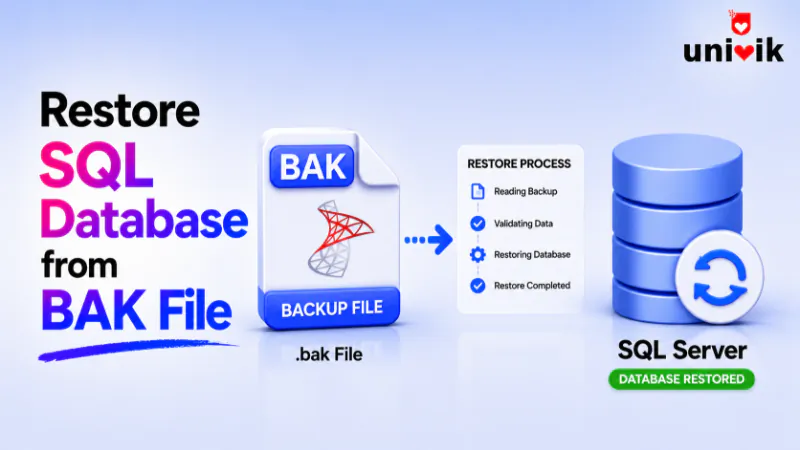
To restore a SQL Server database from a BAK file, connect in SSMS, right click Databases, choose Restore Database, pick the file as the device and run it, or use the T-SQL command RESTORE DATABASE [name] FROM DISK = N'path.bak' WITH RECOVERY. Both need a running SQL Server. If a backup will not restore because it is damaged rather than version locked, Univik SQL Backup Recovery reads the file directly and pulls out what it holds.
Restoring a database from a BAK file is a core SQL Server task, done after data loss, a migration or a disaster recovery drill. If you have a working SQL Server and a valid backup, the restore itself takes a few clicks or one command. This guide covers both ways, the SSMS wizard and the T-SQL command, plus the naming, path and recovery choices that trip people up and the errors that stop a restore partway. If you have no SQL Server at all to restore into, that is a different problem, covered in opening a BAK file without SQL Server.
Before You Start the Restore
Two checks save most restore headaches. First, the SQL Server you are restoring to has to be the same version as the backup or newer, because a backup never restores to an older SQL Server. Second, the SQL Server service account needs read access to wherever the BAK file sits, so a file buried in a user profile or a locked down share will not be seen. Copying the file to a plain server path clears that in one step. One version note catches people out, SQL Server Express can restore a backup, but its 10GB size cap applies to the database after it is restored, so a larger database will not land on Express.
One more thing blocks a restore over a database that is already there. Active connections to that database will stop the overwrite, so close them first, either through the close existing connections option in the SSMS wizard or by setting the database to single user mode before you run the command. A restore that hangs or errors on a busy database points to a connection still holding it open.
It also helps to know what is in the backup before you commit. A single BAK file can hold more than one backup set, and the file may need a specific set chosen rather than the first. Reading a backup’s contents before restoring is its own short task, laid out in opening a BAK file without SQL Server, and worth a look if you are unsure what you are holding.

“BAK restores are tested in every SQL Server version and edition we run, on Windows 10 as well as Windows 11, with backups between 100 MB and 5 GB. The version that made the backup and the version restoring it are the first two things to check.”
Nick Rogers
|Founder, Univik, building file conversion tools since 2013
Restore a BAK File in SSMS
The graphical route is the easy one for a single restore. Open SQL Server Management Studio and connect to your instance, then follow these steps.
- Right click the Databases folder in Object Explorer and choose Restore Database.
- Under Source, select Device, click the button beside it, then Add and point to your BAK file.
- Check the database name, which SSMS fills in from the backup header, or type a new one.
- Open the Options page, confirm the file paths exist on this server and set the recovery state, then click OK.
The Options page is where most GUI restores go wrong. Confirm the paths shown for the data and log files actually exist on the target server, and if you are restoring over a database that is already there, tick the overwrite option. Set the recovery state to restore with recovery for a database you want usable right away. That single page is worth the extra few seconds, because a wrong path there is the most common reason a wizard restore fails.
Restore a BAK File with T-SQL
The command line route is faster to repeat and easy to script. The simplest form restores a backup straight back over its own database.
RESTORE DATABASE [YourDatabase]
FROM DISK = N’C:\Backup\YourDatabase.bak’
WITH REPLACE, RECOVERY, STATS = 5;
REPLACE lets the restore overwrite an existing database of that name, RECOVERY brings the database online and ready to use, and STATS shows the progress as a running percentage. Run it in the master database, not the one you are restoring, since the target database cannot be in use while it is overwritten. For a backup that holds several sets, add WITH FILE = n to name the one you want, where the set numbers come from reading the header first.
Restore time tracks the size of the database and the speed of the disk, in the rough range of 100 to 300 GB per hour on ordinary hardware, so a large database can run for hours. Fast local storage moves it along, and the STATS percentage lets you watch progress rather than guess.
Restore Under a New Name or Path
Restoring to a new name, or to a server where the original file paths are already taken, needs one extra step. The physical paths baked into the backup point at the source machine, so you have to redirect each file with a MOVE clause. To do that you first need the logical file names inside the backup, which come from a single command.
RESTORE DATABASE [NewName]
FROM DISK = N’C:\Backup\YourDatabase.bak’
WITH MOVE ‘LogicalDataName’ TO ‘C:\Data\NewName.mdf’,
MOVE ‘LogicalLogName’ TO ‘C:\Data\NewName_log.ldf’,
RECOVERY, STATS = 5;
FILELISTONLY returns the logical names, one for the data file and one for the log, and those exact names go into the MOVE clauses. Each MOVE sends one file to a new path, which both renames the physical files and avoids colliding with the files of a database already on the server. Point the paths at folders that exist, since a missing folder is one of the most frequent restore errors.
RECOVERY Versus NORECOVERY
The recovery option decides what state the database is left in when the restore finishes, and getting it wrong is behind the stuck in restoring state people run into. RECOVERY finishes the job and brings the database online for use, which is what you want for a single full backup. NORECOVERY leaves the database offline and waiting, so you can apply more backups on top, a differential or a chain of log backups, before you finish.
If a database is stuck showing restoring, the cause is a restore that ran with NORECOVERY and was never finalized. The fix is a single command, RESTORE DATABASE with the name and WITH RECOVERY, which completes the sequence and brings the database up.
Restore to Another Server
Moving a database to a different server is the same restore with one habit added. Copy the BAK file to a local path on the target server first rather than restoring across a network share, which heads off a whole class of permission and path errors. Then run FILELISTONLY on the copied file to read its logical names, since those belong to the backup and travel with it, and restore with MOVE clauses pointing at folders that exist on the new machine.
One direction only works. A database moves forward to the same version or a newer one and is upgraded as it lands, and the reverse is blocked. If the target instance is older than the backup, the restore route closes and the version wall is the same one described in opening a higher version MDF on an older SQL Server. Scripting the schema and data across is the way past it.
When the backup will not restore
If a BAK file is damaged rather than version locked, no restore command will take it. Univik SQL Backup Recovery opens a copied backup on Windows and lifts out the tables it holds, no restore command needed.
Errors That Stop a Restore
Most restore failures come from a short list of causes, and each has a plain fix. Reading the error number tells you which one you are looking at.
The pattern behind most of them is the same, a path that does not exist, a permission the service account does not have or a name that clashes. Running FILELISTONLY first and pointing every MOVE at a real folder heads off the majority before they happen. The one the table cannot fix is a version mismatch, Error 3169, which no change on the current server clears since the backup was made on a newer build than the one you are restoring to.
When a BAK File Refuses to Restore
Three different problems all show up as a restore that will not run, and they lead to different places. A version wall means the file is sound but the server is too old for it. A path, name or permission error is a fixable slip in the command itself, the ones the table above covers. A backup that fails on every server, or flags itself as incomplete, is damaged, and no restore option repairs that.
That third case is recovery, not restore. A tool that reads the backup directly can still lift the tables from a damaged file, because it skips the integrity checks a restore demands. Univik SQL Backup Recovery takes that route. How a backup ends up damaged in the first place sits in what causes SQL Server corruption, and the case where you have no backup to fall back on at all is recovering a SQL database without a backup.
Frequently Asked Questions
How do I Restore a SQL Database From a BAK File?
In SSMS, right click Databases, choose Restore Database, select the BAK file as the device and run it. In T-SQL, use RESTORE DATABASE [name] FROM DISK = N’path.bak’ WITH RECOVERY. Both need a running SQL Server of the same version as the backup or newer. Set the file paths and recovery state before you start.
How do I Restore a BAK File to a Different Database Name?
Run RESTORE FILELISTONLY to read the logical file names inside the backup, then restore with a new database name and a MOVE clause for each file that points at a fresh path. The MOVE clauses rename the physical files and stop them colliding with a database already on the server. This is the standard way to restore a copy alongside the original.
Why is my Database Stuck in Restoring State?
Because a restore ran WITH NORECOVERY and was never finalized, so SQL Server is still waiting for more backups. Run RESTORE DATABASE [name] WITH RECOVERY to complete the sequence and bring the database online. Use RECOVERY when a single full backup is all you are restoring, and NORECOVERY only when a differential or log chain follows.
Can I Restore a BAK File to an Older SQL Server?
No, restores only move forward. A backup made on a newer SQL Server will not load onto an older one, and the attempt raises Error 3169. Going up a version works and upgrades the database on the way in. To move down a version you script the schema and data across instead, since the restore path is closed in that direction.
What is the Difference Between RECOVERY and NORECOVERY?
RECOVERY finishes the restore and brings the database online for immediate use, and it is the default. NORECOVERY leaves the database offline in a restoring state so you can apply further backups, such as a differential or transaction log backups, before finalizing. Use RECOVERY on the last or only backup in the sequence.
Why Does my Restore Fail with Access Denied?
Because the SQL Server service account lacks read permission on the folder holding the BAK file, which happens most when the file sits in a user profile or a network share. Grant the service account read access to that folder, or copy the backup into the default SQL Server Backup folder that the account can already read, then run the restore again.