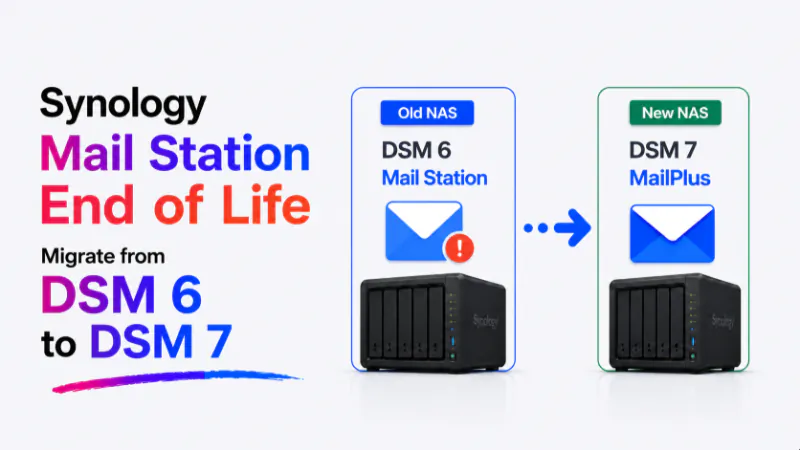
Upgrading a Synology NAS from DSM 6 to DSM 7 upgrades MailPlus Server from version 1.x or 2.x to version 3.x or 4.x. Email data survives the upgrade but the database goes through a reformatting process after DSM upgrades this takes time and must not be interrupted. Before upgrading DSM, export all mailboxes as MBOX files and store the copy off the NAS. If the database upgrade fails or is interrupted, the MBOX backup is the only recovery path. After upgrade, several MailPlus Server configuration items need manual attention: catchall address handling, certain SMTP relay settings and Rspamd custom rules do not carry over from 1.x to 3.x and must be reconfigured. Use Univik Synology MailPlus Converter to convert the MBOX backup to PST or PDF as an independent archive copy.
What Changes When You Upgrade From DSM 6 to DSM 7
DSM 7 is not a minor incremental update it is an architectural rebuild of the Synology operating system. For most NAS functions, the upgrade is transparent. For MailPlus Server, the upgrade involves a version jump that has specific implications for email data and configuration.
On DSM 6, MailPlus Server runs as version 1.x or 2.x. On DSM 7, MailPlus Server runs as version 3.x or 4.x. These are different major versions with different underlying database formats and different feature sets. The DSM upgrade triggers an automatic MailPlus Server version upgrade you do not upgrade them separately.
Three things happen during a DSM 6 to DSM 7 upgrade affecting MailPlus Server:
The MailPlus Server package upgrades automatically. After DSM 7 installs and restarts, MailPlus Server detects the version jump and begins upgrading itself from 1.x/2.x to 3.x/4.x. This is automatic and cannot be skipped.
The email database is reformatted. MailPlus Server 3.x uses a different internal database structure from 1.x. After the package upgrades, the mail database goes through a conversion process converting stored email from the 1.x format to the 3.x format. This process runs in the background and takes time proportional to the size of the mail database.
Some 1.x configuration items do not transfer. Certain MailPlus Server 1.x features were redesigned or removed in 3.x. Configuration that existed in 1.x but has no equivalent in 3.x is simply not carried over. These items need manual reconfiguration after the upgrade see the post-upgrade breaks section below for the specific list.

“Our lab runs Synology so we could test the DSM 6 to DSM 7 path ourselves instead of reading about it. Since Mail Station reached end of life, four or five people a week have asked us about moving their mail off it.”
Nick Rogers
|Founder, Univik, building file conversion tools since 2013
Does Email Data Survive the Upgrade?
Yes email data is preserved through the DSM 6 to DSM 7 upgrade. No email is deleted by the upgrade process itself. The database reformatting converts the existing email into the new format rather than discarding it.
However, “email data is preserved” and “email data is accessible immediately after upgrade” are different things. During the database reformatting process, MailPlus Server may be unavailable or may show incomplete mailboxes. Users attempting to access email during the reformatting phase will encounter errors. The reformatting must complete before MailPlus Server returns to normal operation.
The risk is not data loss from the upgrade itself it is data loss from interrupting the database reformatting before it completes. An interrupted database conversion can leave the mail database in an inconsistent state. This is why the MBOX backup before upgrade is the single most important preparation step.
Export MBOX Before Upgrading This Is Not Optional
Run a complete MBOX export from MailPlus Server before initiating the DSM upgrade. Copy the exported files off the NAS to a Windows machine or external storage. This copy must exist independently of the NAS.
The MBOX export captures the state of every mailbox at the moment of export. If the database reformatting after DSM upgrade fails or is interrupted, the MBOX backup is the recovery path. There is no other reliable way to recover email data from a failed 1.x to 3.x database conversion the conversion cannot simply be re-run from the failed state.
For the export steps, see our MailPlus Server export guide. For best practice on backup storage and retention, see our MailPlus Server backup guide.
Do not upgrade DSM during business hours
Plan the DSM 6 to DSM 7 upgrade for a maintenance window a weekend or after-hours period when email service interruption is acceptable. The DSM upgrade itself takes 20 to 40 minutes. The MailPlus Server package upgrade and database reformatting that follows can take several more hours for large mail databases. Plan for a total outage window of four to eight hours to be safe.
The Correct Upgrade Sequence
Run full MBOX export and copy off-NAS. Export all mailboxes including deactivated accounts. Copy the MBOX files to a Windows machine or external drive. Verify the export is complete before proceeding.
Check that MailPlus Server licences are current. Verify your MailPlus Server licences in your Synology account. Licences transfer through the upgrade, but confirming they are active before upgrading avoids any licence activation issues after DSM restarts.
Check DSM 7 hardware compatibility. Not all NAS hardware that runs DSM 6 supports DSM 7. Confirm your NAS model is on Synology’s DSM 7 compatibility list at synology.com before upgrading. An incompatible model cannot upgrade you need new hardware for DSM 7.
Notify users of the maintenance window. Email users in advance to expect MailPlus Server to be unavailable for several hours. Set an out-of-office message or SMTP deferred delivery message if possible. Users attempting to access email during the upgrade will see connection errors.
Initiate the DSM upgrade from Control Panel then Update and Restore then DSM Update. DSM downloads and installs version 7. The NAS restarts after installation. After restart, DSM 7 is running.
Wait for MailPlus Server to complete its upgrade. After DSM 7 restarts, open Package Center. MailPlus Server will show as upgrading. Do not interrupt it, do not restart the NAS, do not make any configuration changes until the upgrade completes. Monitor progress in the Package Center notification area. Completion is confirmed when MailPlus Server status returns to Running.
Wait for the database reformatting to finish. Even after MailPlus Server shows as Running, the internal database reformatting may still be in progress. Open MailPlus Server admin and check the Storage view. If the storage usage shows 0 or is otherwise inconsistent with the expected volume, the reformatting is still running. Wait for the storage figures to stabilise before proceeding.
Address post-upgrade configuration breaks. Review the reconfiguration list in the next section and reconfigure all affected settings before returning email service to users.
The MailPlus Server Database Upgrade: What to Expect
The database reformatting is the longest and most sensitive part of the DSM 6 to DSM 7 upgrade for MailPlus Server. Understanding what is happening helps you know when it is safe to resume normal operations.
Duration scales with database size. A small mail database (under 10 GB) typically reformats in under an hour. A larger database (50 to 100 GB) can take three to six hours. Very large databases (200 GB or more) may take longer. The NAS CPU and drive speed affect the reformatting speed.
Email is inaccessible during reformatting. MailPlus Server holds email access during the database conversion. Incoming email is temporarily held in the SMTP queue. Queued email delivers after reformatting completes none is lost, but there is a delivery delay during the window.
Do not restart the NAS during reformatting. Interrupting a database conversion mid-run is the primary cause of post-upgrade mail database corruption. Monitor the reformatting progress from the MailPlus Server log in DSM. The log records conversion milestones you can track progress without making any changes.
Confirm completion before any configuration changes. Only after the storage view in MailPlus Server shows expected values and all user accounts are visible should you begin reconfiguring the post-upgrade items.
What Breaks After the Upgrade: The Reconfiguration List
These items work differently or no longer exist in MailPlus Server 3.x compared to 1.x/2.x. Check each one after the upgrade and reconfigure as needed.
Catchall address rules. MailPlus Server 1.x had a simple catchall address configuration under domain settings. MailPlus Server 3.x handles catchall through the alias system, not the domain settings. If the old installation had a catchall configured, recreate it in MailPlus Server 3.x through Service then Alias and set an address-level alias that covers all undeliverable addresses. Test by sending to a non-existent address at the domain after configuration.
SMTP relay settings. If the old MailPlus Server used an SMTP relay (smarthost) for outbound delivery common in environments where port 25 is blocked verify the relay configuration is correct in MailPlus Server 3.x under Service then SMTP then Relay. The relay settings may have been retained from the upgrade but the authentication method or port may need updating for the new version.
Custom Rspamd rules. MailPlus Server 1.x and 3.x both use Rspamd for spam filtering, but the version of Rspamd and the configuration file locations differ between DSM 6 and DSM 7. Custom rules defined in the DSM 6 Rspamd configuration do not automatically migrate. Review the spam filter log after upgrade to confirm spam filtering is working. Recreate any custom block rules in the MailPlus Server 3.x admin interface under Security then Spam Filter.
IP block and allowlist rules. IP-based blocking and allowlisting in MailPlus Server 1.x may not carry over completely to 3.x. After upgrade, go to Security then Block List and Allowlist in MailPlus Server 3.x admin and verify the lists match the previous configuration.
SSL certificate binding. After the DSM upgrade, SSL certificates may need to be rebound to MailPlus Server in DSM Control Panel then Security then Certificate. Check that the MailPlus Server service is assigned the correct certificate and that SMTP, IMAP and POP3 SSL connections work from an external mail client after upgrade.
MailPlus high availability configuration. If the old installation used MailPlus Server HA clustering, the HA configuration does not carry over to 3.x through the DSM upgrade. HA must be reconfigured from scratch in MailPlus Server 3.x after the upgrade completes.
If You Are Still Running Mail Station or Mail Server
Mail Station and Synology Mail Server reached end of availability on January 28, 2026 see our Mail Station end of life guide for the full details. These packages are not available in DSM above 7.3.
If your DSM 6 installation runs the legacy Mail Server instead of MailPlus Server, the upgrade path is different. You cannot upgrade directly from Mail Server on DSM 6 to DSM 7 while keeping the mail service running. The correct sequence is:
On DSM 6: export email from Mail Server (the legacy package), install MailPlus Server on the same DSM 6 NAS and use MailPlus Server’s migration tool to import the Mail Server data. Test MailPlus Server on DSM 6 before upgrading to DSM 7.
Then upgrade from DSM 6 with MailPlus Server running to DSM 7. This follows the same sequence described above. The extra step of migrating from Mail Server to MailPlus Server first ensures that the DSM 7 upgrade encounters a supported package rather than a legacy one that will be forcibly removed.
Verifying the Upgrade Is Complete
Check MailPlus Server version in Package Center. Confirm it shows version 3.x or 4.x, not 1.x or 2.x. If it still shows 1.x, the package upgrade did not complete do not proceed with reconfiguration until the package shows the correct version.
Verify user account count. In MailPlus Server admin, confirm the total user account count matches the pre-upgrade count including deactivated accounts.
Open a user mailbox and confirm email is present. Log into the MailPlus web client as a test user and confirm their Inbox, Sent and custom folders contain email. Empty mailboxes after upgrade indicate the database conversion is still running or failed.
Send and receive a test email. Send a test email to a user account from an external address and confirm delivery. Send an email from a user account to an external address and confirm it is delivered. Both directions must work before returning email service to all users.
Compare MBOX backup email counts against live counts. For two or three user accounts, compare the email counts in the pre-upgrade MBOX backup against the current counts in MailPlus Server 3.x. The counts should match closely. A significant discrepancy suggests the database conversion dropped some messages.
Frequently Asked Questions
Will the DSM 6 to DSM 7 upgrade delete any email?
No the upgrade preserves all email data. The database reformatting converts email from the 1.x format to the 3.x format. No email is intentionally deleted. The risk to data comes from interrupting the reformatting process, not from the upgrade itself. This is why the MBOX backup before upgrade is essential it gives you a verified copy of all email that exists before the conversion begins.
How long will MailPlus Server be unavailable during the upgrade?
Plan for a total window of four to eight hours for a typical SMB deployment. The DSM upgrade itself takes 20 to 40 minutes. MailPlus Server package upgrade takes 15 to 30 minutes. The database reformatting is the variable it depends on database size and NAS hardware speed. A 20 GB database reformats in under an hour. A 100 GB database can take three to five hours. Budget conservatively and plan the maintenance window accordingly.
Can I roll back from DSM 7 to DSM 6 if the upgrade fails?
Rolling back DSM after a failed upgrade is not supported by Synology. Once DSM 7 is installed, the path is forward fix the upgrade issue rather than roll back. This is another reason why the MBOX export backup before upgrade is critical if the post-upgrade MailPlus Server state is unrecoverable, reinstalling from scratch with the MBOX backup is the only reliable path forward.
Do MailPlus Server licences need to be re-activated after the upgrade?
Typically no. MailPlus Server licences are associated with the Synology account and carry through the DSM upgrade. However, if licences show as inactive in MailPlus Server after the upgrade, go to your Synology account licence management and re-activate them for the NAS. This is rare but worth checking as part of the post-upgrade verification.
Is there any reason to stay on DSM 6 rather than upgrade to DSM 7?
Synology has ended updates for older DSM 6 versions. Staying on DSM 6 means running without security patches, which is a growing risk for any internet-connected NAS. The primary reason organisations delay the upgrade is the operational complexity the maintenance window requirement, the post-upgrade reconfiguration and the risk to email availability. With proper planning (MBOX backup, maintenance window, post-upgrade checklist), the upgrade is manageable and the security benefit of DSM 7 is significant.
The Short Version
The DSM 6 to DSM 7 upgrade is the right move for any Synology NAS still running the older operating system but for NAS units running MailPlus Server, it requires more planning than a standard package update. The database reformatting window, the post-upgrade configuration breaks and the MBOX backup requirement all need to be addressed before the first restart.
The sequence is: export MBOX, plan a maintenance window, upgrade DSM, wait for MailPlus Server and database reformatting to complete without interruption, then work through the post-upgrade reconfiguration list. In that order. Skipping the first step makes every subsequent problem much harder to recover from.
How large is your MailPlus Server database under 20 GB or significantly more? That number determines the database reformatting time and how long the maintenance window needs to be.