The “Unable to import vCard” error appears when a VCF file contains data your platform cannot parse, usually a version mismatch (vCard 2.1 on a platform expecting 3.0), encoding issues, oversized photos, or non-standard properties. Fastest fix: Import the VCF into Google Contacts first, then export a fresh vCard from Google. The re-exported file will be clean vCard 3.0 with UTF-8 encoding that works everywhere.
Introduction
You try to import a contact file and get hit with “Unable to import vCard. This vCard cannot be imported because it contains invalid contact data.” No explanation of what the invalid data is. No pointer to which contact is broken. Just a dead end with a Learn More button that leads to a generic support page.
Or worse, the variation: “Could Not Import Some Contacts. 1 contact could not be imported because there was a problem reading the vCard.” This one is especially frustrating because it tells you some contacts failed but not which ones or why.
These two error messages are the most common vCard import failures across Apple devices, iCloud, and other platforms. The underlying causes are well understood and every single one is fixable. This guide shows you exactly why the error appears, how to identify which contacts are causing it, and five proven methods to fix it so your contacts import cleanly.
What the Error Looks Like
There are two main variants of this error. Both point to the same underlying problem — your VCF file contains data that the importing platform cannot process — but they appear in different situations.
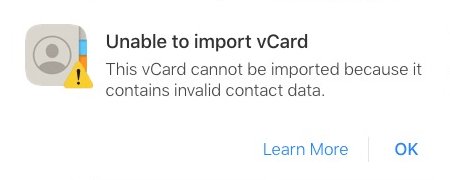
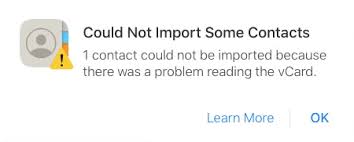
The first error means the entire file was rejected. Nothing got imported. This usually indicates a fundamental problem like wrong vCard version or file-level encoding corruption. The second error means the platform imported some contacts but skipped others. This points to specific entries inside the file that have problematic data, oversized photos, malformed properties, or unsupported fields.
Why You See “Unable to Import vCard”
Every instance of this error traces back to one of five causes. Understanding which one applies to your situation determines the fix.
Version Mismatch
File is vCard 2.1 but platform expects 3.0 or higher
Invalid Fields
Non-standard properties or malformed data the parser rejects
Encoding
Non-UTF-8 text or quoted-printable encoding not decoded
Size Limits
Contact over 256KB or photo over 224KB (iCloud limits)
vCard Version Mismatch
This is the number one cause. Your VCF file uses vCard 2.1, the older format that many Android phones, Samsung devices, and legacy email clients still export by default. But the platform you are importing into expects vCard 3.0 or 4.0. iCloud is especially strict about this: it will not reliably import version 2.1 files at all.
The version difference is not just a label. vCard 2.1 and 3.0 use different property syntax. For example, a phone number in 2.1 looks like TEL;HOME;VOICE:+1234567890 while 3.0 uses TEL;TYPE=HOME,VOICE:+1234567890. When a platform expecting 3.0 syntax tries to parse 2.1, it treats those bare parameters as invalid data.
Invalid Contact Data Fields
VCF files exported from CRM systems like Salesforce or HubSpot often contain custom X-properties like X-SALESFORCE-ID or X-HUBSPOT-COMPANY. Google Contacts strips these silently. iCloud sometimes chokes on them entirely, producing the “contains invalid contact data” error. Similarly, Android’s item1.TEL grouped property style can confuse parsers on non-Google platforms.
Encoding Problems
Contact names with accented characters, umlauts, Chinese or Arabic script, or emoji need UTF-8 encoding to import correctly. Older vCard 2.1 files frequently use quoted-printable encoding like N;CHARSET=UTF-8;ENCODING=QUOTED-PRINTABLE:M=C3=BCller instead of plain UTF-8. Modern platforms do not reliably decode this, treating the encoded data as invalid.
File Size and Photo Limits
iCloud enforces specific size limits that trigger the “unable to import vCard” error:
| iCloud Limit | Maximum | What Happens If Exceeded |
|---|---|---|
| Single contact size | 256 KB | Contact silently dropped or entire file rejected |
| Contact photo size | 224 KB | Contact entry rejected |
| Total contacts in account | 50,000 | Import fails entirely |
| Web upload file size | ~5-10 MB | Upload hangs with no error |
Contacts with large embedded base64-encoded photos are the most common trigger for the size limit. A single high-resolution photo can push a contact well over 256 KB.
Corrupted VCF Structure
Missing BEGIN:VCARD or END:VCARD tags, broken line folding, invisible byte order marks (BOM) or carriage return inconsistencies (CRLF vs LF) all produce invalid data errors. These are often caused by interrupted file transfers, email attachment corruption, or opening a VCF in a rich text editor like Word that adds invisible formatting.
How to Find Which Contacts Are Failing
When you get “Could Not Import Some Contacts” with a count (like “418 contacts could not be imported”), you need to identify which specific entries are broken. Since the error gives you zero detail, use this method.
Check the version. Open the VCF file in a text editor and look at the first VERSION line. If it says VERSION:2.1, that is likely your problem. Skip to Fix 1 below.
Try a single contact. Copy just the first contact (from BEGIN:VCARD to END:VCARD) into a new file and import it. If it works, the file structure is fine and the issue is with specific entries.
Binary split. Split the file into two halves at an END:VCARD boundary. Import each half. Whichever fails, split again. In 4-5 rounds you will narrow down the exact problematic contacts.
Check encoding. On Mac or Linux run file --mime-encoding yourfile.vcf in Terminal. On Windows, open in Notepad++ and check the encoding in the bottom status bar. Anything other than UTF-8 or ASCII needs conversion.
5 Methods to Fix “Unable to Import vCard”
Convert vCard Version to 3.0
Open the VCF file in Notepad++ (Windows) or any text editor. Use Find and Replace to change VERSION:2.1 to VERSION:3.0. You also need to update property type syntax: replace all TEL; with TEL;TYPE= and all EMAIL; with EMAIL;TYPE=. Save the file and try importing again.
For large files with hundreds of contacts, a dedicated vCard converter tool handles all syntax changes automatically — version, encoding, property format, and photo declarations, without the risk of manual errors. For a detailed walkthrough of every syntax difference between versions, see our guide on VCF to vCard conversion.
Fix Encoding to UTF-8
In Notepad++, go to Encoding in the menu bar and select “Convert to UTF-8”. Save the file. On Mac or Linux, use Terminal: iconv -f WINDOWS-1252 -t UTF-8 input.vcf -o output.vcf (replace WINDOWS-1252 with whatever encoding your file actually uses). Also remove per-property CHARSET and ENCODING=QUOTED-PRINTABLE parameters, which are vCard 2.1 artifacts that cause parsing failures.
Remove Unsupported Properties
Use Find and Replace to delete any lines starting with X-SALESFORCE, X-HUBSPOT, X-ABShowAs, or other non-standard X-properties. Keep Apple-native properties like X-ABUID and X-ABADR if you are importing into iCloud. For Android-exported files, look for item1. prefixed properties and reformat them to standard names.
Remove Large Embedded Photos
If specific contacts are being rejected, they likely have embedded photos exceeding iCloud’s 224 KB limit. Search for PHOTO; in the file and delete the entire PHOTO property block (the PHOTO line plus all the base64 data lines that follow until the next property). Import without photos first, then add photos individually through the Contacts app.
Easiest Method
Google Contacts Workaround
This is the fastest fix that works for most people without any manual editing. Import your problematic VCF file into Google Contacts (contacts.google.com). Google is far more lenient and will import almost anything. Then export a fresh vCard from Google by selecting those contacts and choosing Export as vCard. The re-exported file will be clean vCard 3.0 with proper UTF-8 encoding and standard properties. Import this new file into iCloud, iPhone, or wherever you need it.
Note
This workaround will not work if the file was originally exported from Google Contacts (since re-importing and re-exporting produces the same file). It also strips some custom properties and may downsize photos. For files that need full data preservation, use a dedicated converter tool instead.
Platform-Specific Quick Fixes
Primary cause: vCard 2.1, large photos, or CRM X-properties
Quick fix: Use Mac Contacts app instead of iCloud.com — it has a more lenient parser. Or use the Google Contacts workaround. For batch imports, keep under 200-300 contacts per file.
Deep dive: Why iCloud rejects vCard uploads
Primary cause: vCard 4.0, malformed structure, or file in restricted storage location
Quick fix: Save the VCF to internal storage (not SD card). Convert to vCard 3.0 if currently 4.0. For large files, split into smaller batches.
Primary cause: Encoding mismatches or malformed entries. Google is the most lenient importer.
Quick fix: If even Google rejects the file, the VCF structure is fundamentally broken. Open in text editor and verify BEGIN:VCARD and END:VCARD markers are intact for every contact.
Primary cause: Outlook processes VCF contacts one at a time and has limited bulk import. Also rejects some 4.0 properties.
Quick fix: Convert VCF to CSV using a converter tool, then use Outlook’s Import/Export wizard with the CSV file instead.
How to Prevent This Error
Always export in vCard 3.0 — the only version universally supported across iCloud, Google, Outlook, Android, and iPhone.
Use UTF-8 encoding — eliminates all character corruption issues with international names, accents, and non-Latin scripts.
Keep contact photos under 200 KB — stays safely within iCloud’s 224 KB limit and reduces total file size for faster imports.
Strip CRM metadata before sharing — remove non-standard X-properties that only your CRM understands.
Test with 5-10 contacts first — before importing a large file, verify a small sample imports correctly on your target platform.
Frequently Asked Questions
What does “Unable to import vCard” mean?
It means the VCF file you tried to import contains data that the platform cannot parse. The most common cause is a vCard version mismatch — the file uses version 2.1 while the platform expects 3.0. Other causes include encoding problems, oversized contact photos, non-standard properties, or corrupted file structure.
Why does it say “This vCard cannot be imported because it contains invalid contact data”?
Apple displays this specific message when the entire VCF file fails validation. The “invalid contact data” is usually one of: vCard 2.1 format with bare property parameters that iCloud cannot parse, quoted-printable encoded text that iCloud does not decode, embedded photos exceeding 224 KB, or custom CRM X-properties that Apple treats as invalid.
What does “Could Not Import Some Contacts” mean?
This means the platform successfully imported some contacts from your file but skipped specific entries that had problems. The number tells you how many failed. Use the binary split diagnosis method described above to identify which contacts are broken, then fix those specific entries.
How do I fix “Unable to import vCard” on iPhone?
The fastest fix is the Google Contacts workaround: import the VCF into Google Contacts, then export a fresh vCard from Google and import that into iCloud. If you have a Mac, drag the VCF into the Mac Contacts app instead of uploading through iCloud.com — the Mac parser is more lenient. For a full walkthrough of iPhone-specific issues, see our guide on why iCloud rejects vCard uploads.
My VCF file works on Google Contacts but fails on iCloud. Why?
Google Contacts is the most lenient importer — it silently strips unsupported properties and imports what it can. iCloud is the strictest — it may reject the entire file if any entry has non-standard properties, wrong encoding, or oversized photos. The same file can work perfectly on Google and fail completely on Apple. Convert to vCard 3.0 with UTF-8, strip non-standard properties, and remove large photos before importing to iCloud.
How do I check which vCard version my file uses?
Open the VCF file in any text editor (Notepad++, TextEdit, VS Code). Look for the VERSION: line inside the first BEGIN:VCARD block. It will say VERSION:2.1, VERSION:3.0, or VERSION:4.0. If it says 2.1 and you are importing into iCloud or iPhone, that is almost certainly the cause of the error.
Can I fix the error without installing any software?
Yes. The Google Contacts workaround requires only a web browser and a free Google account. For manual fixes, a text editor like Notepad++ (free) handles version changes, encoding conversion, and property cleanup. For large files or complex conversions, a dedicated vCard converter tool is more reliable.
Why did iCloud import some contacts but not all of them?
iCloud silently drops contacts that have individual issues: photo over 224 KB, single contact over 256 KB total size, name-only entries with no phone or email, or per-contact formatting errors. The contacts that imported successfully passed all of iCloud’s validation checks. The ones that were skipped had at least one triggering issue. Use the binary split method to find and fix the skipped entries.
Conclusion
The “Unable to import vCard” and “Could Not Import Some Contacts” errors look intimidating, but every instance traces back to one of five fixable causes: version mismatch, encoding problems, unsupported properties, oversized photos, or corrupted structure. The fastest solution for most people is the Google Contacts workaround to import into Google, re-export a clean file, and import that into your target platform.
For best results across all platforms: always use vCard 3.0, always use UTF-8 encoding, keep photos under 200 KB, strip CRM-specific properties, and test a small batch before importing everything. If you need to process large files or preserve all data fields including photos, a professional vCard converter tool handles the cleanup automatically.
