 Disk & Storage Guide
 By
By To see what is taking up space, open Settings, System, Storage, where Windows lists groups such as Apps, System and reserved and Temporary files with a size on each. Drill into the biggest group in File Explorer. Keep in mind that hidden system data such as the page file and the update store fills a large share. For the whole drive at once, scan it into a treemap.
A full drive is rarely one giant file. It is usually a handful of folders and a layer of system data that never shows in a normal view. The trick is to read the drive from the top group down, then look in the places Windows keeps quiet about. Below are the steps in that order, from the built-in breakdown to a single picture of the entire drive.
How Do I Check What Is Using the Space?
Work down this list. Each step sees a part the one before it missed, and together they cover the whole drive.
Read the storage breakdown in Settings first
Open Settings > System > Storage. Windows draws a coloured bar and a list that splits the drive into groups: Apps and features, System and reserved, Temporary files, Documents and Pictures among others. Click any group to open its detail. This is the map before the hunt, since it tells you whether the space has gone to programs, to your own files or to Windows itself. It covers the system drive, so a second drive needs the drive picker at the top.
Drill into your own folders in File Explorer
The Storage groups stop at broad buckets, so go into File Explorer for the detail. Open your user folder, switch to Details view and hover a folder to read its size in the tooltip, or add the Size column where it shows. To jump straight to the heavy items, click the search box and type size:>500MB. Downloads, Videos and a synced cloud folder are the usual culprits inside a profile.
Account for the space Windows hides
A large slice often belongs to files you never see. At the root of C: you will find pagefile.sys for virtual memory and often hiberfil.sys for sleep and fast start, each able to reach several gigabytes. The component store C:\Windows\WinSxS holds update history. Add restore points, the Temp folders and a leftover C:\Windows.old from a feature update. These do not appear in Storage as your files, yet they are real space, so this is where a full drive hides its bulk.
See the whole drive on one screen with a treemap
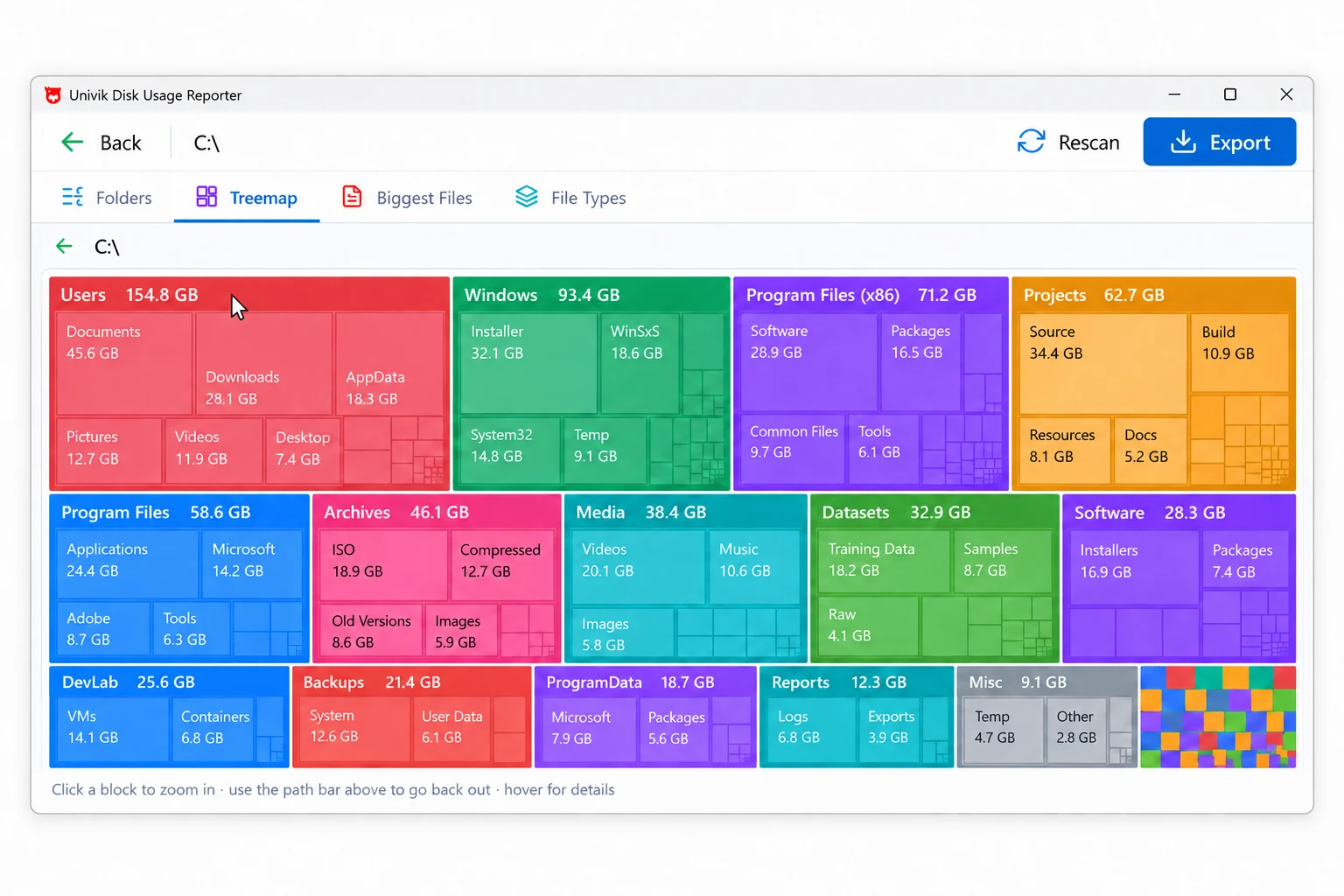
Settings and File Explorer answer one folder at a time. To see the drive as a whole, scan it once with Univik Disk Usage Reporter. It reads the drive and draws a treemap where each block is sized by the space it uses, next to a folder ranking and a biggest-files list, hidden and system files included. A glance shows the block that is eating the drive, whether that is a game, a mail store or the update cache. The view saves as an HTML or CSV report.
Why Is My Drive Full With Nothing to Show?
This is the question that sends most people looking. You add up your folders and the total falls well short of the used figure on the drive. The gap is system data. Windows sets aside virtual memory in pagefile.sys and, on many machines, a matching hiberfil.sys for fast startup and sleep. The component store under C:\Windows\WinSxS keeps the parts needed to undo updates. Reserved storage holds room so the next update can install.
Two more catch people out. After a feature update, the old build waits in C:\Windows.old for ten days so you can roll back, and it can be many gigabytes. Restore points grow quietly under System Protection. None of these sit in your Documents or Downloads, so a folder tour never finds them, yet they are counted in the used space on the drive.
Which Space Is Safe to Reclaim?
Your own files are your call. Old video exports, finished downloads and duplicate photos can move to another drive or go for good. Apps and games should leave through Uninstall or their launcher so nothing is left behind. That part is straightforward once you can see where the bulk sits.
System space needs its own switches. Temporary files, the Recycle Bin and update leftovers clear safely through Settings > System > Storage or Disk Cleanup. Turn off hibernation with powercfg /h off as administrator if you want hiberfil.sys gone. Leave WinSxS to the built-in servicing cleanup, and let C:\Windows.old expire or remove it through Storage. The rule holds across the drive: reclaim your files by hand, reclaim system space through the tool that owns it.
Most people ask what is taking up space and expect a single answer. The honest answer is a shape, not a name. When you see the whole drive as one treemap, the shape tells you in a second whether the problem is one game, a pile of video or the update store. That decides what you do next.
Ways to Check Disk Usage Side by Side
What each method breaks the drive into, whether it sees system data and how much of the drive each method reaches at once.
| Method | Breaks down by | Sees system data | Whole drive at once | Scope |
|---|---|---|---|---|
| Settings, Storage breakdown | By category | Part of it | No, groups only | System drive, then drive picker |
| File Explorer folder view | By folder | No | No, one folder at a time | Any folder or drive |
| Disk Cleanup | By cleanup type | Some system files | No | System drive |
| Univik Disk Usage Reporter | Folders, files and treemap | Yes | Yes, whole drive at once | Any drive or folder |
Univik Disk Usage Reporter reads the drive in one pass and lays it out as a treemap, with the folder ranking and the largest items beside it and system data counted in. The free edition needs no account, and any view saves to an HTML or CSV report.
Runs on Windows 7 through 11 · reads a terabyte in roughly a minute · stays on your machine
The short version
- Start at Settings, System, Storage to see which group holds the space: Apps, System, Temporary or your own media.
- Drill into the heavy group in File Explorer, sorting a folder by size or searching size:>500MB.
- Expect a big share in hidden system data: pagefile.sys, hiberfil.sys, WinSxS, restore points and Windows.old.
- Reclaim your own files by hand, but clear system space through Storage or Disk Cleanup, not by deleting.
- Univik Disk Usage Reporter lays the whole drive out as a treemap, so the shape of the space reads at a glance.
See what is on your drive, free
Hard Drive Space Questions
 About This Guide
Researched and written by Leena Taylor Paul. Univik has built Windows utilities since 2013. The Storage breakdown, the folder steps and the system-file notes were all checked on Windows 11 while writing, and the treemap behaviour reflects our own Disk Usage Reporter. Updated 24 September 2026. Stuck on a group you cannot explain? Support can help from the link below.
Reference: Microsoft Support: manage drive space and Storage · Univik Disk Usage Reporter