Univik Disk Usage Reporter

Free Disk Space Analyzer for Windows, with folder sizes, a treemap and reports

Univik Disk Usage Reporter is a free disk space analyzer for Windows. It scans any drive or folder and shows exactly what is using the space, then turns the scan into a report you can keep.

  • Scan any drive or folder: a whole drive, a folder or a special folder such as Downloads.
  • Four views in one scan: folder sizes, a zoomable treemap, the biggest files and file types.
  • Fast parallel scan: millions of files across CPU threads in seconds, stop early anytime.
  • Export a report: save an HTML report or any view to CSV.
  • Private and offline: the scan runs on your PC and nothing is uploaded.
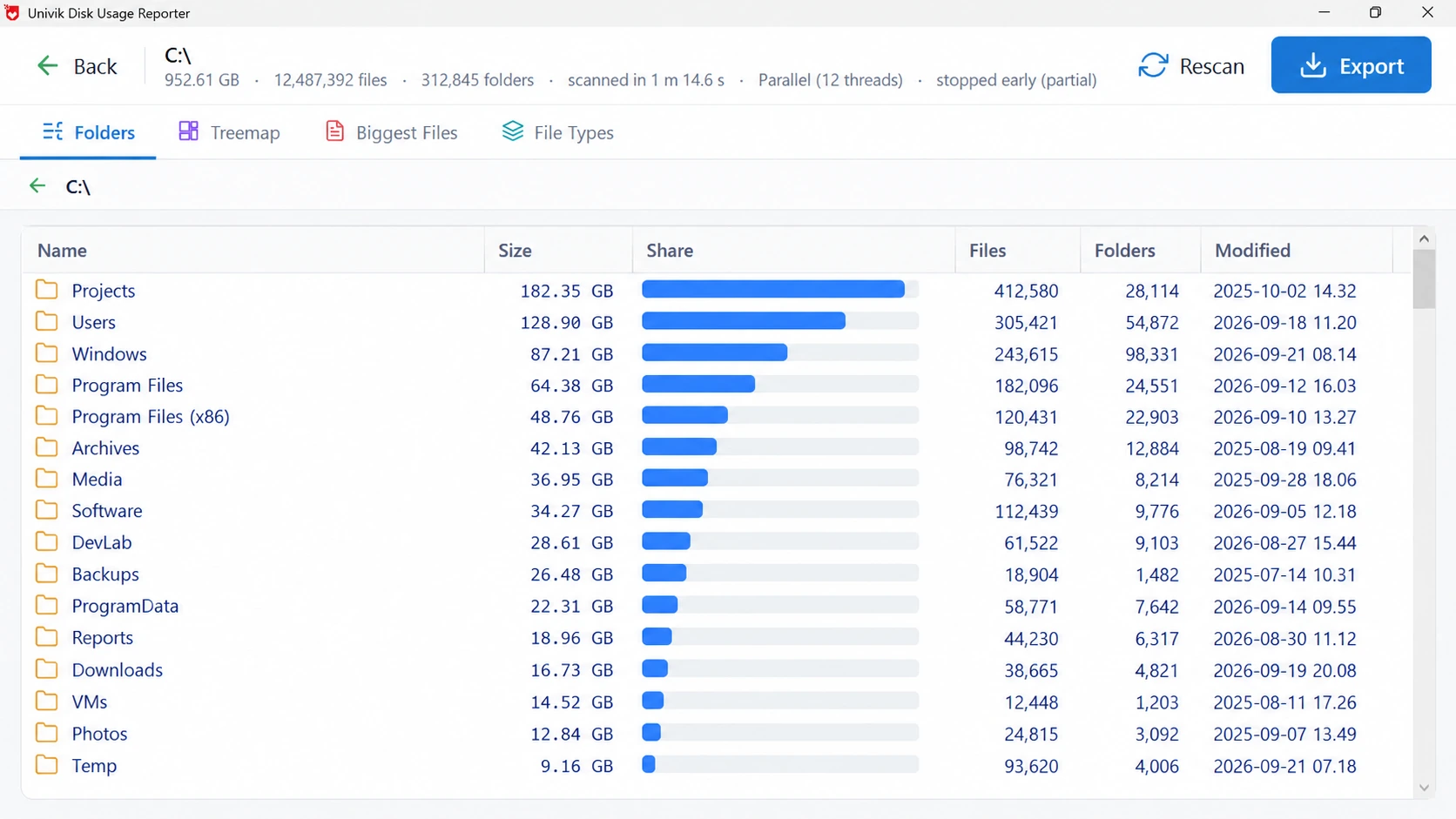
Univik Disk Usage Reporter, a disk space analyzer for Windows, showing the Folders view with each folder on the C drive by size, a share bar and counts
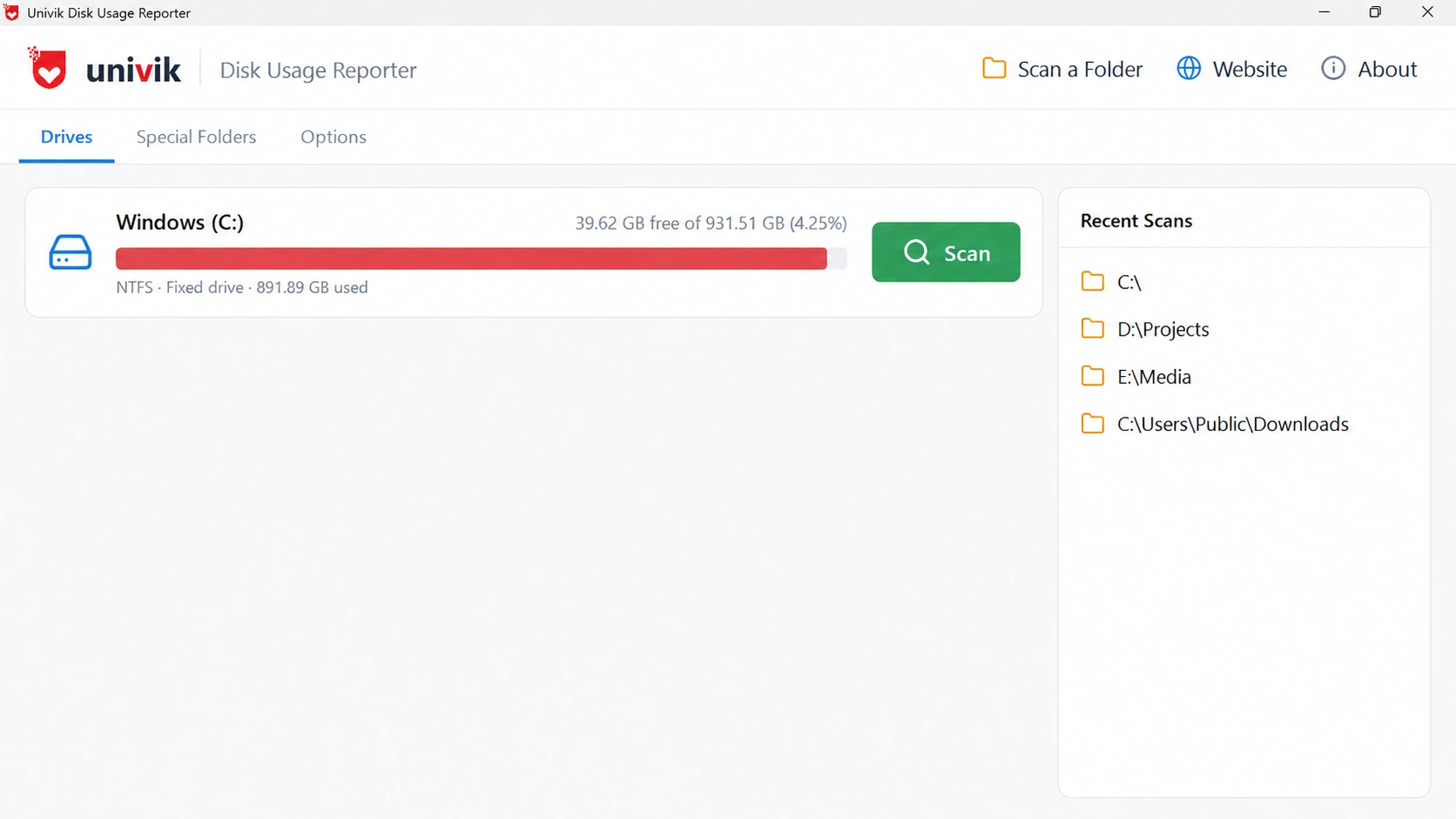
Univik Disk Usage Reporter home screen listing the Windows C drive with free and used space and a Scan button

 What the Disk Space Analyzer Shows

Folder sizes Share % File & folder counts Last modified Treemap Biggest files File types HTML + CSV report

 A Look Inside

See the Disk Usage Reporter at Work

Pick a drive, run the scan and the disk space analyzer lays out where every gigabyte went. These are real screens from a 952 GB Windows drive.

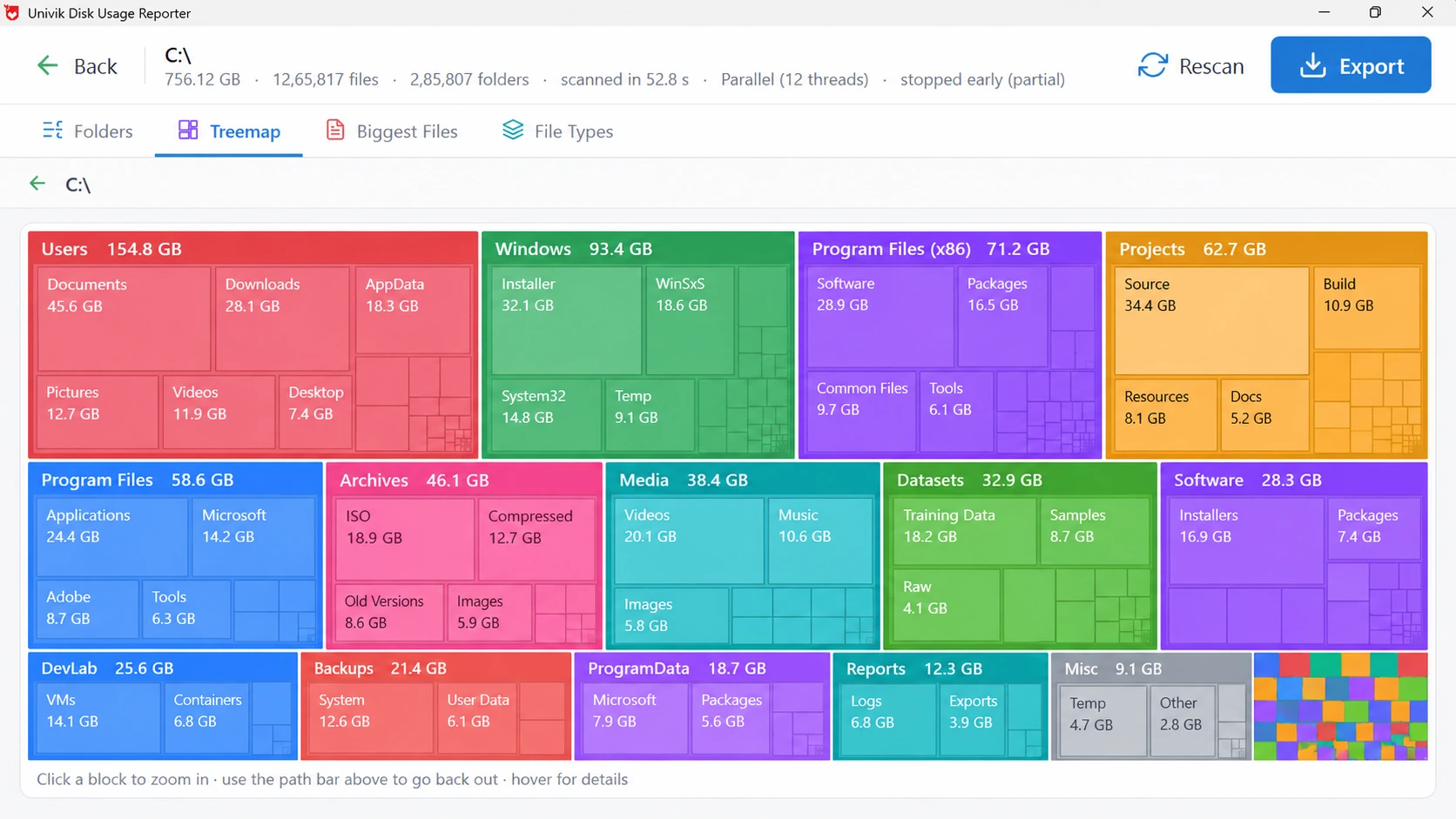
Treemap view drawing each folder on the C drive as a coloured block sized to the space it uses, click a block to zoom in

The treemap, every folder sized to the space it uses

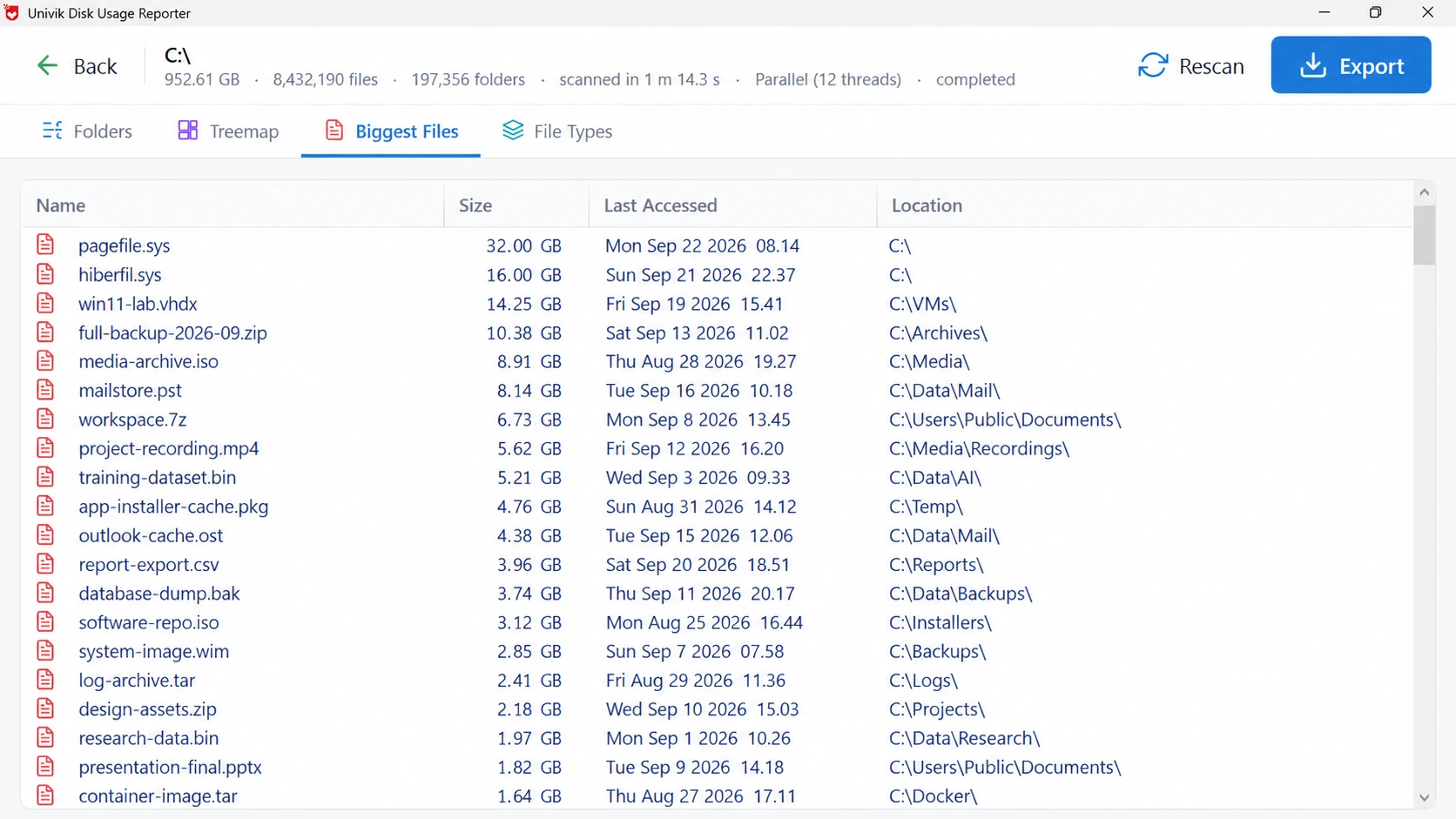
Biggest Files view listing the largest single files on the drive with size, last accessed date and full location

The biggest single files, with path and last-accessed date

 Four Views of One Scan

Read Your Disk Usage Four Ways

One scan, four ways to read it. Each view answers a different question about what is using your disk space.

Treemap view drawing each folder as a coloured block sized to the space it uses, click a block to zoom in

Treemap

Every folder is a block sized to the space it holds, so the big blocks are the space hogs. Click to zoom in, hover for detail and step back out. A huge drive becomes a picture you read in seconds.

Biggest Files view listing the largest single files on the drive with size, last accessed date and full location

Biggest Files

The largest single files on the drive, sorted by size, each with its last-accessed date and full path. This is how you catch a 24 GB pagefile, an old ISO or a huge recording without opening a folder.

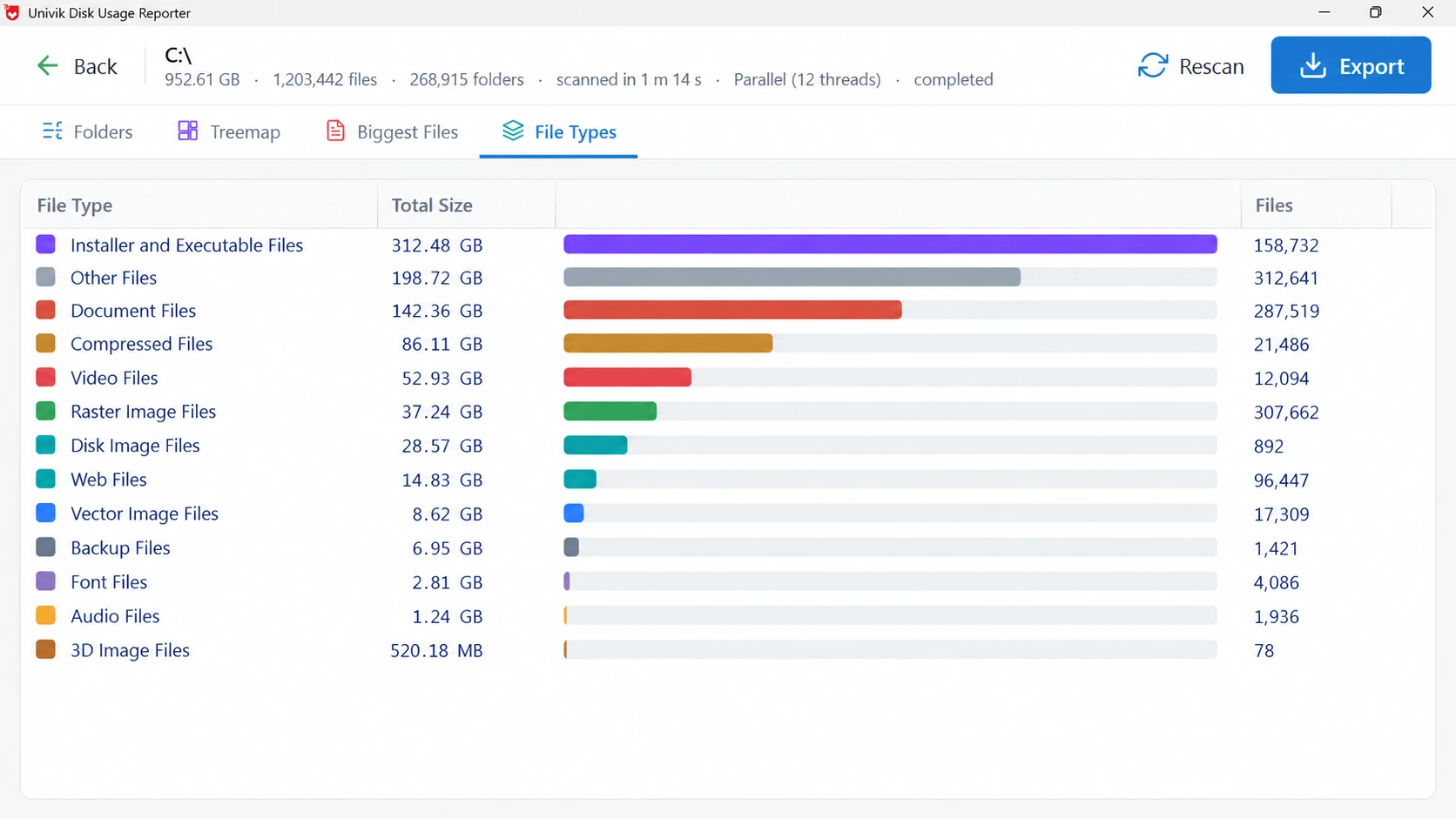
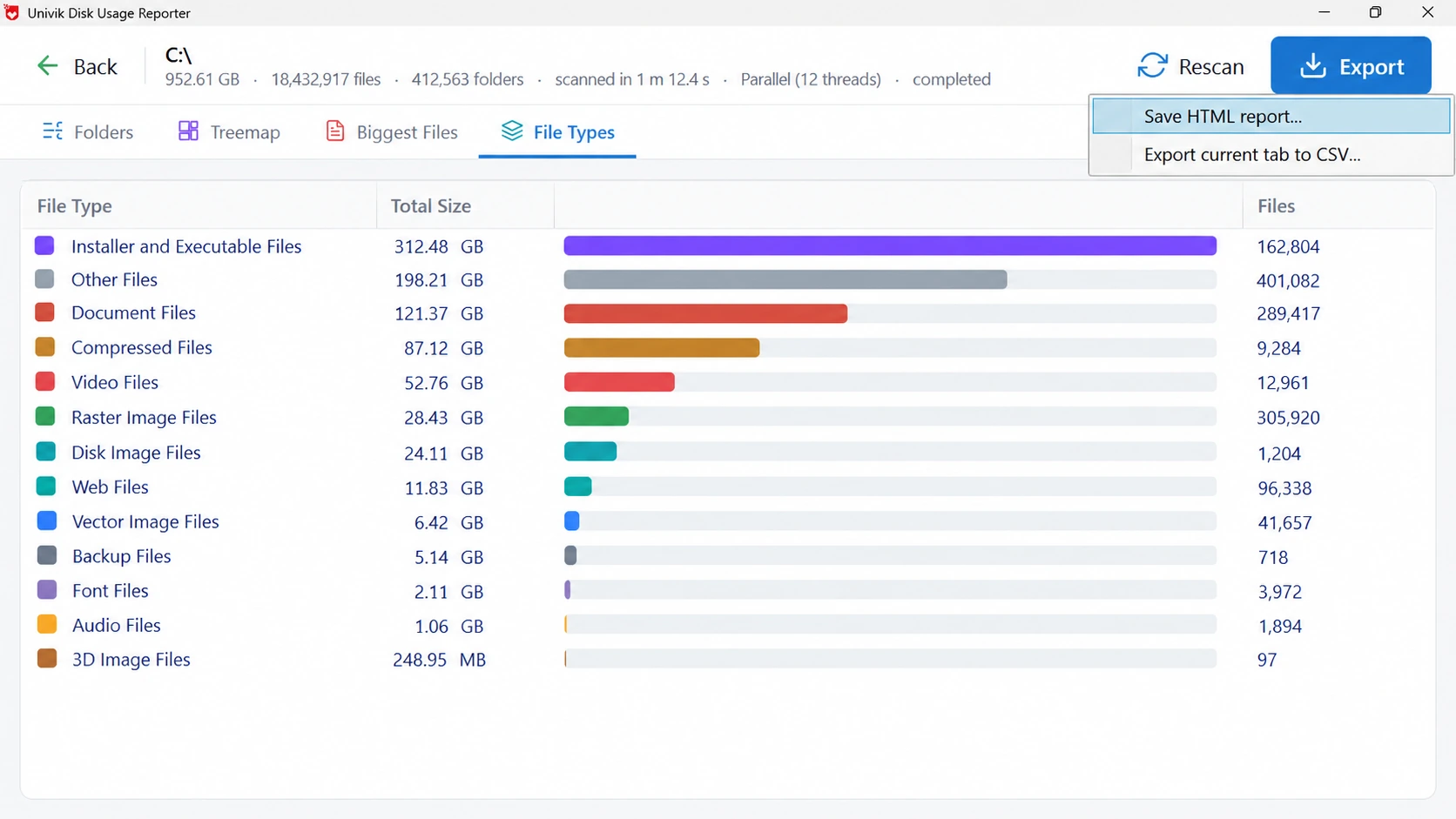
File Types view grouping the drive into categories such as installers, documents, video and images with total size and file count

File Types

Everything on the drive grouped into categories: installers and executables, documents, compressed archives, video, images, disk images, backups, fonts, audio and more, each with its total size and count. It answers "is it video or installers eating my drive" in one look.

Export menu offering Save HTML report and Export current tab to CSV

Export a Report

Save an HTML report that opens in any browser and prints to PDF, or export the current view to CSV for a spreadsheet. The scan becomes a disk usage report you can keep, attach to a ticket or hand to a colleague.

"Low Disk Space" Without the Guesswork

Windows tells you the drive is nearly full, but not what filled it. A disk space analyzer turns that warning into a map you can act on.

From a low disk space warning to the folder that caused it From "low disk space" to the folder that caused it Windows warning Low Disk Space 23 GB free of 952 GB Scan the tree every folder measured in parallel, in seconds The treemap shows the culprit 130 GB folder 63 GB From a low disk space warning to the folder that caused it Windows: Low Disk Space 23 GB free of 952 GB Scan the folder tree in parallel, in seconds Treemap shows the culprit the biggest block is the biggest folder

 Key Features

Why Choose Univik Disk Usage Reporter

A modern disk space analyzer built for real drives: millions of files, read quickly, laid out clearly and turned into a report.

Fast Parallel Scan

The disk space analyzer reads the folder tree across many CPU threads at once. A 952 GB drive with 12.65 million files scanned in 52.8 seconds on 12 threads. Stop a long scan early and read the partial result.

Whole Drive or One Folder

Scan a full drive, a single folder or a special folder such as Downloads or AppData. The home screen shows each drive with its free and used space before you start.

Folder Sizes With Share %

The Folders view sorts every folder by size with a share bar, the file count, the folder count and the last-modified date, so the space hogs sit right at the top.

Zoomable Treemap

Every folder is a block sized to the space it holds. Click to zoom in, hover for detail and step back out, so a huge drive becomes a picture you can read.

Biggest Files Finder

One list of the largest single files across the drive, each with its last-accessed date and full path, to catch pagefiles, old ISOs and forgotten recordings.

HTML and CSV Reports

Save an HTML report that prints to PDF, or export any view to CSV. The scan becomes a disk usage report you can keep, attach or share.

 How It Works

Find What Is Using Your Disk Space in 3 Steps

1. Pick a drive or folder

Open Univik Disk Usage Reporter, choose a drive or click Scan a Folder and start the scan. Recent scans are one click away.

2. Read the four views

Switch between Folders, Treemap, Biggest Files and File Types to see exactly what is using the space and where it sits.

3. Clean up or export

Remove what you choose in File Explorer, or save an HTML report or a CSV of the scan to keep or share.

 Use Cases

Who Uses a Disk Space Analyzer

Anywhere a Windows drive fills up and the reason is not obvious, a disk usage report points straight at the cause.

Free Up a Full C: Drive

Free Up a Full C: Drive

Windows warns that the system drive is nearly full. Scan it, read the treemap and clear the biggest folders you no longer need, without deleting the wrong thing.

IT Admin Cleanup

IT Admin Cleanup

Clear space on staff PCs, file servers and shared drives. Export an HTML report per machine so the cleanup is recorded, not guessed.

Find Huge Old Files

Find Huge Old Files

Track down the forgotten video projects, ISO images, VM disks and pagefiles that quietly eat hundreds of gigabytes, using the Biggest Files view.

Before a Backup or Move

Before a Backup or Move

See the real size of a folder tree before you back it up or move it to a new drive, so you know how much room you actually need.

Developer Machine Cleanup

Developer Machine Cleanup

Spot the build caches, dependency folders and container images that pile up on a dev machine and reclaim the space between projects.

Shared or Family PC Audit

Shared or Family PC Audit

Find out which user folder or which kind of file is filling a shared PC, then agree what to clear with a report everyone can read.

 How It Compares

Univik vs Other Ways to Check Disk Usage

An honest look at the free and paid ways to see what is using a Windows drive.

What you getUnivik Disk Usage ReporterWindows Storage settingsOlder free tools
Exact folder sizes with share %YesNo, rough categoriesYes
Zoomable treemapYesNoSome
Biggest files with path and dateYesLimitedSome
File-type breakdownYesBasicSome
Parallel multi-threaded scanYesn/aRarely
HTML report and CSV exportYesNoRarely
Duplicate finder and schedulingPro / roadmapNoPaid tools only
Runs offline, nothing uploadedYesYesUsually
PriceFreeBuilt inFree

Paid tools such as TreeSize and FolderSizes add duplicate finders and scheduled scans. Univik covers the everyday job of finding and reporting what is using your disk, free.

 Technical Details

Disk Usage Reporter Specifications

Minimum Requirements

Operating SystemWindows 11, 10, 8 and 7
ProcessorMulti-core recommended for fast scans
RAM4 GB recommended
Disk Space50 MB of free space
.NET Frameworkversion 4.8 or later

Software Information

Version6.9 (Latest)
LicenceFree, with an optional Pro
PlatformWindows desktop
File SystemsNTFS and other Windows drives
SupportEmail & Live Chat

 Help & Support

Disk Space Analyzer Questions

A disk space analyzer is a Windows tool that scans a drive or folder and shows what is taking up the room. Univik Disk Usage Reporter reads the whole folder tree and lays the sizes out as a sorted list, a treemap, a biggest-files list and a file-type breakdown, so you see the space hogs at a glance.

Open Univik Disk Usage Reporter, pick the drive or folder and click Scan. The Folders view lists every folder by size with a share bar, the Treemap view draws each folder as a block sized to what it holds, and the Biggest Files view lists the largest single files with their location. Between them you can see exactly what is using your disk space.

Yes, the download is free and scans any drive or folder, shows all four views and exports a report. A Pro licence is available for teams and heavier use. The free version needs no account and nothing is uploaded.

Scan the drive, then open the Biggest Files view. It lists the largest single files across the whole drive, sorted by size, with each file's last-accessed date and full folder path. That is how you spot a forgotten 24 GB pagefile, an old ISO or a huge video without hunting through folders.

A treemap draws every folder and file as a rectangle sized to the space it uses, so a big block means a big folder. In Univik Disk Usage Reporter you click a block to zoom into it and use the path bar to step back out, which turns a 900 GB drive into a picture you can read in seconds.

Yes. From Export you can Save an HTML report that opens in any browser and prints to PDF, or export the current view to CSV for a spreadsheet. This is why the tool is called a Disk Usage Reporter, not only a viewer: the scan becomes a report you can keep or share.

The scan runs in parallel across multiple CPU threads. On a real test a 952 GB Windows drive holding 12.65 million files and 285,807 folders finished in 52.8 seconds on 12 threads. You can also stop a long scan early and read the partial result.

Yes, it is safe. The scanner reads file and folder sizes on your own PC and never uploads the list or any file content. No internet connection is needed to scan or to build a report, so a work or client drive stays private.

The tool finds what is using the space and shows you where it sits. You review the biggest folders and files, then remove what you choose in File Explorer. Keeping the scan read-only means a wrong click here cannot delete data by accident.

Univik Disk Usage Reporter supports Windows 11, 10, 8 and 7. It reads NTFS and other Windows file systems on internal and USB drives, and needs the .NET Framework, which is already on most Windows PCs.

U

About This Tool ✓ Fact Checked

Univik, Windows data tools since 2013

Univik Disk Usage Reporter was built and checked on real Windows drives, not sample folders. Our test drive was a 952 GB Windows 11 system disk holding 12.65 million files and 285,807 folders; the disk space analyzer scanned it in 52.8 seconds on 12 parallel threads and drew the full treemap, biggest-files list and file-type breakdown from that scan.

"The whole point was to make a huge drive readable in seconds. When the treemap shows one folder eating 130 GB, you stop guessing and start cleaning." Nick Rogers, Founder, Univik. Questions about a scan? Contact our team.

See What Is Using Your Disk, Free

Scan any Windows drive or folder, read the treemap and biggest files, then export a report you can keep.

Free Download Talk to the Team

 Related Products

Explore More Univik Tools

SQL Log Analyzer

SQL Log Analyzer

Read a SQL Server transaction log without SQL Server and build a forensic report of every change.

Learn More
MDF Repair Tool

MDF Repair Tool

Repair a corrupt SQL Server MDF file and recover tables, records and deleted rows without SQL Server.

Learn More
All Univik tools

All Univik Tools

Browse every Univik converter, viewer, analyzer and recovery tool for Windows in one place.

Browse All