 Help Guide
Activating your license does not remove the watermark from files you already converted. After you activate, open the same PUB files and convert them again. Only the new output is clean, with no watermark.
Activation turns the demo into the Full edition. Do it once on each PC. It takes under a minute after install. Screens are from version 6.9.0.
What Do I Need Before I Activate Univik PUB Converter?
Two things: the software installed on your PC, and the email plus license key from your order. No Microsoft Publisher is needed. If you do not have the software yet, download it here:
How Do I Activate Univik PUB Converter in 6 Steps?
Follow these six steps in order. Each one has a screenshot.
Download Univik PUB Converter
Open https://univik.com/file/converter/pub.html and click the green Download button. The file is about 25 MB and saves to your Downloads folder.
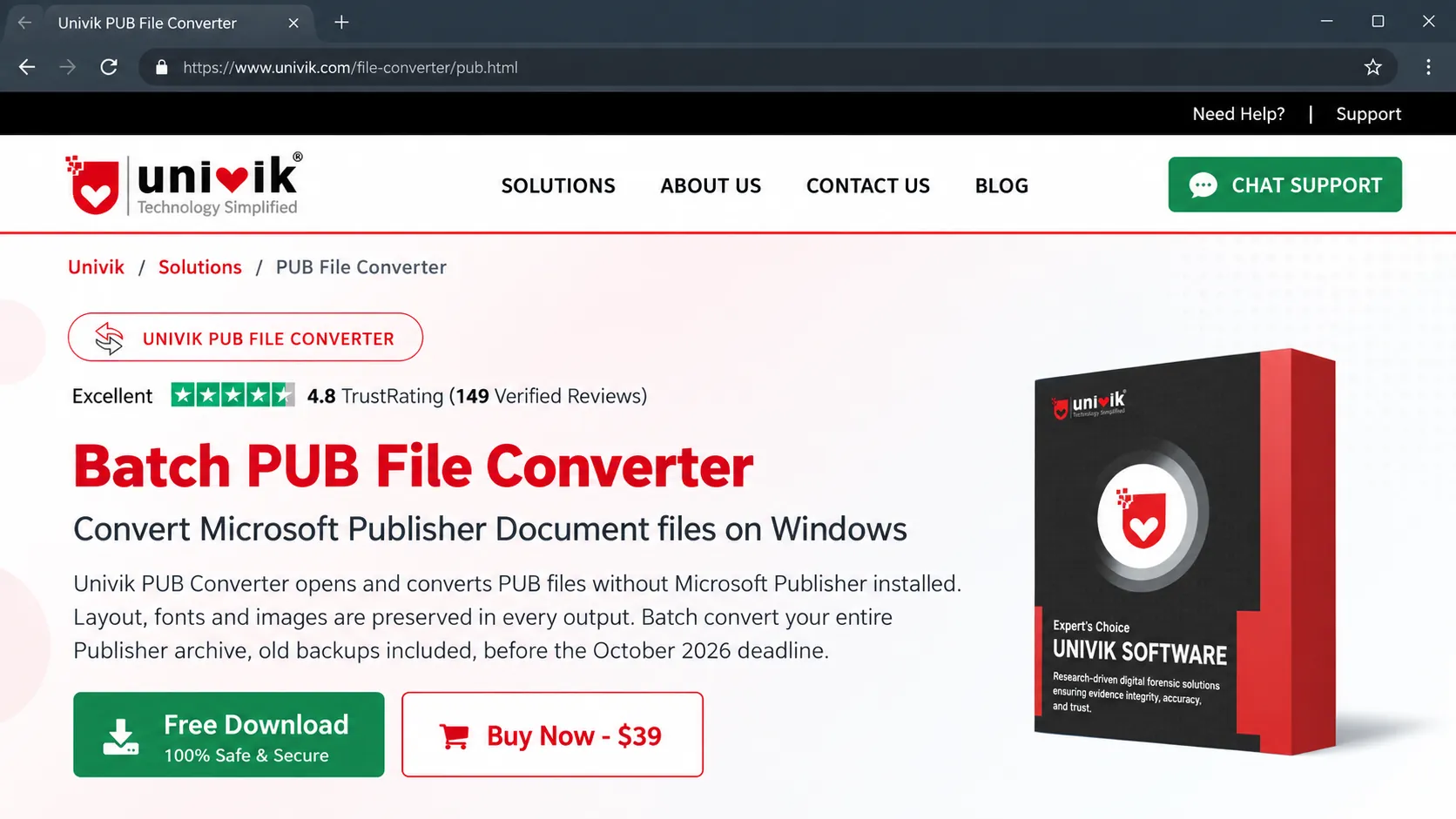
Click the green Download button.
Run the setup and click Install
In your Downloads folder, double-click setup-pub-converter.exe. Click Install and wait for it to finish. The setup adds a desktop shortcut and a Start menu shortcut.
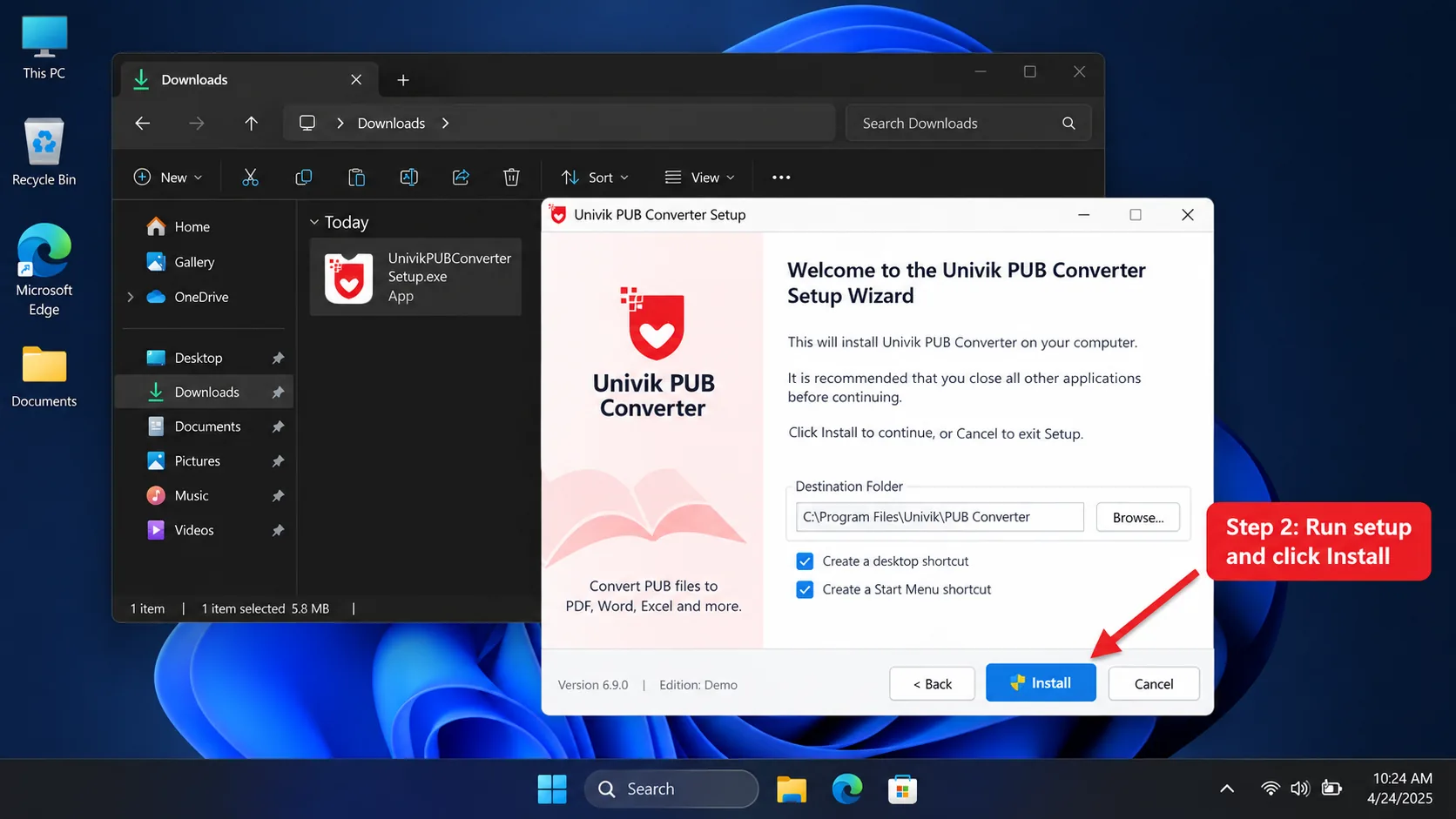
Click Install. It installs to C:\Program Files\Univik\PUB Converter.
Open Univik PUB Converter from the Start menu
Press the Windows key, type pub and click Univik PUB Converter. The top right shows Edition : Demo, which means it is not activated yet.
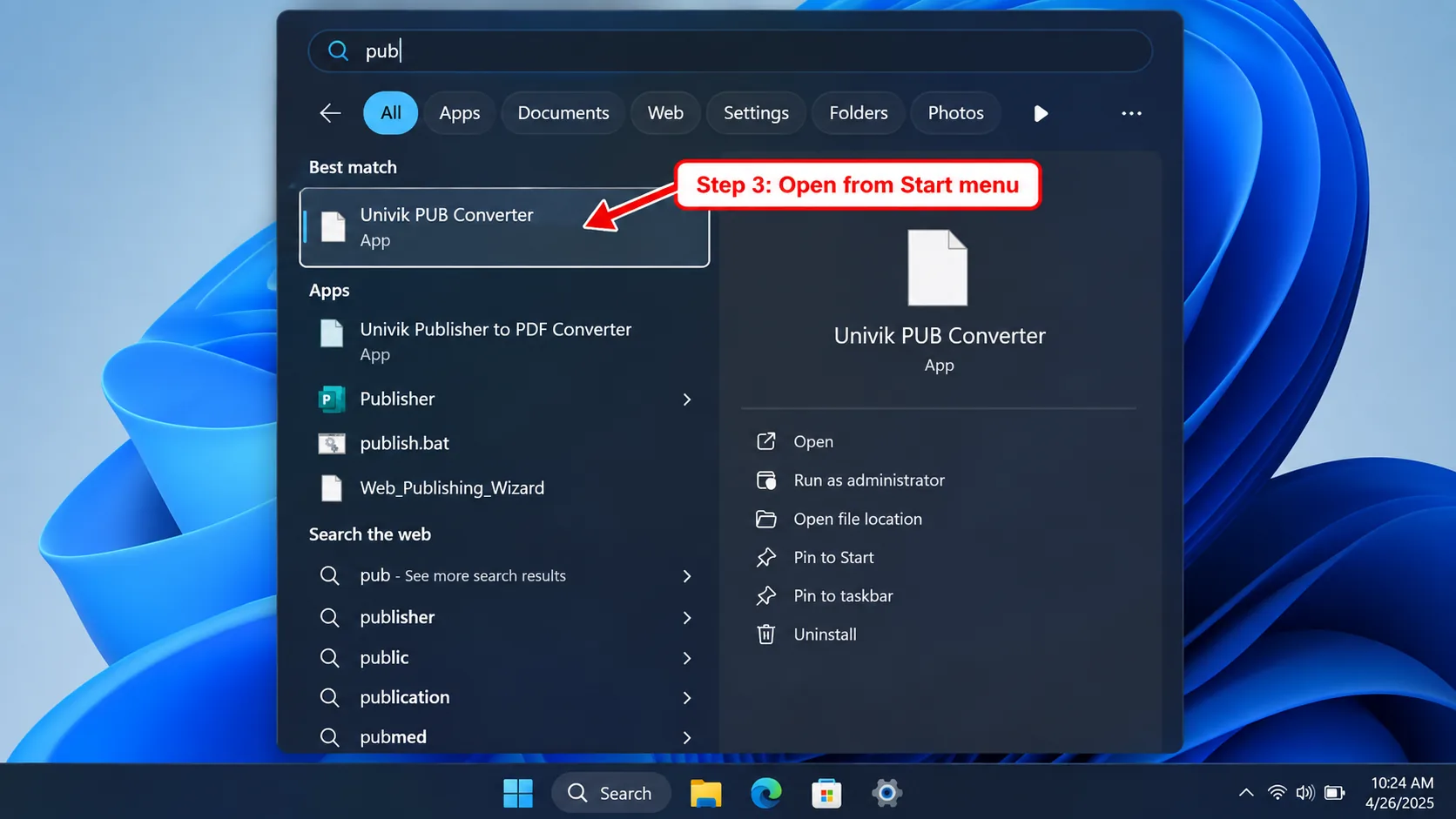
Search pub and open Univik PUB Converter.
Click Register in the top right
In the top right, click the red Register button.
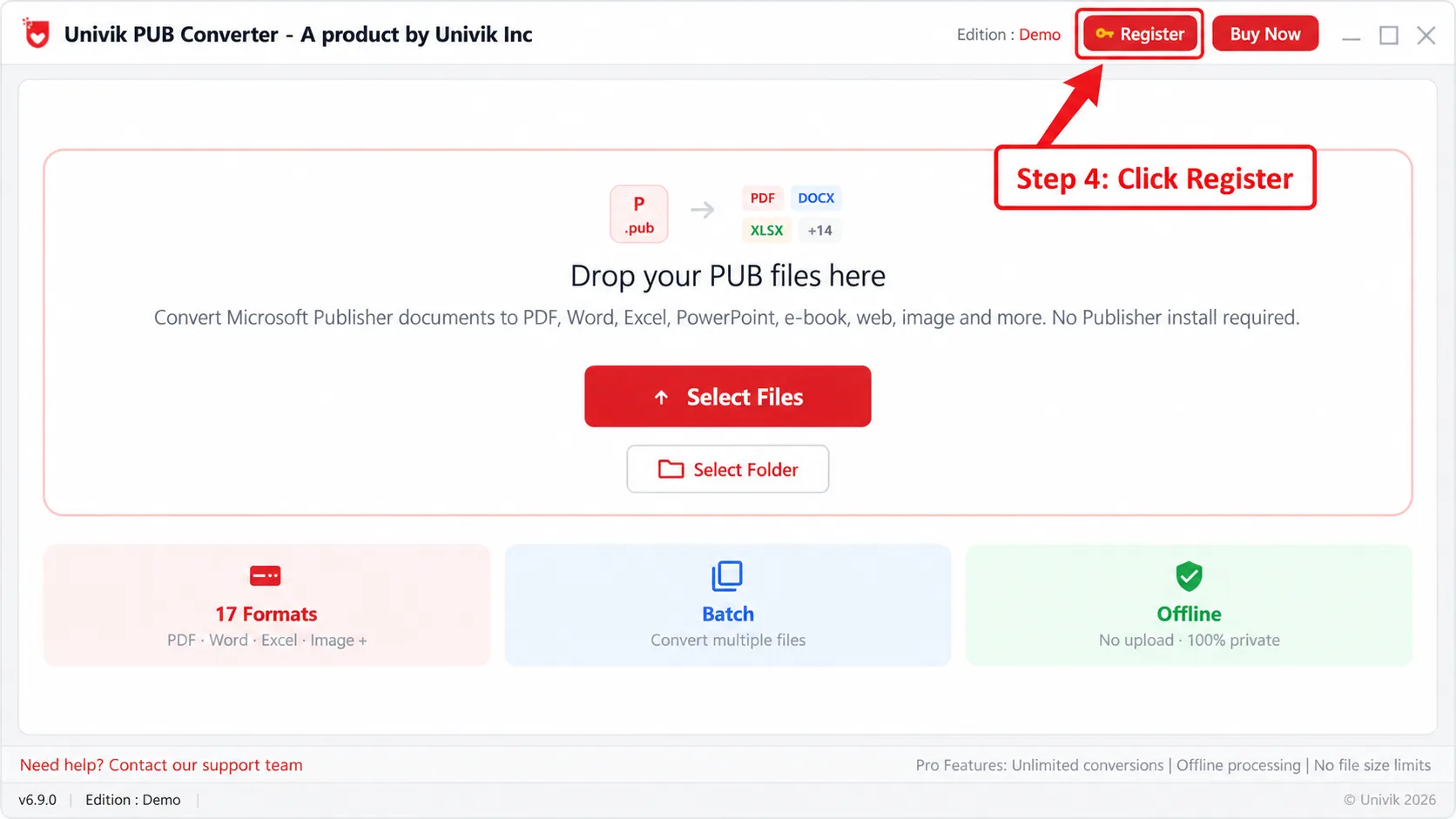
Click the red Register button in the top right.
Enter your email and license key, then click Activate
In the Register window, type the email you bought with. Paste your license key in the License Key box. Click Activate. Paste the key instead of typing it, so a letter O is not read as a zero. Do not leave any space before or after the email or the key, or you get an Activation Error.
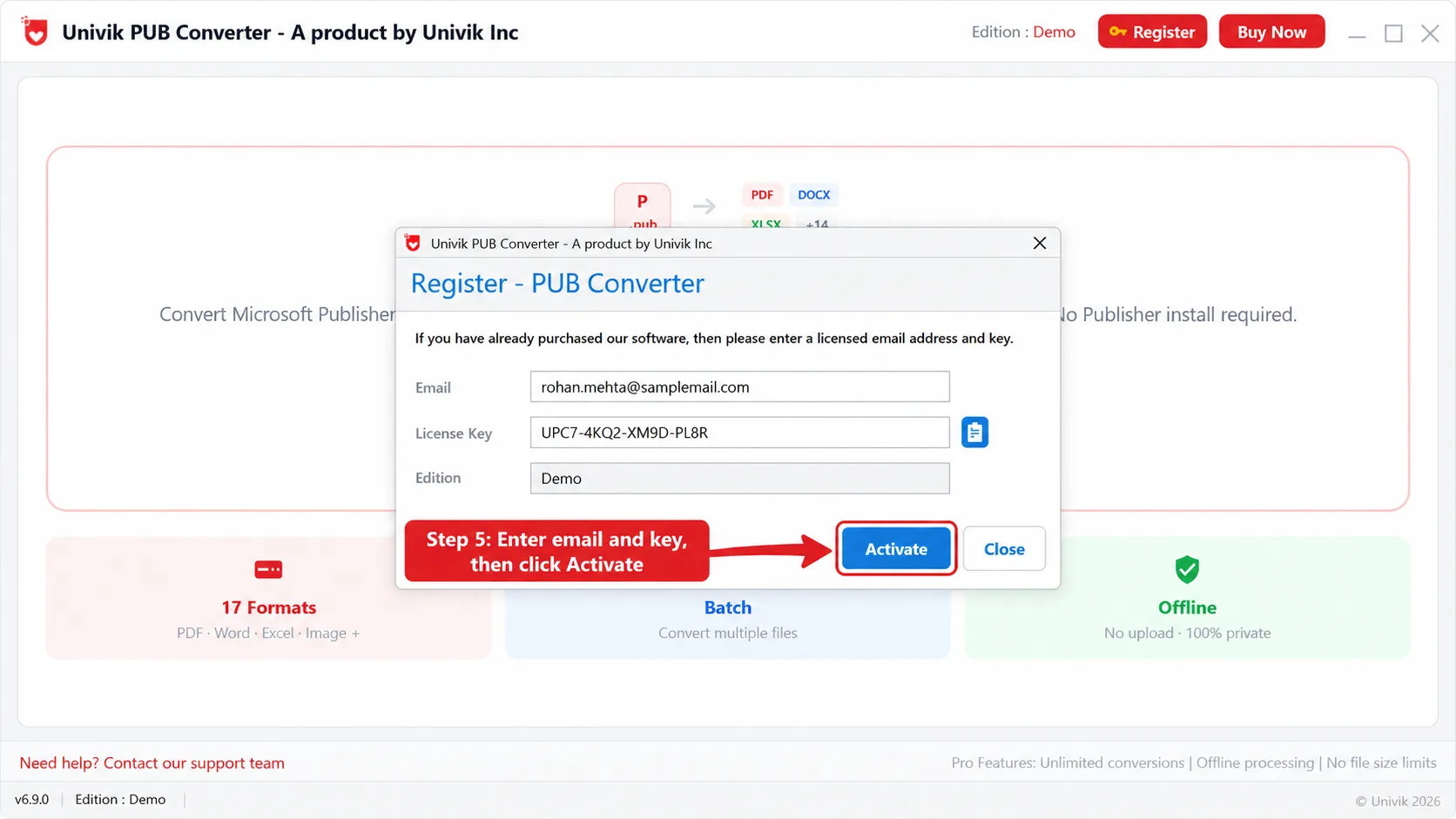
Type email, paste key, click Activate. No extra spaces.
Activation completed successfully
You see Activation completed successfully. Click OK. The top right now reads Edition : Full. The software is activated and every format is unlocked.
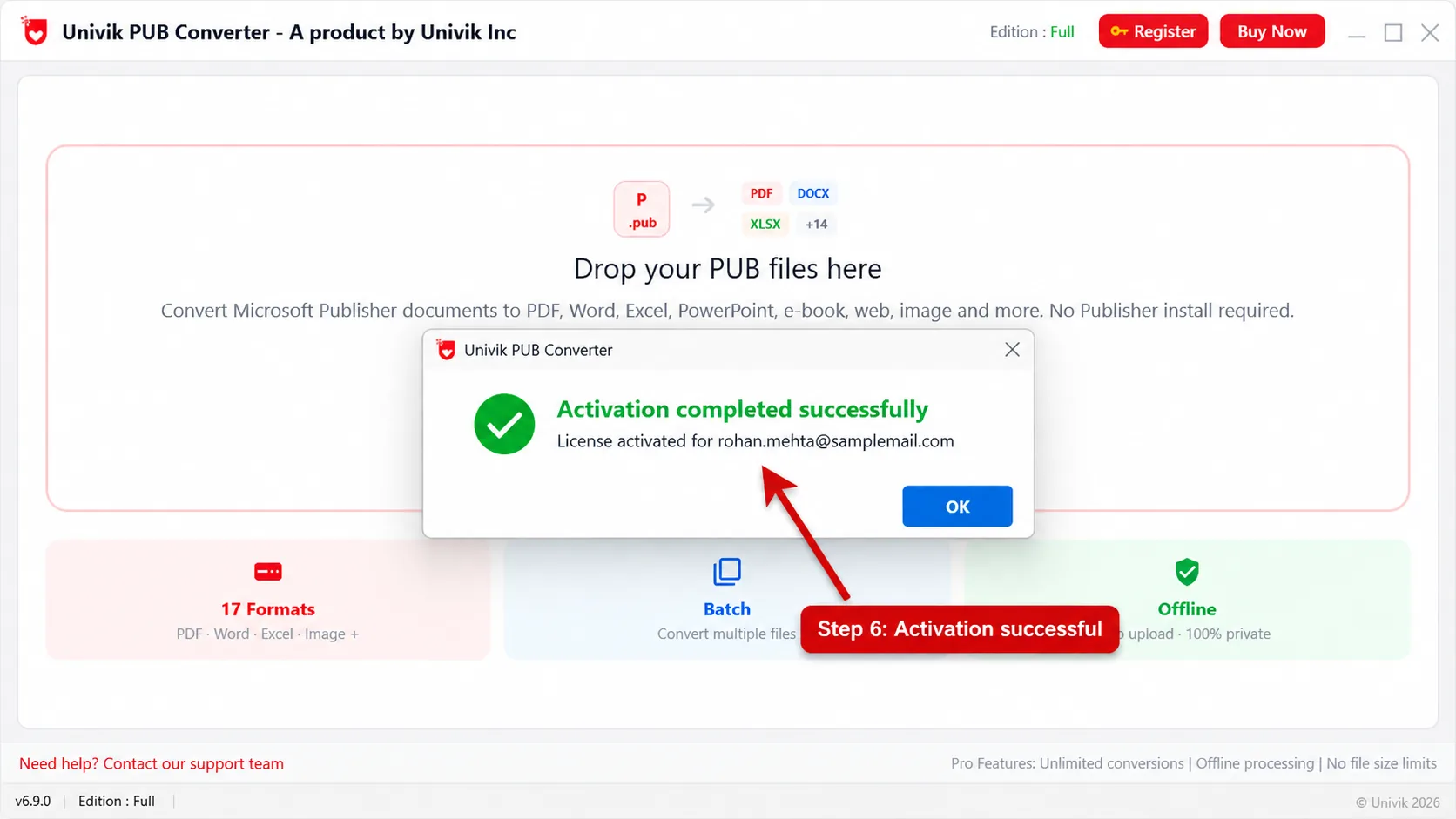
The top right now reads Edition : Full.
Why Does Univik PUB Converter Show an Activation Error?
The most common reason is an extra space before or after the email or the license key. Even one space stops activation and shows an Activation Error that asks you to remove extra spaces and try again.
After you paste, check the start and the end of the Email box and the License Key box and delete any space. A space you cannot see still blocks activation. Then click Activate again.
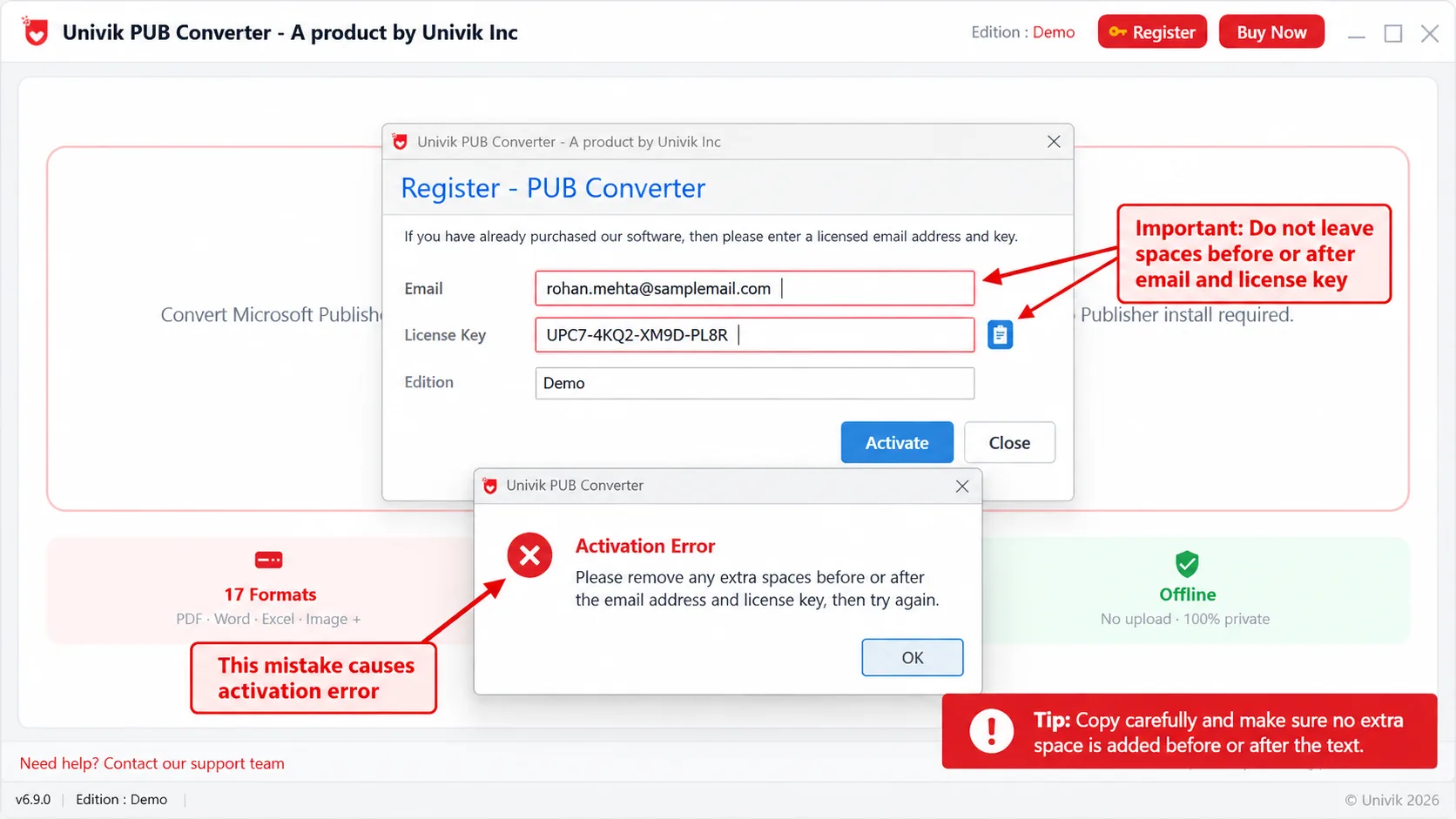
A space after the email or the key causes this Activation Error. Remove the space and click Activate again.
How Do I Know Univik PUB Converter Is Activated?
The top right reads Edition : Full instead of Edition : Demo. That is the only check you need. The demo limit is gone and every format is unlocked.
What If the License Key Is Not Accepted?
Most keys are refused for a small typing reason. Work through this list.
- Paste the key straight from your order email instead of typing it by hand
- Use the exact email address you placed the order with
- Remove any space before or after the key or the email
- Check the top right still reads Edition : Demo, which confirms the key did not register
- Make sure the version is v6.9.0 or later, shown in the top bar
- Still stuck? Send your order number to Univik support
Free demo · 17+ output formats · Windows 11 / 10 / 8 / 7 · No Publisher needed
Activation Questions
 About This Help Page
Maintained by the Univik team, developers of Windows data conversion and recovery software since 2013. The steps, buttons and screens on this page come from Univik PUB Converter v6.9.0 on Windows 11, checked in September 2026. Last verified September 21, 2026. Need a hand? Contact our support team.
Sources checked: Univik PUB Converter product page and pricing