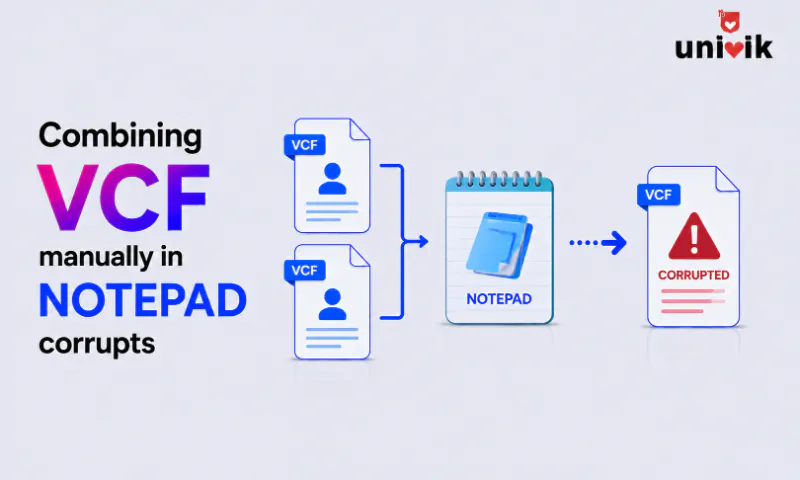
Pasting several VCF files together in Notepad looks like it works, and the result imports with missing contacts, garbled names or broken photos. Notepad has no idea what a vCard is, so it damages seams, encoding and photo data without a warning. Univik VCF Joiner combines the files properly on Windows, and this page explains each thing the manual route breaks.
This page is about contact VCF files, the vCard address book format, not the Variant Call Format used in genomics, which is a different thing that happens to share the extension. If you are combining contact cards and a text editor turned a clean job into a mess of question marks and missing people, the reasons are specific and worth understanding. We rebuild vCard files broken by manual merges regularly while supporting our conversion tools, and the failures below repeat with a pattern.
Why Notepad Feels Right and Goes Wrong
A VCF file opens in Notepad as readable text, each contact fenced by a BEGIN:VCARD marker at the top and an END:VCARD at the bottom. The obvious move is to open several, copy everything and paste it into one. The logic seems sound, the file is text, so pasting text together should stack the contacts.
It looks fine on screen, which is the trap. A vCard is structured data wearing plain text clothes, with rules about encoding, line endings, version headers and how long lines are allowed to be before they wrap. Notepad follows none of those rules because it does not know they exist. The damage is real but invisible until an import somewhere rejects the file or drops half of it.

“Files that were joined by hand are a regular source of the extra characters and question marks we test for. Two files with different encodings pasted into one editor window produce a file that no single encoding can read correctly.”
Nick Rogers
|Founder, Univik, building file conversion tools since 2013
Damage at the Seam Where Files Meet
The first break happens where one file’s text ends and the next begins. A valid vCard needs a clean line break between an END:VCARD and the next BEGIN:VCARD, and manual pasting rarely lands it. Paste with no break and the two lines fuse into ENDVCARDBEGINVCARD, which parsers read as one corrupt entry, losing the contact on each side of the seam.
Windows and Unix line endings make it worse. VCF files from phones and cloud services carry different invisible line ending characters, CRLF on some and LF on others, and Notepad historically mangled the mismatch, running lines together into one long unreadable string. Modern Notepad handles line endings better than it once did, but it still does nothing to normalize the two files into one consistent scheme, so a strict importer chokes on the mixture. The full anatomy of a valid file is in our VCF structure guide.
Encoding and the Invisible BOM Problem
Encoding is where names turn to nonsense. vCard files hold international characters, accents, Chinese, Arabic and the emoji in a nickname, all of which depend on the file being read and saved as UTF-8. Notepad’s Save As lets you pick an encoding, and the wrong pick rewrites every non English character as question marks or mojibake, the scrambled symbol strings that mean the bytes were read one way and written another.
The subtler trap is the byte order mark, a hidden marker some editors write at the very start of a UTF-8 file. Drop that invisible BOM in the middle of a combined file, where the second pasted file used to start, and a parser hits three stray bytes right before a BEGIN:VCARD and rejects the block. The contact looks perfect in Notepad and vanishes on import. Our UTF-8 encoding guide walks through spotting and fixing these.
Mixed vCard Versions in One File
vCards come in versions, 2.1, 3.0 and 4.0, and each writes its properties differently, especially how it encodes special characters and structures fields. A file exported from an old phone can be 2.1 while one from a cloud service is 3.0, and pasting them together produces a file with a mix of version headers and two incompatible sets of rules inside it.
Some importers cope by reading each card’s own VERSION line, plenty do not and apply the first version they see to everything, garbling every card written to a different standard. Notepad cannot convert one version to another, it only stacks the text as is. The specific differences that collide sit in our breakdown of vCard 2.1, 3.0 and 4.0.
Broken Photos From Folded Base64 Lines
Contact photos are the most fragile thing in the file. A vCard stores a picture as base64 text, a long run of letters and numbers standing in for the image. The spec wraps that block across many lines using a strict folding rule, a line break followed by a single leading space that marks the line as a continuation of the one above.
That folding is exactly what a text editor treats as ordinary whitespace to tidy or reshape. Lose one continuation space, or let an editor rewrap the block, and the base64 breaks, the photo turns into a scrambled fragment or disappears and on some parsers the corruption bleeds into the fields after it. This is why a manually combined file so frequently imports with every photo missing.
The Merge That Merges Nothing
Set the corruption aside for a moment, and pasting still does not do the job people wanted. Combining contact lists means folding overlapping lists into one clean set, and the same people show up across more than one file. Stacking the text keeps every copy, so a person in three source files becomes three identical contacts in the result. The manual route cannot see duplicates, let alone resolve them, it just piles text on text.
So the best case for a flawless manual paste, no seam damage, correct encoding, matching versions and no photos to break, is still a file full of duplicates that needs a deduplication pass anyway. The effort buys a worse result than the tool that was going to do the whole job.
The Clean Way to Combine VCF Files
Univik VCF Joiner reads each file as vCards rather than as raw text, so every failure above disappears at once. It keeps each card intact across the seam, normalizes the encoding and line endings and accepts a mix of 2.1 and 3.0 files without garbling them. It also preserves the folded photo blocks and flags the duplicate people while combining, so the output is one clean file with each contact once. That is four steps of manual risk replaced by opening files and clicking combine.
- Open Univik VCF Joiner and add every VCF file you want to combine.
- Let it scan the files, where it surfaces the contacts that appear in more than one.
- Choose to keep or drop the duplicates it found.
- Save the combined file, one vCard holding every contact a single time.
For the command line and other legitimate manual methods that avoid Notepad’s traps, our guide to merging VCF files lays them out, and for slicing a large combined file back apart, the VCF splitting guide covers the reverse. A vCard Duplicate Remover pass handles the cleanup when the duplicates run deep.
Combine contact files without breaking them
Univik VCF Joiner treats each file as contacts, not text, so seams, encoding, versions and photos all survive the merge and the duplicates get flagged before the file is written.
Rescue a File Notepad Already Broke
Most files mangled by a manual merge can be recovered, since the contact data tends to survive even when the structure around it does not. Open the suspect file in the free Univik VCF Viewer first, it shows which contacts read cleanly and which are damaged, so you know the scale before touching anything. From there, Univik VCF Converter rebuilds the file, normalizing the encoding to UTF-8, repairing the version headers and restructuring each card to a consistent standard, which fixes the seam and BOM damage in one pass.
Photos lost to reflowed base64 are the exception, once the image data is scrambled it cannot be reconstructed from the broken text, so those contacts need their pictures added back from the original source file. Deeper structural breakage is covered in our guide to fixing corrupted VCF files. The lesson worth keeping is to combine from the original exports, not from a file a text editor has already touched.
Frequently Asked Questions
Why do My Contacts Disappear After Combining VCF Files in Notepad?
It comes down to a fused seam or a stray byte order mark. When one contact’s END:VCARD runs straight into the next BEGIN:VCARD with no line break, a parser reads the join as one broken entry and loses both contacts. A hidden BOM left mid file where a second file was pasted in makes the card after it vanish the same way.
Can I Combine VCF Files in Notepad at All?
You can paste them together, but the result is unreliable. Notepad treats a vCard as plain text and has no handling for the encoding, line endings, version headers and folded photo lines that make the file valid, so the combined file lands with missing or garbled contacts. A tool that understands the format avoids every one of those failures.
Why are the Photos Missing After I Merged VCF Files by Hand?
A contact photo sits in the file as base64 text, folded over many lines under a strict continuation rule. A text editor treats that folding as whitespace and reflows or trims it, which breaks the encoded image so it imports as a blank or a scrambled fragment. Scrambled photo data cannot be rebuilt, so those pictures have to come from the original files.
How do I Combine Multiple VCF Files Into One Correctly?
Use a tool that parses vCards instead of stacking text. Univik VCF Joiner reads each file as contacts, combines them with the encoding and structure intact, handles mixed vCard versions and flags duplicate people before writing one clean file. It turns a fragile manual job into opening the files and clicking combine.
My Merged VCF File Shows Question Marks Instead of Names, Why?
That is an encoding mismatch, UTF-8 text saved as a different character set during the manual merge. The original bytes were read one way and written another, so accented and non Latin characters render as question marks or symbols. Converting the file back to UTF-8 restores the names, which a vCard converter does in one pass.
Is It Safe to Merge VCF Files From Different Phones?
It is safe with the right tool, and risky by hand. Files from different phones tend to use different vCard versions and encodings, exactly the mismatches manual pasting cannot reconcile. A joiner that normalizes versions and encoding while combining makes cross phone merges straightforward, where a Notepad paste tends to garble whichever file does not match the rest.