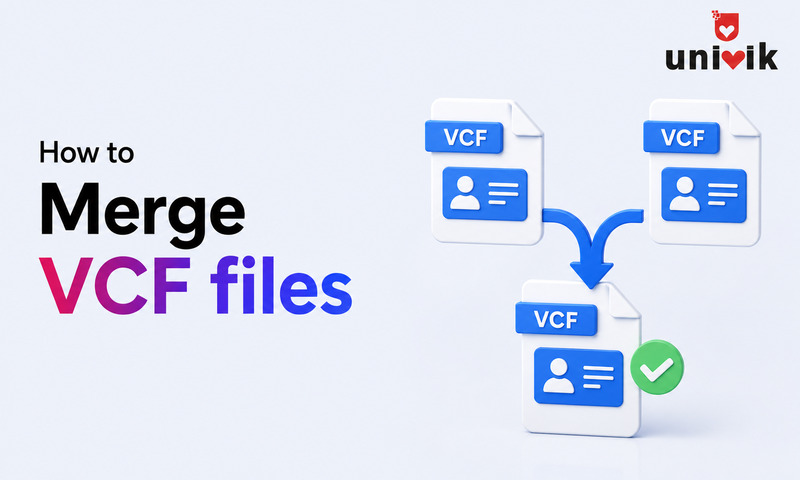
The easiest way is Univik vCard Joiner – load all your VCF files, preview every contact before combining and click Join. It handles duplicates, mixed vCard versions and gives you a full report of what ended up in the merged file. Works 100% offline so your contacts never leave your machine.
Prefer a free command line method? Windows: open Command Prompt in your VCF folder and run copy /b *.vcf merged.vcf. Mac or Linux: open Terminal and run cat *.vcf > merged.vcf. Both combine everything into one file instantly – though you will need to handle duplicates yourself afterwards.
Why You End Up With Multiple VCF Files
Nobody plans to have their contacts in five different places. It just happens. You switch phones and export a backup. You change email providers and download your address book. You move from one CRM to another and get a VCF export. Three years later you have an Android backup from 2022, an iCloud export from last spring, an Outlook contacts file and a Google Contacts download from the job before last.
Each file is valid. Each file is incomplete. Together they have everyone. But importing four separate VCF files into a new phone or contacts app four separate times is tedious and you still end up with duplicates to clean up afterwards.
Merging them first solves this. One file, one import, done.
Android.vcf
Phone backup
iCloud.vcf
Apple export
Outlook.vcf
Email contacts
Google.vcf
Old account
All_Contacts.vcf
Single file, one import
Here are the most common situations that bring people to this guide:

“Merged files get big, and big files are where our testing spends most of its time. A merged list of 65,000 contacts is in the set, and after the merge the file is opened in the target application, because a merge that counts right can still display wrong.”
Nick Rogers
|Founder, Univik, building file conversion tools since 2013
Before You Merge: Two Things to Check
Pre-merge checklist
- Back up your originals first. Copy all your VCF files to a separate folder before starting. A merge is not reversible once you have concatenated the files you cannot easily un-merge them. One extra folder copy takes ten seconds and gives you a fallback if anything goes wrong.
- Check the vCard versions in your files. Open any of your VCF files in Notepad or TextEdit and look for the
VERSIONline near the top of the first contact. It will readVERSION:2.1,VERSION:3.0orVERSION:4.0. If your files mix versions, check the version conflicts section below before merging. Most platforms handle mixed versions fine, but a few (especially iCloud) do not. - Make sure all files are in one folder. The command line methods below merge every VCF file in the current folder. Move the files you want merged into one clean folder with nothing else in it before running the command.
Why Merging a VCF File Is Simple
A VCF file is plain text. Every contact inside it is a self-contained block starting with BEGIN:VCARD and ending with END:VCARD. There are no shared headers, no document-level wrappers. Just one block per person, stacked in sequence.
Merging two VCF files is therefore just concatenating their text content. The result is a longer file where all the contact blocks sit one after another and every contacts app in the world knows exactly how to read it. That is why the one-line commands below actually work. You are not converting anything or changing any data. You are just putting blocks of text end-to-end.
The only complication that comes up in practice is a missing newline at the end of a file – which can make two contacts run together on the same line. That is exactly the failure our guide on why combining VCF files manually in Notepad corrupts them breaks down in detail. The common problems section covers exactly how to fix that if it happens.
No software to install. This uses the copy command that has existed in Windows for decades. It combines every VCF file in a folder into one output file in under two seconds, even for thousands of files.
Step 1 – Move all your VCF files into one folder. Create a new folder (for example C:\Contacts\ToMerge) and copy all the VCF files you want to combine into it. Make sure there are no other files in that folder – the command grabs everything with a .vcf extension.
Step 2 – Open Command Prompt. Press Win + R, type cmd and press Enter. Then navigate to your folder:
cd C:\Contacts\ToMerge
Step 3: Run the merge command.
copy /b *.vcf merged.vcf
The /b flag tells Windows to treat the files as binary data, which preserves UTF-8 encoding and prevents special characters in contact names from getting garbled. All VCF files in the folder are combined into merged.vcf in the same folder.
find /c "BEGIN:VCARD" merged.vcf in Command Prompt. The number it returns should equal the total contacts across all your source files. If it is lower, one of the source files may have had a structural problem – open it in Notepad and check for missing END:VCARD tags.
Skip the command line entirely
The CMD method works, but it has no duplicate detection, no preview, and no audit trail.
If your VCF files come from more than one account, a phone backup, iCloud, Outlook and a CRM export, the copy /b command will concatenate them, but it will not tell you how many contacts were duplicated across sources, and it will not let you see the result before committing. Univik VCF Joiner Software handles all of that automatically: load your files, enable optional duplicate detection, preview every contact from every source, then merge all in under 30 seconds, 100% offline.
✓ Built-in duplicate detection
✓ Preview before merging
✓ Full join audit report
✓ 100% offline for Windows
On Mac and Linux, the cat command concatenates files and is even more concise than the Windows equivalent. It handles encoding automatically and works on any number of files without slowing down.
Step 1: Open Terminal. On Mac: Applications → Utilities → Terminal. On Linux: Ctrl+Alt+T. Navigate to the folder containing your VCF files:
cd ~/Desktop/Contacts
Step 2: Run the merge command.
cat *.vcf > merged.vcf
That is it. merged.vcf now contains all your contacts in one file. The > operator writes the combined output to a new file rather than printing it to the screen.
If some contacts run together (missing line breaks between them), use this variant instead. It adds a blank line after each file before concatenating, which prevents the last line of one file and the first line of the next from colliding:
for f in *.vcf; do cat "$f"; echo; done > merged.vcf
grep -c "BEGIN:VCARD" merged.vcf after merging. The number should match the total contacts across all your source files. Quick and reliable.
If the command line feels uncomfortable, browser-based VCF merger tools let you upload your files and download the combined result. For a small set of personal contacts with no sensitive data, these are convenient.
Look for tools that process files locally in your browser (client-side) rather than uploading to a server. The tool’s own page will usually say “files are processed in your browser” or “no server upload.” Those are the ones worth using.
Think carefully before uploading contact data
A VCF file contains names, phone numbers, home addresses, email addresses and sometimes photos of real people. That is personal data belonging to your contacts, not just to you. Before uploading it to any third-party website, ask whether that site’s privacy policy gives you confidence. Business contact lists, client databases and employee directories should never go near an online tool. Use the command line methods for anything sensitive.
Online mergers also tend to hit their limits with larger files. Most cap uploads at 5 MB or a few hundred contacts. For anything larger, the command line is faster, more reliable and completely free.
The command line methods above do exactly what they say: concatenate VCF files. They are fast and free and correct. But they do not detect duplicates before combining, they do not let you preview all contacts in a unified list before committing and they do not produce an audit trail of which contact came from which source file.
Univik VCF JoinerLoads all your VCF files at once, shows a unified preview of every contact with its source file, runs optional duplicate detection across all sources before joining and produces a join report confirming every contact in the output. Handles any mix of vCard 2.1, 3.0 and 4.0 output in whichever version you need. Entirely offline. Source files never modified.
✓ Built-in duplicate detection
✓ Preview before merging
✓ 100% offline for Windows
Handling Version Conflicts (vCard 2.1, 3.0, 4.0)
If your source files come from different platforms, they likely use different vCard versions. An iCloud export uses 3.0. A Samsung backup uses 2.1. Some newer apps export 4.0. When you merge them, the combined file contains contacts with different VERSION declarations – each contact declares its own version inside its block.
Whether this matters depends on where you plan to import the merged file:
| Import Platform | Handles Mixed Versions? | Notes |
|---|---|---|
| Google Contacts | Yes, no issues | Most forgiving parser. Reads each contact block independently. Mixed 2.1/3.0/4.0 all work. |
| Android (native) | Generally yes | Stock Android handles mixed versions. Manufacturer skins (Samsung, MIUI) vary so test first. |
| Outlook 2016+ | Yes, no issues | Modern Outlook reads each contact independently. Mixed files import cleanly. |
| iCloud (web) | Sometimes fails | iCloud can reject mixed-version files or silently skip contacts. Convert all to 3.0 first if importing here. |
| Outlook (older versions) | Inconsistent | Older Outlook versions may choke on vCard 4.0 or mixed files. Convert to 2.1 or 3.0 for safety. |
| Thunderbird | Sometimes fails | Thunderbird prefers single-version files. Use 3.0 for compatibility. |
If your destination is iCloud, an older Outlook or Thunderbird, convert all your VCF files to vCard 3.0 before merging. That removes the mixed-version problem entirely. For a detailed look at what is different between vCard 2.1, 3.0 and 4.0, see our vCard version comparison guide. To convert versions, the Univik VCF Converter handles 2.1 ↔ 3.0 ↔ 4.0 in both directions.
After Merging: Dealing With Duplicates
Merging contact files from multiple sources almost always creates duplicates. The same person existed in your phone backup and your Google Contacts export. The merge brought both copies together. That is expected and normal the merge cannot know they are the same person.
The good news is that every major contacts platform has built-in duplicate handling. Import your merged file first, then let the platform clean up:
If you have a large dataset and need to remove duplicates before importing rather than after, the Univik vCard Duplicate Remover scans the merged VCF file directly and removes redundant entries before you import anything.
Verifying the Merged File
Count contactsRun
grep -c "BEGIN:VCARD" merged.vcf (Mac/Linux) or find /c "BEGIN:VCARD" merged.vcf (Windows). Should equal the sum of contacts across all source files.
Spot-check structureOpen the file in Notepad. Scroll through and confirm no two contacts are missing a line break between them. Every
BEGIN:VCARD should be on its own line.
Check international namesScan for contacts with accents, umlauts or non-Latin characters. If you see garbled symbols (like
ü instead of ü), the file has an encoding mismatch – see common problems below.
Preview before full importOpen the merged file in the Univik VCF Viewer to see all contacts in a readable list before importing. Catch any formatting issues without touching your contacts app.
Common Problems and How to Fix Them
Some VCF files do not end with a newline character. When concatenated, the closing END:VCARD of one contact and the opening BEGIN:VCARD of the next land on the same line. Most parsers reject this. Fix: on Mac/Linux use for f in *.vcf; do cat "$f"; echo; done > merged.vcf. The echo adds a blank line after each file. On Windows, open the problematic source files in Notepad++ and add an empty line at the very end of each file before running the merge command again.
The merge command grabs all .vcf files in the folder – if any source files were empty or had structural problems (like a missing END:VCARD), they may have contributed zero valid contacts to the count. Open suspicious source files individually in a text editor and confirm they have balanced BEGIN:VCARD and END:VCARD pairs. Our VCF error repair guide covers structural problems in detail.
This happens when some source files use UTF-8 encoding and others use Windows-1252 or ISO-8859-1. The merge copies bytes without touching encoding, but if the files were encoded differently the merged result is inconsistent. Open each source file in Notepad++ before merging, check the Encoding menu, convert each to UTF-8 (without BOM), save, then run the merge command. A consistent starting encoding produces a clean merged file.
If the merged file imports fine into Google Contacts but fails on iCloud or Outlook, the issue is almost always version mixing (see the version section above). Import into Google Contacts first, which is the most lenient parser. Once imported, export fresh from Google Contacts as a clean vCard 3.0 file. That single-version export will import correctly on iCloud and Outlook. Alternatively, convert all source files to 3.0 using the VCF Converter before merging.
Frequently Asked Questions
How do I merge two VCF files into one on Windows?
Open Command Prompt, navigate to the folder containing both files and run copy /b *.vcf merged.vcf. This combines every VCF file in the folder into one output file named merged.vcf. No software installation required.
Can I merge VCF files without any software?
Yes – the Command Prompt on Windows and Terminal on Mac or Linux are built into your operating system. No additional software is needed. You can also open each VCF file in a text editor, select all the content and paste it sequentially into a single new file saved with a .vcf extension. That works for a small number of files but gets tedious quickly.
Will merging VCF files create duplicates?
Yes, if the same contact exists in more than one of your source files. The merge is plain concatenation – it does not compare contacts or detect matches. Handle duplicates after importing using your contacts app’s built-in merge feature (Google Contacts, iPhone and Android all have one) or run the merged file through the Univik vCard Duplicate Remover before importing.
Can I merge vCard 2.1 and 3.0 files together?
Yes. The command line merge will concatenate them without complaint. The resulting file has contacts with different VERSION values – most modern platforms (Google Contacts, recent Outlook, Android) handle this fine. If you are importing into iCloud or an older Outlook version, convert all files to vCard 3.0 first. See the version conflicts section above.
How do I merge VCF files on Mac?
Open Terminal, navigate to the folder with your VCF files using cd, then run cat *.vcf > merged.vcf. The merged file appears in the same folder. Verify the contact count with grep -c "BEGIN:VCARD" merged.vcf.
What is the reverse of merging? How do I split a VCF file back out?
See our VCF file splitting guide for the command line methods that break a multi-contact VCF back into individual files or smaller batches. The Univik vCard Splitter handles this with six different split modes including one per contact, alphabetical and by company.
My merged file imports fine into Google Contacts but fails on iCloud. Why?
iCloud is stricter than Google about version consistency in VCF files. If your merged file contains a mix of vCard 2.1 and 3.0 contacts, import into Google Contacts first, then export from Google as a clean vCard 3.0 file. Import that version into iCloud. Alternatively, use the VCF Converter to normalize all contacts to 3.0 before merging. For iCloud-specific import errors, the iCloud vCard rejection guide covers every known cause.
How do I merge VCF files on Android?
Android does not have a built-in file merge function. The simplest path is to email all VCF files to yourself, download them on a Windows or Mac computer, merge using the command line method and transfer the merged file back to your Android. Alternatively, import each VCF file separately into Google Contacts – Google merges them automatically into your account and you can then export one combined file. See our import VCF to Android guide for the step-by-step.
Want duplicates removed during the merge?
Univik VCF Joiner does everything in this guide and adds duplicate detection, contact preview and a full audit report. Free download for Windows.
The Short Version
Last verified: April 2026. All methods tested on Windows 11, macOS Sequoia and Ubuntu 24.04. Merged files verified for import into Google Contacts, iPhone (iOS 17), Outlook 365 and Samsung Galaxy S24.
Merging VCF files is one of those tasks that looks complicated until you understand that a VCF is just plain text. Once you see that every contact is a self-contained block, the solution becomes obvious: concatenate the blocks. One command on any operating system does that in seconds.
The short version: Windows – copy /b *.vcf merged.vcf in Command Prompt. Mac/Linux – cat *.vcf > merged.vcf in Terminal. Verify the contact count after merging. Handle duplicates afterwards in your contacts app. And if the merged file has entries you want gone entirely, our guide on deleting contacts from a VCF file shows how to remove them cleanly. If your destination is iCloud or an older Outlook, convert all files to vCard 3.0 before merging. For large merges where you want to preview contacts before combining, run duplicate detection or get a full audit trail, use Univik VCF Joiner.