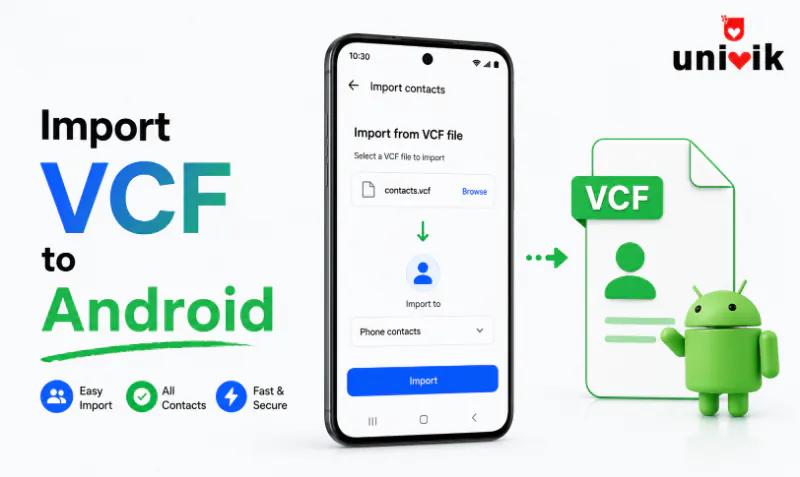
Android imports contacts from a VCF file natively, no extra app needed. On the phone, go to Google Contacts, open the Organize tab (Fix & Manage on older versions) and tap Import from file, then pick your Google account and select the .vcf from storage. On Samsung, the path is Contacts, Menu, Manage contacts, Import or export contacts, Import. When you have many VCF files or a messy one, Univik VCF Converter merges and cleans them on Windows before the file ever reaches the phone.
A .vcf file packs one contact or thousands into a single vCard text file, and Android is the easiest major platform to bring one into, because the import button is built into the Contacts app itself. The hard part is finding it, since Samsung, Xiaomi, OnePlus and the rest each place it in a different menu. We have run these imports on 12 Android devices across 6 brands while building our vCard tools, and this guide gives the exact path for each one, plus the fixes for imports that refuse to work.
Import a VCF File With the Android Contacts App
This is the fastest and most reliable way to import contacts from a VCF file to an Android phone. It works offline, needs no computer and handles files with thousands of contacts.
- Get the .vcf onto the phone, by USB from a computer, a cloud drive, Bluetooth or a messaging app. Any storage folder works.
- Open the Google Contacts app and tap Organize, labeled Fix & Manage on older versions, then tap Import from file. On much older Android the option sits behind the three dot menu.
- Pick your Google account as the destination when asked.
- Browse to the .vcf, select it and confirm. Every contact in the file is added in one pass.
Speed is not a concern. In our test on a Pixel 8 running Android 14, a 1,500 contact iCloud export imported in about 4 seconds with phone, email, address, organization and notes fields all mapped correctly, photos included.
The account question in step 3 matters more than it looks. Contacts saved to a Google account back up to the cloud and follow you to the next phone. Contacts saved to Device or Phone exist on that handset alone and are gone after a factory reset.

“Android files in our lab come from many phones, and Samsung exports still arrive as vCard 2.1. Hindi or German names in a 2.1 file are stored quoted-printable, so the receiving phone shows question marks instead. Converting to 3.0 with UTF-8 first removes that whole class of problem.”
Nick Rogers
|Founder, Univik, building file conversion tools since 2013
Open the VCF File Directly to Import Its Contacts
When someone sends you contacts, there is no need to search through menus at all. Opening a VCF file on Android hands it straight to the Contacts app.
Tap the .vcf attachment in Gmail, Outlook, WhatsApp, Telegram or the Files app. Android shows a preview of the contacts inside, asks which account to save to and imports all of them when you confirm. Files with one contact and files with hundreds behave the same way. If the attachment saved itself to Downloads first, opening it from there works identically.
The native import cannot select single contacts, it takes the whole file every time. To bring in only some of the contacts, Univik VCF Splitter breaks the VCF into single contact files on a PC so you import just the ones you need. A small importer app from the Play Store does the same job on the phone by letting you tick individual entries.
Import a VCF From a PC Through Google Contacts
When the VCF file sits on a computer and you would rather skip cables, import it on the web and let sync carry it to the phone. Sign in at contacts.google.com with the account your Android uses, click Import in the sidebar and select the .vcf. The contacts land in your Google account and appear on the phone within minutes, as long as contact sync is turned on for that Google account in the phone’s settings. Toggling contact sync off and on forces an immediate pass when you are in a hurry.
The web route carries two caps, a 20MB file ceiling and 3,000 contacts for each import run. A bigger file needs to be split into smaller VCF files first. The full walkthrough of the web route, including the automatic import label and sync checks, is in our Google Contacts import guide.
Clean Up VCF Files Before They Reach the Phone
Imports go wrong for reasons that live inside the file, not the phone. Contacts scattered across a dozen .vcf files from different exports. Duplicate entries from years of syncing. Old encodings that turn names into symbols. Fixing these on the phone after import is slow work, and fixing them on a PC first takes minutes.
Univik VCF Joiner merges any number of VCF files into one clean file, so the phone import runs once instead of twelve times. VCF Duplicate Remover strips repeated contacts before they ever reach the address book. And VCF Converter rewrites the file in vCard 3.0 with UTF-8 encoding, the combination Android reads cleanly across releases. A quick look inside the file before importing is the free VCF Viewer‘s job.
Where Each Android Brand Hides the Import Option
The steps are the same everywhere. The menu is not. These are the exact paths we verified on current software for the six biggest brands.
If your phone’s own Contacts app has no import option anywhere, install the free Google Contacts app from the Play Store. It runs alongside the built in Contacts app on any phone with the Play Store, and its import option sits under the Organize tab, Fix & Manage on older versions.
Which Import Method Fits Your Situation
Every way to import VCF to Android ends with the same contacts in the same address book, so the choice comes down to where the file is and what shape it is in. If you also want those numbers inside a chat app, our guide on importing a VCF file into WhatsApp covers that route separately.
One follow up step helps on every route. Open the Organize tab and run Merge duplicates once the import lands, and if repeats keep coming back with every sync, our guide on why contacts duplicate after syncing explains the cause and the lasting fix.
How Android Handles vCard Versions and Photos
Android reads all three vCard generations without add ons. Version 2.1 is what Android phones themselves export by default, version 3.0 is what iCloud and Google produce, and both import completely. Version 4.0 imports too, with some of its newer properties ignored. The differences between the three are mapped out in our vCard version comparison.
Photos come through when the file carries them. A VCF with embedded photo data brings pictures through the import intact, and a file exported without photos imports contacts without pictures, and no phone setting can add them back. UTF-8 text comes through cleanly, and the older quoted printable encoding inside vCard 2.1 files is decoded automatically.
When a VCF Import to Android is Not Working
A failed or messy import traces back to one of four causes, and each has a direct fix.
A failed to import error means the file structure is broken, a missing BEGIN or END line or zero valid contact blocks, and our guide on fixing a vCard that will not import walks through repairing it. Garbled names after import mean the file was written in an older Windows encoding instead of UTF-8, covered step by step in the VCF encoding fix guide. Numbers landing under the wrong labels mean the file’s TEL entries lack standard TYPE values, which VCF Converter normalizes before import. And contacts that imported but refuse to sync were saved to Device instead of the Google account, fixed by exporting them back out to a VCF and importing again with the right destination selected.
Make the import work on the first try
Univik VCF Converter merges scattered VCF files, removes duplicates and rewrites everything in clean vCard 3.0 with UTF-8 on Windows, so your Android phone imports one tidy file instead of a pile of messy ones.
Frequently Asked Questions
How do I Import Contacts From a VCF File to My Android Phone?
Launch the Google Contacts app, go to the Organize tab (Fix & Manage on older app versions) and pick Import from file. Set your Google account as the target, browse to the .vcf on your storage and confirm. Every contact in the file imports in one pass. On Samsung phones the path is Contacts, Menu, Manage contacts, Import or export contacts, Import.
How do I Import a VCF File From a PC to My Android Phone?
Either move the file or move the contacts. Copy the .vcf to the phone by USB, email or a cloud drive and import it with the Contacts app. Or skip the transfer, import at contacts.google.com on the PC and let the contacts sync down to the phone through your Google account within minutes.
Can I Import Several VCF Files to Android at Once?
The Contacts app takes one file per import. With several VCF files, combine them into one file with Univik VCF Joiner on Windows and run a single import. Merging by pasting files together in a text editor risks broken contact blocks and encoding damage, so a proper merge tool is the safe route.
Where should I Save the VCF File on My Android Phone?
Anywhere on internal storage or the SD card works, and Downloads is the most common spot. When you tap Import from file, Android scans storage for .vcf files on its own, so the exact folder rarely matters. If the file does not appear, open it directly from the Files app instead.
Why are Names Garbled After a VCF Import on Android?
The file was saved in an older encoding such as Windows-1252 while Android reads UTF-8. Re-encode the file to UTF-8 on a computer, or run it through VCF Converter, which rewrites it in vCard 3.0 with UTF-8 in one step. Then delete the garbled entries and import the clean file.
Will Imported Contacts Sync to My Other Devices?
Only if you picked your Google account as the destination during import. Google account contacts sync to every device signed into that account, phones, tablets and the web. Contacts saved to Device stay on one handset, and the fix is exporting them to a VCF and importing again with the account selected.