No, not straight away. To convert a password-protected PDF to Word you first have to get past the encryption. No converter can read an encrypted file on its own. Clear the password on your own computer, then feed the open PDF to any PDF-to-Word tool or open it in Microsoft Word.
This is true for a desktop converter, a web converter and Word's own open-a-PDF feature. Each one meets the lock and gives up until you clear it.
Maybe you have a signed agreement or a report locked with a password and you need it as an editable Word file. You load it into a PDF-to-Word converter or try Word's own open-a-PDF trick. Nothing useful comes out. The tool either halts on the password prompt or writes an empty document. The blocker is the seal on the file, not the converter you picked. A converter has to read the words off each page to rebuild them in Word, and a locked PDF gives it nothing it can read. This guide explains why the job stalls and walks through clearing the password from a file you own using the Univik PDF Unlocker before you convert.
Can a Password-Protected PDF Be Converted to Word?
Not directly. A PDF-to-Word converter needs to pull the readable text from every page so it can lay that text back out in a document. A password wraps that text in a coded layer, which leaves the converter with nothing to place on the page. So you meet a prompt asking for a password, a blank Word file or a plain error. The order that works is short. Take the password off a copy on your own PC, then pass that readable PDF to the converter and the file rebuilds the way you wanted.
Why Does the PDF-to-Word Converter Stop?
The reason is encryption. A protected PDF holds its words and layout in a scrambled shape that only the password opens. Miss that key and the tool hits a stream of coded data where the paragraphs should sit. A desktop converter freezes on the password prompt. A web converter sends back an empty file or a warning. Word's own open-a-PDF feature stalls at the same request, since none of them can undo the encryption by themselves. There is no hidden setting that slips past this. The seal has to leave the file before a single line will read.
| What you reach for | Locked file | Unlocked file |
|---|---|---|
| Desktop PDF-to-Word tool | Freezes on the password prompt | Rebuilds the document |
| Web converter site | Empty file or a warning | Reads the text |
| Word open-a-PDF feature | Asks for a password and quits | Imports the pages |
| A folder of documents | None go through | Convert them in one batch |
How Do You Clear the Password Before Converting?
Take the lock off a copy first, then convert. Load the PDF using the password you still have, produce a version that opens with no password and hand that clean file to the converter. The Univik PDF Unlocker exists for this one task on Windows. Turn it loose on one file or an entire folder and it produces password-free copies ready for the converter. One straight fact fits here. This path relies on knowing the password. If it slipped your mind, no honest tool can work it out for you. Then the move is to ask whoever set it. Your employer or the office that issued the file can resend a copy you can open or share the password.
The Univik PDF Unlocker takes a known password off a PDF you own on your own Windows PC, so your converter or Word can read it. It can process a batch of files back to back as well.
Free Download See all featuresHow Does the Unlocked PDF Turn into Word?
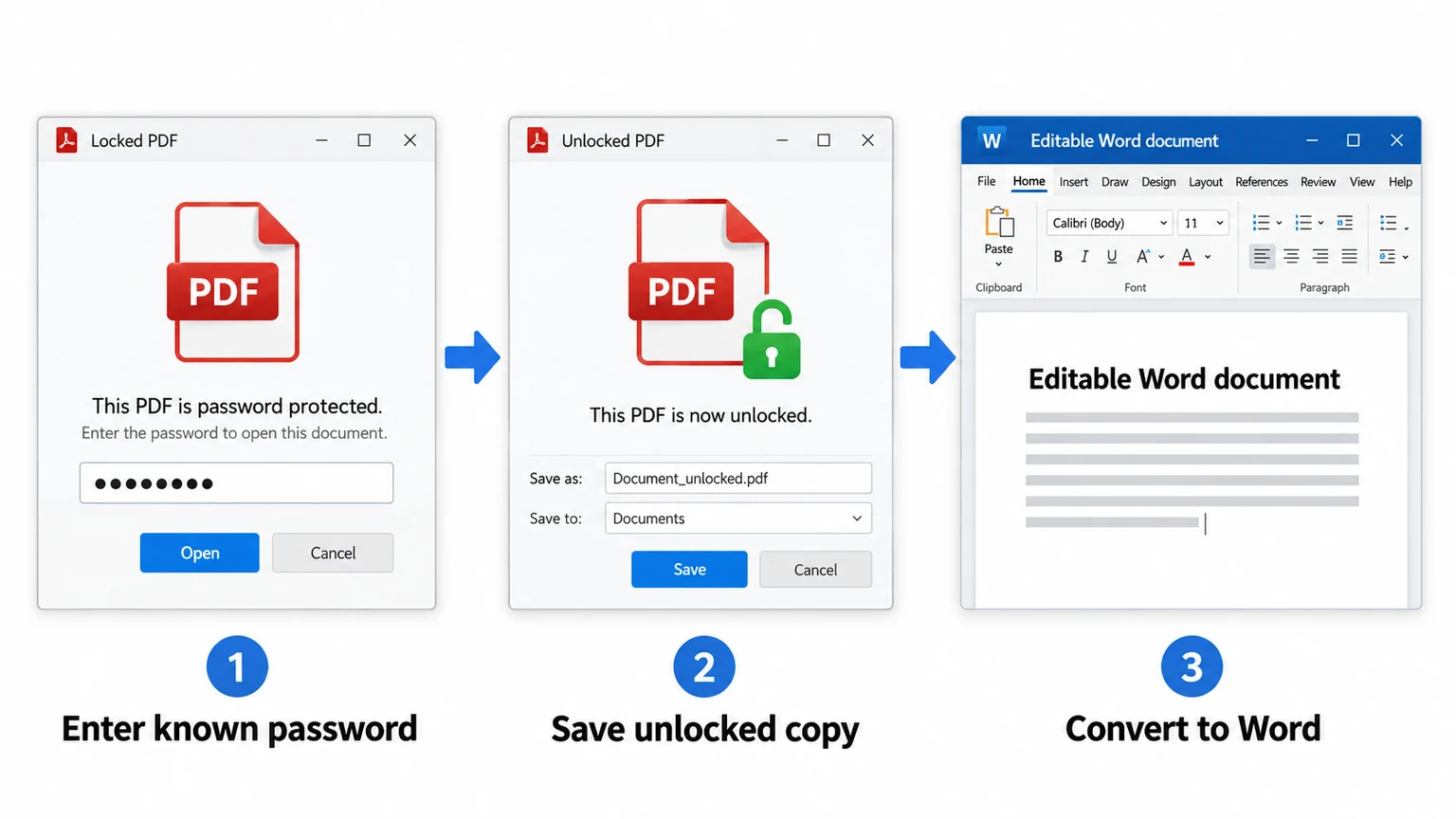
With the password gone, any PDF-to-Word converter can read the file. Drop the clean copy into the tool you trust and let it turn the text and layout into a document you can edit. Microsoft Word can handle it without a separate app too. Open Word, choose the PDF and it rebuilds the pages as editable text. A file with plain paragraphs comes out cleanest. A scanned page may call for a converter that reads text off an image first, since there is nothing live to lift. Keep in mind that taking the lock off and converting are different tasks handled by different tools. When the lock is gone, reach for the converter that suits your document.
Is It Safe to Convert a Private PDF to Word?
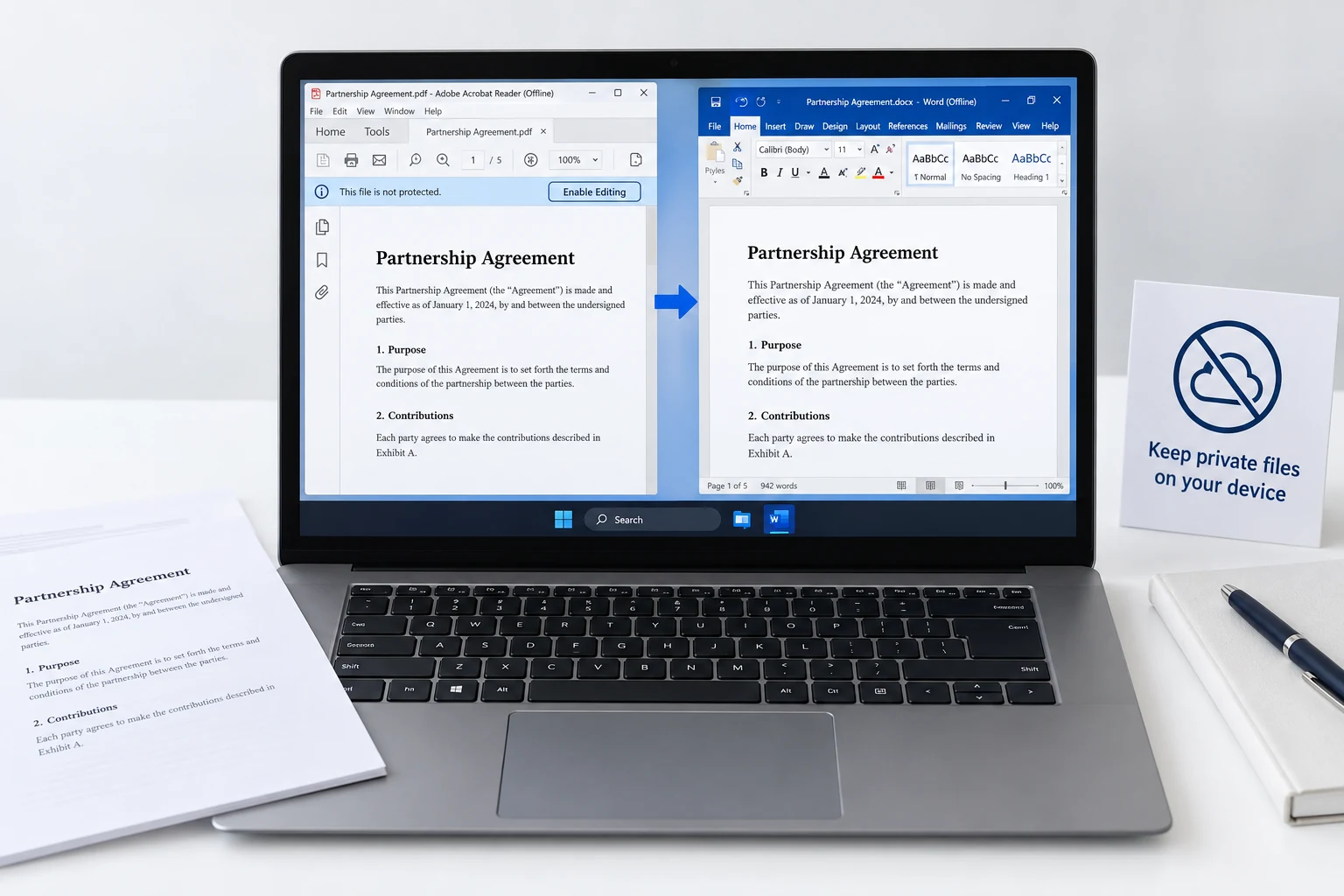
A private contract or report carries detail no outsider should see, so run the entire job on your own computer. An online converter needs the file uploaded to its own server, which places your document with a company you have no control over. The calmer path is to strip the password and convert locally, where the file stays on your drive the whole time. Our note about the safety of online PDF unlockers spells out what a website can do with an upload. Unlock with a tool on your machine, reach for a converter on your machine and your document becomes Word with no copy left on hardware you cannot reach.
- A PDF-to-Word converter cannot read a locked file, so it stalls or writes an empty document.
- The thing blocking you is encryption on the PDF, not a flaw in the converter.
- A desktop converter, a web converter and Word's own open-a-PDF feature all stop at the password prompt.
- Clear the password locally before you convert, then push the clean copy through any tool.
- The Univik PDF Unlocker strips a full folder of files in a single pass, which sets up a batch convert.
- It clears only a password you already have. It cannot guess a forgotten one. It does not itself turn a PDF into Word.

Password-Protected PDF to Word Questions

Checked over by the Univik team alongside Leena Taylor Paul, who have made Windows file tools since 2013. A lot of readers arrive after a converter returned a blank Word file from a locked PDF, so this guide gives the reason and the one step that clears it. Reviewed September 2026. Still stuck on the converter? Contact our support team.