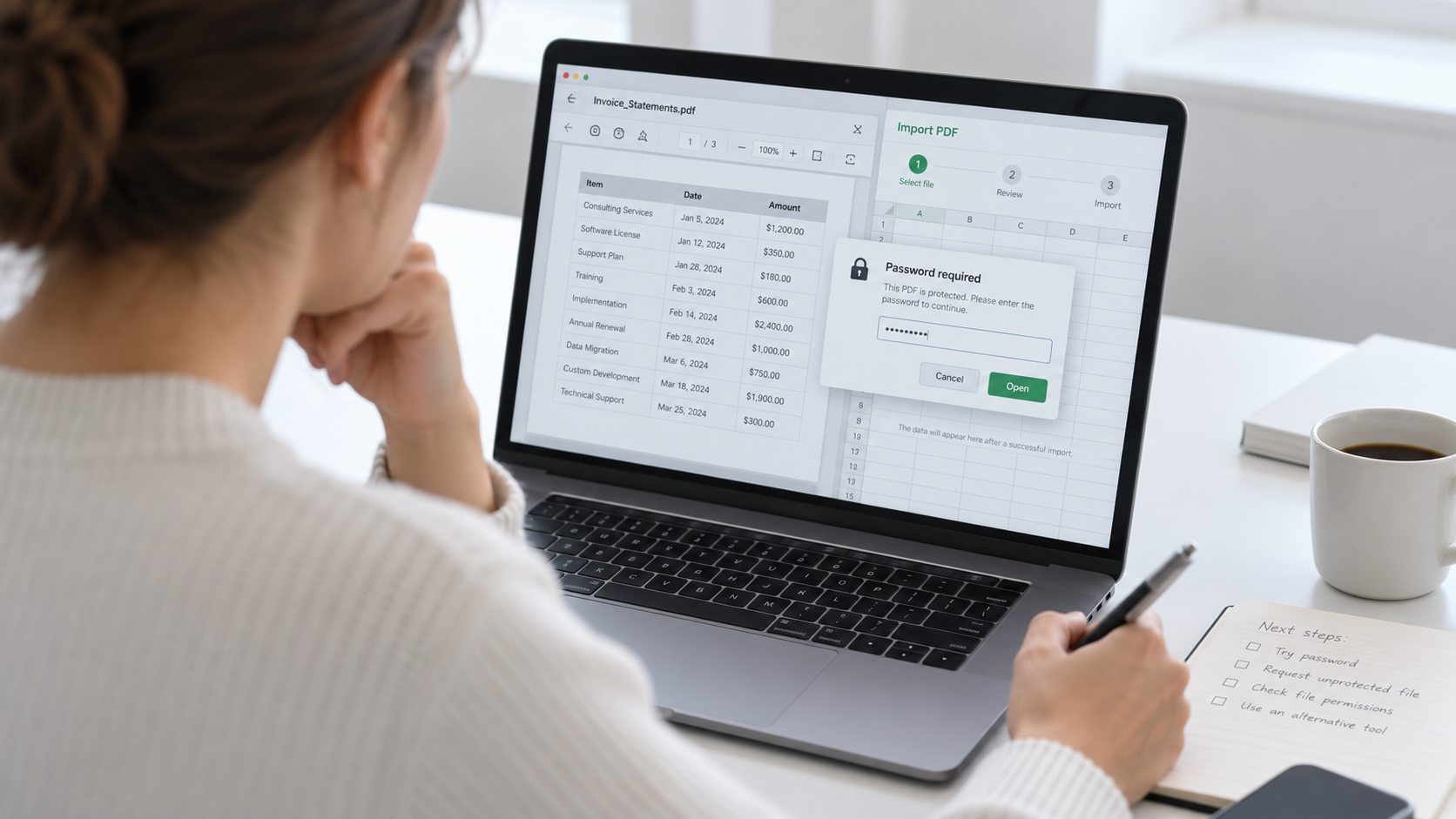
You cannot convert a password-protected PDF to Excel directly, because the converter cannot read an encrypted file. Take the password off on the machine in front of you first, then run the unprotected PDF through any PDF-to-Excel converter and the table comes through.
This holds for desktop converters, online converters and Excel's own Power Query import. The password has to come off before any of them can read the rows.
You have a pile of PDF statements and you want the figures sitting in a spreadsheet. You drop one into a PDF-to-Excel converter and the export lands empty, or the tool stops at a password box it cannot answer. The thing in the way is the lock on the file, not the converter itself. A converter rebuilds a table by reading the text off each page, and a sealed PDF hands it nothing readable to work with. This guide sets out why the export stalls and how to take the lock off a file you own with the Univik PDF Unlocker first, so whatever converter you reach for can read the rows.
Can You Convert a Password-Protected PDF to Excel?
Not directly. A PDF-to-Excel converter has to read the table text on a page before it can rebuild it as rows and columns. When the file is sealed with a password, that text sits in a coded form, so the converter has nothing to lay into a sheet. What you get instead is a password box it cannot answer, a blank workbook or an error message. The order that does work is short. Clear the password on a copy on your own machine, then send that clean PDF through the converter and the table drops into Excel the usual way.
Why Does the PDF-to-Excel Converter Fail?
The file is encrypted, so the converter cannot see the table text. A locked PDF keeps its words and its numbers in a scrambled shape that needs the password as the key. Without that key the tool meets a run of coded bytes in place of the rows you were after. A desktop converter halts at the password box. An online converter returns an empty download or an error page. Excel's own Get Data and Power Query import stops at the very same prompt, because none of these can decode the file on their own. No option buried in the converter gets you past this. The lock has to leave the file before any of it reads.
| What you try | On a locked PDF | On an unlocked PDF |
|---|---|---|
| Desktop PDF-to-Excel tool | Stops at the password box | Builds the sheet |
| Online converter site | Blank or errored file | Reads the table |
| Excel Get Data import | Asks for a password and halts | Loads the table |
| A folder of statements | None convert | Batch-convert them all |
How Do You Remove the Password Before Converting?
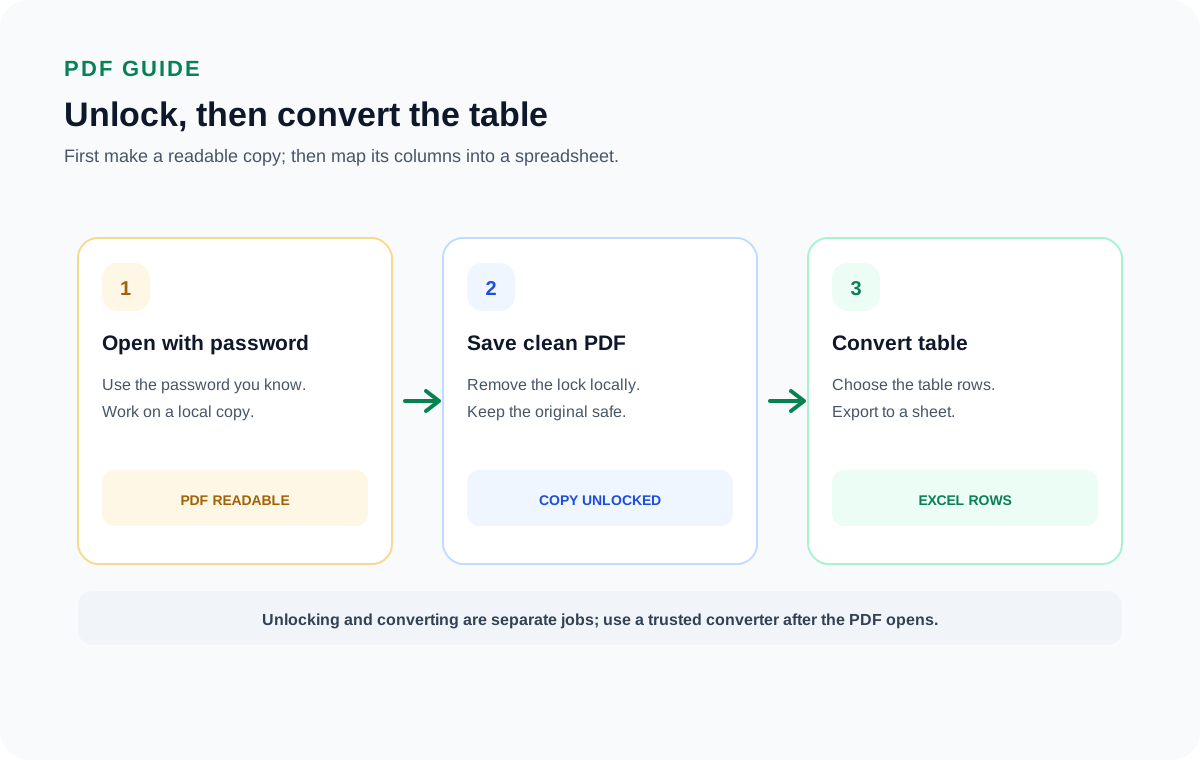
You clear the lock on a copy first, then convert. Open the PDF with the password you already hold, save a version that carries no password and pass that clean file to your converter. The Univik PDF Unlocker is a Windows program built for this single step. Aim it at a single statement or at a whole folder of them and it writes password-free copies you can then convert together. One honest note belongs here. This route needs the password in hand. If it is lost, no upright tool can guess it for you. In that case ask whoever issued the file. Your bank or your payroll office can send you a copy you can open or the password itself.
The Univik PDF Unlocker removes the password from a PDF you own on your Windows PC, so your converter reads the table. It can clear a folder of monthly statements together.
Free Download See all featuresWhat Turns the Unlocked PDF into Excel?
Once the password is gone, any PDF-to-Excel converter can read the file. Load the clean copy into the tool you already trust and let it map the table into rows and columns. Excel can also bring it in on its own through the Data tab, where Get Data reads a PDF and lets you pick the table you want. A statement with tidy columns converts best. A scanned page may need a converter that runs text recognition on the image first. The idea to hold on to is that unlocking and converting are two separate jobs done by two separate tools. Take the lock off, then reach for whatever converter suits the file.
Is It Safe to Convert a Bank Statement PDF to Excel?
A bank statement shows your account number and your running balance, so keep the whole task on the computer in front of you. A free web converter asks you to send the PDF up to its server, which hands your financial detail to a company you do not run. The steadier route is to strip the password and convert on your own machine, where the file never leaves your drive. For more on the danger of sending a locked file to a website, see our note on the safety of online PDF unlockers. Do the unlock with a local tool, reach for a local converter and your numbers reach the sheet with no copy resting on hardware you cannot see.
- A PDF-to-Excel converter cannot read a password-protected file, so the export comes back blank or errored.
- The block is encryption on the PDF, not a fault in the converter.
- Desktop converters, online converters and Excel's own import all stall at the password prompt.
- Strip the password locally first, then run any converter on the clean copy.
- The Univik PDF Unlocker clears a whole folder of statements in one run, which suits batch conversion.
- It unlocks a known password only. It is not a PDF-to-Excel converter and cannot recover a lost password.

Password-Protected PDF to Excel Questions

Compiled by Leena Taylor Paul and the Univik team, a maker of Windows file utilities since 2013. Many readers land here after a converter returned a blank sheet from a locked statement, so this guide explains the cause and the one step that clears it before you convert. Last checked September 2026. Converter still stuck? Contact our support team.