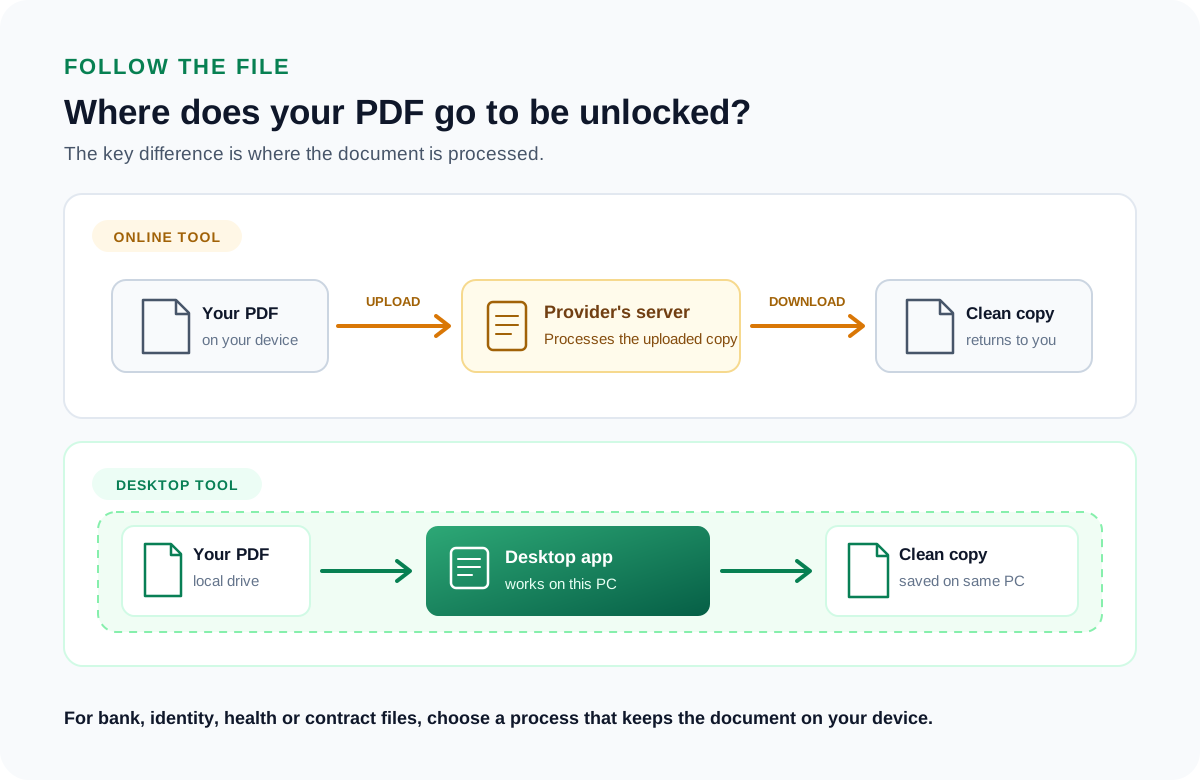
It depends on the file. To unlock a PDF on a website you first upload it to that company's server, so a private document leaves your computer and sits on hardware you do not control.
For a ticket or a manual that is a small risk. For a bank statement, a contract or a health report, a tool that runs on your own machine and uploads nothing is the safer pick.
Type a locked PDF into a search box and dozens of free websites offer to strip the password in seconds. The offer is real, but so is the trade behind it. To unlock a file on a website you first have to hand that website your file. For a takeaway menu that costs you nothing. For a bank statement, a signed contract or a medical report, you have posted a private document to a company you know nothing about. This guide walks through what an online unlocker does with your upload. It covers when the convenience is fine and when a tool that stays on your own machine such as the Univik PDF Unlocker is the wiser call.
How Do Online PDF Unlock Tools Actually Work?
Every browser-based unlocker follows the same path. You choose a file and the site copies it from your device up to its server. A program there strips the password and returns a download link. The word that matters is server. Your document travels off your computer and rests on hardware owned by someone else for the length of the job. A few services wipe it after an hour. Others hold it much longer, and some reserve the right in their terms to keep or study whatever you send. You rarely get to see which kind you picked.
What Are the Real Risks of Unlocking a PDF Online?
The worry is not that the website fails to take the password off. Most do that part fine. The worry is the second copy of your file now living on a machine you cannot reach. Three things tend to go wrong. A service can keep your document longer than the page promised and pipe it into its own systems. A service can be breached, and your statement lands in a leaked store next to thousands of others. Or a free box can pay its bills by harvesting what people feed it. None of that needs bad luck on your side. It follows from the plain fact that a stranger held your file.
| Where the work happens | Web unlocker | Desktop unlocker |
|---|---|---|
| Your file is processed on | A company server | Your own PC |
| Who can hold a copy | The site, until it deletes it | Only you |
| Needs an internet upload | Yes | No |
| Fit for private documents | Weak | Strong |
| Clear a whole folder at once | Rare | Yes |
When Is an Online PDF Unlocker Safe Enough?
Not every PDF is sensitive. If the locked file is a concert ticket, a product manual or a newsletter, feeding it to a web tool costs you little. Nobody is hurt if a copy lingers on a server for a while. The thing to weigh is the content, not the habit. The moment a file carries your money, your identity or your health, treat the upload as handing that information out. Keep the whole job on your own machine instead.
How Does an Offline PDF Unlocker Keep Your File Private?
A desktop unlocker does the very same work in a different place. The program sits on your Windows PC, reads the file from your own drive, removes the password and writes a clean copy back to that drive. Nothing is uploaded, so there is no server copy left to keep, leak or mine. The Univik PDF Unlocker takes this route. Open the file with the password you already know, then let the tool save a version that opens with no prompt.
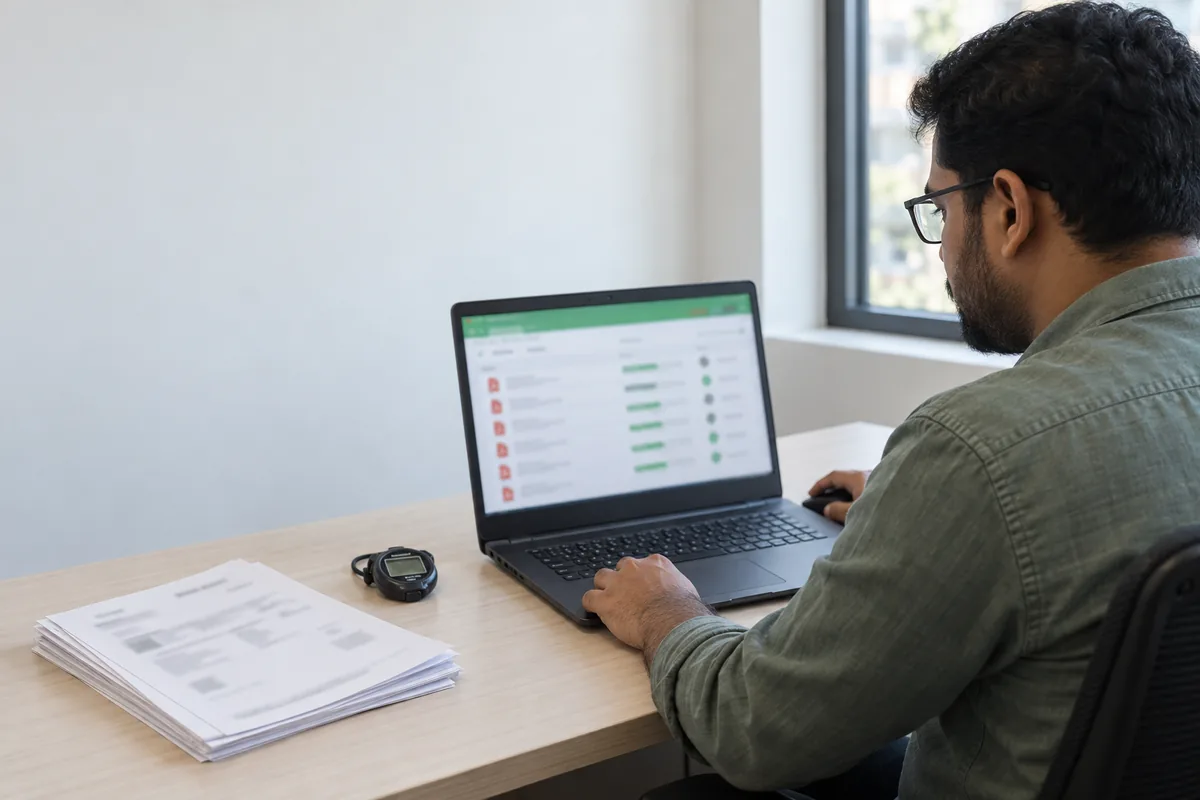
The Univik PDF Unlocker works on your own Windows PC, so the file you unlock never travels to a server you cannot see. Point it at one document or a whole folder and it saves clean copies right beside them.
Free Download See all featuresHow Do You Choose a Safe PDF Unlocker?
Before you trust any unlocker, hold it up to four questions. Does it process the file on your device or on its server? Does it say plainly how long it keeps an upload? Is the maker a named company with a real installer you can check? Can it clear a full folder in one run, so you are not sending files up one at a time? For anything private, an offline desktop tool answers all four the way you want. A free web box seldom does.
- Unlocking a PDF online means uploading it to a server you do not own.
- For tickets or manuals the upload is low risk; for money, identity or health files it is a real disclosure.
- Online services can keep, leak or mine the copy you send them.
- A desktop unlocker does the same job without the file ever leaving your PC.
- Clearing the password on a PDF you own is lawful.
- For bank statements and contracts, pick an offline tool such as the Univik PDF Unlocker.

Online PDF Unlock Questions

Reviewed by Leena Taylor Paul with the Univik team, a Windows software studio that has put out file utilities since 2013. A steady stream of readers ask the same worried question before they drag a private file onto a website, so this guide sets out what really happens to an uploaded PDF and the calmer route. Last checked September 2026. Still unsure which tool to trust? Contact our support team.