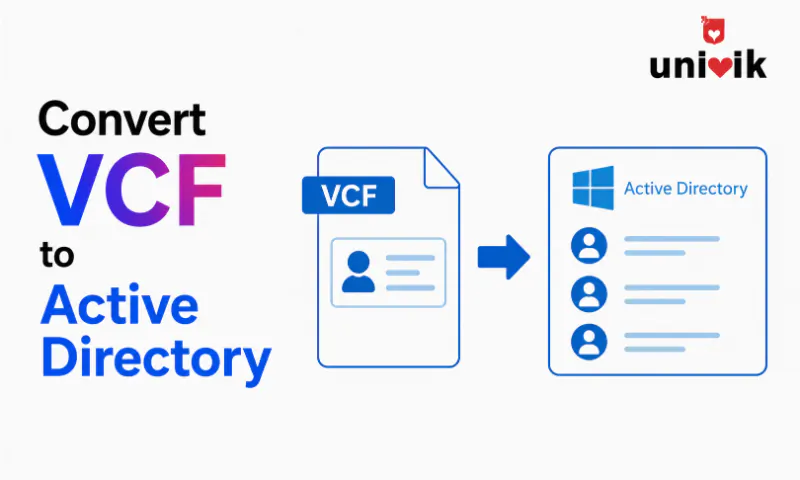
Active Directory does not have a VCF import function. The path from VCF to Active Directory is always two steps: convert VCF to LDIF (LDAP Data Interchange Format) first, then import the LDIF file into Active Directory using the ldifde command-line tool. The conversion maps vCard properties (FN, TEL, EMAIL, ORG) to LDAP attributes (cn, telephoneNumber, mail, company). You need domain admin rights to run ldifde. The contacts are created as Contact objects in Active Directory not as user accounts.
Active Directory Does Not Accept VCF Files
Active Directory stores directory information using the LDAP protocol. It reads and writes data in LDIF format a plain text format aligned with the LDAP schema. VCF files use vCard properties and formatting that Active Directory’s import tools do not recognise.
The only way to get VCF contact data into Active Directory is through LDIF. Convert the VCF to LDIF first, then import the LDIF using Active Directory’s built-in tools. This is the process whether you are importing 10 contacts or 10,000.

“We test directory imports end to end, from the VCF through the converter and into the target. Then we check that the contacts show up correctly on the other side. Google Contacts and Yahoo exports are in that set because each service writes vCard a little differently.”
Nick Rogers
|Founder, Univik, building file conversion tools since 2013
VCF vs LDIF: The Format Difference
Both VCF and LDIF are plain text formats for storing contact data. The difference is in the schema the attribute names and structure each format uses.
BEGIN:VCARD
VERSION:3.0
FN:Sarah Johnson
ORG:Acme Corporation
TITLE:Sales Director
TEL;TYPE=WORK:+44 20 7946 0958
EMAIL:sarah.johnson@acme.com
END:VCARD
Equivalent LDIF for Active Directory
dn: CN=Sarah Johnson,OU=Contacts,DC=acme,DC=com
changetype: add
objectClass: contact
cn: Sarah Johnson
displayName: Sarah Johnson
company: Acme Corporation
title: Sales Director
telephoneNumber: +44 20 7946 0958
mail: sarah.johnson@acme.com
The LDIF entry requires a Distinguished Name (DN) that specifies exactly where in the Active Directory tree the contact will be created. The DN must match an Organisational Unit (OU) that already exists in your AD structure. If the target OU does not exist, the import fails for that entry.
VCF to LDAP Attribute Mapping
| VCF Property | LDAP Attribute | Notes |
|---|---|---|
FN (formatted name) |
cn, displayName | Both cn and displayName should be populated. cn is the RDN used in the DN. |
N (structured name) |
givenName, sn | First name to givenName, last name to sn (surname). Required for some AD configurations. |
ORG |
company | Maps to the company attribute on the Contact object. |
TITLE |
title | Job title. Maps directly. |
TEL (WORK) |
telephoneNumber | Primary work phone. Must be in a format AD accepts E.164 recommended. |
TEL (CELL) |
mobile | Mobile phone number. |
TEL (FAX) |
facsimileTelephoneNumber | Fax number attribute. |
EMAIL |
Primary email. AD also uses proxyAddresses for Exchange routing use mail for basic contact records. | |
ADR (WORK) |
streetAddress, l, st, postalCode, co | Address components map separately: street, city (l), state (st), postal code, country (co). |
NOTE |
description | The contact description field in AD. |
URL |
wWWHomePage | Website URL attribute on the Contact object. |
The DN must match your existing OU structure
Every LDIF entry requires a Distinguished Name that specifies where in Active Directory the contact will be placed. The Organisational Unit in the DN must already exist. Before running the import, confirm the target OU path in Active Directory Users and Computers. A common path for external contacts is OU=Contacts,DC=yourdomain,DC=com. If the OU does not exist, create it first. An import with a non-existent OU in the DN fails with an “object not found” error.
Step 1: Convert VCF to LDIF
Before converting, verify the VCF file contains clean, complete data. Open it in Univik VCF Viewer to confirm names, emails and phone numbers are correct. Contacts with missing required fields (particularly the FN field) will fail during the LDIF import.
The conversion from VCF to LDIF involves mapping each vCard property to the corresponding LDAP attribute and constructing the DN for each entry. There are three practical approaches:
Use a dedicated VCF-to-LDIF converter. Tools designed for this conversion handle the attribute mapping automatically and allow you to specify the base DN during conversion. Univik VCF Converter supports LDIF as an output format load the VCF, select LDIF, specify the base DN for your AD and export. For the detailed LDIF conversion workflow see our VCF to LDIF guide.
Use a PowerShell script. For system administrators comfortable with PowerShell, a script can parse the VCF file, extract the vCard properties and write the LDIF output with the correct attribute names and DN format. This is the most flexible approach for non-standard field mappings or when you need to add extra AD attributes not present in the VCF source.
Convert manually for small contact sets. For five to ten contacts, manually constructing the LDIF entries from the VCF data is practical. Use the LDIF structure and attribute mapping table above. Save the result as a .ldf file with UTF-8 encoding.
Step 2: Validate the LDIF File
Before importing, validate the LDIF file structure. A single malformed entry can cause the import to fail or stop partway through, leaving the AD in a partially updated state.
Check every entry has a valid DN. Each entry starts with dn: followed by the Distinguished Name. Verify the base DN matches your Active Directory domain and the target OU exists.
Check the objectClass is correct. For external contact records, the objectClass should be contact. If you are creating user accounts instead, the objectClass and required attributes differ significantly.
Check for duplicate CNs. If two entries share the same cn value within the same OU, the second import will fail with a constraint violation. Ensure contact names are unique within the target OU.
Check encoding. LDIF files must be UTF-8 encoded. Any binary data (such as contact photos) must be base64-encoded in the LDIF. Save the file explicitly as UTF-8 from any text editor before importing.
Test with one entry first. Create a single-entry LDIF file with one contact and run a test import before importing the full batch. This confirms your DN structure and attribute mapping are correct before applying to all contacts.
Step 3: Import LDIF Into Active Directory
Active Directory includes ldifde a command-line tool for importing and exporting LDIF files. You need Domain Admin rights (or at minimum rights to create objects in the target OU) to run it.
Open Command Prompt or PowerShell as Administrator on a domain-joined machine and run:
The parameters:
-i Import mode. Without this flag, ldifde exports rather than imports.
-f contacts.ldf The path to your LDIF file. Use the full path if the file is not in the current directory.
-s your-dc-server The hostname or IP of your domain controller. Optional if running on the DC itself.
-j C:\ldif-logs Directory for log files. ldifde writes a log of every successful and failed entry. Always specify this so you have a record of what was imported and what failed.
After the import completes, open Active Directory Users and Computers, navigate to the target OU and verify the contacts appear. Check the ldifde log file for any entries that failed and why.
Importing as Contacts vs User Accounts
VCF contacts imported into Active Directory using the method above are created as Contact objects not User objects. This is the correct approach for external contacts, vendors, clients and other people who need to appear in the Global Address List but should not have AD login accounts.
Contact objects in Active Directory appear in the GAL (Global Address List) and Exchange address books. They can receive email if you have Exchange Server. They cannot log into Windows or authenticate to Active Directory resources they have no sAMAccountName or UserPrincipalName.
If you need to import VCF data as User accounts (for employees who will be given Active Directory login credentials), the LDIF structure and required attributes are different. User object creation requires additional mandatory attributes (sAMAccountName, unicodePwd or the initial password set through a subsequent script) that are not present in a VCF file. Consult your AD administrator for user account provisioning workflows.
Frequently Asked Questions
Does Active Directory have a VCF import function?
No. Active Directory’s import tools (ldifde, csvde and PowerShell AD cmdlets) do not accept VCF files. The standard import format for Active Directory is LDIF. To import VCF contacts into AD, convert the VCF to LDIF first and then use ldifde to import the LDIF file.
What rights do I need to import contacts into Active Directory?
You need permission to create objects in the target Organisational Unit. Domain Admin rights satisfy this requirement. If you want to limit the rights further, your AD administrator can delegate Create Contact Object permissions on a specific OU to a non-admin account.
What is the difference between importing contacts as Contact objects vs User objects?
Contact objects are directory entries for external people they appear in the GAL and can receive email but cannot log into Windows. User objects are full Active Directory accounts with login credentials. VCF contacts should be imported as Contact objects using objectClass: contact in the LDIF. User object creation requires additional mandatory attributes not present in VCF files.
What happens if a contact with the same name already exists in AD?
ldifde will fail the import for that entry with a constraint violation (object already exists). The rest of the import continues. Check the ldifde log file to identify which entries failed. To update existing contacts rather than creating new ones, use changetype: modify in the LDIF instead of changetype: add.
Can I import VCF contacts into Active Directory without using the command line?
There is no GUI tool built into Windows for LDIF import. However, third-party Active Directory management tools like ADSI Edit and some vendor AD management platforms provide GUI-based LDIF import. You still need to convert the VCF to LDIF first the import tool just provides a graphical interface for running the ldifde equivalent.
The Short Version
Importing VCF contacts into Active Directory is a two-step process: VCF to LDIF conversion, then LDIF import via ldifde. The conversion step is where most of the work happens mapping vCard properties to LDAP attributes and constructing valid Distinguished Names for your AD structure.
Test with a single contact entry before running a large batch import. The ldifde log file after the import tells you exactly which entries succeeded and which failed with specific error codes. Read it before assuming the import is complete.
Are you importing external contacts for the GAL or trying to provision actual user accounts? The LDIF structure and required attributes are different for each case and mixing them up is the most common reason AD imports fail.