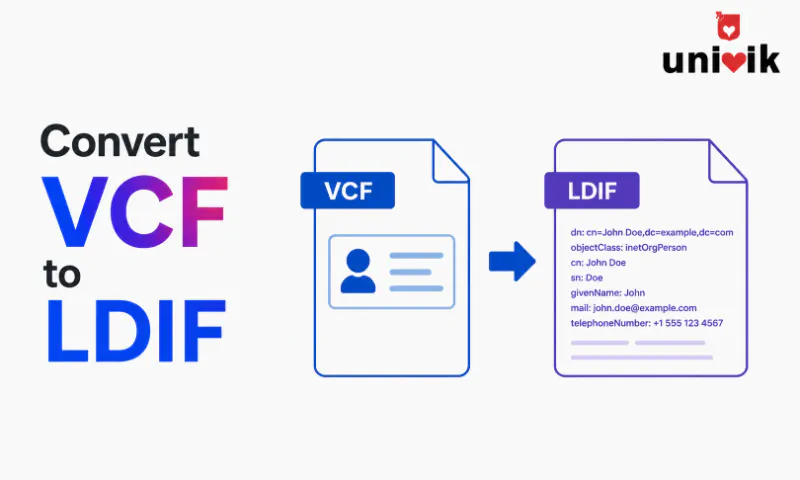
LDIF (LDAP Data Interchange Format) is the plain text format used to import and export data in LDAP-based directory servers including Active Directory, OpenLDAP and 389 Directory Server. Converting a VCF file to LDIF maps each vCard property to its corresponding LDAP attribute and wraps each contact in the required DN, objectClass and changetype structure. Values containing non-ASCII characters must be base64-encoded in LDIF. Validate the output with ldifde -v or an LDAP client before running a full import.
What LDIF Is and Why You Need It
LDIF stands for LDAP Data Interchange Format. It is the standard text format for representing entries in an LDAP directory the same format used by Active Directory, OpenLDAP, FreeIPA and every other LDAP-compatible directory server.
When you need to move contact data from a VCF file into an LDAP directory, LDIF is the required intermediate format. LDAP servers do not understand vCard properties. They understand LDAP attributes. The conversion maps one to the other and adds the structural elements LDIF requires (Distinguished Name, objectClass, changetype) that vCard files do not have.
LDIF is also the format produced when you export directory data from an LDAP server using ldapsearch or ldifde. Understanding the format makes it easier to diagnose import errors and validate that the conversion was correct before touching a production directory.

“LDIF is a strict format, so our test for it is plain: export, import into the directory and look up contacts by name. Encoding is the usual trouble spot, which is why files with non-Latin names are always in the run.”
Nick Rogers
|Founder, Univik, building file conversion tools since 2013
LDIF File Structure
Each LDIF entry represents one directory object. The structure for adding a new Contact object is:
changetype: add
objectClass: top
objectClass: person
objectClass: organizationalPerson
objectClass: contact
cn: John Smith
displayName: John Smith
givenName: John
sn: Smith
mail: john.smith@example.com
telephoneNumber: +1 555 123 4567
company: Example Corp
title: Account Manager
dn: CN=Sarah Johnson,OU=Contacts,DC=example,DC=com
changetype: add
…
Critical structural rules:
Every entry starts with a DN line. The Distinguished Name specifies the full path of the object in the directory tree. It must be unique no two objects can share the same DN.
Entries are separated by a blank line. A blank line (completely empty, no spaces) marks the end of one entry and the beginning of the next. Extra spaces on blank lines cause parsing errors.
objectClass hierarchy must be complete. For a Contact object, all four objectClass values are required: top, person, organizationalPerson and contact. Missing any of them causes a schema violation error on import.
Long lines must be folded. LDIF lines over 76 characters should be folded continued on the next line with a single leading space. Most converter tools handle this automatically. Manual edits in a text editor may accidentally create overlong lines.
VCF Property to LDAP Attribute Mapping
| VCF Property | LDAP Attribute | objectClass | Notes |
|---|---|---|---|
FN |
cn, displayName | person | Also forms the RDN (CN=) in the DN. Required. |
N (last name) |
sn | person | Surname. Required for person objectClass. |
N (first name) |
givenName | organizationalPerson | Optional but recommended. |
EMAIL |
organizationalPerson | Primary email address. | |
TEL;TYPE=WORK |
telephoneNumber | organizationalPerson | Work phone. Use E.164 format. |
TEL;TYPE=CELL |
mobile | organizationalPerson | Mobile phone number. |
TEL;TYPE=FAX |
facsimileTelephoneNumber | organizationalPerson | Fax number. |
ORG |
o (organisation) or company (AD) | organization | Use company for Active Directory. Use o for OpenLDAP. |
TITLE |
title | organizationalPerson | Job title. Maps directly. |
ADR;TYPE=WORK |
streetAddress, l, st, postalCode, co | organizationalPerson | Address components map to separate attributes. |
NOTE |
description | top | Free-text description field. |
URL |
wWWHomePage | organizationalPerson | Website URL. Active Directory specific. |
Active Directory vs OpenLDAP attribute differences
The LDAP attribute names differ between directory servers. Active Directory uses company for organisation name while OpenLDAP uses o. AD uses wWWHomePage for the website URL while OpenLDAP uses labeledURI. Before converting, confirm which directory server is the import target and use the correct attribute names for that server’s schema.
LDIF Encoding Rules
LDIF has specific encoding requirements that vCard files do not share. Getting these wrong is the most common cause of import failures and garbled data.
Non-ASCII values must be base64-encoded. Any attribute value containing characters outside the ASCII range (accented letters, non-Latin scripts) must be base64-encoded in LDIF. The attribute name is followed by :: (double colon) instead of : to signal base64 encoding. A name like Müller becomes: cn:: TcO8bGxlcg==
Values starting with a space, colon or less-than sign must be base64-encoded. LDIF treats leading spaces, colons and less-than signs as control characters. If an attribute value begins with any of these, base64-encode the entire value.
The file itself must be UTF-8 encoded. Save the LDIF file as UTF-8 (without BOM) from any text editor before importing. A file saved as ANSI or UTF-16 causes the LDAP server to reject the import or misread all values.
Binary data (photos) is base64-encoded with the JPEG or PNG value. If contact photos from the VCF PHOTO property need to be in the LDIF, they are included as the jpegPhoto attribute with the binary image data base64-encoded. Most directory imports skip photos to keep the LDIF manageable.
Method 1: VCF Converter Tool
A dedicated converter handles the attribute mapping, DN construction and encoding automatically. Univik VCF Converter supports LDIF as an output format load the VCF file, select LDIF as the output format, specify the base DN for your directory and export.
During the conversion, you configure:
The base DN. The root of the directory tree where contacts will be placed. For example: OU=Contacts,DC=example,DC=com. The converter constructs the full DN for each contact by prepending CN=contactname, to this base.
The directory target. Active Directory or OpenLDAP. This determines which attribute names to use for organisation (company vs o) and website (wWWHomePage vs labeledURI).
The changetype. Add (for new entries) or Modify (for updating existing entries). Add is the correct choice for an initial import. Modify requires the target entry to already exist in the directory.
Method 2: Manual Conversion
For small contact sets (under 20 contacts), manual conversion in a text editor is practical. Open the VCF in a text editor alongside the LDIF template above. For each vCard entry:
Construct the DN. Use the contact’s FN value as the CN component: CN=John Smith,OU=Contacts,DC=example,DC=com
Add the required objectClass hierarchy. top, person, organizationalPerson and contact for external contact records.
Map each VCF property to its LDAP attribute. Use the mapping table above. Skip VCF properties that have no LDAP equivalent in your directory schema.
Base64-encode any non-ASCII values. Use a base64 encoder for names with accents or non-Latin scripts. Add :: instead of : after the attribute name for those values.
Separate each entry with a blank line. No spaces on the blank line completely empty.
Validate the LDIF Before Importing
A malformed LDIF file can cause a directory server to reject the import entirely or create partially corrupted entries. Always validate before importing to a production directory.
Check with ldifde -v on Windows. Run ldifde -v -f yourfile.ldf to parse the LDIF without actually importing. The verbose flag shows parsing results for every entry. Any structural errors appear before touching the directory.
Test import on a non-production OU first. Create a temporary OU (for example OU=Test,DC=example,DC=com), update your LDIF to point to that OU and run the full import there. Verify the entries look correct in ADUC before running against the real target OU.
Check for duplicate CNs. Two contacts with the same name in the same OU will fail the second one gets a constraint violation. Review the LDIF for duplicate CN values before importing.
Common LDIF Errors and Fixes
Frequently Asked Questions
What is the difference between VCF and LDIF?
VCF (vCard) is the standard format for consumer contact sharing used by phones, email clients and address book applications. LDIF (LDAP Data Interchange Format) is the standard format for enterprise directory data used by Active Directory, OpenLDAP and other LDAP servers. They store the same types of information but in different schemas. VCF uses properties like FN, TEL and EMAIL. LDIF uses LDAP attributes like cn, telephoneNumber and mail.
Does every vCard property have an LDAP equivalent?
No. Some vCard properties have no standard LDAP attribute notably social media profiles, instant messaging handles and the PHOTO property (which has a jpegPhoto equivalent but is rarely imported). Properties without LDAP equivalents are dropped during conversion. If preserving these fields matters, create custom schema extensions in your directory or store the data in the description (notes) attribute.
How do I handle contacts with the same name in LDIF?
Make the CN unique by appending a differentiator. Common approaches: add the company name (CN=John Smith – Acme Corp), add an email fragment (CN=John Smith – jsmith) or use the full email as the CN (CN=john.smith@acme.com). The CN only needs to be unique within the same Organisational Unit the same CN can appear in different OUs.
Can I update existing directory contacts with an LDIF file?
Yes, using changetype: modify instead of changetype: add. Modify operations require additional syntax specifying which attributes to add, replace or delete. This is more complex than a simple add import. For bulk contact data updates, it is often faster to delete the existing Contact objects and re-import with changetype: add rather than constructing modify operations.
The Short Version
VCF to LDIF conversion is the correct technical path for getting contact data from phones, email clients and VCF sources into LDAP-based directories. The conversion maps vCard properties to LDAP attributes, adds the required objectClass hierarchy and constructs DNs that fit your directory structure.
The encoding rules particularly base64 for non-ASCII values are the part that catches most first attempts. Handle them correctly in the conversion step and the import itself runs cleanly.
For importing the converted LDIF into Active Directory specifically, see our Active Directory import guide which covers the ldifde command syntax, required rights and post-import verification.