Phone labels like Cell, Home and Work come out wrong or blank in a vCard when the TYPE tag on each number is missing, mismatched or written in a form the importing app does not read. The number itself is fine, only its label is off. To fix it, open the file in a vCard editor, set the correct type on each number and save. The Univik VCF Editor gives every phone field a type selector and writes the right TYPE tag for vCard 2.1, 3.0 or 4.0, so the labels show correctly after import. Custom labels like Landline or Main need the same fix, since many apps drop them on the way in.
Why Phone Number Labels Come Out Wrong or Blank in vCards
You move your contacts to a new phone or a CRM and the numbers are all there, but the phone number labels are a mess. Every number shows as Home. Or they arrive with no label at all and sit under a generic Other. A work mobile turns up as a landline. The numbers dial fine, but the tidy Cell, Home and Work tags you had are gone or scrambled.
This happens because the label is stored separately from the number, in a small tag attached to each phone line. When that tag goes missing, gets mismatched or is written in a form the importing app does not understand, the number survives and the label does not. It shows up most when contacts cross between different systems, an iPhone export opened on Android, a Google export pulled into a CRM, or a file converted from one vCard version to another.

“The check we run after every conversion is done inside the target application: names, numbers, labels, photos and notes on real contacts. A file can look fine in a text editor and still show the wrong label once it is imported.”
Nick Rogers
|Founder, Univik, building file conversion tools since 2013
How vCards Store Phone Labels (Cell, Home, Work)
Each phone number in a vCard is a TEL line, and its label lives in a TYPE tag attached to that line. A mobile number is written as TEL;TYPE=CELL:, a home number as TEL;TYPE=HOME: and a work number as TEL;TYPE=WORK:. The standard labels are CELL for mobile, plus HOME, WORK, FAX and PAGER, with PREF to mark a preferred number. A TEL line with no TYPE has no label, which is why a number with the tag stripped off lands under Other.
So the label is not part of the number. It is a separate tag riding alongside it. Fix the tag and the label is correct. Lose the tag and the number is orphaned. For how this sits with the rest of the fields, see our guide to vCard file structure.
Why Custom Labels Like Landline and Main Disappear
Standard labels travel reasonably well. Custom ones are where it falls apart. When you label a number Landline, Main, School or anything outside the standard set, iPhone and Google Contacts do not use a simple TYPE tag. They write the number and the label as two grouped lines, item1.TEL:+1-555-0100 and item1.X-ABLabel:Landline, tied together by the item1 prefix.
The X-ABLabel line that holds the custom text is an Apple and Google extension, marked by its X- prefix and not part of the core standard. Plenty of Android contact apps and many CRMs do not read it, so when the file lands there the number comes through but the custom label is dropped, and you are back to an unlabeled number. This is why the neat Landline and Main tags so often vanish the moment contacts leave the Apple or Google world.
How to Fix Phone Number Labels in a vCard file
The reliable fix is to set the type on each number in the file itself and save it in a clean, standard form. The Univik VCF Editor gives every phone field a type selector, Cell, Home, Work, Fax or Other, so you pick the right label from a list rather than editing tags by hand. Open the .vcf, click Edit on the contact, set the label on each number and save. The editor writes the correct TYPE tag for the version you are saving, and because it keeps the grouped item lines and X- properties rather than discarding them, existing custom labels stay intact instead of being wiped.
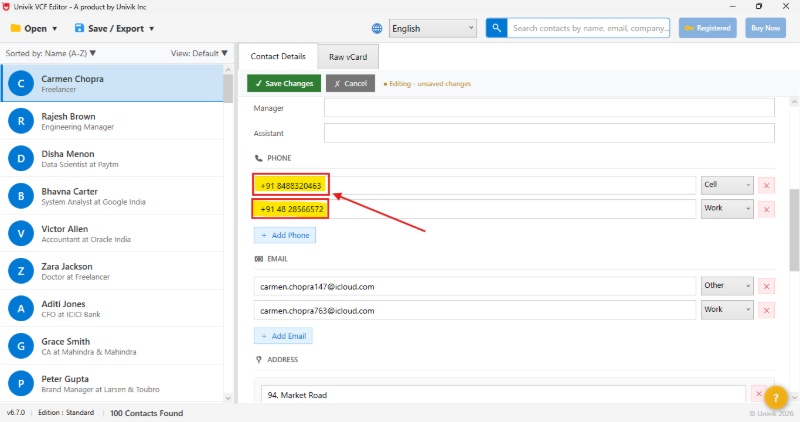
For a file where every contact has the same problem, you work down the list correcting the labels, then export one clean file where Cell, Home and Work read correctly in whatever app opens it next. If you want to see which numbers are unlabeled before you start, the free Univik vCard Viewer opens the file and shows each number with its label or the blank where one should be.
Put the right label on every number. The Univik VCF Editor opens any .vcf and gives each phone a Cell, Home, Work, Fax or Other selector, then writes the correct TYPE tag for vCard 2.1, 3.0 or 4.0. It keeps custom labels and every other field intact. Built for Windows, fully offline. The free trial edits a limited number of contacts.
Why Phone Labels Break Between vCard Versions
Part of why labels break in transit is that the three vCard versions write the TYPE tag differently. vCard 2.1 uses a bare form, TEL;CELL:, with the type written straight after the property. vCard 3.0 switched to the TEL;TYPE=CELL: form with the TYPE= prefix. vCard 4.0 keeps the TYPE= form but lowercases the values and often wraps the number as a URI. A file written in the 2.1 bare style, opened by a tool that only reads the 3.0 TYPE= form, can lose every label at once.
This is the other reason hand editing is risky. Change a label in Notepad and you have to match the exact syntax for the version, keep the grouped item lines intact and leave the number untouched. Saving through an editor sidesteps all of it, since you choose the output version and the labels are written in the matching form. For the full syntax differences, our guide to vCard 2.1, 3.0 and 4.0 lays them out, and if you need to move a whole file between versions, changing a vCard’s version walks through the conversion.
How to Stop Phone Labels from Breaking Again
Once the labels are right, a couple of habits keep them that way. When you export from the source, pick a standard vCard 3.0 export where you can, since its TYPE= labels are the most widely read. Where an app lets you, use the standard Cell, Home and Work labels rather than custom ones for numbers you know will move between systems. Save the custom tags for contacts that stay put. Keep the corrected file as your master too, so the next move starts from a version where the labels already read correctly.
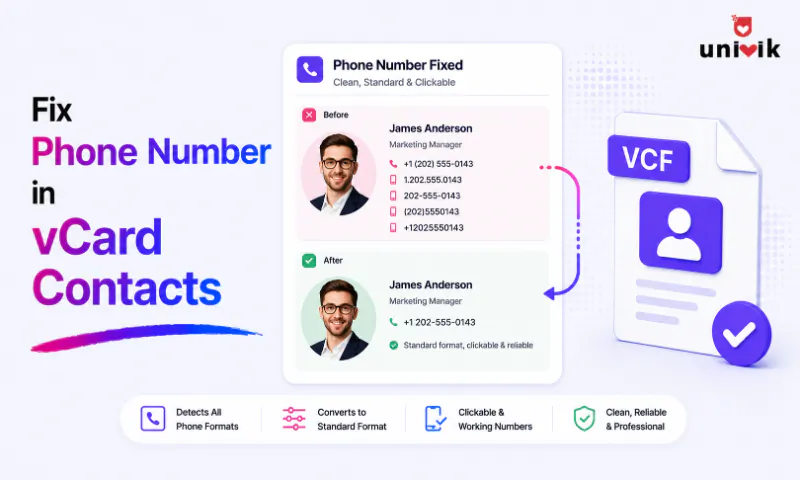
If the numbers themselves also need tidying, spacing, country codes or inconsistent formats, that is a separate job covered in our guide to standardizing phone numbers in a VCF. And if other fields went missing in the same import, our guide to missing fields after a VCF import covers the wider fix.
Frequently Asked Questions
Why do all my contact numbers show as Home after importing?
Because the TYPE tags that carried the Cell, Home and Work labels were lost or not read during import, so the app fell back to a single default. The numbers themselves came through fine. Setting the correct type on each number in the file and saving it in standard vCard 3.0 form fixes the labels for the next import.
How do I change a phone number label in a VCF file?
Open the .vcf in an editor, select the contact and set the type on each number, then save. In the Univik VCF Editor every phone field has a selector for Cell, Home, Work, Fax or Other, so you choose the label from a list and the editor writes the correct TYPE tag for your chosen vCard version.
Why did my custom labels like Landline or Main disappear?
Because iPhone and Google Contacts store custom labels as grouped lines, an item1.TEL line paired with an item1.X-ABLabel line. That X-ABLabel property is an Apple and Google extension marked by its X- prefix, so many Android apps and CRMs do not read it and the number comes through with the custom label dropped. Re-applying the label in the file keeps it in a form more apps can read.
What are the standard phone labels in a vCard?
The standard TYPE values are CELL for mobile, HOME, WORK, FAX and PAGER, with PREF marking a preferred number. These are written into the TEL line as a TYPE tag, for example TEL;TYPE=WORK. Standard labels travel between apps far more reliably than custom ones like Landline or School.
Can I fix phone labels in Notepad?
You can, but it is easy to break. You have to match the exact TYPE syntax for the vCard version, keep any grouped item lines intact and avoid disturbing the number itself. One wrong tag and the label is lost or the contact fails to import. A form-based editor that writes the tags for you is safer and much faster across many contacts.
Why does a work number show up as mobile after a transfer?
Because the wrong TYPE tag was written or mapped during the export, so a number you labelled Work carried a CELL tag instead, or the reverse. The number is correct, only its label is off. Correcting the type on that number in the file and saving puts the right label back.
How do I keep phone labels when moving contacts to a new phone?
Export the contacts to a .vcf, set the labels to standard Cell, Home and Work types in the file on a computer, then import the finished file into the new phone. Standard TYPE labels survive the move far better than custom ones, so fixing them once in the file means every number arrives with the right label.
The Short Version
A phone label in a vCard is a small TYPE tag riding alongside the number, and it breaks easily. Strip the tag and the number shows as Other. Write it in the wrong version syntax and the importing app misses it. Store it as an Apple or Google custom label and other apps drop it on the way in. The number survives every time, but the label does not.
The dependable fix is to set the type on each number in the file and save it in standard form, which a form-based editor does with a simple selector rather than hand-edited tags. Correct the labels once, keep standard Cell, Home and Work tags for contacts that move around and save a clean master file. Then your numbers arrive correctly labelled wherever they go next.