A secured PDF blocks highlighting because it holds an owner (permissions) password that turns commenting and copying off. Open the file and clear that restriction with a desktop tool. The highlight and markup buttons then work again on the saved copy.
This works on a file you can already open and read. If a password box blocks the PDF the second you try to open it and you do not know that password, ask the person who sent it.
You go to draw a yellow line under a sentence in a report and the highlighter tool sits there greyed out. Clicking it does nothing. The sticky note and the comment buttons act the same way. The document opened with no fuss, so why will it not let you mark a single word? The reason is a permissions lock the maker placed on the file. This guide walks through what that lock switches off, how to spot it and the way the Univik PDF Unlocker hands the markup tools back to you on a copy you own.
Why Can't You Highlight Text in a Secured PDF?
You cannot highlight text in a secured PDF because the file carries a permissions password that switches the markup tools off. The person who built the document set a rule that says reading is fine but commenting and marking are not. Your reader obeys that rule. It loads every page for you to look at, then greys out the highlighter, the sticky note and the text selection so none of them respond.
Here is the part that catches people out. The faded highlighter is not a missing feature in your reader. The very same button works on any plain PDF you open right after. It is the file itself telling the software to hold those tools back. Once that instruction is gone from a copy you own, the highlighter lights up and behaves the way it always did.
What Does a Secured PDF Actually Restrict?
A secured PDF shuts off a short list of actions the file owner picked, and highlighting is one of them. The permissions password can switch off commenting so highlights and notes do not stick. It can switch off content copying so you cannot select or grab any text. It can lock editing too. The owner decides which of these to turn off. The table below lines up each permission against the thing it takes away from you.
| Permission the owner locked | What it blocks for you |
|---|---|
| Commenting | Highlighting, sticky notes and freehand markup all go dead |
| Content copying | Selecting and copying text to paste somewhere else is stopped |
| Document editing | Changing or rearranging the pages is not allowed |
| Form filling | Typing into form fields may be turned off as well |
Highlighting leans on two of these. It needs commenting to place the mark and content copying to grab the words under it. Take the permissions lock off and both of them come back.
How Do You Know If a PDF Is Secured?
You know a PDF is secured when the markup tools go grey while the pages still show fine. A few plain signs point to it. The highlighter and comment buttons look faded and click through to nothing. Some readers print the word SECURED beside the file name at the top of the window. And the Document Properties box has a Security tab that lists each permission in words, with Commenting and Content Copying marked as Not Allowed.
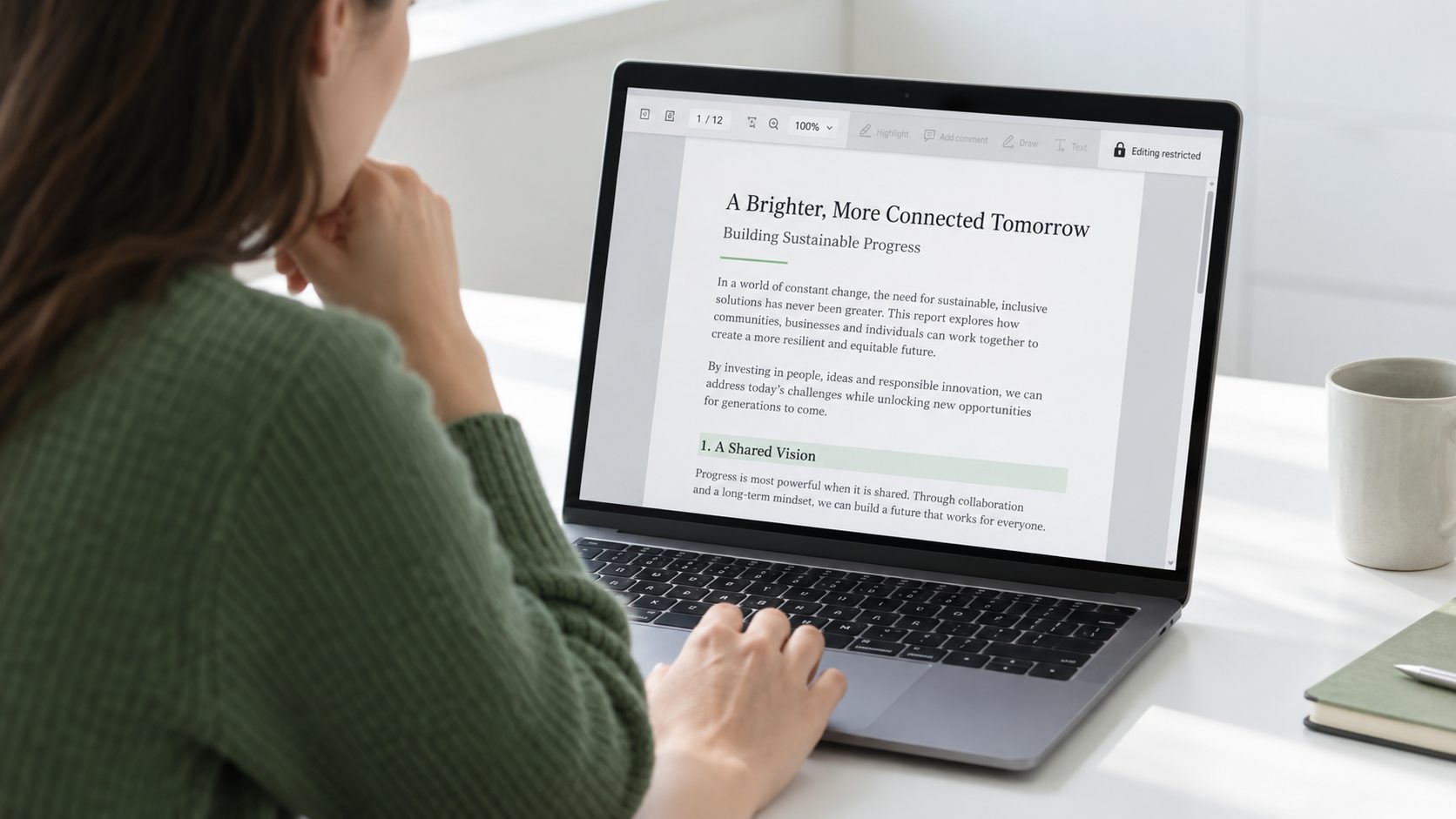
One more sign tells you the most. If nothing popped up asking you for a password when the file loaded, the lone lock on it is the permissions type. A desktop tool sorts that out in seconds, since you already hold every right to read the document.
How Do You Enable Highlighting in a Secured PDF?
You enable highlighting in a secured PDF by clearing the permissions lock and saving a fresh copy where the markup tools are live again. Because the file is already open in front of you, the tool has everything it needs and asks you for no password. The Univik PDF Unlocker is a Windows app that handles the same job on your own PC. It pulls the secured file off your drive and saves an unlocked version alongside it. Feed it one file or a whole folder and each saved copy takes a highlight on the first go.
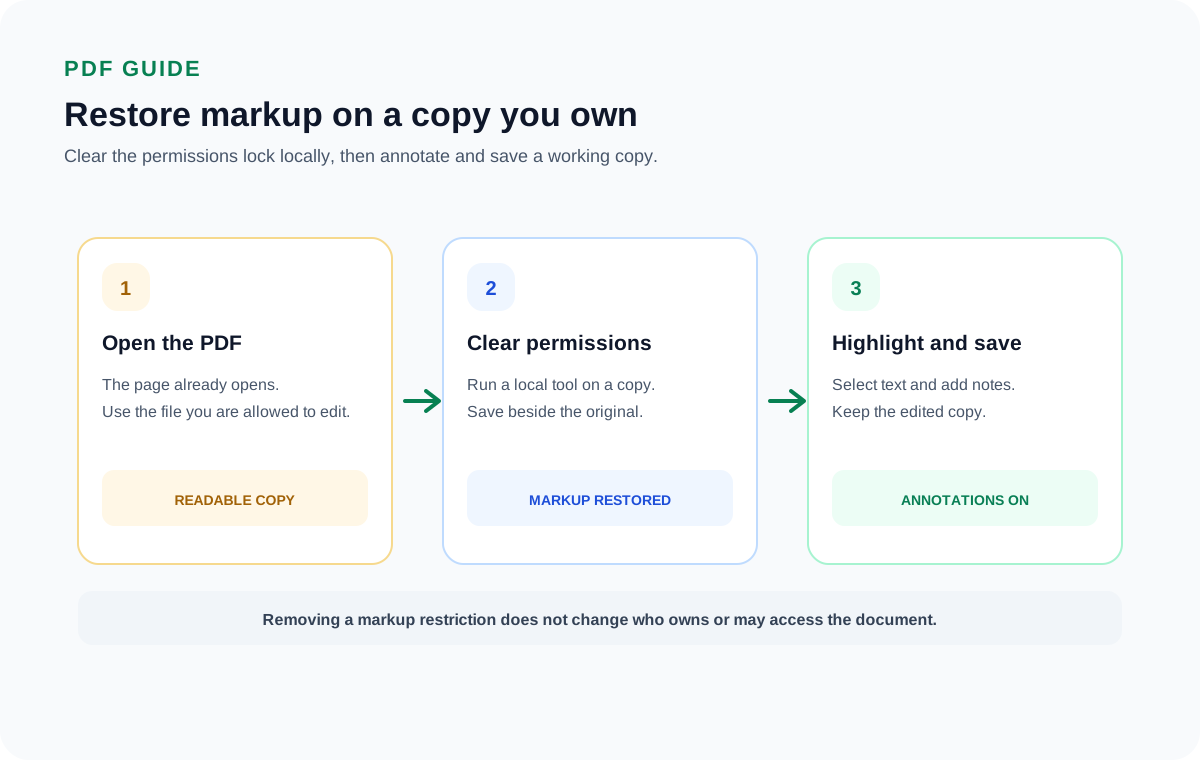
The Univik PDF Unlocker clears the markup lock on a secured PDF you own and writes an open copy right on your Windows PC. Hand it a folder of files and it frees the whole set.
Free Download See all featuresAre You Allowed to Remove the Restriction to Highlight?
Yes, clearing the restriction to highlight a PDF you own is fine. The file belongs to you, the lock is stopping you from marking up your own document and taking it off changes nothing about who may read the content. People do this all the time with reports they bought and papers they need to annotate for study or work. The one rule that counts is ownership. Lift the lock on files that are yours, not on protected work that belongs to someone else.
There is one exception. Should the file also throw up a password prompt the instant you open it, and you have no way to know that password, you have run into a true open lock instead of a markup limit. Nothing lifts that for you. Your move is to go back to whoever sent the document and request the password or a version you can annotate.
- A secured PDF greys out the highlighter because a permissions password turned commenting off.
- The same lock can block content copying, so selecting text stops working too.
- When this lock is the only one present, the PDF opens with no prompt for a password.
- A desktop tool rewrites the permissions block and saves a copy where markup is live.
- Taking a markup lock off a PDF that belongs to you is lawful.
- Should the PDF also require an open password you do not have, request it from the sender first.

Highlighting a Secured PDF Questions

Prepared by Leena Taylor Paul with the Univik product team, who have made Windows file software since 2013. A good share of readers here only want to mark up a document they already have, so this guide names what a secured file blocks and then the quick way to switch the tools back on. Last checked September 2026. Markup still greyed out? Contact our support team.