Migrating from GFI Kerio Connect to Synology MailPlus Server involves three phases: running the built-in IMAP import for most mailboxes, handling the accounts that IMAP import fails on and migrating contacts and calendars manually. For mailboxes that Synology’s native import cannot complete, Univik Synology MailPlus Converter connects directly to Kerio via IMAP, extracts those accounts in full and converts them to a format that imports cleanly into MailPlus Server. The migration must happen while Kerio is still running. Since May 2023, GFI removed the grace period: licence expiry and full lockout now happen on the same day.
Why Organisations Are Leaving Kerio Connect
The simplest route is a universal email converter that reads the source server mail and exports it to EML or MBOX for import into MailPlus.
GFI Software acquired Kerio Technologies in January 2017. Since then, the pricing has risen repeatedly and the product development pace has not kept up.
Most customers stayed because email server migration is disruptive. That calculation has changed. For many organisations, the search for a Kerio Connect replacement has moved from “someday” to “this year.”
Three things are pushing organisations off Kerio Connect right now.
First, the annual subscription cost has increased significantly since the GFI acquisition, with no comparable feature improvements. Second, GFI rebranded the product as “GFI KerioConnect AI” in 2025, bringing new terms of service that require acceptance on renewal.
Third and most consequential: GFI requires internet connectivity to validate licences on self-hosted installations. That means a third party controls access to data stored on your own hardware. In jurisdictions with strict GDPR enforcement or national data sovereignty legislation, this arrangement conflicts with legal requirements.
There is also a practical exit problem. GFI’s own support documentation states it plainly: there is no official tool for migrating content out of Kerio Connect. All migration tools GFI provides are for importing data into Kerio, not out of it. Customers who want to leave must piece together their own migration path.

“We have helped organisations export email archives since 2013. The one thing that keeps coming up with Kerio customers is time pressure. GFI removed the grace period in 2023, which means licence expiry and data lockout happen on the same day. Most IMAP migrations get 80 to 90 percent of mailboxes across. Our job is making sure the remaining accounts do not get left behind when the clock is running.”
Nick Rogers
| Founder, Univik, building email archive tools since 2013
The Lockout Risk: What Happens When Your Kerio Connect Licence Expires
This is the detail most Kerio customers do not discover until it is too late.
Until May 2023, GFI offered a 30-day grace period after licence expiry. You could still access the server while you arranged renewal. That grace period is gone.
No grace period since May 2023
When your Kerio Connect subscription expires, all product functionality is suspended immediately. There is no warning window. Users are locked out until the subscription is renewed.
GFI’s own licence expiry documentation confirms this. If you are planning to leave Kerio, export your data before the licence expires. Not after.
The practical consequence is significant. An organisation that decides not to renew faces an immediate choice: pay for another year to buy migration time or lose access to their mail server on the expiry date. Combined with GFI’s requirement for internet connectivity to validate licences meaning GFI’s infrastructure sits between you and your own data. This is a meaningful risk for any organisation subject to data sovereignty requirements.
The safe migration path is clear: begin the move to Synology MailPlus Server while Kerio is still running and licensed. Every step in this guide assumes Kerio is accessible. If your licence has already expired, skip to the FAQ section for recovery options.
Why Synology MailPlus Server Is the Right Move
Synology MailPlus Server is an on-premises email server that runs on a Synology NAS you own. Email lives on drives in your location, under your control.
There is no third-party connectivity requirement. No one can suspend access to your data by refusing to validate a licence key.
The licence model is the other major contrast. MailPlus Server uses perpetual per-seat licences. You pay once. The licences never expire.
The first 5 user seats are free on qualifying Synology NAS models. If you already run Synology for file storage, adding email is marginal cost. See our MailPlus Server licensing guide for the full breakdown.
For a complete overview of what MailPlus Server does and who it suits, see our plain-English MailPlus Server guide.
Long-Term Cost: Kerio Connect vs MailPlus Server
The cost calculation is one of the most compelling reasons to move. Kerio Connect is now an annual subscription. MailPlus Server uses perpetual licences. The gap widens every year.
| GFI Kerio Connect (20 users) | Synology MailPlus Server (20 users) | |
|---|---|---|
| Year 1 cost | ~$730/year (subscription) | ~$450 one-time (5 free + 15 purchased) |
| Year 3 (cumulative) | ~$2,190 | ~$450 (same, no renewal) |
| Year 5 (cumulative) | ~$3,650 | ~$450 |
| Licence model | Annual subscription. Stop paying, lose access. | Perpetual. Pay once, own permanently. |
| Grace period on expiry | None since May 2023 | Not applicable. Licences do not expire. |
| Data location | Self-hosted but licence validation requires internet | Fully on your NAS, no external dependency |
| NAS hardware needed | No | Yes, if not already in use |
Already running a Synology NAS?
If your organisation uses Synology for file storage, the hardware cost is already covered. Adding MailPlus Server as a package and purchasing the remaining licence seats is the only additional expense. The break-even point versus Kerio’s annual subscription is typically within the first 12 months.
Kerio pricing figures are approximate based on published reseller rates as of mid-2026 and vary by region and partner. Always get a current quote before making a budget decision.
Pre-Migration Checklist
List all Kerio Connect mailboxes. Include active accounts, shared mailboxes (info@, support@ etc.) and any deactivated accounts belonging to former employees. Every account needs to be migrated or deliberately excluded.
Note mailbox sizes. In Kerio Connect admin, check the storage used by each account. Mailboxes over 5 GB are the most likely to fail or time out during IMAP import. Flag these before starting.
Check your Kerio licence expiry date. Give yourself at least 30 days of runway after starting the migration. If the expiry is close, either renew or accelerate the migration timeline.
Note all domain aliases and distribution lists in Kerio. These need to be recreated in MailPlus Server before DNS cutover. Missing an alias means bounced email after the switch.
Record your Kerio DNS configuration. Document current MX records, SPF, DKIM and DMARC values. You will replicate these in MailPlus Server and in DNS before switching mail routing.
Set up MailPlus Server before starting. Install MailPlus Server from Package Center on the Synology NAS, configure your domain, create user accounts and verify IMAP is enabled (Service then MailPlus Client then Protocol). New email should be ready to receive before you begin importing old email.
Step 1: Run the Synology IMAP Import
MailPlus Server includes a built-in IMAP import that connects to your Kerio server and pulls email directly into each MailPlus account. For most organisations, this handles the majority of mailboxes cleanly. For the full admin interface walkthrough and DSM version differences, see our MailPlus Server export and import guide.
Open MailPlus Server admin and go to Account then User. Select the first account you want to import email into.
Click Import/Export then Import. Enter the Kerio Connect IMAP hostname, port and the account credentials for that mailbox. MailPlus connects to Kerio and begins pulling email.
Repeat for each account. Work through accounts from smallest to largest. Smaller mailboxes complete quickly and build confidence the process is working before tackling the large ones.
Flag any accounts that fail or stall. Imports that time out, produce errors or show significantly fewer messages than expected need the alternative approach in Step 2. Note these accounts and continue with the ones that are working.
Why IMAP import fails for some accounts
Kerio Connect’s IMAP implementation can timeout for mailboxes with large folder counts, very long message threads or non-UTF-8 characters in folder names. Corrupted entries in the Kerio mail store also cause full-account failures. These are not MailPlus problems. They are Kerio IMAP delivery problems that only surface when the whole account is being read in one session.
Step 2: Rescue Mailboxes That IMAP Import Cannot Handle
This is the section most migration guides skip. Any account that failed or stalled in Step 1 needs a different approach. Univik Synology MailPlus Converter processes these accounts in a way that bypasses Kerio’s IMAP delivery limitations. It reads folder by folder with its own chunking logic rather than relying on Kerio to deliver the full account in a single session.
Two paths are available depending on whether Kerio is still accessible:
Path A: Connect the Converter Directly to Kerio via IMAP
Open Univik Synology MailPlus Converter on any Windows machine that can reach the Kerio server. Click Add Account and choose the IMAP option. Enter the Kerio account credentials for the failed mailbox.
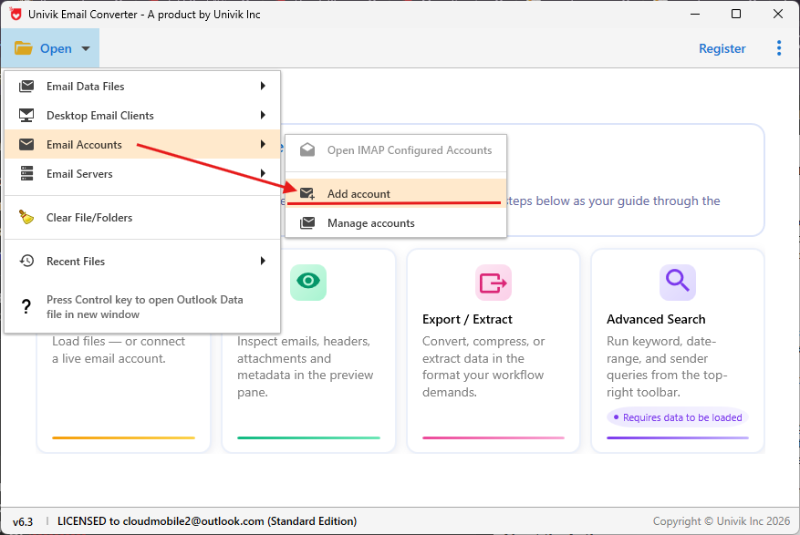
Step 1: Add the failed Kerio account using the IMAP option
Enter the Kerio Connect server hostname or IP address, the IMAP port (993 for encrypted or 143 for standard) and the account credentials. The converter connects to Kerio and reads the folder list to confirm the connection is working.
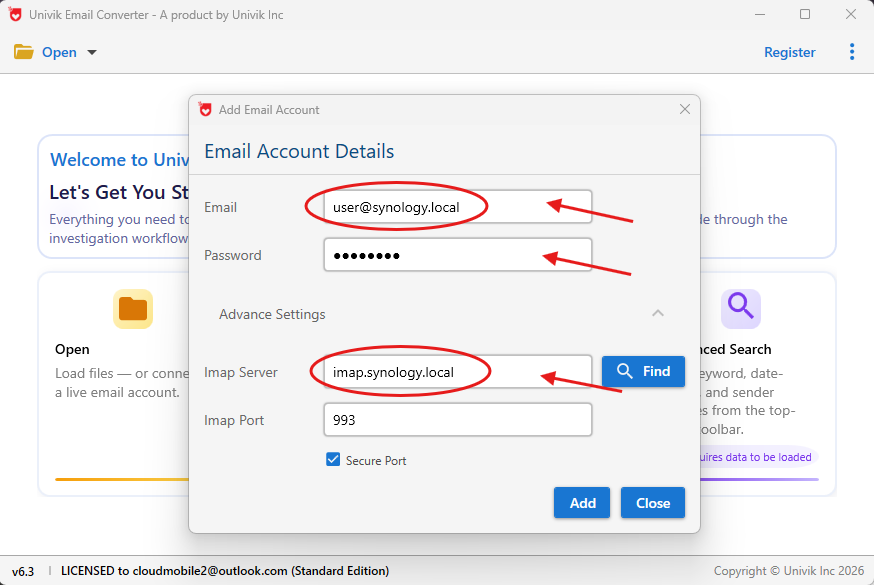
Step 2: Enter the Kerio Connect server connection details
In the Export menu, select IMAP as the output option. Enter your Synology MailPlus Server details: the NAS hostname or domain name, IMAP port and the destination account credentials.
The converter connects directly to your MailPlus Server and saves the emails into the correct mailbox. No intermediate files. No Thunderbird.
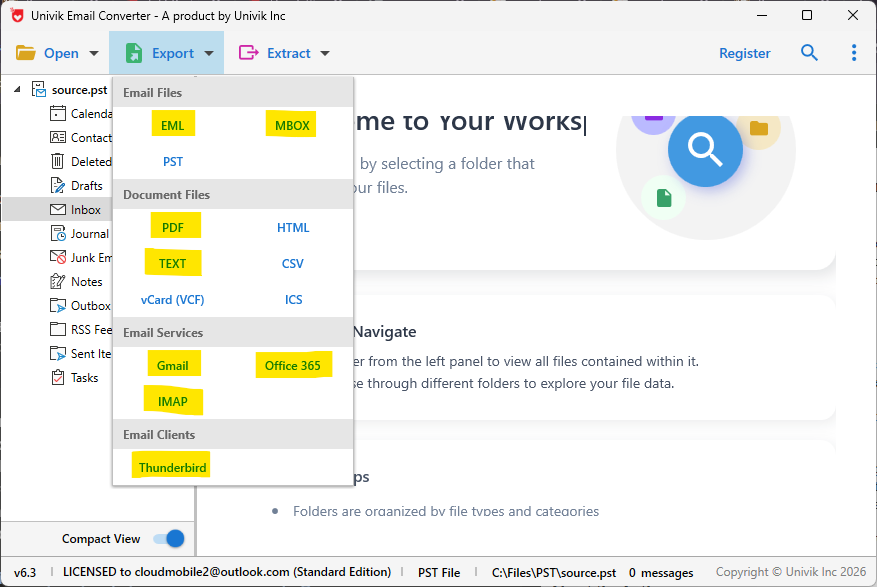
Step 3: Choose IMAP in the Export menu and enter your MailPlus Server details. The converter saves directly into the account.
Path B: Export From Kerio First, Then Save to MailPlus
Use this path if the Kerio IMAP connection is unreliable or the Kerio licence has expired.
Export the failed mailbox from Kerio as a PST file (Kerio Connect admin supports PST export per account) or as MBOX by locating the Kerio mail store directory on the server’s file system.
Open the exported file in Univik Synology MailPlus Converter. In the Export menu, select IMAP. Enter the MailPlus Server details.
The converter imports email directly into the MailPlus mailbox. Same result. No live Kerio connection required.
The result: every mailbox migrated, including the accounts that Synology’s native IMAP import left behind. All folder structure preserved. All attachments intact.
⬇ Free DownloadSee All Features →
Free trial converts the first 25 emails per folder. No registration required. Windows only.
Contacts Migration
Kerio Connect stores contacts per user and in public contact folders. Neither migrates automatically via IMAP, as contacts are not email messages and the IMAP protocol does not carry them.
Export contacts from Kerio Connect. In the Kerio WebMail client or admin, go to Contacts and export as VCard (.vcf). For public contact folders, log into Kerio admin and export at the account or domain level.
Import VCard files into Synology Contacts. Open the Contacts package on the NAS. Click Import and select the VCard files. Synology Contacts is accessible via the NAS web interface and syncs to the MailPlus web client.
There is no automated Kerio-to-MailPlus contact sync. Manual VCard export and import is the only supported path. Build this into the migration timeline alongside email.
Calendar Migration
Calendar migration from Kerio to Synology is the most manual part of the entire process. Kerio stores calendars per user with support for shared and public calendars. The only export format is ICS.
Personal calendars: each user exports their own calendar from Kerio WebMail as an ICS file and imports it into Synology Calendar. There is no admin-level bulk calendar export.
Shared and public calendars: these need to be recreated in Synology Calendar as shared calendars and access permissions configured again. ICS content can be imported but the sharing structure must be set up manually.
External CalDAV subscriptions: any calendars subscribed via CalDAV in Kerio (external feeds, Google Calendar etc.) need to be re-added manually in Synology Calendar after migration.
If your organisation relies heavily on shared calendars and group scheduling, allow extra time for this phase. It is the one part of a Kerio-to-MailPlus migration that cannot be automated.
Post-Migration Verification
Spot-check email counts. For three or four accounts, compare the message count in Kerio Connect against the count in MailPlus. A small tolerance (under 1%) is normal. Empty folders that should have email indicate a migration problem.
Test inbound and outbound email. Send a test email to a MailPlus address from an external account. Send from MailPlus to an external Gmail address. Confirm both directions work and that outbound email does not land in spam.
Update MX records when ready. Change your domain MX records to point to the Synology NAS public IP. New email routes to MailPlus from that point. Run a final IMAP import on any accounts that were still receiving email during the migration to catch messages that arrived during the transition window.
Keep Kerio running for 30 days after DNS cutover. Users may report missing email in the weeks after migration. Keeping Kerio accessible (without routing new email to it) gives you a fallback for any catch-up re-exports. After 30 days with no issues reported, the Kerio server can be decommissioned.
For a complete guide on backing up MailPlus Server after migration, and why Hyper Backup alone is not enough, see our MailPlus Server email backup guide.
Kerio Connect to MailPlus: Frequently Asked Questions
Will I lose email during the migration?
No. Both the native IMAP import and the converter-based path read from Kerio without modifying the source. Your Kerio server is untouched throughout.
Keep Kerio running and receiving email until MX records are switched. Run the migration, verify, then switch DNS. Any email arriving at Kerio during the final hours can be caught with one last IMAP sync.
My Kerio licence has already expired. Can I still get my email?
It depends on how recently it expired. The Kerio mail store files may still be on disk even if the server is locked.
Depending on the operating system, a specialist can extract MBOX data directly from the store files without a running Kerio server. Contact the Univik support team for guidance on post-expiry extraction.
This is exactly why migrating while the server is still licensed is so important.
How long does a Kerio to MailPlus migration take?
For a 10 to 20 user organisation with typical mailbox sizes, expect four to eight hours for the IMAP import phase and one to two hours for verification. Large mailboxes (over 10 GB) or failed accounts that need converter-based migration add time. Calendar and contact migration depends on how many users there are and whether shared calendars need to be recreated.
Can I migrate Kerio shared folders to MailPlus?
Kerio Connect public folders and shared IMAP folders need to be migrated account by account. There is no direct mapping to a MailPlus Server equivalent. Content from shared folders can be exported and imported into designated shared accounts in MailPlus. Access permissions need to be reconfigured manually.
Does Synology MailPlus Server support all the same email clients as Kerio?
Yes. MailPlus Server supports any IMAP or POP3 email client. Outlook, Thunderbird, Apple Mail, iOS Mail and Android clients all work without special configuration.
ActiveSync is supported for mobile push. The MailPlus webmail client is a full browser-based interface comparable to Kerio WebMail.
Kerio Connect to MailPlus: Summary
The migration from GFI Kerio Connect to Synology MailPlus Server is manageable if the sequence is right. If you are moving to MailPlus from a different mail platform, our guide on migrating from Zimbra to Synology MailPlus walks through that path.
IMAP import handles most mailboxes. Univik Synology MailPlus Converter handles the rest, connecting directly to Kerio and saving emails into MailPlus via IMAP without any intermediate files. Contacts and calendars migrate manually via VCard and ICS.
The whole thing needs to happen while Kerio is licensed and running.
The long-term case is clear. Kerio Connect charges annually with no exit protection. MailPlus Server is a one-time cost on hardware you own.
For organisations already on Synology, the incremental cost is one licence pack. The subscription savings cover that within the first year.
The one thing that cannot be recovered is email data lost because the Kerio licence expired before the migration was done. Start before the clock runs out.