TerraMaster Mail Server uses MariaDB for account management and exposes email via POP3 and possibly IMAP. It does not include an official migration tool. Two paths exist for migrating from TerraMaster Mail Server to Synology MailPlus using Univik Email Converter. If IMAP is enabled, connect the converter directly to TerraMaster and use IMAP Save to push email into MailPlus. If only POP3 is available, connect Thunderbird to TerraMaster first, let it download all email, then open the Thunderbird profile in the converter and save to MailPlus via IMAP Save. Both paths preserve full folder structure and original message metadata.
TerraMaster Mail Server and Why Users Are Switching
To move this into MailPlus, first export the source with a TerraMaster Mail Server converter to EML or MBOX, then import those files into MailPlus.
TerraMaster’s Mail Server package is available from the TOS App Center for TOS 4 installations. It provides a self-hosted email service for custom domains, with SMTP for inbound and outbound mail and POP3 (port 110) for client access. IMAP support depends on how the server was configured.
The reasons for switching to Synology tend to be practical. Organisations that started with TerraMaster hardware often move to Synology as they grow for the broader ecosystem of packages, better enterprise support and MailPlus Server’s active development track. When that hardware switch happens, migrating TerraMaster email to Synology MailPlus Server is the first priority.
TerraMaster provides no official migration tool for moving mail data to another platform. The TerraMaster community forum confirms the Mail Server package was removed from the TOS 5 App Center. If you are running TOS 5 or later, check your App Center before starting. Both paths below rely on the server being accessible.
Two Migration Paths: Direct IMAP vs Via Thunderbird
TerraMaster Mail Server uses MariaDB for account management. Unlike servers that document their storage format publicly, TerraMaster does not publish how email is stored on disk. The migration options available are based on protocol access, not file access:
Path A: Direct IMAP Migration
Connect Univik Email Converter directly to TerraMaster Mail Server via IMAP while it is still running. Email transfers live, folder by folder, into MailPlus.
Best when: IMAP is enabled on the TerraMaster server and accessible on the network.
Path B: Via Thunderbird
Connect Thunderbird to TerraMaster Mail Server (POP3 or IMAP) and download all email. Then open the Thunderbird account directly in Univik Email Converter and export to MailPlus via IMAP Save.
Best when: IMAP is not available. Note: if connecting Thunderbird via POP3, only the Inbox is downloaded. IMAP downloads all folders. If email is spread across custom folders, confirm IMAP is available or check if email can be moved to Inbox first.

“TerraMaster users switching to Synology often assume there is a clean file export path because TerraMaster runs on Linux. The storage format is not documented publicly, so the reliable paths are IMAP direct or via Thunderbird. If IMAP is enabled on TerraMaster, the converter connects and migrates directly. If only POP3 is exposed, Thunderbird downloads the email first and the converter reads the Thunderbird profile. Either way the email lands cleanly in MailPlus.”
Nick Rogers
|
Founder, Univik building email archive tools since 2013
Why Synology MailPlus Server Is the Right Destination
Both Synology and TerraMaster make NAS hardware. The difference at the mail server level is significant. MailPlus Server is a dedicated mail server product with its own development team, regular version updates and active enterprise feature development.
The first 5 user accounts are included free with qualifying Synology NAS models. Additional seats are purchased once and do not expire. For organisations already planning a hardware upgrade from TerraMaster to Synology, the email migration and the hardware migration happen in one project.
See our MailPlus Server overview and licensing guide for the full picture.
Pre-Migration Checklist
List all TerraMaster mail accounts. In the TerraMaster Mail Server admin panel, note every configured account. Each needs a matching MailPlus account created before migration starts.
Decide which path to use. If IMAP is enabled on TerraMaster, Path A connects the converter directly. If TerraMaster only exposes POP3 or if IMAP availability is uncertain, Path B via Thunderbird works regardless. Both produce the same result in MailPlus.
Set up MailPlus Server on Synology before starting. Install MailPlus Server, configure your domain and create user accounts matching the TerraMaster accounts. Enable IMAP on MailPlus Server (Service then MailPlus Client then Protocol).
Path A: Direct IMAP Migration
Use this path when IMAP is enabled on TerraMaster Mail Server. You can check by attempting to add the account in any email client with IMAP selected. If the connection succeeds, Path A is available.
Open Univik Email Converter on a Windows machine. In the Open menu, go to Email Accounts then Add account. Enter the TerraMaster IMAP server details: the NAS local IP address, port 993 (SSL) or 143, and the login details.
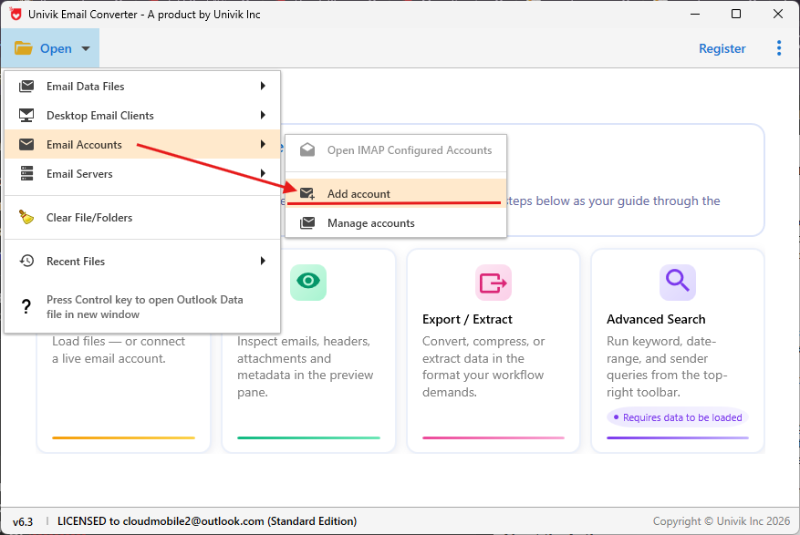
Path A, Step 1: Open → Email Accounts → Add account enter TerraMaster IMAP server details
The converter connects and loads the full folder tree for the account. Select all folders and proceed to the export step.
In the Export menu, select IMAP. Enter your Synology MailPlus Server details: NAS hostname or IP, port 993 and the destination account credentials. The converter saves email directly from TerraMaster into the MailPlus account.
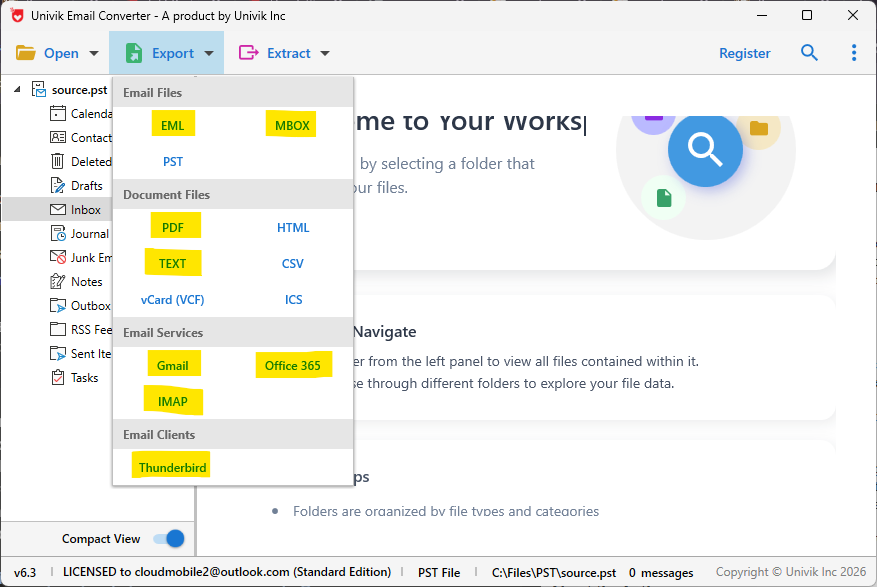
Path A, Step 2: Export → IMAP → enter Synology MailPlus Server details direct migration, no extra files saved
Path B: Migrate via Thunderbird
Use this path when the TerraMaster NAS is being retired or already shut down. The MailDir folders you copied to Windows in the checklist step are the source.
Both paths deliver the same result: every TerraMaster mailbox migrated into Synology MailPlus Server with full folder structure and all message metadata preserved.
⬇ Free DownloadSee All Features →
Free trial converts the first 25 emails per folder. No registration required. Windows only.
Post-Migration Verification
Compare message counts per folder. Log into MailPlus webmail for each migrated account and compare folder message counts against the TerraMaster source. The converter loads MailDir with exact counts so gaps are easy to spot.
Spot-check attachment handling. Open a few emails with known attachments and confirm they are present in the migrated version.
Update MX records (Path A only). If TerraMaster is still receiving live email, update your domain MX records to point to the Synology NAS after migration is verified. Run a final IMAP migration pass to catch email that arrived during the cutover window.
Keep the Thunderbird profile intact until MailPlus is stable (Path B). Do not remove the Thunderbird profile or the local email data until MailPlus has been running in production for at least 30 days with no issues. It is your fallback if anything needs to be re-migrated.
For setting up backups after migration, see our MailPlus Server backup guide.
TerraMaster to MailPlus Migration: Common Questions
Does TerraMaster Mail Server support IMAP or only POP3?
TerraMaster’s official setup documentation uses POP3 (port 110) as the default incoming protocol. IMAP may also be available on some setups. Test by adding the account in an email client with IMAP selected. If it connects, use Path A directly in Univik Email Converter. If only POP3 is available, use Thunderbird as the next step.
Can I migrate multiple TerraMaster accounts at the same time?
No. The converter opens and migrates one account at a time. Each account is opened separately either by adding a separate IMAP connection per account (Path A) or by setting up a separate Thunderbird profile per account and running the converter on each (Path B). Migrate one account at a time, in order.
Does migration via Thunderbird preserve original email dates and senders?
Yes. Thunderbird stores the complete original email including all headers: date, sender, recipients, subject and message body. When the converter reads the Thunderbird profile, the migrated email in MailPlus retains all original metadata. Nothing is rewritten or timestamped at migration time.
Can I also export the TerraMaster email to PDF or MBOX instead of MailPlus?
Yes. Once TerraMaster email is loaded in the converter, either via IMAP direct connection or via the Thunderbird Accounts path, the Export menu offers EML, MBOX, PST, PDF, HTML and other formats. IMAP Save to MailPlus is one option, not the only one.
What about contacts and calendars on TerraMaster?
This guide covers email only. If TerraMaster Mail Server stores contacts via CardDAV or calendars via CalDAV, those need separate handling. Export contacts as VCard and import into Synology Contacts. Export calendars as ICS and import into Synology Calendar.
TerraMaster to MailPlus: Summary
TerraMaster Mail Server has no official migration tool for other platforms. The migration relies on IMAP access or Thunderbird as the first step.
If IMAP is enabled on TerraMaster, connect Univik Email Converter directly and use IMAP Save into MailPlus simple and clean. If TerraMaster only exposes POP3, run Thunderbird first to download all email, then open the Thunderbird profile in the converter and save to MailPlus the same way.
Both routes preserve full folder structure, all message metadata and all attachments. For a typical 5 to 10 user TerraMaster Mail Server deployment, the migration completes in two to three hours using Path A. Path B adds the Thunderbird download time on top. If your mail server runs on QNAP hardware instead, see our guide on migrating QNAP Xeams to Synology MailPlus.