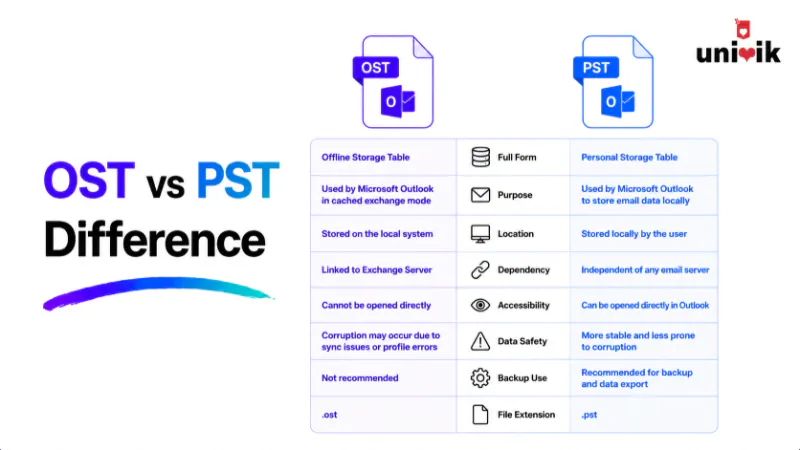
An OST is a synced offline copy of a mailbox, created automatically and locked to the Outlook profile that made it. A PST is a standalone, portable data file you create yourself for archiving, backup and moving mail between computers. The core difference is portability: a PST opens in any Outlook on any computer, while an OST cannot, because it is encrypted and tied to its original profile and mailbox. That is why, when an account is deleted or a server goes offline, the OST is stranded and has to be converted to PST to recover the mail. For everyday Exchange or Microsoft 365 use you do not manage the OST at all. You reach for a PST when you need a portable copy.
The Short Answer
So what is the difference between OST and PST? In one line: an OST is an automatic, profile-locked offline cache and a PST is a portable file you create yourself. Everything else follows from that.
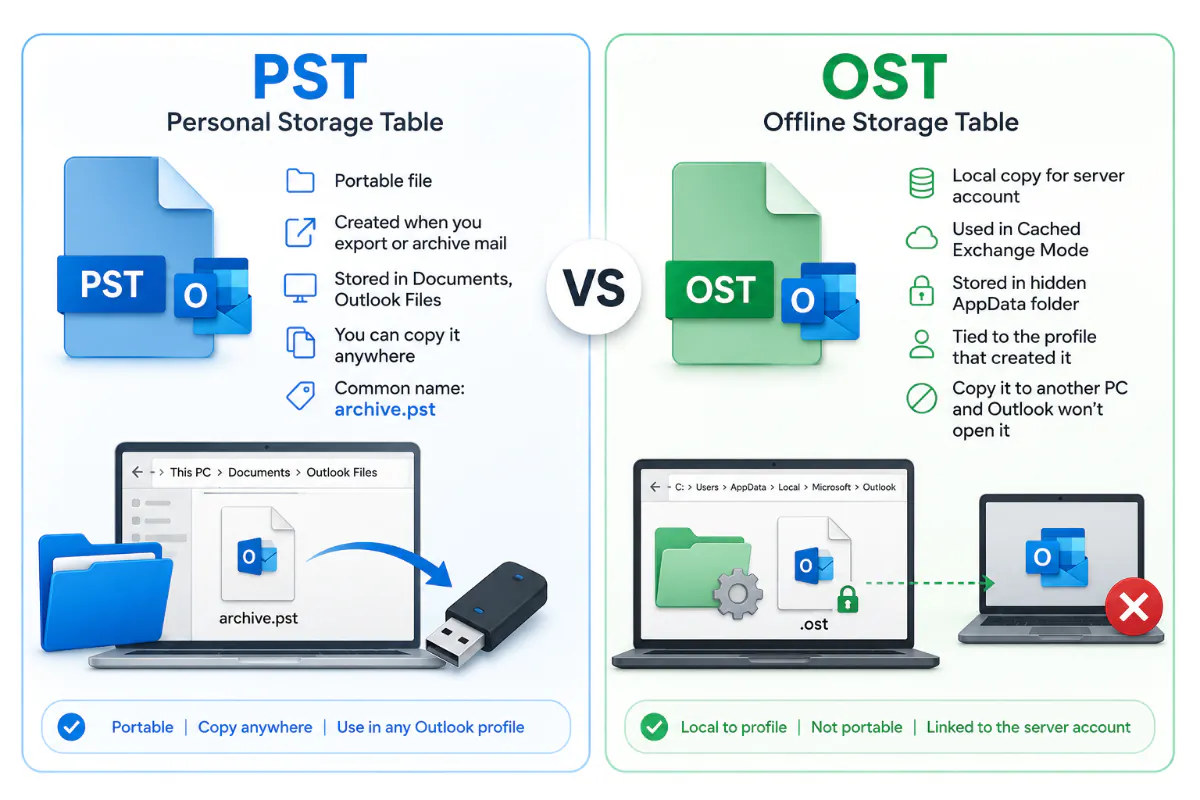
In the OST file vs PST file question, both are Outlook data files that hold the same kinds of items: emails, attachments, contacts, calendars, tasks and notes. The OST vs PST difference is not what they store. It is how they are made, where they are tied and whether you can move them.
An OST is made for you, by Outlook, as a local cache of a server mailbox. A PST is made by you, as a portable file that belongs to no server. That single distinction explains every practical difference below.
Offline cache
Portable archive

“We have converted OST and PST files from every Outlook version in the lab, the smallest 60 MB and the largest 58 GB. The practical difference is plain: a PST opens anywhere Outlook runs, an OST only opens for the profile that made it. Everything else follows from that.”
Nick Rogers
|Founder, Univik, building file conversion tools since 2013
What an OST File Is
For an orphaned or inaccessible OST, an online OST viewer lets you read the contents without the original Outlook profile.
OST stands for Offline Storage Table. Outlook creates one automatically when you set up an Exchange, Microsoft 365 or IMAP account in Cached Exchange Mode, which is the default. (One historical wrinkle: Outlook 2010 and earlier cached IMAP accounts into a PST instead. From Outlook 2013 onward, IMAP accounts use an OST like Exchange and Microsoft 365 do.) The OST is a synchronized local copy of your server mailbox, so you can read and write mail offline. When the connection returns, Outlook syncs your changes back to the server.
Two things define the OST and cause most of the trouble people run into. It is encrypted by default with a key derived from the MAPIEntryID GUID, and it is bound to the specific Outlook profile and account that created it. Together these mean an OST cannot be opened in another profile, copied to another computer and read, or treated as a portable backup. It lives and dies with its original mailbox link. For a deeper look at the format, see our guide to the OST file.
What a PST File Is
Because a PST is portable, you can even open PST files in browser without loading it into Outlook first.
PST stands for Personal Storage Table. Unlike the OST, you create a PST deliberately, for archiving, backup or moving data, and it is not tied to any live server. PST has been Outlook’s portable container since the 1990s, originally because Exchange mailbox storage was scarce and expensive, so moving mail into local PSTs freed space on the server. It is an open proprietary format: Microsoft publishes a free specification (MS-PST), which is part of why so many tools can read and write PST files.
A PST is standalone and portable. You can copy it to another computer, open it in any version of Outlook, import it into a different account and even open several PSTs at once. It is not encrypted by default, though you can add a password. That openness is the whole point: a PST is built to be moved and reopened, which is exactly what an OST is not.
A note on format and size: ANSI vs Unicode
Both file types come in two formats, and it affects how large they can grow. Outlook 2002 and earlier used the older ANSI format, capped at 2 GB, with no Unicode support. From Outlook 2003 onward the default is Unicode, with a recommended maximum around 50 GB (you can push it higher through the registry, though performance suffers). These limits apply to both PST and OST files, since Microsoft’s size settings govern the two together.
One trap worth knowing: an old ANSI file is not automatically upgraded to Unicode when you open it in a newer Outlook. If you are still carrying a pre-2003 PST, you import it into a fresh Unicode PST to lift the 2 GB ceiling rather than expecting Outlook to convert it for you. The same portability logic applies when an OST is stranded: you move its mail into a PST with an OST to PST converter rather than trying to repair the OST in place.
OST vs PST, Side by Side
| Aspect | OST | PST |
|---|---|---|
| Full name | Offline Storage Table | Personal Storage Table |
| Created by | Outlook, automatically | You, deliberately |
| Purpose | Offline cache of a server mailbox | Archive, backup, portability |
| Tied to a profile? | Yes, locked to its profile and account | No, fully portable |
| Encrypted by default? | Yes (MAPIEntryID GUID) | No (password optional) |
| Account types | Exchange, Microsoft 365, IMAP | POP3, IMAP, archives, any export |
| Open in another Outlook? | No | Yes |
| Needs the server? | Yes, to stay in sync | No, server-independent |
| Format and size | ANSI 2 GB, or Unicode ~50 GB (same limits as PST) | ANSI 2 GB, or Unicode ~50 GB default |
| Microsoft repair tool | None for modern Outlook (recreate it) | ScanPST.exe (Inbox Repair Tool) |
| If the account is gone | Becomes orphaned and unreadable | Still opens normally |
The Difference That Matters Most: Portability
If you remember one thing, make it this. A PST is portable, an OST is not, and almost every real-world OST problem traces back to that.
Because a PST belongs to no server, you can hand it to any Outlook and it just opens. Because an OST is locked to its profile and encrypted, it has no life outside that one setup. Copy an OST to a new machine and Outlook will not read it. Delete the profile and the OST becomes an orphan with no way back in. If you only need to read a stranded OST rather than convert it, the OST Viewer opens one without Outlook.
This is why the standard advice for keeping mail safe is to export to PST. A PST is the format that survives a deleted account, a crashed server or a new computer. An OST survives none of those on its own.
Orphaned
Still opens
Repairing Each: ScanPST, and Why OST Is Different
If the file you are dealing with is actually a damaged PST rather than an OST, follow our guide on how to repair a corrupt PST file instead.
Here is a point most comparison guides get wrong, so it is worth stating plainly. Microsoft’s Inbox Repair Tool, ScanPST.exe, is built for PST files. The old OST repair tool, ScanOST.exe, was discontinued after Outlook 2010 and does not exist in modern Outlook.
So how do you fix a damaged OST? You do not repair it, you replace it. When the mailbox still exists on the server, the supported fix is to close Outlook, delete or rename the OST, and let Outlook build a fresh one by resyncing. Microsoft’s own guidance says exactly this for Exchange and Microsoft 365 accounts.
PST → ScanPST.exe
OST → no repair tool
The catch with deleting an OST
Recreating the OST only works when the server still has your mail. If the file is orphaned, or it holds local-only items that never synced, deleting it throws that data away. In those cases you do not delete, you convert the OST to PST first to preserve everything. See our guide on fixing an orphaned or inaccessible OST file for the full decision path.
When You Need to Convert OST to PST
Once you have a PST, you can keep it in Outlook or convert that PST to MBOX for use in other mail clients.
Most of the time you never touch the OST. Outlook manages it and you work with your mail as normal. Conversion becomes necessary in a specific set of situations, all tied to the OST’s lack of portability.
The account or server is gone. A deleted mailbox, a removed Microsoft 365 account or a decommissioned Exchange server leaves an orphaned OST that only conversion can recover.
Outlook cannot open the file. When you see errors that the OST is not accessible or cannot be opened, and a resync will not fix it, converting to PST extracts the mail into a file Outlook can read.
You are migrating or backing up. Moving to a new computer, a new account or a long-term archive needs a portable PST, since the OST cannot travel.
For a working account, Outlook’s own Import/Export wizard exports to PST. For an orphaned or inaccessible OST, where Outlook can no longer open the file, you need a converter that reads the OST directly. The Univik OST to PST Converter does this without Outlook, the original profile or the server, writing a clean PST with folders, attachments and read or unread status preserved.
Need to turn an OST into a portable PST? Convert orphaned, inaccessible or Exchange OST files to PST without Outlook or a server connection, with the folder structure and attachments kept intact.
Which One Should You Use
For most people this is not a choice you make. If you run an Exchange or Microsoft 365 account, Outlook uses an OST automatically and you simply work with your mail. You bring a PST into the picture when you need something the OST cannot give you.
Use the OST as-is for everyday Exchange or Microsoft 365 work. It gives you offline access and syncs automatically, and you do not manage it directly.
Use a PST when you want a portable backup, an archive of old mail, or a way to carry data to another computer or account. This is the format you reach for deliberately.
Frequently Asked Questions
What is the main difference between OST and PST?
An OST is a synced offline copy of a server mailbox, locked to the Outlook profile that created it. A PST is a standalone, portable file you create for archiving, backup or moving mail. The key difference is portability: a PST opens in any Outlook, an OST cannot, because it is encrypted and tied to its original profile.
Can I open an OST file like a PST?
No. A PST opens in any Outlook on any computer. An OST is encrypted with a MAPIEntryID GUID key and bound to its original profile, so it cannot be opened in another profile or copied to another machine and read. To open OST data elsewhere, you convert it to PST first.
Is OST or PST better for backup?
PST, without question. A PST is portable and server-independent, so it survives a deleted account, a crashed server or a new computer. An OST is just a cache tied to a live mailbox and cannot serve as a portable backup. The standard way to protect Outlook mail is to export to PST.
Does ScanPST repair OST files?
ScanPST.exe is built for PST files. The old OST repair tool, ScanOST.exe, was discontinued after Outlook 2010, so modern Outlook has no built-in OST repair. For a corrupt OST whose mailbox still exists, the fix is to delete or rename it and let Outlook rebuild it by resyncing. For an orphaned OST, you convert it to PST instead.
Why does an OST become orphaned but a PST does not?
An OST depends on its source mailbox and profile. If the mailbox is deleted, the account is removed or the server goes offline, the OST loses its link and becomes orphaned and unreadable. A PST has no server link, so it keeps opening normally no matter what happens to any account.
Where are OST and PST files stored?
By default both sit under C:\Users\YourName\AppData\Local\Microsoft\Outlook. The OST is placed there automatically. A PST is often there too, but because you create PSTs yourself, you can save them to any location you choose, which is part of what makes them portable.
The Short Version
OST and PST hold the same mail, but they are opposites in the way that counts. The OST is an automatic, encrypted, profile-locked cache built for offline access. The PST is a portable, server-independent file built to be moved, archived and reopened anywhere.
That portability gap is why every serious Outlook backup ends in a PST, and why a stranded OST has to be converted to PST to recover its mail. Understand which file you are holding and what it is tied to, and the right next step is always clear.
From here, the rest of the OST guides build on this foundation: fixing an orphaned or inaccessible OST, importing OST into Thunderbird and opening OST in Apple Mail on a Mac.