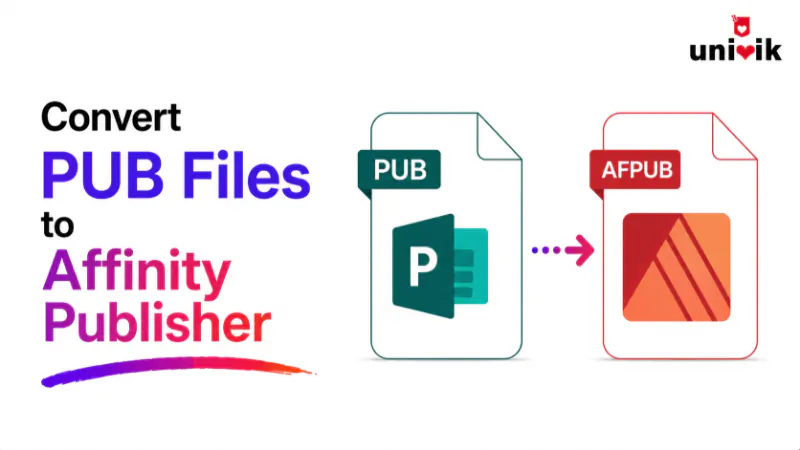
Affinity cannot open PUB files natively. Affinity is the free all-in-one app Canva launched on 30 October 2025, and it replaced Affinity Publisher 2. The PUB format has no published specification and no third-party application reads it completely. The migration path is: convert PUB files to high-resolution PDF with Univik PUB Converter (or the PDF export inside Publisher, if you still have it), place the PDFs into Affinity as reference layers and rebuild layouts from scratch. To inspect the original before rebuilding it in Affinity, open the PUB file in the free Univik PUB File Viewer. For text-heavy documents, convert to DOCX first and flow the copy into Affinity text frames. Affinity is the closest feature equivalent to Microsoft Publisher available today: master pages, linked text frames, CMYK support and bleed, with the core tools free.
Update, 1 October 2026: Publisher has left Microsoft 365
Microsoft 365 subscribers can no longer open .pub files in Publisher, so most people now start the move to Affinity without Publisher. Your .pub files are not deleted. Univik PUB File Converter turns them into the PDF reference and DOCX text this guide uses, with no Publisher installed.
Affinity Cannot Open PUB Files
The names sound alike, but Affinity Publisher, which now lives inside the free Affinity app, and Microsoft Publisher are separate programs made by different companies. Affinity was made by Serif, which Canva bought in 2024. Microsoft Publisher is made by Microsoft. The name similarity causes genuine confusion, but there is no relationship between the two products.
Affinity has no PUB import. File then Open does not recognise the format. Affinity imports PDF, IDML, PSD, SVG and other formats, but not PUB. An Online PUB File Viewer is the quickest way to see the original design before you begin the rebuild. There is no plugin or conversion tool within Affinity that reads PUB files. This is the same situation as Adobe InDesign, because the PUB format’s proprietary nature makes third-party reading structurally unreliable.
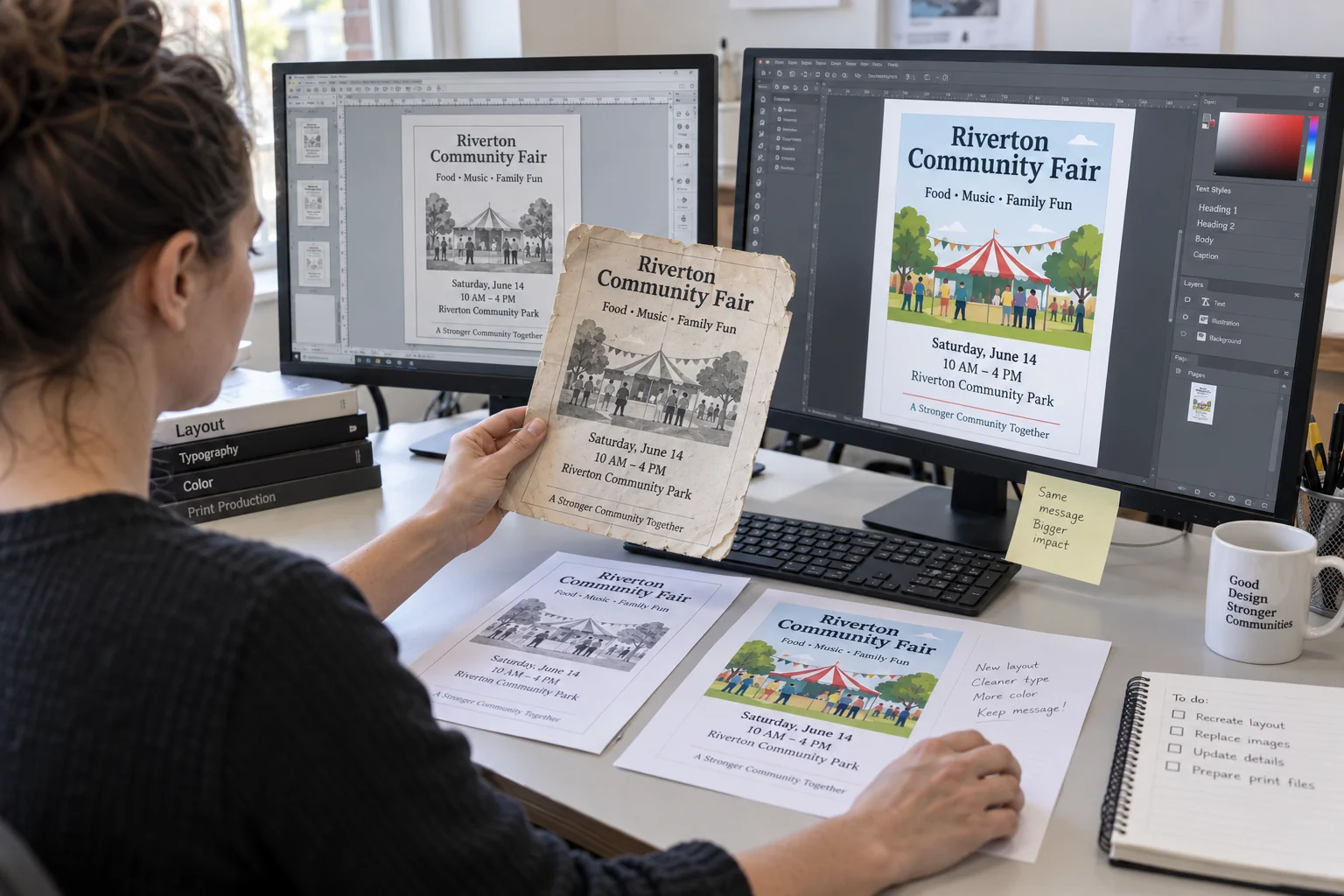
The migration from Publisher to Affinity is a rebuild process, not a file conversion. PUB files inform the rebuild as visual references. The actual content (text, images and brand assets) is brought into Affinity from its source formats. Univik PUB File Converter does not create IDML, so the route is PUB to PDF for the layout reference or PUB to DOCX for the text, then a rebuild in Affinity.

“Affinity does not read PUB, so the route is through an export. Our test is the same as for every route: run a batch of PUB and PUZ files, open the results and compare graphics and text formatting against the originals.”
Nick Rogers
|Founder, Univik, building file conversion tools since 2013
Why Affinity Is the Strongest Replacement
Of all the Publisher alternatives, Affinity comes closest to matching Publisher’s specific combination of capabilities: multi-page layout, master pages, linked text frames and professional colour management. It also costs nothing for the core tools, which suits small businesses and individual designers.
Three things make Affinity stand out from the other alternatives:
Free, no subscription. The core Affinity tools for layout, photo editing and vector design are free. No licence to buy. No monthly fees. Only the generative AI features need a paid Canva plan. That sets Affinity apart from Adobe InDesign and Canva Pro, which both need a paid subscription.
Professional CMYK and print output. Affinity supports CMYK colour profiles, spot colours, PDF/X-1a and PDF/X-4 export, bleed and crop marks and pre-flight checking. This makes it suitable for commercial print work, the class of Publisher output that Canva and Word cannot handle at the same quality level.
Windows and Mac, with the same file format. Publisher was Windows-only. Affinity runs on both Windows and Mac with the same native file format, and an iPad version is planned. Teams with mixed devices can work on the same documents across platforms without compatibility issues.
Path 1: Convert PUB to PDF and Rebuild in Affinity
This is the most reliable migration path for layout-heavy Publisher documents. The PDF preserves the visual layout exactly. Affinity accepts PDF pages as placed content, which serves as a pixel-accurate reference while rebuilding.
Convert PUB to high-resolution PDF. Where Publisher is still available (a 2021, 2019 or 2016 perpetual licence, or a subscription copy that is still active), export through File, Export, Create PDF/XPS and pick the highest quality setting. Without Publisher, or for batch conversion of multiple PUB files, Univik PUB Converter converts to PDF without requiring Publisher to be installed. Export at print quality (300 DPI minimum) for print-destined documents.
Create a new Affinity document. Match the page dimensions, margins and bleed of the original Publisher document. Set up master pages for recurring design elements: headers, footers, page number placeholders and background elements.
Place the PDF as a reference layer. In Affinity, add a new layer below your working layer and label it “Reference.” Use Place (File then Place) to insert each PDF page onto the reference layer. Reduce the layer opacity to 40 to 50% so it reads clearly without dominating. Lock the reference layer to prevent accidental edits.
Rebuild on the working layer. Draw text frames matching the Publisher layout. Set character and paragraph styles in Affinity’s Styles panel to match the original fonts and formatting. Place images from their source files rather than from the PDF. Build up the layout element by element using the reference beneath.
Delete the reference layer and preflight. When the rebuild is complete, delete the reference layer. Run Document then Preflight to check for missing fonts, missing links and colour mode issues before exporting or handing off.
Path 2: Extract Text via DOCX and Flow Into Affinity
For text-heavy Publisher documents where the copy needs to be editable and accurate, extract the text as DOCX first and place it into Affinity text frames.
Convert PUB to DOCX. If Publisher still runs on your PC, use its Save As command to make a DOCX file. If it does not, Univik PUB Converter makes the DOCX instead. The text content including headings, body copy and captions transfers to DOCX. Images and layout elements do not transfer reliably through this path and come from source files separately.
Flow the DOCX into Affinity text frames. In Affinity, draw text frames in the layout. Use File then Place to select the DOCX. Affinity imports the text content and basic styling. Flow long documents through linked text frames using Affinity’s frame threading: click the out port of one frame and click the in port of the next to link them.
Apply Affinity paragraph styles. After placing the DOCX, apply Affinity’s defined paragraph styles to replace any Word styles that came in with the text. This keeps formatting consistent across the document and gives you full style control in Affinity’s Styles panel.
Combine this path with Path 1 for complete migration: the DOCX provides live editable text in the correct positions, while the PDF reference provides the visual layout guide. This approach is more efficient than rebuilding from a visual reference alone for documents with large amounts of copy.
Publisher vs Affinity: Feature Comparison
| Feature | Microsoft Publisher | Affinity (free app) |
|---|---|---|
| Licence model | Perpetual only (Publisher 2021 and older). Left Microsoft 365 on 1 October 2026 | Free (generative AI features need a paid Canva plan) |
| Platforms | Windows only | Windows and Mac |
| Master pages | Yes | Yes (master pages and spreads) |
| Linked text frames | Yes | Yes (frame threading) |
| CMYK colour support | Limited, mostly RGB | Full CMYK and spot colour |
| Bleed and crop marks | Basic | Professional-grade |
| PDF/X export | PDF/X-1a (basic) | PDF/X-1a, PDF/X-4 and PDF/X-4p |
| Preflight | Basic | Full preflight with custom profiles |
| Open PUB files | Yes (native format) | No |
| Learning curve vs Publisher | N/A (familiar) | Moderate (closer to InDesign than Publisher) |
The Learning Curve: What to Expect
Affinity is closer in design philosophy to Adobe InDesign than to Microsoft Publisher. Publisher users switching to Affinity will find some concepts familiar (master pages, text frames, image placement) but the interface and workflow differ meaningfully from Publisher.
The areas where the adjustment is largest:
Styles-first working method. Publisher lets you format text ad hoc without defining styles. Affinity works best when paragraph and character styles are defined and applied consistently, the same discipline InDesign requires. Former Publisher users who formatted text manually throughout a document will need to adopt a styles-based workflow.
Frame threading for multi-page text flow. Publisher’s text overflow handling is more automated than Affinity’s. In Affinity, you manually thread frames to flow long articles across pages. This is more work up front but gives more precise control over text placement.
Studio panel layout. Affinity’s UI uses a panel-based layout where tools, properties and assets live in panels that can be arranged and docked. Publisher’s interface is more ribbon-based and menu-driven. Most users adapt within a few weeks of regular use.
Affinity’s learning resources are strong. Video tutorials, community forums and documentation are all available on the Affinity website. The learning investment for a Publisher user becoming productive in Affinity is typically two to four weeks of regular use.
One App for Layout, Photo and Vector Work
Affinity used to be three separate paid apps: Publisher for layout, Photo for image editing (a Photoshop equivalent) and Designer for vector design (an Illustrator equivalent). The free Affinity app now puts all three toolsets in one application.
This is particularly useful for Publisher users who previously relied on Publisher for layout and Photoshop or Illustrator for image editing. In Affinity you move between the layout, photo and vector tools inside the same document, with no round-tripping of files and no relaunching of applications.
Note: Canva bought Serif, the maker of Affinity, in 2024. The core Affinity tools are free, and only the generative AI features need a paid Canva plan.
Frequently Asked Questions
Does Affinity open Microsoft Publisher files?
No. Despite the similar name, Affinity has no PUB import. It imports PDF, IDML, PSD, SVG and other formats, but not PUB. The two applications share a product category but are otherwise unrelated. Affinity was made by Serif, now part of Canva, and uses its own native file format. PUB files must be converted to PDF or DOCX before their content can be brought into Affinity.
Is Affinity a good choice for a Publisher migration?
Yes, for users who need genuine desktop publishing tools and do not want a subscription. The core Affinity app is free, and only the generative AI features need a paid Canva plan. The feature set (master pages, linked text frames, CMYK and professional PDF export) is much closer to Publisher’s professional output than Canva or Word. The learning investment is real but bounded.
How does Affinity compare to Adobe InDesign?
Affinity covers 80 to 90% of what most Publisher users need from InDesign, and its core tools are free. InDesign has deeper support for long-document features (book panels, cross-document styles), commercial font integration via Adobe Fonts and broader third-party plugin support. For professional studios doing high-volume commercial print production, InDesign remains the stronger choice. For individual designers and small organisations migrating from Publisher, Affinity is the better value.
Can I open an Affinity file in Microsoft Publisher?
No. Affinity uses its own native format, which Publisher cannot read. Affinity can export to PDF and to image formats such as PNG, JPG, TIFF and SVG for handoff to other applications, but the native Affinity file is not compatible with any Microsoft application.
What happened to Affinity after Canva acquired it?
Canva acquired Serif (the maker of Affinity) in 2024. On 30 October 2025 Canva relaunched Affinity as one free app that combines the old Designer, Photo and Publisher tools, on Windows and Mac, with an iPad version to follow. The core tools are free. Only the generative AI features need a paid Canva plan. The old one-time Affinity Publisher 2 licence is no longer sold.
The Short Version
Affinity is the right Publisher replacement for anyone who needs real desktop publishing tools (master pages, linked text frames and professional CMYK output) without a subscription, and its core tools are free. The migration from PUB files to Affinity is a rebuild rather than a conversion, but the rebuild produces properly structured documents that are production-ready for print from day one.
The learning curve is real and worth naming directly. Publisher users will find Affinity more demanding than Publisher was, because the interface is closer to InDesign than to Publisher’s familiar ribbons and menus. For users willing to invest the learning time, the capabilities justify it.
Are the Publisher documents you are migrating primarily for print or for digital use? If print, and commercial print in particular, the free Affinity app is the strongest option that needs no subscription. If the documents are primarily for screen viewing, sharing or office printing, Canva or Word may be a simpler switch.