Android can strip a known PDF password with no paid app. Open the locked file in a reader, enter the password, then use the Print menu and pick Save as PDF to write a copy that opens with no prompt.
Both parts lean on a password you already know. The work never leaves the handset, so nothing goes up to a website. A code that has slipped your memory is a different matter that no Android trick can bring back.
A locked PDF that asks for a code on every open is a drag on a phone. The upside is that Android can put a stop to it with tools you already have and pay nothing for. If you know the password already, a reader app plus the system Print menu can produce a copy that opens without the box. This guide walks the print route tap by tap, shows why a file manager cannot finish the task alone, points to the Univik PDF Unlocker on Windows for a whole folder at once and gives the straight answer when the password has slipped away for good.
Can You Remove a PDF Password on Android?
Yes, though Android ships with no single unlock button of its own. What it does have is a reader app and a built-in print engine that settle the task at no cost. You open the protected file, key in the password you were handed, then route the visible pages to the Print menu and store them as a fresh PDF. That new file has dropped the lock for good. The one requirement is a password you actually hold. A reader asks for it before any page shows, so it will not open a document you are locked away from. Everything here runs on the handset with nothing sent to a site.
How Do You Use the Print to PDF Method on Android?
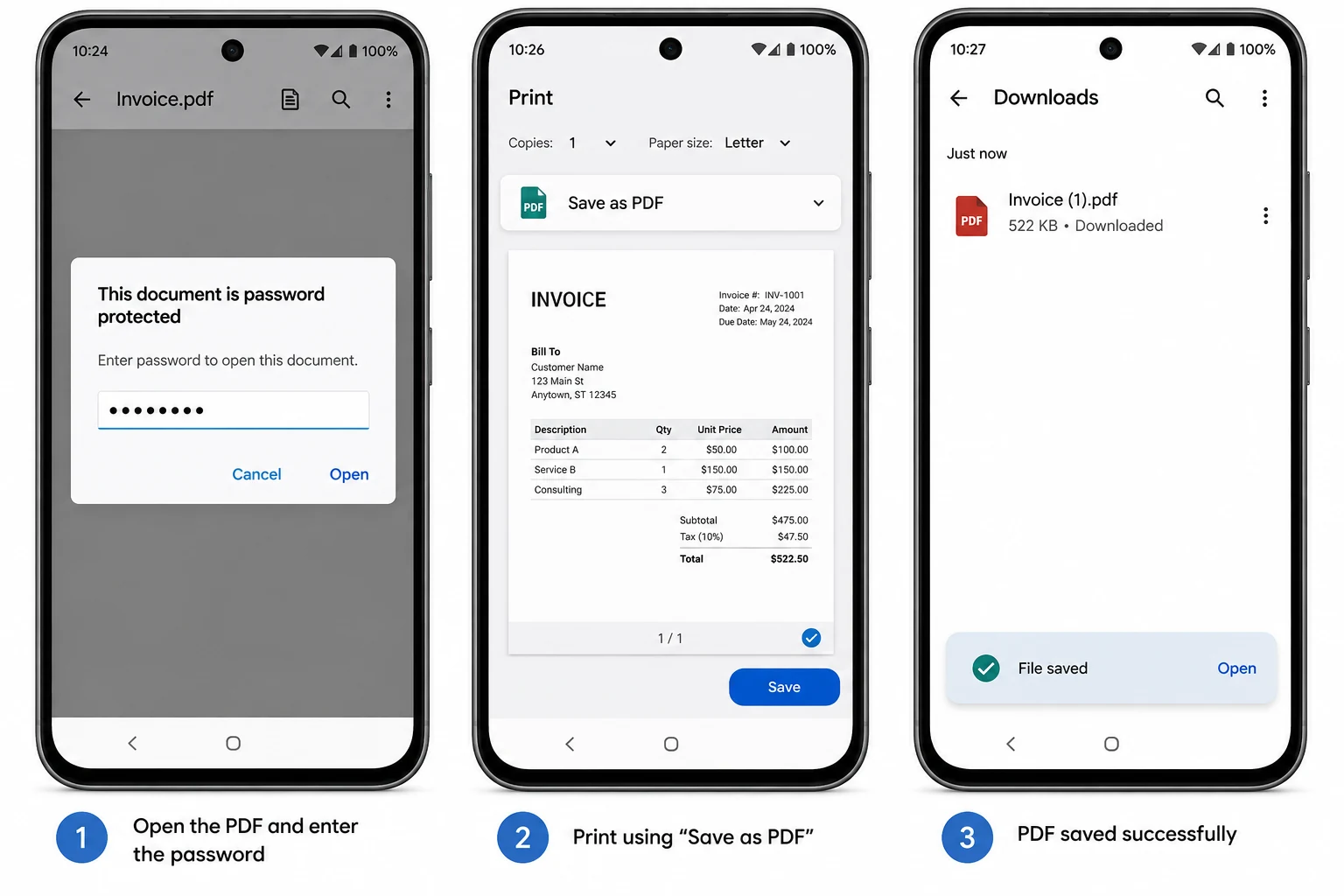
The print route takes only a few taps and needs nothing installed. You open the file in a reader and clear the password prompt. Next you feed the open document into the Print menu, where the phone recreates it as a brand new PDF. The stored result carries none of the first lock, since printing lays down only a flat snapshot of the pages you were cleared to open. Here is how the three steps go.
One file on a phone is fine with the print method. Over on a Windows PC the Univik PDF Unlocker takes the lock off and clears an entire folder of them in a few taps.
Free Download See all featuresDo File Manager or Drive Apps Remove the Password?
No. This catches a lot of people out. A file manager such as the built-in Files app still asks for the same password before it shows a page. A cloud app like Google Drive behaves the same way. Opening a locked PDF in either one proves you know the code. It does not write a new copy with the lock taken out. Drive can show the file after you type the password, yet it returns the very same protected document when you download it later. This is the reason the print route matters. Printing casts a fresh file with no password inside it, something a plain viewer or a cloud folder will not do by itself.
Is a Computer a Faster Way to Clear PDF Passwords?
For one file, no. For a pile of them, yes. When a batch has to be cleared in one sitting, a desktop program beats tapping through each file on a small screen. It also helps when the locked files already sit on a computer running Windows. There the Univik PDF Unlocker steps in as a desktop tool that reaches the same clean result the phone print route gives you. Hand it one file with the password you have and it drops an open copy right beside the source file. Point it at a folder and it works through every PDF inside during one pass. It all happens on the machine with no upload, so a private file never travels out to a server. It is Windows software, so it will not load onto an Android phone or a Mac.
| What matters | Android print route | Univik on Windows |
|---|---|---|
| Files cleared per run | One at a time | A full folder |
| Best suited to | A single file on the go | Many files together |
| Screen you work on | A small phone | A desktop |
| Sends the file online | No | No |
| Password required | Yes | Yes |
What If You Forgot the Android PDF Password?
Nothing removes a password you cannot type, on Android or on any other gadget. A reader asks for the code before it opens a page. Honest software behaves the same on every device. A lost code does nothing to the file itself. It means only that the code has to find its way back to you from whoever sent the PDF first. Ask the person or the office that locked it to send the file over again or to pass along the code. The office or bank that first sent you the file can usually issue it again. Give a wide berth to apps that claim to crack a code you have lost, since they tend to mean sending a private file to an unknown site that promises nothing.
- Android can take a known PDF password off at no charge with a reader app and the built-in Print menu.
- Open the reader, clear the password box, then print the pages to a new PDF that stays unlocked.
- A file manager or Google Drive will not remove the password on its own.
- The whole job stays on the phone and nothing is uploaded anywhere.
- The password must be one you know. A code you have lost cannot be lifted by anything.
- For a Windows PC or a folder full of locked files, the Univik PDF Unlocker clears them in one run.

Android PDF Password Questions

Compiled with Leena Taylor Paul and the Univik team, a Windows software studio going since 2013. A lot of people here own a single locked PDF and want it to stop nagging them on the phone, so the guide opens with the print route and says plainly when a desktop is the smoother pick. Reviewed in September 2026. Stuck on the handset? Contact our support team.