A Mac can remove a known PDF password for free with the built-in Preview app. Open the file in Preview and type the password. Then export a copy with encryption switched off and the new file opens with no password.
This uses the password you already have and runs on the Mac itself, so nothing goes to a website. A password you have forgotten is a separate problem that no app on the Mac can fix.
A PDF that demands a password each time you open it gets old fast, and on a Mac you do not have to pay for a tool to stop it. As long as you know the password, the Preview app already sitting on your Mac can save a copy that opens with no prompt. This guide walks through the Preview steps and the Print to PDF backup route. It also covers what to do on a Windows PC with the Univik PDF Unlocker and the honest answer for a password you no longer remember.
Can You Remove a PDF Password on a Mac?
Yes. Every Mac comes with Preview, the app it uses to open PDF files. Preview can take a known password off a file at no cost. You open the locked PDF, type the password you were given, then save a fresh copy with the encryption box left empty. That new copy opens with no prompt. The single rule is that you need the password first. Preview asks for it before it shows a page, so it will not break into a file you are shut out of. That keeps the work lawful and local. None of the file goes online and you install nothing extra.
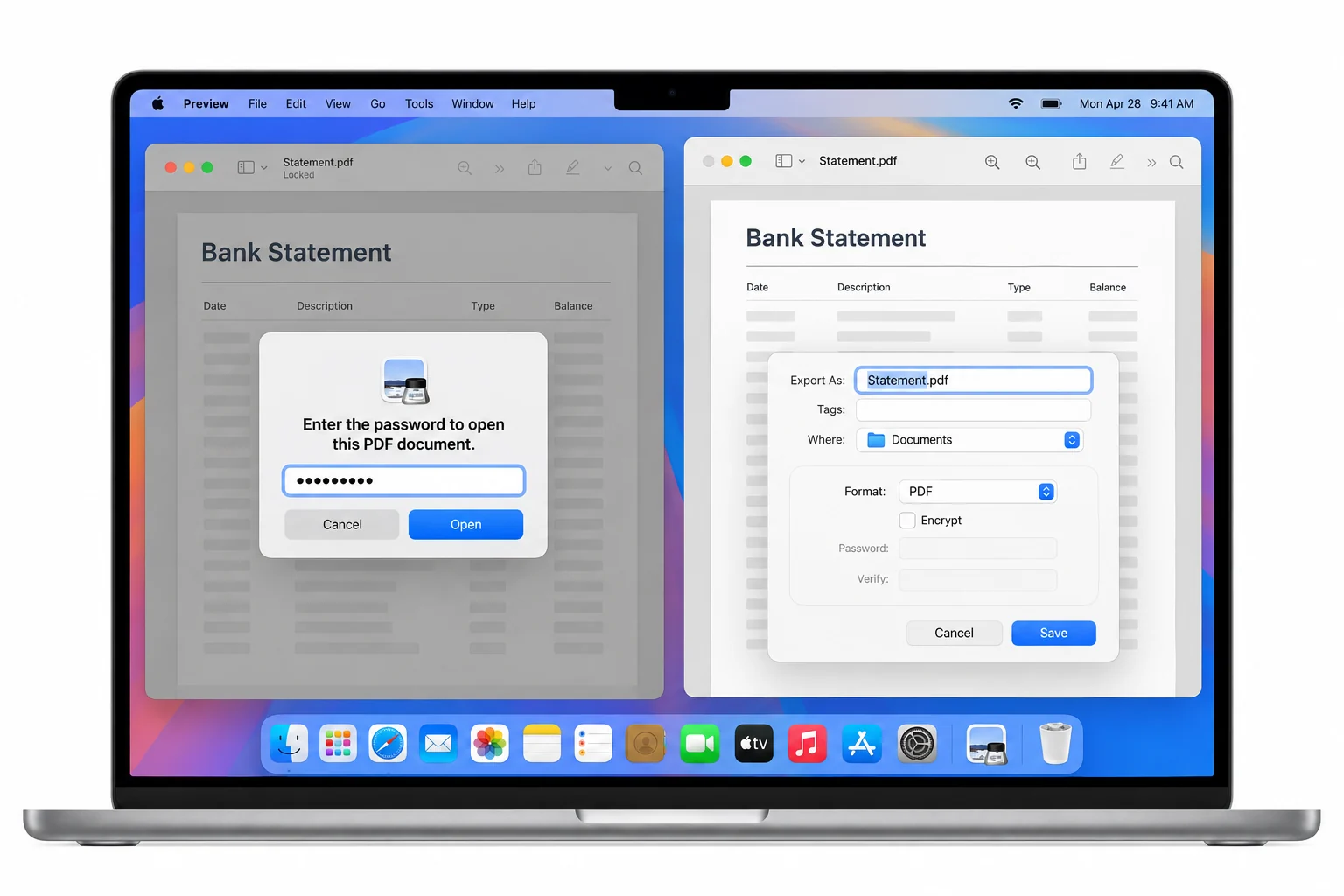
How Do You Remove a PDF Password with Preview?
Preview handles this in three short moves and needs no download. You open the file and clear its password prompt. You then send a copy out through the Export panel with encryption turned off. The saved copy carries none of the original lock. Here is the order to follow.
Preview is the built-in route on a Mac. On Windows the Univik PDF Unlocker does the same job and can take the password off a whole folder of PDFs at one time, right there on the PC.
Free Download See all featuresCan You Use the Print to PDF Trick on a Mac?
Yes. The Print panel holds a second route to the same clean file. With the PDF open and unlocked in Preview, choose File then Print. Open the PDF dropdown at the bottom left of the print sheet and pick Save as PDF. The Mac rebuilds the pages as a brand new document with no password on it. It works because a printed copy is a plain render of what you can already read, not the sealed original. Reach for this way when the Export panel looks greyed out or when you want a spare unprotected copy to keep beside the first one.
What If You Are on Windows, Not a Mac?
Preview is a Mac feature, so a Windows PC does not have it. If your file lives on a Windows machine, or if a pile of locked PDFs needs clearing in one go, a dedicated program fits the job better. The Univik PDF Unlocker runs on Windows and reaches the same result Preview does on a Mac. You open a file with the password you hold and it writes a version that opens with no prompt. Point it at a folder and it clears every file inside during one run, which beats exporting each document by hand. The tool stays on the PC and uploads nothing, so a private file never leaves for a server. It is a Windows program though, so it will not install on macOS.
| Point | Mac Preview | Univik on Windows |
|---|---|---|
| Where it runs | Your Mac | A Windows PC |
| Cost | Built in, no charge | Free trial, paid to keep |
| Files per run | One at a time | A whole folder |
| Stays offline | Yes | Yes |
| Password needed | Yes | Yes |
What If You Forgot the PDF Password on Your Mac?
No app takes off a password you do not know, on a Mac or anywhere else. Preview wants the password before it opens the file, and every honest remover behaves the same way. When the password is gone the file has not changed, so the fix is to get the password back from wherever the file arrived. Ask the person or the company that locked it to resend the document or share the code. A bank or an employer that issued the PDF can hand you a fresh copy. Software that promises to crack a forgotten password is a trap to skip, since it usually means posting a private file to a stranger with no promise of a result.
- A Mac removes a known PDF password for free with the built-in Preview app.
- Open the file in Preview, type the password, then export a copy with Encrypt left unticked.
- The File then Print route with Save as PDF gives the same unprotected copy.
- Both ways stay on the Mac and send nothing to a website.
- You need the password first. Nothing removes a forgotten one.
- On Windows, or for a whole folder at once, the Univik PDF Unlocker does the job.

Removing a PDF Password on Mac

Maintained by Leena Taylor Paul alongside the Univik team, Windows utility developers working since 2013. A lot of Mac readers only want a clean copy they can open without typing a password every time, so this guide leads with the free Preview method and is straight about when a Windows PC is the better fit. Last checked September 2026. Want a hand choosing? Contact our support team.