Windows removes a known PDF password in two ways. Open the file in Microsoft Edge, enter the password and print it to the Microsoft Print to PDF printer for a clean copy. Or use the Univik PDF Unlocker, which does it in one step and clears a whole folder.
The catch with both is the password itself. You must know the one that was set. A code that no one can find is a separate matter that nothing on Windows can fix.
A PDF that asks for a password on every open wears thin fast, and on a Windows PC you have two clean ways to stop it for good. The first uses a browser you already have. The second is a small desktop program built for the task. Both need the password you were given, and both leave the first file untouched while writing a fresh copy that opens right away. This guide walks the free browser route click by click. It then shows the one-step way with the Univik PDF Unlocker and gives the plain answer for a password no one can dig up.
Can You Remove a PDF Password on Windows?
Yes, as long as the password is one you hold. Windows ships without a menu button that peels a PDF lock off on its own, yet the parts to do it are already there. Microsoft Edge, the browser bundled with the system, will open a protected PDF the moment you key in the password. Its built-in print feature then renders the pages into a new file that holds no lock. A purpose-made program like the Univik PDF Unlocker gets to the same place in fewer clicks. Each path needs the document to open under the correct password first. No Windows trick slips past a code you were never given, which is exactly why the method stays honest and within the rules.
How Does Microsoft Print to PDF Remove a Password?
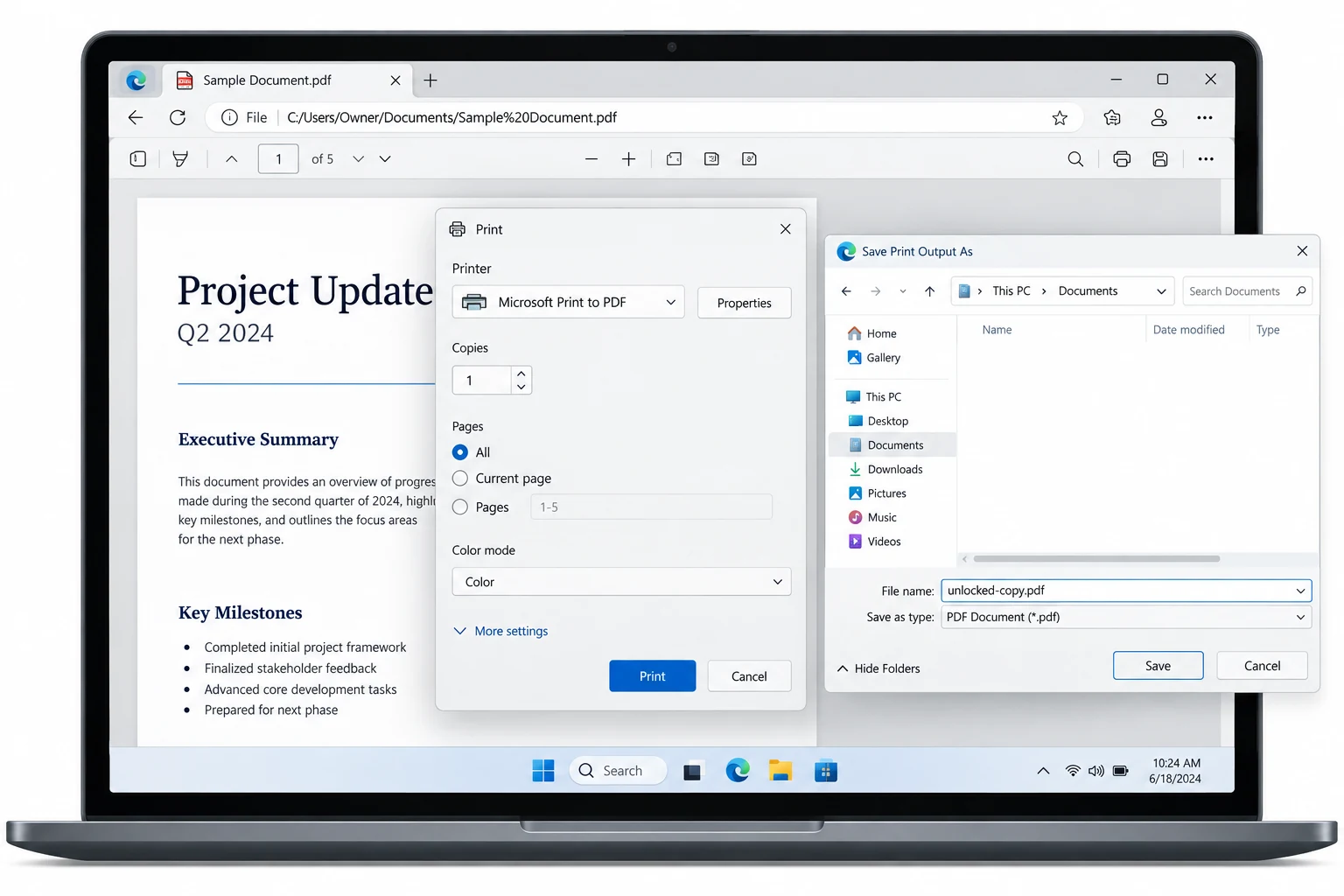
It leans on printing. With the PDF open and unlocked in Microsoft Edge, you send it to the Microsoft Print to PDF driver. That driver saves a fresh file with no lock on it. The reason it works is plain. A printout is only a flat copy of the pages you can already see, so the new PDF inherits none of the original protection.
The steps run quick. Right-click the sealed PDF and choose Open with Edge. Enter the password when the top bar prompts you. Click the printer icon at the upper right. From the printer menu select Microsoft Print to PDF. Pick a save spot and confirm. The file waiting in that spot opens straight off with no password. Google Chrome pulls off the identical move if it is your browser of choice.
How Does the Univik PDF Unlocker Remove a Password?
It handles everything in a single move with no browser step at all. The Univik PDF Unlocker is a Windows desktop program shaped for this one task. Feed it a protected PDF along with the password you know and it drops a clean copy right next to it. No print sheet, no upload, since the whole job stays on your machine. Where it truly earns its place is volume. Turn it loose on a folder and it strips the password from every PDF inside in a single run, something the print method has no answer for.
The Univik PDF Unlocker removes a known password on your Windows PC and saves a clean copy beside the original. Point it at a folder of files and it clears every one in a single run.
Free Download See all featuresWhich Windows Method Should You Pick?
Both routes finish at the same unlocked file, so your pick hangs on two things. How many PDFs are you clearing and how much do you care about keeping the original structure. The free print method fits a lone document. The desktop tool wins the instant a folder needs clearing or you want bookmarks and form fields preserved instead of flattened out. The layout below sets them side by side.
| What matters | Edge print route | Univik PDF Unlocker |
|---|---|---|
| Cost | Free | Free trial, paid to keep |
| Files in one go | One at a time | A whole folder |
| Effort per file | Several clicks | One pass |
| Runs offline | Yes | Yes |
| Bookmarks and form fields | Dropped in the rebuild | Kept |
What If the Windows PDF Password Is Forgotten?
Then no tool on the PC can help, because a password you cannot produce cannot be removed. Every route here demands the password up front, and honest software everywhere follows that rule. Forgetting the code changes nothing about the file. It stays locked exactly as before, so the only way forward is to recover the password at its source. Reach out to the bank or the office that applied the lock and ask them to resend the file or pass along the code. The party that first issued the document can normally supply a fresh copy. Give a wide berth to any website boasting that it can break a lost password, as that usually means uploading a private file to unknown hands with no guarantee of anything.
- Windows lacks a one-button PDF password remover, but Microsoft Edge and its print feature cover it at no cost.
- Open the sealed PDF in Edge, key in the password, then print to Microsoft Print to PDF for an unlocked copy.
- The Univik PDF Unlocker wraps the same job into a single step with no browser needed.
- Turn the tool loose on a folder and it strips every PDF inside in one run.
- You have to know the password first, because a forgotten code cannot be lifted on any Windows PC.
- Taking a password off a PDF you own breaks no law.

Removing a PDF Password on Windows

Kept current by Leena Taylor Paul with the Univik team, Windows desktop developers active since 2013. Most readers here have the file on a Windows PC and want it open without the prompt, so this guide covers the free print route and the one-step tool side by side. Last checked September 2026. Want a hand? Contact our support team.