Google Chrome can drop a known PDF password for free. Open the file in Chrome, type the password, then press Ctrl+P and set the destination to Save as PDF. The saved copy opens with no prompt.
The trick leans on a password you already hold and never leaves the browser window on your desktop. A password nobody can recall is a separate matter that no print setting inside Chrome will bring back.
A PDF that pops a password box every time you open it wears thin fast. If you already know that password, the Chrome browser sitting on your desktop can hand you a copy that never asks again, and you pay nothing for it. The route hides inside the ordinary Print dialog. This guide lays out the Chrome steps click by click. It then explains why the printed file loses the lock, shows when a Windows program like the Univik PDF Unlocker clears a stack of files faster and gives the honest answer for a password you can no longer recall.
Can Chrome Remove a PDF Password?
Yes. Google Chrome opens a password-protected PDF right in a browser tab and asks for the password before it shows a page. Once you type the password you were handed, the Print dialog can save a fresh copy that carries no lock at no cost. The one condition is that you hold the password to begin with. Chrome will not show the file until you enter it, so the browser cannot slip past a lock you have no key to. That leaves the whole thing lawful. Every step runs on your own computer with no website in the loop. You add no extension and you send no file away.
How Do You Remove a PDF Password in Chrome?
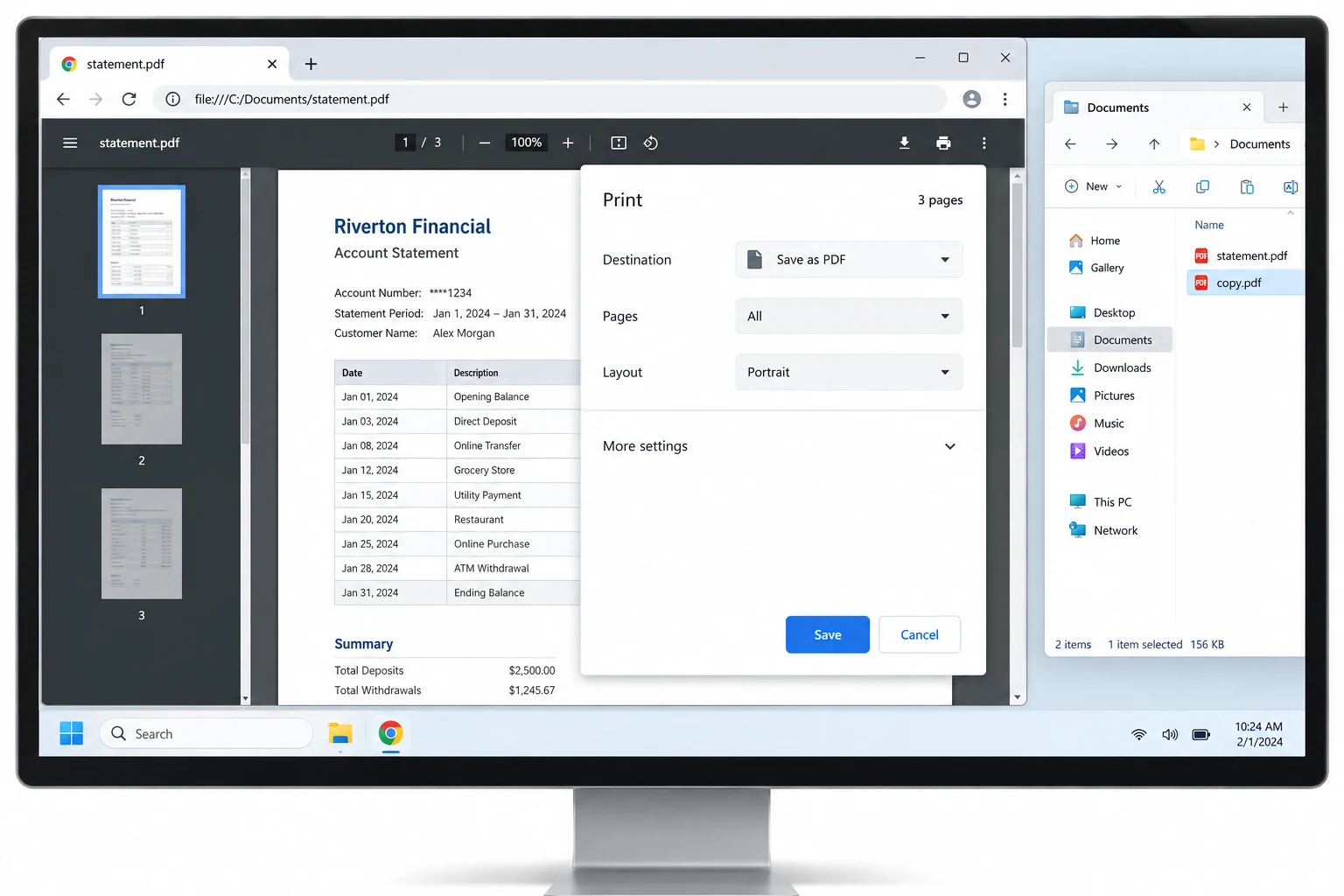
Chrome handles this from the Print dialog and needs no download. You open the locked file in the browser, clear its password box, then send the pages to the Save as PDF destination. The copy that drops out keeps none of that lock. Follow these three moves.
The Chrome trick suits one file. The Univik PDF Unlocker removes the password straight on your Windows PC and can clear a stack of files in one quick batch.
Free Download See all featuresWhat Makes the Chrome Print to PDF Trick Work?
The trick works because printing never touches the sealed file. It builds a brand new document instead. When Chrome prints a page it paints a fresh copy from what is already drawn on your screen, so the output holds the visible pages and drops the lock that sat behind them. The password guarded the way in, not the words on the page. Once you are past it and looking at the content, a print job captures that content into a plain PDF. There is nothing left for a password to protect. The same reason explains why the printed file sometimes lands a little larger, since the text can be redrawn rather than carried over byte for byte.
Is There a Faster Way Than the Browser?
Yes. A dedicated program skips the browser step. On Windows the Univik PDF Unlocker reaches the same result with fewer moves. You point it at a PDF and give it the password you know. It then saves an unlocked twin next to the original. No Print dialog, no browser tab to manage. The real gain shows with a stack of files. Aim the tool at a whole folder and it lifts the lock from every PDF inside in one sweep, while the Chrome method makes you repeat the print steps for each file by hand. Because the work stays offline, your document stays put on the PC and reaches no server at all. This is Windows software, so it stays off phones and Macs.
What If Chrome Still Asks for a Password You Forgot?
Nothing takes off a password you cannot supply, in Chrome or on any other device. The browser asks for the password before it will render the file, and every honest tool works the same way. Losing the password does not change the file. It only means the code has to reach you again from wherever the PDF started. Reach out to whoever locked the PDF and ask them to send it over once more or to pass along the password. The bank or workplace that first sent the file will usually give you a clean replacement. Steer clear of any tool that boasts it can crack a lost password, because that tends to mean shipping a confidential file off to an unknown site that guarantees nothing.
- Google Chrome removes a known PDF password at no cost from its Print dialog.
- Open the file in Chrome, type the password, then save it to the Save as PDF destination.
- The printed copy loses the lock because it is rebuilt from the pages you can already see.
- The whole job runs in the browser on your computer and nothing is uploaded.
- You need the password first. A forgotten one cannot be removed by any tool.
- On Windows, or for a batch of files, the Univik PDF Unlocker is the quicker route.

Common Questions About Chrome and PDF Passwords

Leena Taylor Paul put this together with the wider Univik crew, a group that has shipped Windows file tools since 2013. Plenty of readers reach this page with one locked PDF and a Chrome window already open, so it leads with the browser route and notes the faster desktop path. Last checked September 2026. Still weighing your options? Contact our support team.