You do not need Adobe Acrobat to remove a known PDF password. A browser print to PDF, the Mac Preview app or the Univik PDF Unlocker on Windows each save a clean copy for free, as long as you know the password.
Acrobat Pro can do the same job, but it is a paid app you can skip here. Each free route still needs the current password to work.
Acrobat Pro is the name most people reach for when a PDF keeps asking for a password, and it does the job. It is also a paid subscription, and you do not have to pay it to take a password off a file you own. If you know the password, three no-cost routes reach the same clean copy. A browser can print the open file to a fresh PDF. A Mac can export one from Preview. On Windows the Univik PDF Unlocker saves an unlocked version and can clear a whole folder at once. This guide runs through each one and is straight about what it can and cannot do.
Do You Need Adobe Acrobat to Remove a PDF Password?
No. Acrobat Pro is one way to strip a password, not the only way. The paid app carries a permissions tool that clears a known password, yet the same result comes from software already on your computer or built into your browser. What every route shares is one rule. You have to enter the password the file wants before any of them will write a clean copy. That is what keeps the step lawful. You are opening a document you are allowed to open and saving a version without the lock. None of the free options can force past a password you cannot supply. Acrobat cannot either.
How Do You Do It in a Browser Without Adobe?
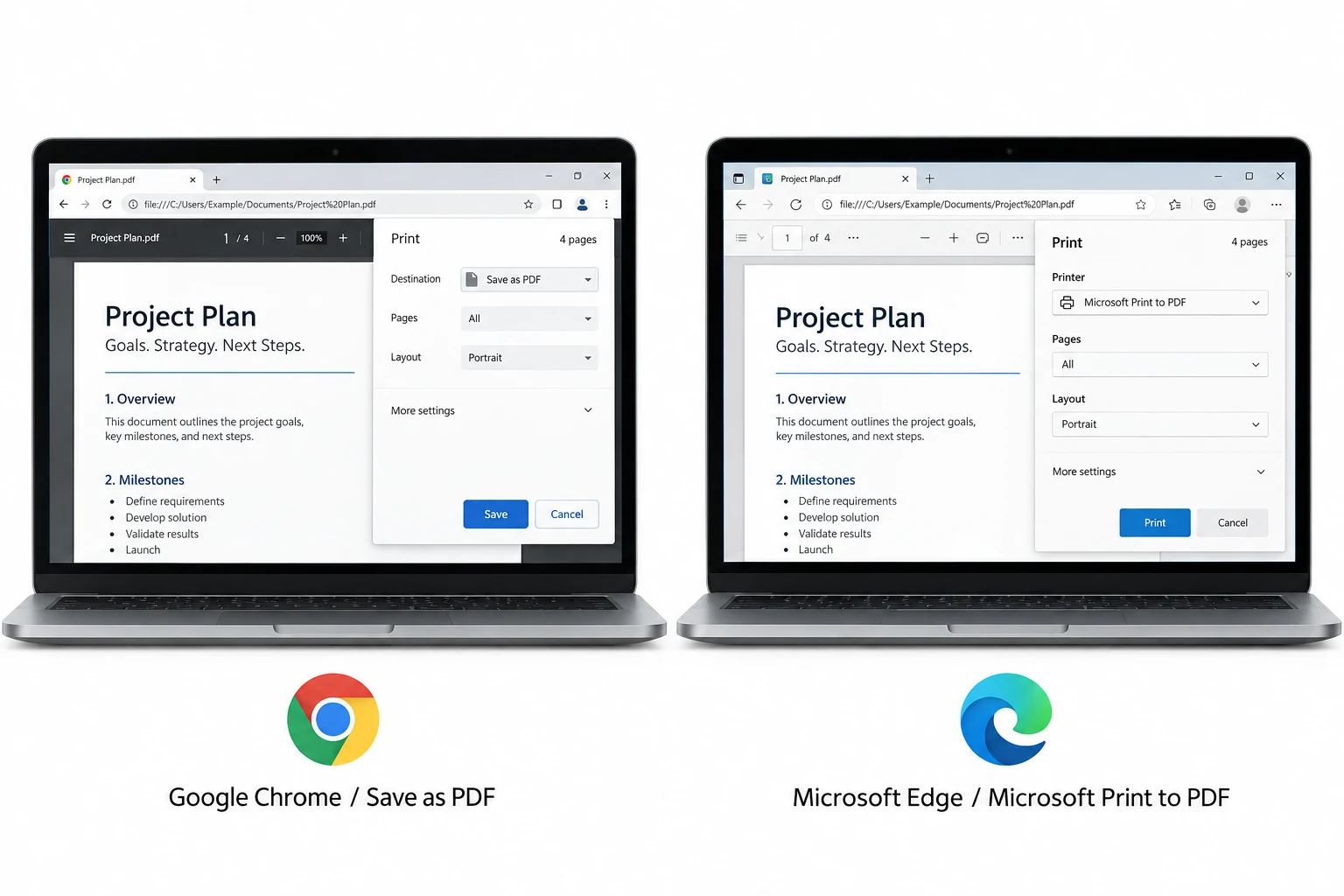
Open the PDF in Chrome or Edge, type the password when the tab asks for it, then use the browser Print menu and pick Save as PDF as the printer. The browser lays the pages into a new file that opens with no password. It works because the printout is a plain copy of what is already on the screen, so the lock does not carry over. This route needs no install and no account. It handles one file at a time though. A scanned page saved this way turns into a flat image with no text you can select.
How Do You Remove a PDF Password on Windows Without Adobe?
On a Windows PC the Univik PDF Unlocker does the work with no Acrobat in the picture. It reads the file from your own drive, takes off a password you can already enter and writes a copy that opens straight away. The whole thing runs on the machine, so the document is never sent to a website. Aim it at one document or a stack of them inside a folder and it works through the set on its own. The three moves below are all it takes.
On Windows the Univik PDF Unlocker lifts a known password with no Adobe Acrobat in sight. It saves a clean copy beside the original and can wipe a full folder of PDFs at one sitting.
Free Download See all featuresWhich Free Route Should You Choose?
The right pick depends on your device and how many files sit in front of you. The browser method suits a one-off on any computer with Chrome or Edge. Preview is the natural choice on a Mac. For a Windows PC, or a pile of locked PDFs that all need clearing, the Univik PDF Unlocker moves fastest because it takes on a whole folder in one go. The table lines them up side by side.
| What matters | Browser print | Mac Preview | Univik on Windows |
|---|---|---|---|
| Cost | Free | Free | Free trial, paid to keep |
| Runs on | Any PC or Mac browser | macOS only | Windows |
| Clears a whole folder | No | No | Yes |
| Keeps the text layer | Not on scans | Yes | Yes |
What If You Forgot the Password and Have No Adobe?
No tool brings back a password you cannot enter, and paying for Acrobat does not change that. Adobe asks for the password before it opens the file, the same as every honest remover on Windows or a Mac. A forgotten code leaves the file exactly as it was, so the answer is not a new app. It is getting the password back. Go to whoever set the lock and ask them to send the file again or pass on the code. A bank or an office that mailed the locked PDF can supply a working copy. Steer clear of sites that claim to crack a lost password, since it usually means handing a private file to strangers for no promised result.
- Adobe Acrobat Pro can remove a PDF password, but it is a paid app you do not need.
- A browser can print an open PDF to a fresh copy that carries no password.
- The Mac Preview app exports an unlocked copy at no cost.
- On Windows the Univik PDF Unlocker clears a known password and takes on a whole folder at once.
- Every free route needs the current password before it will save a clean file.
- No tool with or without Acrobat brings back a password nobody remembers.

Removing a PDF Password Without Adobe

Leena Taylor Paul writes these PDF guides alongside the Univik team, makers of Windows utilities since 2013. A lot of readers land here because Acrobat Pro is a paid app they would rather skip, so this guide lists the free routes and is honest about what each one needs. Last checked September 2026. Need a hand choosing? Contact our support team.