An iPhone can remove a known PDF password with no extra app. Open the locked file in the Files app and enter the password. Tap the Print option, then re-save that preview back to Files. The new copy opens with no password.
Both routes use the password you already know and stay on the phone, so nothing is uploaded. A password nobody remembers is a different problem that no iPhone trick can solve.
A PDF that demands a password on every open gets tiring fast on a phone. The upside is that your iPhone can put a stop to it using apps that came in the box. So long as the password is one you know, the Files app and Apple Books can each hand back a fresh copy that never asks again. Below you will find the Files app route laid out tap by tap, the Books method as a backup, the Univik PDF Unlocker for clearing a large batch on Windows and the honest answer for a code you can no longer recall.
Can You Remove a PDF Password on an iPhone?
Yes. The apps for it are already on the phone. Both the Files app and Apple Books can lift a known password off a PDF without costing a cent. You open the sealed file and key in the password you hold. The phone then hands back a clean duplicate that no longer prompts. That duplicate stays unlocked from that point forward. The single condition is that the password has to be one you know. Each honest route checks for it before a page appears, so not one of them can force its way into a document you cannot already open. All of it happens on the handset and no copy is sent anywhere online.
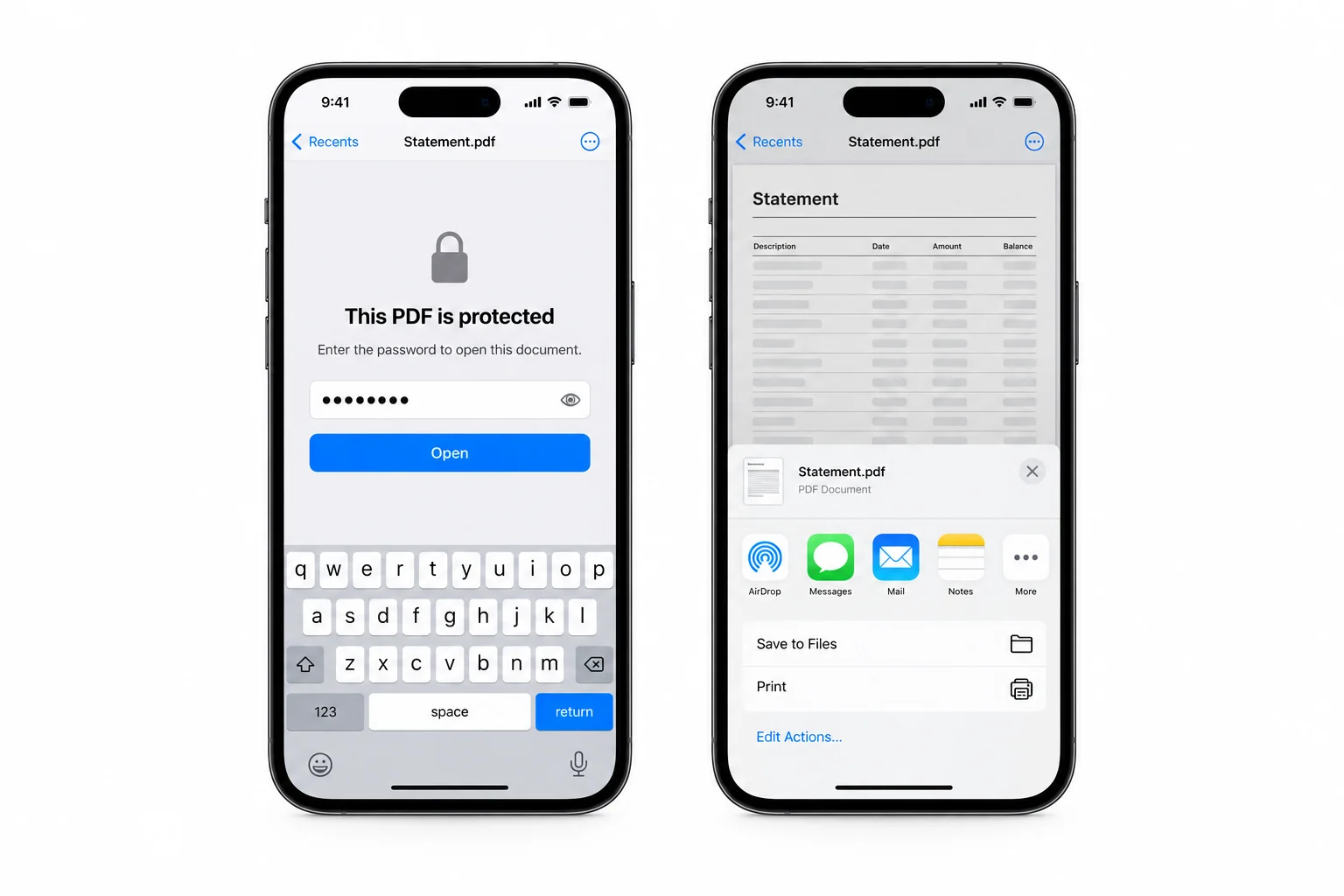
How Do You Unlock a PDF Using the Files App?
The Files app quietly doubles as an unlocker through the built-in Print sheet. You open the protected PDF from inside Files and get past its password box. From there you push it through Print, which lays the pages down into a fresh file. That fresh file carries no password because the print output only mirrors the pages you were already able to see, not the sealed original. The three taps below get you there.
The phone method is fine for one file. On a Windows PC the Univik PDF Unlocker removes the password and can clear a whole folder of PDFs at once.
Free Download See all featuresCan Apple Books Unlock a PDF Too?
Yes. Apple Books offers a second path to the very same clean file. Pull the protected PDF into Books and put in the password one time. Next tap the Share icon and pick the option to export or send a copy of the document. Whatever Books passes along has dropped the password, so it opens on the spot wherever it lands. Lean on Books when the Files print route feels clumsy or when you would like a spare unprotected version sitting next to the first. Each app finishes the task on the phone by itself and posts nothing to a server.
What If You Want to Do This on a Computer?
A phone copes fine with a single file. A heap of locked PDFs is another matter. When a batch of them has to be cleared at one sitting, a desktop program beats poking at each one on a small screen. The same holds when the files already live on a Windows PC. The Univik PDF Unlocker is a Windows program that lands the same clean file the phone gives you. Feed it a document plus the password you know and it saves out an unprotected twin. Aim it at a whole folder and it churns through each PDF inside in one pass. Everything runs on the machine itself with no upload, which means a confidential file never heads out to some server. It is Windows software though, so it will not load onto an iPhone or a Mac.
| Point | iPhone (Files and Print) | Computer (Univik on Windows) |
|---|---|---|
| Files handled at once | One | A whole folder |
| Screen to work on | Small phone | Full desktop |
| Steps involved | A few taps each time | One pass for the set |
| Saves a clean copy | Yes | Yes |
| Needs the password | Yes | Yes |
What If the PDF Password Is One You Forgot?
Nothing strips a password you are unable to supply, on an iPhone or any other device. The Files app and Books each demand the password before a file will open. Every honest remover behaves that way. Losing the password does not alter the file one bit. It only means the code has to come back to you from wherever the PDF started out. Ask whoever set the lock to send the file across again or to share the code. The bank or office that first handed you the file can usually reissue it. Apps that boast about cracking a lost password are worth steering clear of, because they usually mean handing a private document to some unknown site that gives no guarantee of a result.
- The iPhone strips a known PDF password at no cost using the Files app or Apple Books.
- Open the file, put in the password, then re-save a copy through Print with the lock gone.
- Apple Books can export an unprotected copy the same way once the password is entered.
- Every route runs on the phone and sends no file to the internet.
- The password has to be one you know. A forgotten code cannot be stripped by anything.
- For a big batch or a Windows PC, the Univik PDF Unlocker handles it.

Removing a PDF Password on iPhone

Drafted by Leena Taylor Paul alongside the Univik crew that has built Windows file tools since 2013. Many readers here only need one locked file to open on their phone without the daily password prompt, so this guide leads with the built-in iPhone steps and is clear about when a computer is easier. Last checked September 2026. Stuck on your phone? Contact our support team.