
On DSM 6 (MailPlus Server 1.x or 2.x): MailPlus exports MBOX files. Import them directly into Thunderbird with no conversion. On DSM 7 (MailPlus Server 3.x or 4.x): MailPlus exports PST files only. Convert PST to MBOX first using Univik Synology MailPlus Converter, then follow the same import steps. Either way, Thunderbird is the easiest destination because it reads MBOX natively. No conversion is needed once you have MBOX files. The only tool needed beyond Thunderbird itself is the ImportExportTools NG plugin. Thunderbird’s built-in import handles single MBOX files but does not correctly reconstruct MailPlus Server’s multi-folder structure. ImportExportTools NG imports folder by folder and preserves the full hierarchy. The migration takes under an hour for most archives.
DSM 7 users: MailPlus Server does not export MBOX files
On DSM 7 (MailPlus Server 3.x and 4.x), the only export format is PST. There is no MBOX export option. Before following the import steps in this guide, DSM 7 users must convert their PST file to MBOX using Univik Synology MailPlus Converter. The DSM 7 conversion section below covers this in full. On DSM 6 (MailPlus Server 1.x and 2.x), MBOX export is available directly and the steps below apply without any conversion.
Why Thunderbird Is the Simplest MailPlus Migration Path
Every other migration destination covered in this cluster Microsoft 365, Outlook, Google Workspace, Gmail requires converting the MailPlus MBOX files to a different format first. Thunderbird does not. Both MailPlus Server and Thunderbird use MBOX as their email storage format. The files exported from MailPlus Server are, at their core, the same format Thunderbird reads natively.
This removes the conversion step entirely. There is no PST to generate, no EML to create, no intermediate format. Export the MBOX files from MailPlus Server, import them into Thunderbird and the migration is done. The catch explained below is that the import needs to use the right tool.

“Thunderbird is one of the targets we test from a Synology in our own lab. The size of the source still matters: our largest Synology export was 11 TB, roughly 3,246 mailboxes.”
Nick Rogers
|Founder, Univik, building file conversion tools since 2013
The Catch: Built-In Import Does Not Handle Folder Structure
Thunderbird includes a built-in import wizard under File then Import. It accepts MBOX files but handles them inconsistently for complex folder structures. With a MailPlus Server export which produces separate MBOX files for Inbox, Sent, Drafts and every custom folder Thunderbird’s built-in import often creates a single flat folder containing all messages rather than recreating the original folder hierarchy.
The ImportExportTools NG plugin solves this. It imports each MBOX file as a separate Thunderbird folder, correctly rebuilding the multi-folder structure from a MailPlus Server export. For any MailPlus archive with custom folders, ImportExportTools NG is not optional. It is required for a clean import.
What You Need Before Importing MailPlus Email Into Thunderbird
Mozilla Thunderbird free download at thunderbird.net. Works on Windows, Mac and Linux. All current Thunderbird releases are supported. The plugin developer releases version-specific compatibility updates before installing, confirm the add-on version matches your Thunderbird version at addons.thunderbird.net.
ImportExportTools NG plugin free add-on, available through Thunderbird’s add-on search or at addons.thunderbird.net. Search for “ImportExportTools NG”. Confirm the developer is Christopher Leidigh to avoid installing the older legacy fork. The original “ImportExportTools” without NG was a separate, discontinued plugin.
Exported MBOX files from MailPlus Server run the admin MBOX export as described in our MailPlus Server export guide. Copy the export folder to the machine where Thunderbird will run. The NAS does not need to stay connected after the copy is complete.
Enough local disk space Thunderbird stores imported email in its own profile folder on the local drive. The space required is approximately equal to the total MBOX file size.
Step 1: Get Your MailPlus Server Email Files
The files you need depend on your DSM version. On DSM 6, the MailPlus Server admin export produces MBOX files: a folder per account with separate MBOX files for each folder. On DSM 7, the export produces a PST file per account. DSM 7 users: continue to the DSM 7 conversion section after this step before moving to Step 2.
For DSM 6, the MBOX export produces a folder structure like this:
├── john@yourdomain.com/
│ ├── INBOX.mbox
│ ├── Sent.mbox
│ ├── Drafts.mbox
│ └── CustomFolder.mbox
└── …
Each .mbox file is a standard MBOX file. Copy the entire export folder to the machine where Thunderbird is installed. For the full export steps including DSM 6 vs DSM 7 differences, see the export guide.
DSM 7 Users: Convert PST to MBOX First
If your NAS runs DSM 7 (MailPlus Server 3.x or 4.x), the MailPlus Server export produces a PST file, not MBOX. Thunderbird cannot open PST files directly MBOX is the format it reads. You need to convert the PST to MBOX before the import steps below will work.
Univik Synology MailPlus Converter converts PST to Thunderbird and MBOX files on Windows without requiring MailPlus Server to stay connected. Export the PST from MailPlus Server, run the converter and choose Thunderbird or MBOX as the output format. The resulting MBOX files are then ready for the Thunderbird import in Step 3.
DSM 7 export path reminder
Export PST from MailPlus Server admin first
In MailPlus Server, go to Account then User, select the account, click Import/Export then Export. The PST downloads to your browser. See the export guide for the full admin steps and how to enable user self-export.
Once you have the PST file, open Univik Synology MailPlus Converter and select MBOX as the output format. The converter preserves all folder structure Inbox, Sent, Drafts and custom folders all appear correctly in the MBOX output, ready to import into Thunderbird.
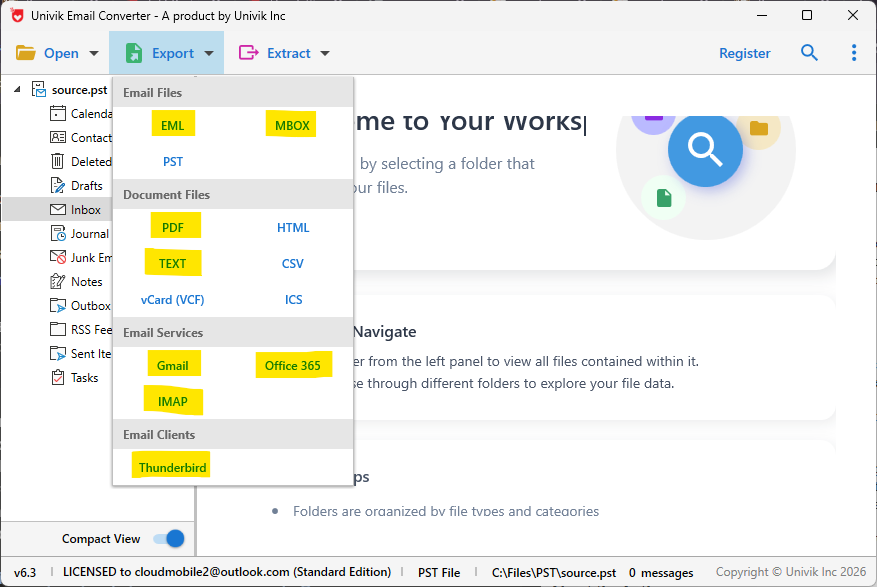
Select MBOX as the output format in Univik Synology MailPlus Converter. Then import the resulting MBOX files into Thunderbird using the steps below
DSM 6 users: skip this section. The MBOX files from the DSM 6 Storage then Back Up export are already in the correct format. Continue directly to Step 2.
Step 2: Install Thunderbird and ImportExportTools NG
Download and install Thunderbird. Go to thunderbird.net and download the installer for your operating system. Install normally. On first launch, Thunderbird asks you to set up an email account you can skip this if you only want local folder storage or add an account if you want Thunderbird connected to a live email service.
Install ImportExportTools NG. In Thunderbird, go to Tools then Add-ons and Themes. Click the magnifying glass icon and search for “ImportExportTools NG”. Select the plugin by Christopher Leidigh from the results. Click Add to Thunderbird then Add. Relaunch Thunderbird after installation to ensure the plugin is fully active. The ImportExportTools NG option then appears in the right-click context menu on any folder.
Step 3: Import MBOX Files Into Thunderbird
ImportExportTools NG offers two import approaches. Choose based on how many accounts you are importing.
Single Account Import
For one account, create a new local folder in Thunderbird named after the account. Right-click Local Folders, select New Folder and name it (for example, “MailPlus Archive: john@yourdomain.com”). Then right-click that folder and go to ImportExportTools NG then Import MBOX file. Navigate to the account’s export folder. Import INBOX.mbox first, then each additional folder.
Multiple Account Import
For multiple accounts, right-click Local Folders and go to ImportExportTools NG then Import All MBOX Files From a Directory. Select the top-level MailPlus export folder. The plugin processes each account subfolder and creates matching folders in Thunderbird. Review the structure after import to confirm all accounts imported correctly.
Importing custom subfolders
MailPlus Server exports custom nested folders as a folder hierarchy. For example, a folder called Projects containing subfolders Q1-2024 and Q2-2024 appears as separate MBOX files inside a Projects subdirectory in the export. ImportExportTools NG recreates this structure in Thunderbird automatically when using the Import All MBOX Files from a Directory option. Manual single-file import requires importing each subfolder MBOX file into the correct parent folder in Thunderbird.
How Folder Structure Maps in Thunderbird
| MailPlus Server Folder | Thunderbird After Import |
|---|---|
| INBOX | Folder named “INBOX” under Local Folders |
| Sent | Folder named “Sent” under Local Folders |
| Drafts | Folder named “Drafts” under Local Folders |
| Trash | Folder named “Trash” under Local Folders |
| Custom folder (Projects) | Folder named “Projects” under Local Folders |
| Nested folder (Projects/Q1-2024) | Subfolder “Q1-2024” under the “Projects” folder |
All imported email lives under Local Folders in Thunderbird. Local Folders is offline storage. The email is on your local drive and does not sync anywhere. This is the correct destination for archiving MailPlus email locally. If you also want the email accessible in an online account (Gmail, Outlook.com etc.), use the Thunderbird bridge method described in our MailPlus to Gmail guide to sync from Local Folders to that account.
Step 4 (Optional): Connect Thunderbird to a Live Mail Account
Thunderbird can run imported Local Folders alongside live IMAP email accounts simultaneously. This is useful for users who want Thunderbird as their new primary email client and also want their MailPlus archive accessible in the same interface.
Add your new email account to Thunderbird. Go to File then New then Existing Mail Account. Enter your name, new email address and password. Thunderbird auto-detects settings for major providers (Gmail, Outlook.com, Yahoo, ProtonMail and most IMAP servers including MailPlus Server itself if it is still running).
The IMAP account and Local Folders coexist. In Thunderbird’s left panel, the IMAP account (your live email) appears at the top and Local Folders (your MailPlus archive) appears below. New email arrives in the IMAP account. Old MailPlus email is accessible in Local Folders. Both are searchable via Thunderbird’s global search.
After Import: What to Check
If you would rather confirm the export first, you can view Thunderbird mail files online, since it reads the same MBOX format Thunderbird uses.
Check that all expected folders appear. Open Local Folders in Thunderbird and confirm that Inbox, Sent, Drafts and all custom folders from MailPlus Server are present. A missing folder means that MBOX file was not imported. Import it manually.
Verify message counts in key folders. Right-click a folder in Thunderbird, select Properties and note the total message count. Compare this against the email counts shown in the MailPlus Server export log or in the Univik converter preview. A significant discrepancy means the import was incomplete.
Open a sample of emails with attachments. Click on five to ten emails that had attachments in MailPlus Server and confirm the attachments open correctly. Attachment display failures in Thunderbird are uncommon with MBOX imports but worth checking.
Test search across the imported email. Use Thunderbird’s global search (the magnifying glass in the top right) to search for a known email by sender name. Confirm it appears in the results. Thunderbird indexes imported email in the background If search returns nothing immediately, wait a few minutes and try again.
Frequently Asked Questions
Does Thunderbird support MBOX files natively?
Yes. Thunderbird stores its own email in MBOX format internally. This is why MailPlus Server MBOX exports can be imported into Thunderbird without any conversion. The ImportExportTools NG plugin is needed not because Thunderbird cannot read MBOX but because the built-in import wizard does not handle MailPlus Server’s multi-folder structure reliably.
Is ImportExportTools NG free?
Yes. ImportExportTools NG is a free, open-source Thunderbird add-on maintained by Christopher Leidigh. It is available through Thunderbird’s official add-on repository at addons.thunderbird.net. There is no cost and no registration required.
Can I import email from multiple MailPlus accounts into one Thunderbird profile?
Yes. Thunderbird Local Folders can hold email from any number of source accounts. For a clear structure, create a parent folder in Local Folders for each account (name it after the email address) before importing, then import each account’s MBOX files into its corresponding parent folder. This keeps John’s email and Sarah’s email clearly separated in the Thunderbird folder tree.
What happens to the original MBOX files after import?
The original MBOX files are not affected by the import. Thunderbird copies the email content into its own profile folder. The source MBOX files remain in the original export location. Keep them as a backup until you have verified the Thunderbird import is complete and accurate. Do not delete the originals until the verification passes.
Can I keep using MailPlus Server and Thunderbird at the same time during the transition?
Yes. If MailPlus Server is still running, add it as an IMAP account in Thunderbird alongside the Local Folders containing the imported archive. New email arrives via the IMAP account. The imported archive lives in Local Folders. Both are searchable simultaneously. When you are ready to stop using MailPlus Server, run a final MBOX export to capture any email that arrived after the initial import and import those messages into Thunderbird.
MailPlus Server to Thunderbird: Summary
Thunderbird is the lowest-friction migration path for MailPlus Server email. No conversion software is needed if the destination is Thunderbird local folders. The MBOX files go straight in. The ImportExportTools NG plugin is the one non-obvious requirement, and it is free.
For users on any operating system Windows, Mac or Linux who want offline access to their full MailPlus email archive in a free, capable email client, this is the fastest migration path available.
Is Thunderbird your primary email client going forward or a stepping stone to another destination? If Thunderbird is the endpoint, the import above is the complete migration. If you want the email in Gmail or another cloud service after importing to Thunderbird, see the bridge method in our MailPlus to Gmail guide.